
Updated on 25 November 2026
Workflows: checking the documents of a stage (Signature history)
How to choose a workflow and a stage, see only your signatures, check a document's signature tracking, view it, download it as a PDF, download the list to Excel and refresh it.
Choose a workflow and a stage
- 1
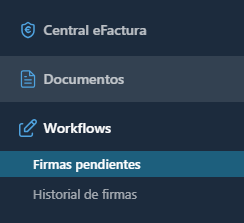
Click «Workflows» in the side menu
«Firmas pendientes» (Pending signatures) opens and, below «Workflows», «Firmas pendientes» and «Historial de firmas» (Signature history) appear.
- 2
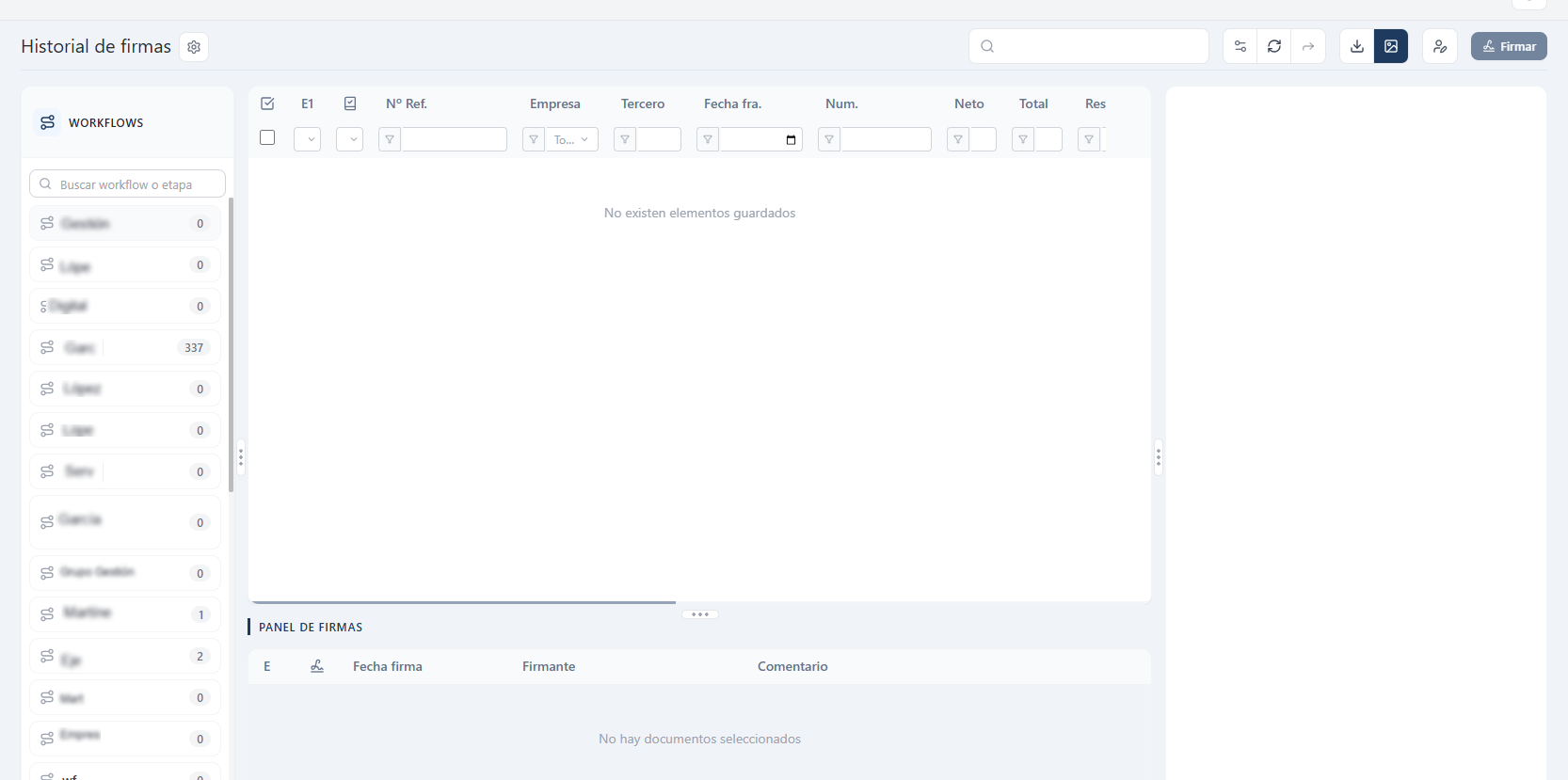
Click «Historial de firmas»
«Historial de firmas» opens, with the workflow tree. Next to each workflow is its number of documents in progress.
- 3
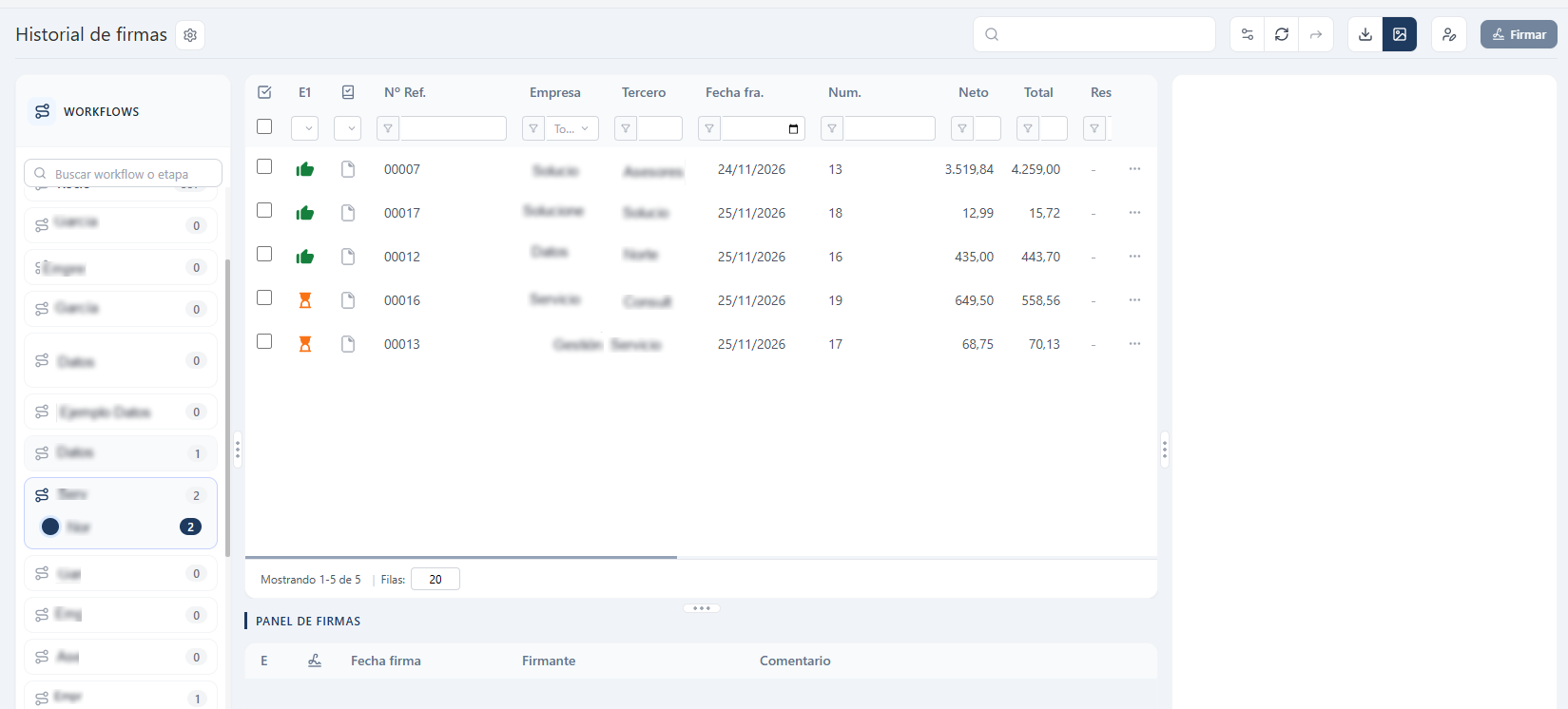
Click a workflow
Its stages expand, each with its documents in progress, and the first one is selected.
- 4
Click a stage
The stage is highlighted and the list shows all its documents, signed or not. To change workflow, click a stage of another workflow in the tree.
- 5
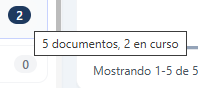
To find out how many documents a workflow or a stage has, hover the mouse over it
You see the total number of documents and how many are in progress.
See only your signatures
- 1
Click «Mostrar solo mis firmas»
Click
 on the toolbar («Mostrar solo mis firmas», Show only my signatures). The list keeps only your signatures and the button becomes
 («Mostrar las firmas de todos los usuarios», Show all users' signatures).
- 2
To see everyone's again, click «Mostrar las firmas de todos los usuarios»
All users' documents come back.
Check a document's signature tracking
- 1
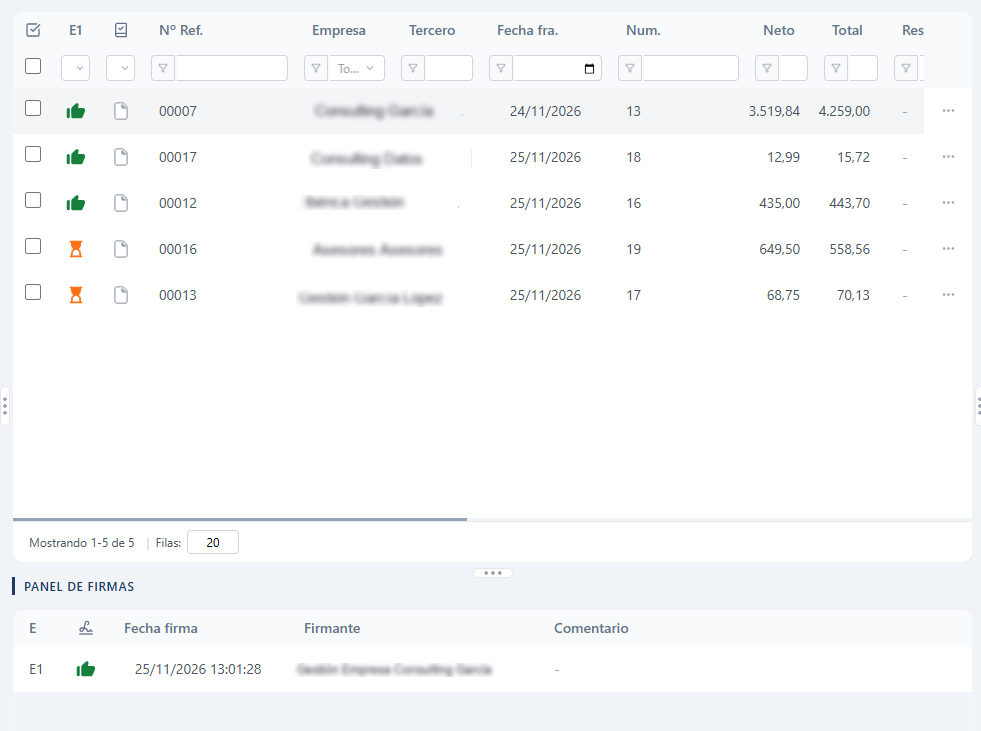
Tick a document's checkbox
Below the list, the «Panel de firmas» (Signature panel) shows its tracking.
- 2
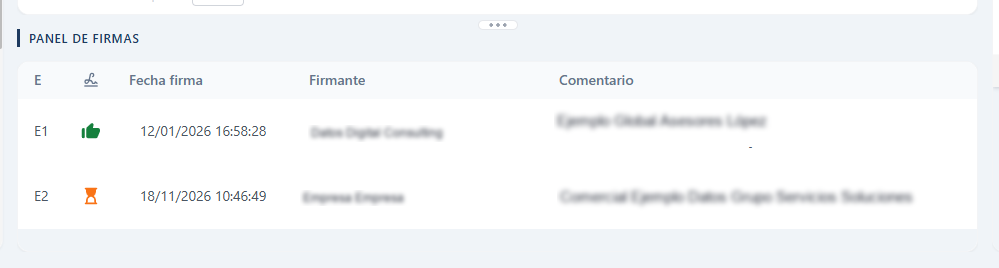
Check the «Panel de firmas»
There is one row per stage (E1, E2…) with the signature status, «Fecha firma» (Signature date), «Firmante» (Signatory) and «Comentario» (Comment). If you tick another document, the panel shows its tracking.
View the document
- 1
Tick a document and click «Mostrar imagen del documento»
Click
 on the toolbar («Mostrar imagen del documento», Show document image). The viewer opens with the document and the button becomes «Ocultar imagen del documento» (Hide document image).
- 2
Use the viewer buttons
To zoom in or out, rotate right or left and change page. The viewer shows the page displayed and how many pages the document has.
- 3
To close the viewer, click «Ocultar imagen del documento»
It is the same button. The viewer is hidden.
Download the document as a PDF
- 1
Tick the document and click «Descargar documentos»
Click
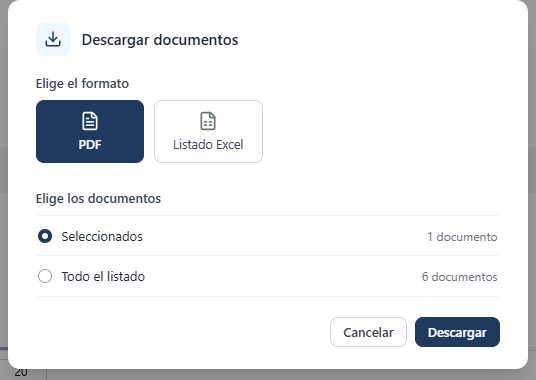
 on the toolbar («Descargar documentos», Download documents). «Descargar documentos» opens, with «PDF» selected in «Elige el formato» (Choose the format) and «Seleccionados» (Selected) in «Elige los documentos» (Choose the documents).
- 2
Click «Descargar»
«Descargar» (Download). The document is downloaded as a PDF.
Download the list to Excel
- 1
Click «Descargar documentos»
Click
 on the toolbar. If you have not ticked any document, «Todo el listado» (The whole list) is selected in «Elige los documentos».
- 2
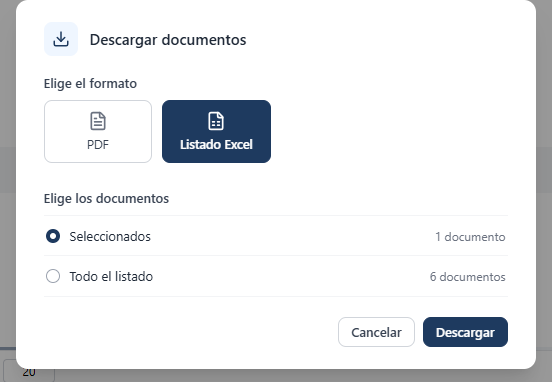
In «Elige el formato», select «Listado Excel»
«Listado Excel» (Excel list). In «Elige los documentos», «Todo el listado» includes all the documents in the list, and «Seleccionados» only the ticked ones.
- 3
Click «Descargar»
An .xlsx file is downloaded with the documents and their visible columns.
Refresh the list
- 1
Click «Refrescar»
Click
 on the toolbar («Refrescar», Refresh). The documents and the tree counters are reloaded.
To sign the stage's documents: Signing documents.