
Updated on 20 November 2026
Creating a new delivery note (Standard or Simplified)
How to create a delivery note in the Invoicing tool: customer, series and number, item lines, withholding, other amounts and payment method.
Create a Standard delivery note
- 1
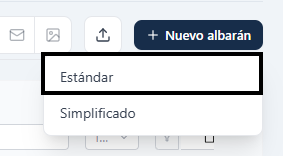
Click «Nuevo albarán» and choose «Estándar»
On the Invoicing tool's «Albaranes» (Delivery notes) tab. The «Nuevo albarán» (New delivery note) form opens («Estándar», Standard).

- 2
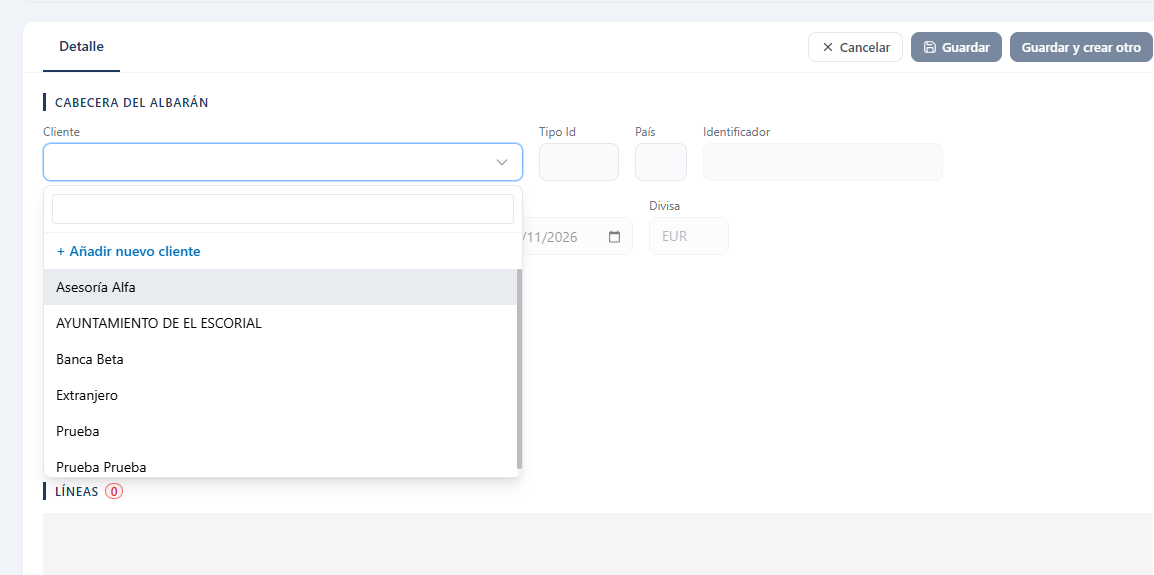
Choose the customer
In «Cabecera del albarán» (Delivery note header), open the «Cliente» (Customer) drop-down, type part of the name in the search box and choose the customer from the list.
- 3
Choose the series
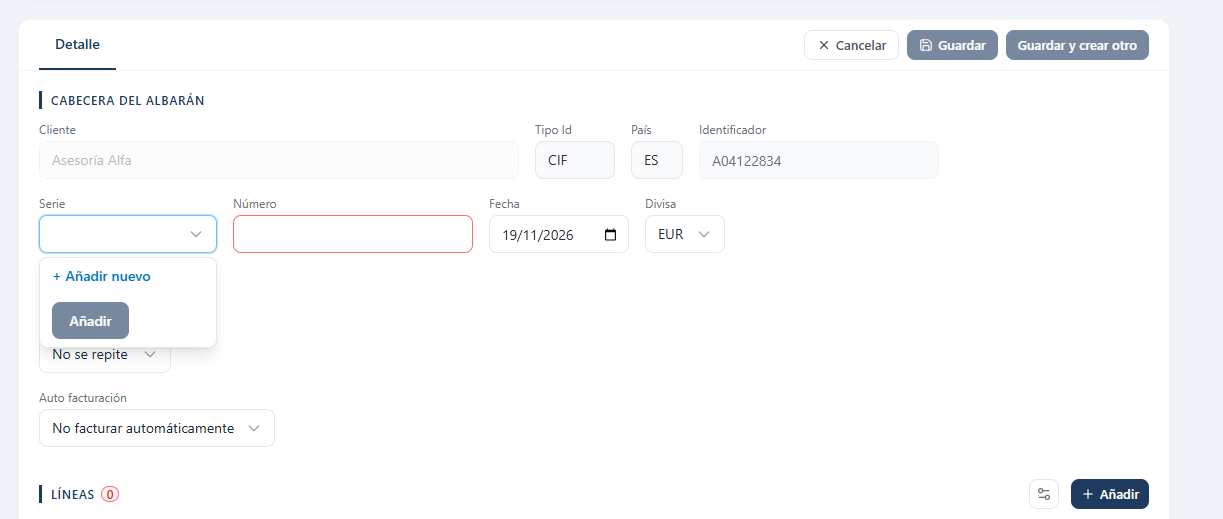
In «Serie» (Series). If the series does not exist yet, create it from the drop-down itself with «Añadir nuevo» (Add new).
- 4
Check the number
The «Número» (Number) is filled in automatically with the next one in the series; you can change it.

Add the item lines
- 1
Click «Añadir» in «Líneas»
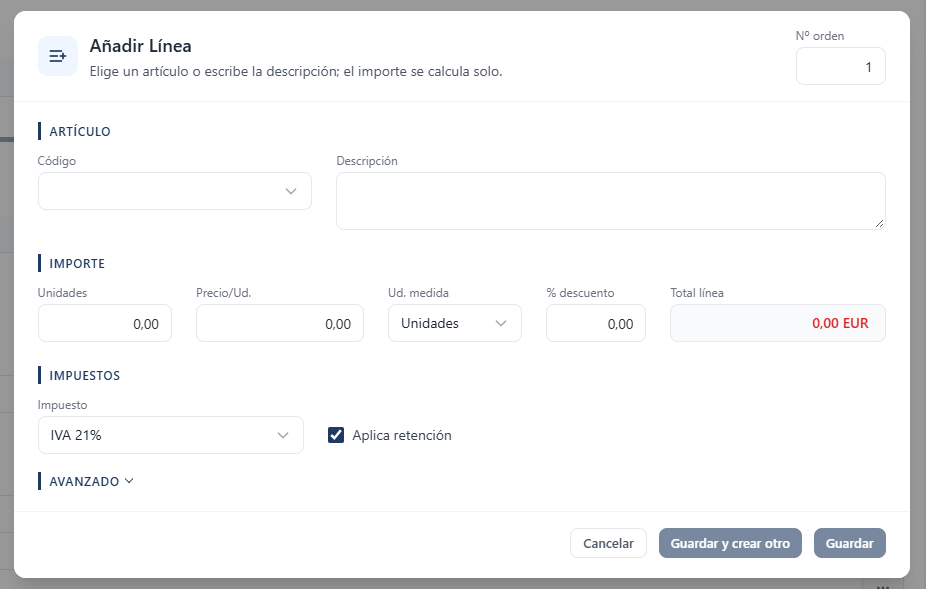
The «Añadir Línea» (Add line) window opens, with the «Artículo» (Item), «Importe» (Amount) and «Impuestos» (Taxes) sections.

- 2
Choose the item and the units
In «Código» (Code), search for the item and choose it. In «Unidades» (Units), type the quantity: the «Total línea» (Line total) is calculated automatically.
- 3
Click «Guardar»
If «Guardar» (Save) is disabled, choose the line's «Impuesto» (Tax). Repeat these steps for each item on the delivery note.
Edit or delete a line
- 1
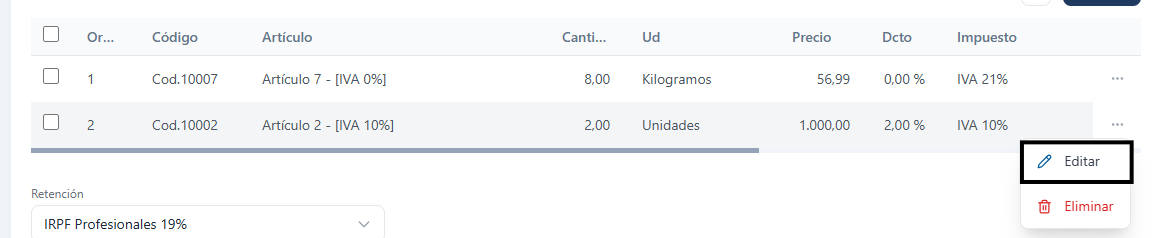
Open the line menu and choose «Editar»
In the «Líneas» (Lines) table, click the three-dot button on the row. The «Editar línea» (Edit line) window opens.
- 2
Change what you need and click «Guardar»
For example, the units. The row shows the new value, with decimals (for example, 7,00).
- 3
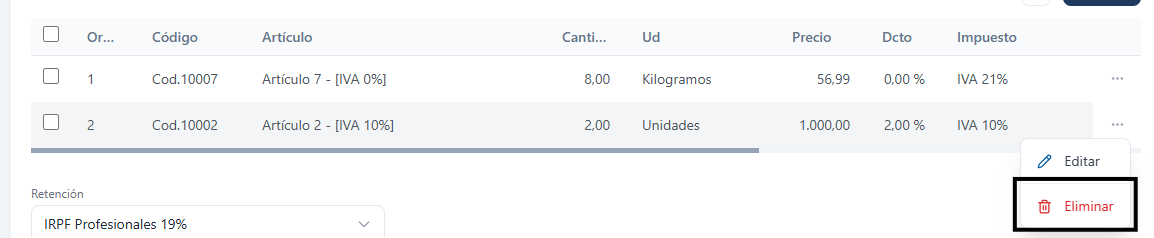
To remove a line, choose «Eliminar»
In its row menu («Eliminar», Delete). The line disappears from the table.
Apply withholding to a line
- 1
Tick or untick «Aplica retención»
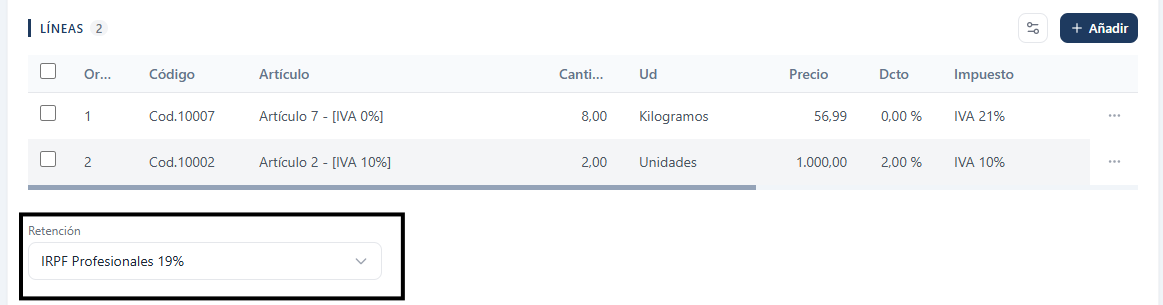
In the line window («Aplica retención», Apply withholding). When ticked, the line carries the withholding you choose in «Retención» (Withholding), below the «Líneas» table (for example, «IRPF Profesionales 19%»); when unticked, it does not.
- 2
Click «Guardar»
Lines with and without withholding can coexist in the «Líneas» table.
Other amounts (optional)
- 1
Click «Añadir» in «Otros importes»
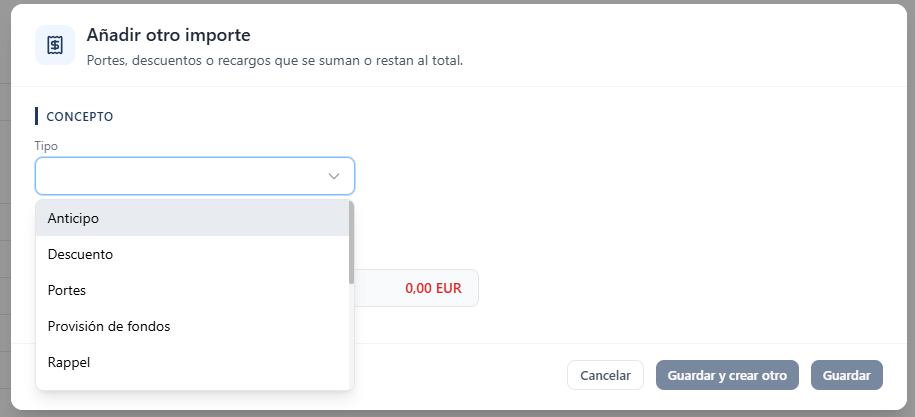
If the delivery note needs an amount separate from the lines (for example, shipping). The «Añadir otro importe» (Add other amount) window opens.

- 2
Choose the type and enter the net amount
«Tipo» (Type) includes, for example, «Anticipo» (Advance), «Descuento» (Discount), «Portes» (Shipping), «Provisión de fondos» (Funds provision) and «Rappel» (Volume rebate). «Guardar» is enabled when you enter the «Neto» (Net).
- 3
Click «Guardar»
The amount appears as a row in the «Otros importes» (Other amounts) table.
More about these amounts: Invoicing other amounts: construction withholdings, disbursements and shipping.
Payment method and saving
- 1
Choose the payment method
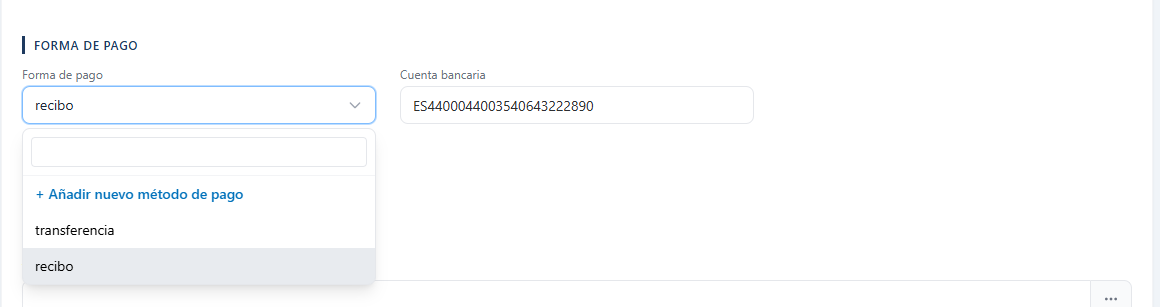
In «Forma de pago» (Payment method). If the company has bank accounts set up, a drop-down to choose the bank account also appears.
- 2
Click «Guardar»
When the mandatory data is in place: customer, series, number and at least one line. «Albarán creado con éxito» (Delivery note created successfully) appears and the delivery note record stays in read mode.
- 3
Click «Volver»
The new delivery note appears in the delivery note list with its series and number («Volver», Back).

Create a Simplified delivery note
- 1
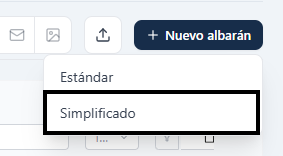
Click «Nuevo albarán» and choose «Simplificado»
The simplified delivery note form opens («Simplificado», Simplified).

- 2
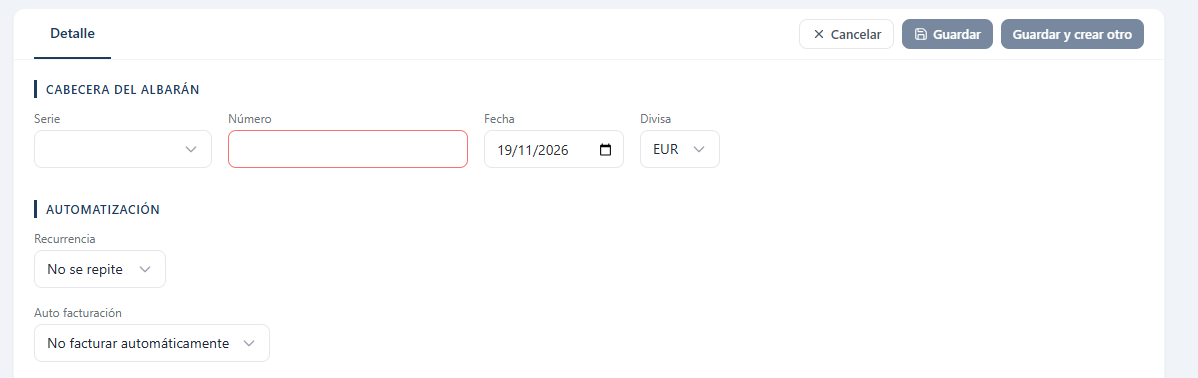
Choose the series and check the number
As in a Standard delivery note. The simplified one does not ask for a customer.
- 3
Add the lines, choose the payment method and click «Guardar»
As in a Standard delivery note. Then click «Volver»: the delivery note appears in the list.
You can also watch it on video: Creating delivery notes in Central eFactura.