Updated on 20 November 2026
Viewing and downloading delivery note documents
How to view a delivery note's PDF, download delivery notes as PDF or Excel, send them to the customer by email and search the list.
View a delivery note document
- 1
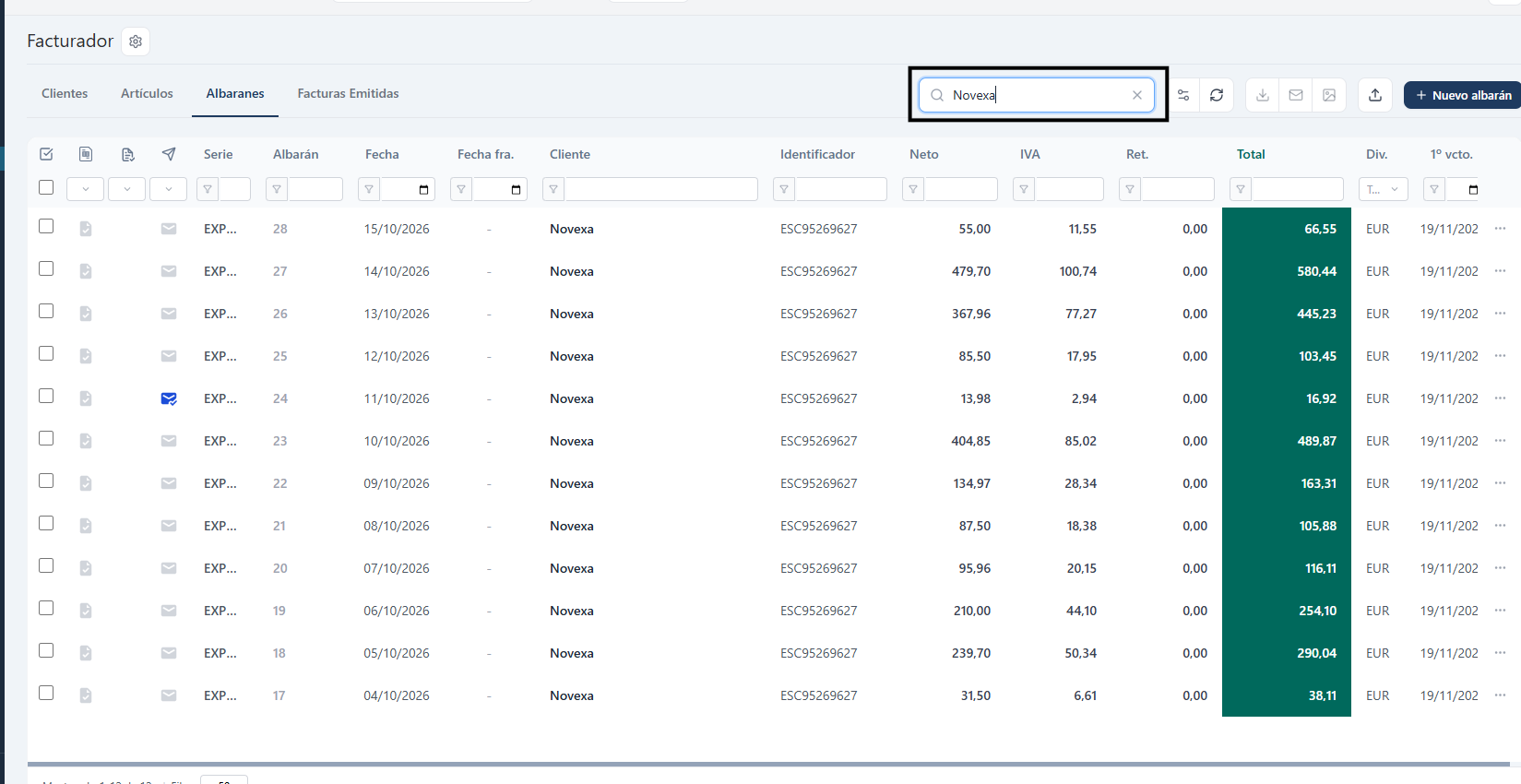
Tick the delivery note's box
On the «Albaranes» (Delivery notes) tab.
- 2
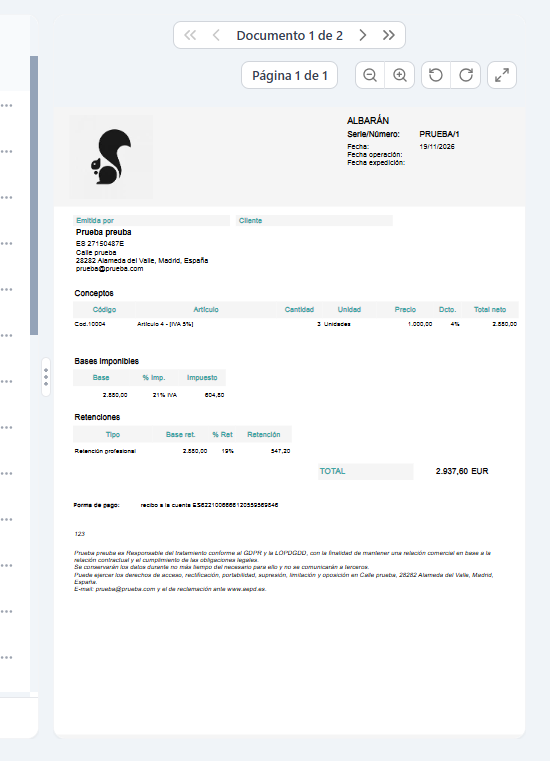
Click «Ver documento»
Click
 in the toolbar («Ver documento», View document). The viewer opens with the delivery note's PDF.
Download delivery notes
- 1
Tick the delivery notes, if you only want some
Tick their selection box. If you do not tick any, you can download the whole list.
- 2
Click «Descargar albaranes»
Click
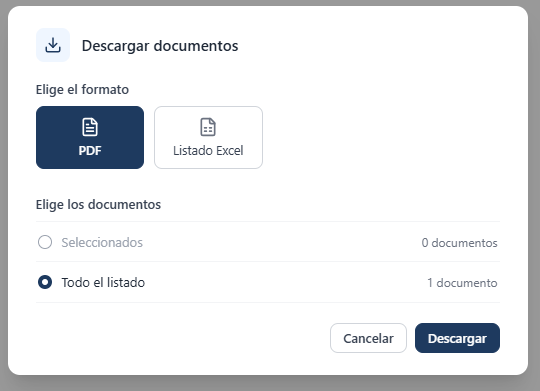
 in the toolbar («Descargar albaranes», Download delivery notes). The «Descargar documentos» (Download documents) window opens.
- 3
Choose the format and the documents
In «Elige el formato» (Choose the format), «PDF» or «Listado Excel» (Excel list); in «Elige los documentos» (Choose the documents), «Seleccionados» (Selected, only the ticked ones) or «Todo el listado» (The whole list).
- 4
Click «Descargar»
With «PDF», the delivery note documents are downloaded; with «Listado Excel», an .xlsx file with the list («Descargar», Download).
Send a delivery note by email
- 1
Tick the delivery note's box
On the «Albaranes» tab.

- 2
Click «Enviar email»
Click
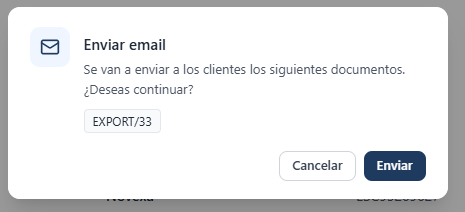
 in the toolbar («Enviar email», Send email). «Enviar email» appears, asking you to confirm sending the documents to the customers, with the delivery note's series and number.
- 3
Click «Enviar»
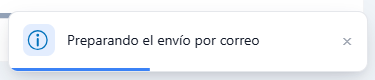
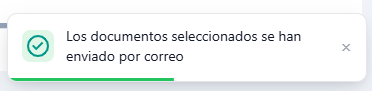
«Preparando el envío por correo» (Preparing to send by email) appears and, when it finishes, «Los documentos seleccionados se han enviado por correo» (The selected documents have been sent by email). «Enviar» means Send.
The email subject and text are set in Email.
If the customer has no email
- 1
Read the «Clientes sin email» window
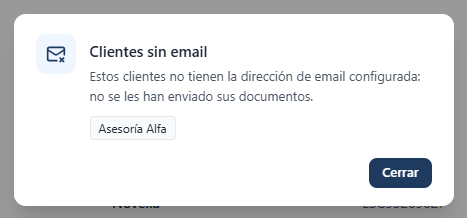
It opens when sending if the customer has no email («Clientes sin email», Customers without email), explaining that these customers have no email address set up and their documents have not been sent, and naming the customer.
- 2
Close the window
The delivery note is not marked as sent: the «Enviado» (Sent) column on its row still has no icon. Add the email in the customer's record and send it again: Editing customers.
Refresh and search the list
- 1
Click «Refrescar»
Click
 in the toolbar («Refrescar», Refresh). The list reloads.
- 2
Search for a delivery note
Type the customer name or the delivery note number in the search box. The list shows the matching ones.