
Updated on 20 November 2026
Viewing the PDF, sending by email, downloading, searching and refreshing issued invoices
How to view an invoice in the PDF viewer, send it by email, download it as PDF, Excel, Facturae or UBL, search the list and refresh it.
View the PDF of an invoice
- 1
Select the invoice checkbox
In the «Facturas emitidas» (Issued invoices) list.
- 2
Click «Ver documento»
Click
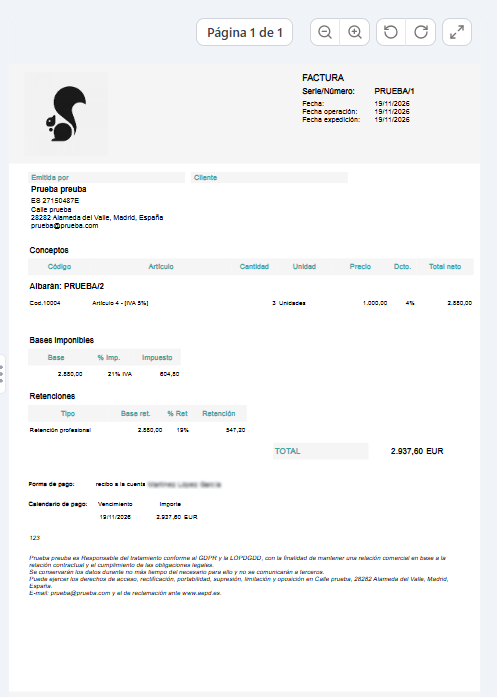
 on the toolbar («Ver documento», View document). The viewer opens with the invoice PDF: its bar shows the page you are viewing (for example, «Página 1 de 1», Page 1 of 1) and has buttons to zoom in, zoom out, rotate and view full screen.
- 3
Click «Ver documento» again
The viewer closes.
Send invoices by email
- 1
Select the invoice checkbox
You can select several to send them at once.
- 2
Click «Enviar email»
Click
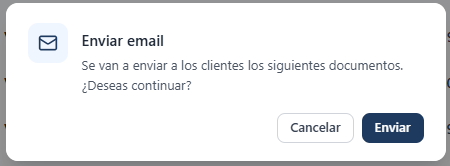
 on the toolbar («Enviar email», Send email). «Enviar email» appears, asking whether you want to send the following documents to the customers.
- 3
Click «Enviar»
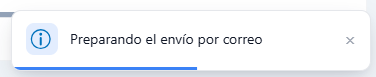
Click «Enviar» (Send), or «Cancelar» (Cancel) to not send them. The message «Preparando el envío por correo» (Preparing the email) appears.
The email subject and text are set up in Email.
Download invoices as PDF, Excel, Facturae or UBL
- 1
Select the invoice checkbox
In the «Facturas emitidas» list.
- 2
Click «Descargar»
Click
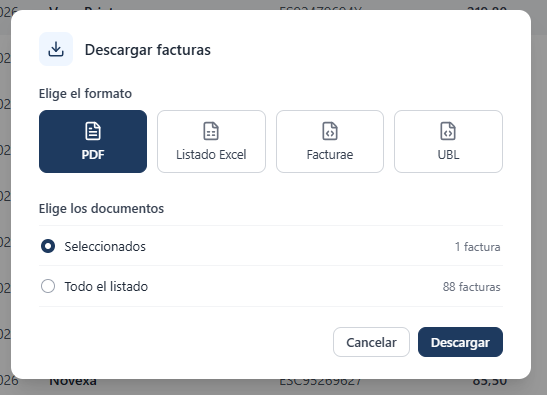
 on the toolbar («Descargar», Download). The «Descargar facturas» (Download invoices) window opens.
- 3
Choose the format
In «Elige el formato» (Choose the format): «PDF», «Listado Excel» (Excel list), «Facturae» or «UBL».
- 4
In «Elige los documentos», select «Seleccionados»
In «Elige los documentos» (Choose the documents), «Seleccionados» (Selected) downloads only the selected invoices; «Todo el listado» (Whole list) downloads all of them.
- 5
Click «Descargar»
With «PDF» the invoice .pdf is downloaded; with «Facturae» or «UBL», its .xml file; with «Listado Excel», an .xlsx file with the list.
Search for invoices
- 1
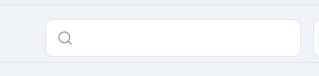
Type in the search box and press Enter
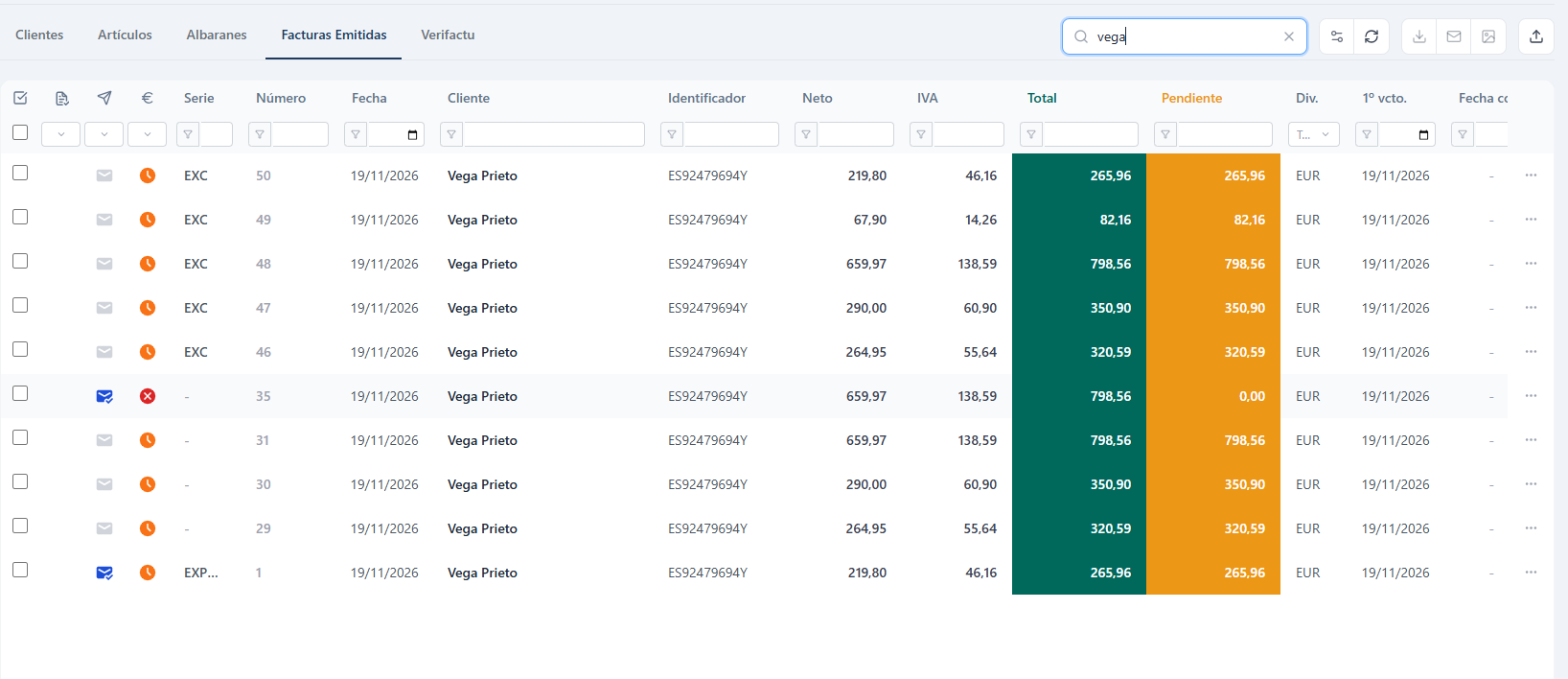
The search box is on the toolbar. Only the invoices that contain that text remain (for example, the customer name). If none match, «No existen elementos guardados» (No saved items) appears.
- 2
Click «Limpiar búsqueda»
It is the «x» in the search box («Limpiar búsqueda», Clear search). The search box is cleared and all invoices are shown again.
Refresh the list
- 1
Click «Refrescar»
Click
 on the toolbar («Refrescar», Refresh). The list reloads its data.
You can also watch it on video: Sending invoices and delivery notes by email from Central eFactura.