
Updated on 19 November 2026
Logging in to and out of CIC Cloud
How to log in with your email and password, what to do if you cannot log in, how to recover your password and how to log out.
Log in with your email and password
- 1
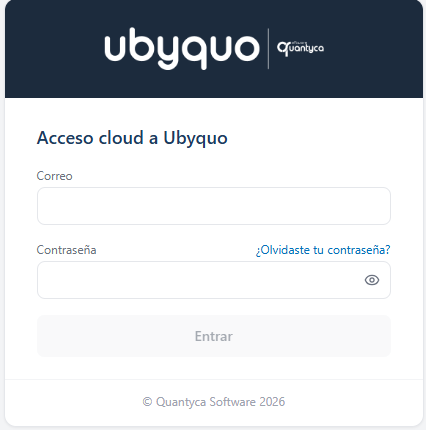
Open the application
The «Acceso cloud a Ubyquo» (Cloud access to Ubyquo) screen appears, with the «Correo» (Email) and «Contraseña» (Password) fields, the «¿Olvidaste tu contraseña?» (Forgot your password?) link and the «Entrar» (Log in) button.
- 2
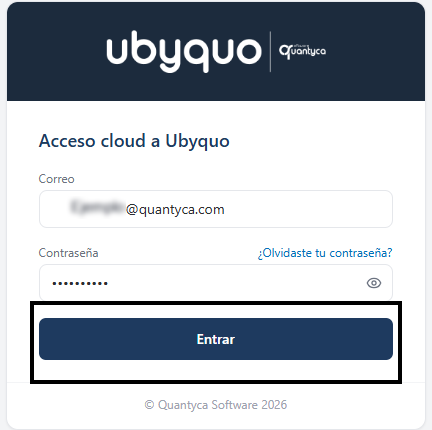
Enter your email and password
Type the account email in «Correo» and the password in «Contraseña». The password is hidden, shown as dots: to see it, click the eye icon («Mostrar contraseña», Show password); to hide it again, click it once more.
- 3
Click «Entrar»
The application opens.
If you cannot log in
- 1
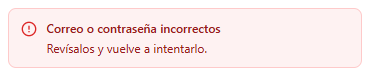
If the email or password is not correct
The «Correo o contraseña incorrectos» (Incorrect email or password) message appears and you do not get into the application. Check them and try again.
- 2
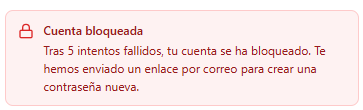
After 5 failed attempts, the account is locked
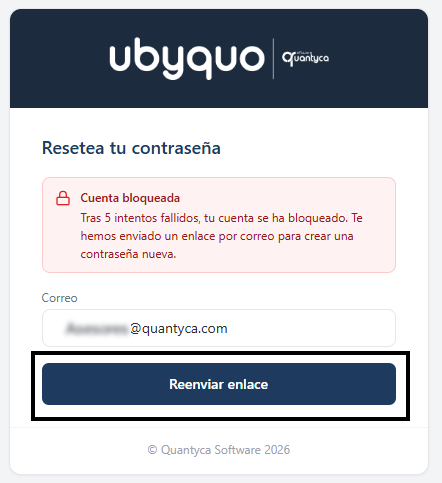
For security, the «Resetea tu contraseña» (Reset your password) screen opens with the «Cuenta bloqueada» (Account locked) notice, and you receive an email with a link to create a new password. Follow the steps in «Open the link in the email», below.
- 3
Haven't received the email? Request another link
On that same screen, enter the account email and click «Reenviar enlace» (Resend link). The button is enabled when the email has a valid format.
If you cannot find the email, check your junk (spam) folder too.
Recover a forgotten password
- 1
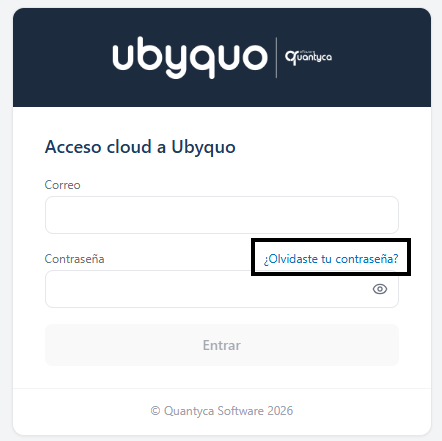
Click «¿Olvidaste tu contraseña?»
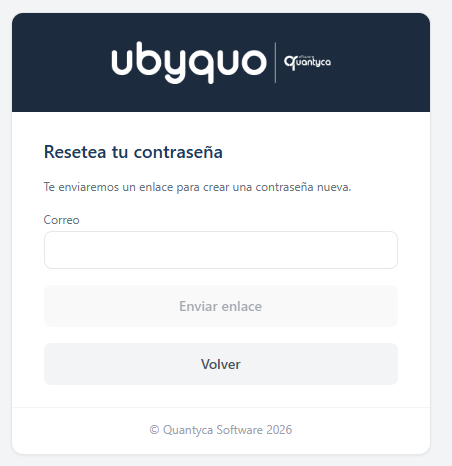
On the login screen. The «Resetea tu contraseña» (Reset your password) screen opens, telling you that you will be sent a link to create a new password, with the «Correo» (Email) field and the «Enviar enlace» (Send link) and «Volver» (Back) buttons.
- 2
Enter the account email
«Enviar enlace» is enabled when the email has a valid format.
- 3
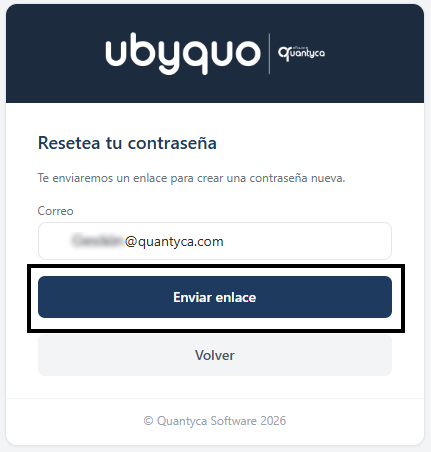
Click «Enviar enlace»
If it is sent, you go back to the login screen with the «Enlace enviado» (Link sent) notice: you receive an email with a link to create a new password, which expires in 1 hour. If it cannot be sent, «No se ha podido enviar el enlace» (The link could not be sent) appears.
To go back to the login screen without sending anything, click «Volver» (Back).
Open the link in the email
- 1
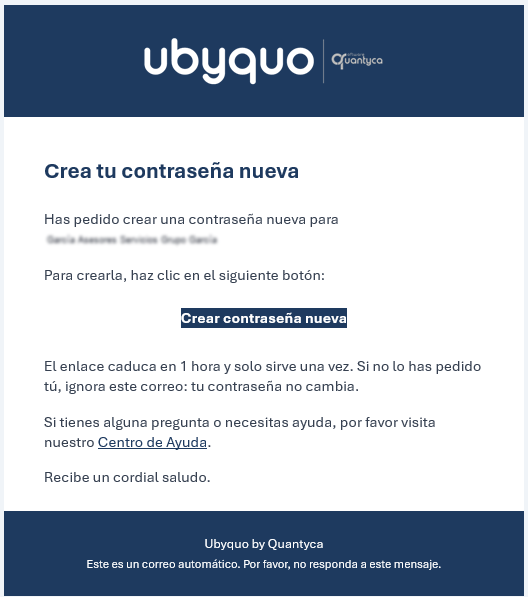
Open the link you receive by email
In the email, click «Crear contraseña nueva» (Create new password). The «Elige tu contraseña nueva» (Choose your new password) screen opens, where you choose your new password.
- 2
If the link is no longer valid
The link expires in 1 hour and can only be used once. If it has expired or you have already used it, the «Enlace caducado» (Link expired) notice appears: click «Pedir otro enlace» (Request another link) to get a new one, or «Volver al acceso» (Back to login) to go to the login screen.
Log out
- 1
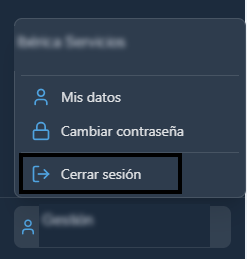
Click your user in the side menu
Click the user button (with your name). A menu opens with «Mis datos» (My details), «Cambiar contraseña» (Change password) and «Cerrar sesión» (Log out).
- 2
Click «Cerrar sesión»
The session closes and the login screen appears. To get back in, log in again with your email and password.
If you are not logged in, any page of the application you open takes you to the login screen.