Updated on 20 November 2026
Delivery note features: edit, invoice, duplicate, send, regenerate the PDF, update and delete
What you can do with a delivery note from its row menu: edit it, invoice it, duplicate it, mark it as sent, regenerate its PDF, update it with current data and delete it.
Open the delivery note to edit it
- 1
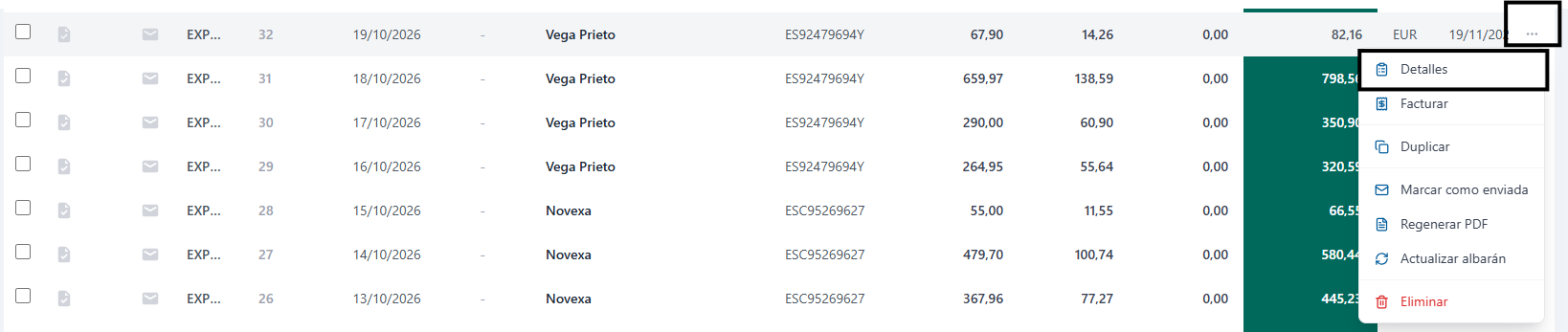
Open the row menu and choose «Detalles»
On the «Albaranes» (Delivery notes) tab, find the delivery note and click the three-dot button on its row («Detalles», Details). The delivery note record opens in read mode.
- 2
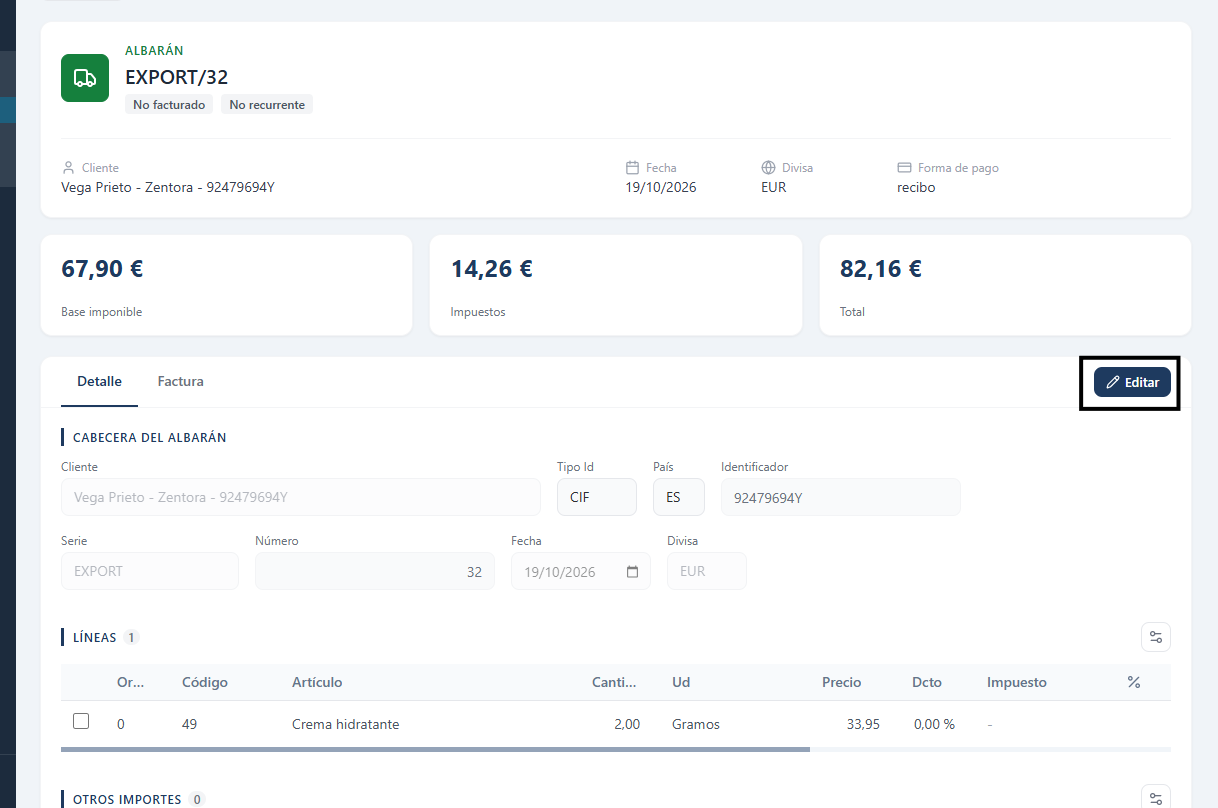
Click «Editar»
You can now change the delivery note's data («Editar», Edit).
Invoice a delivery note
- 1
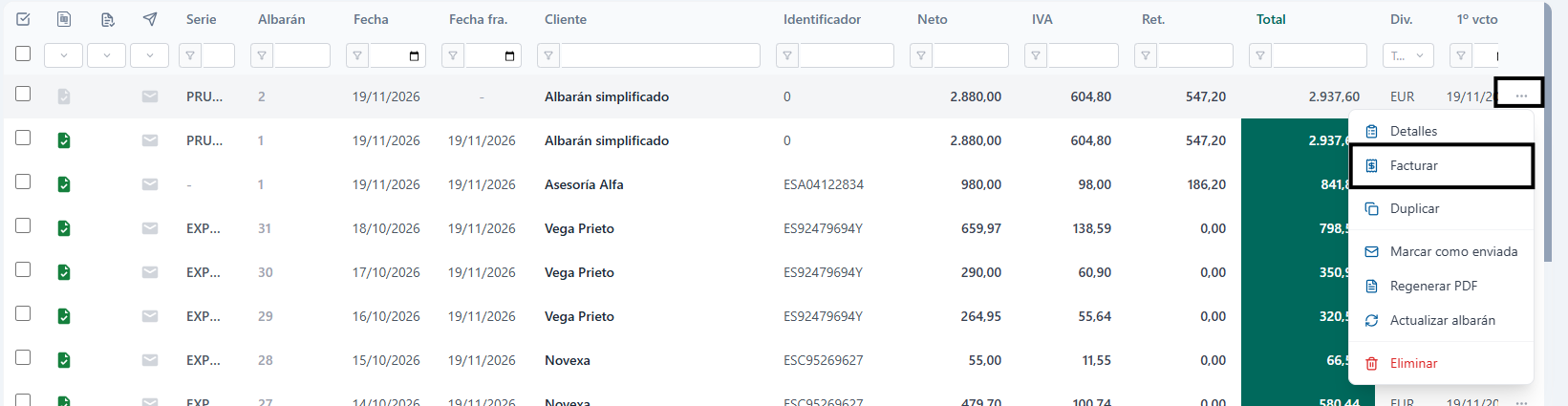
Choose «Facturar»
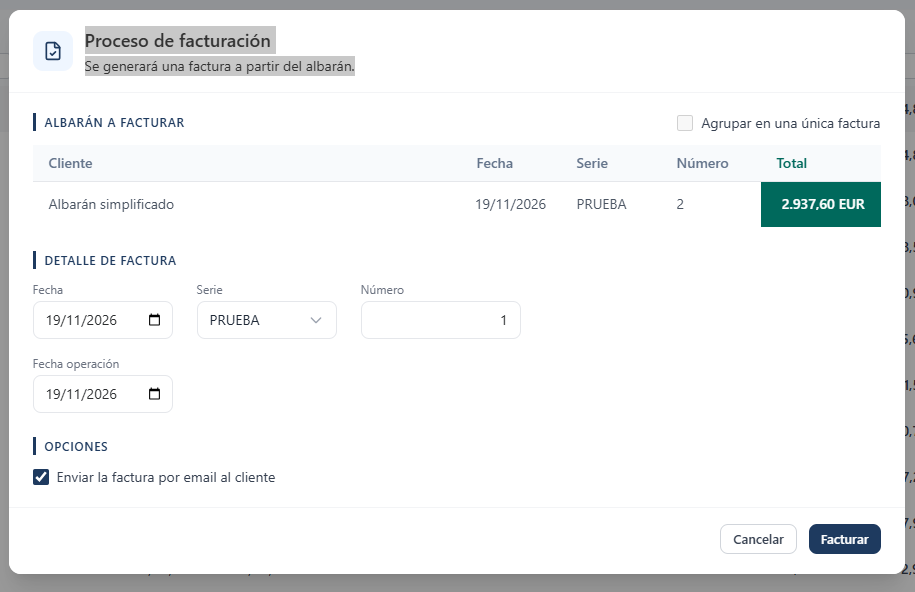
In the delivery note's row menu («Facturar», Invoice). The «Proceso de facturación» (Invoicing process) window opens: an invoice will be generated from the delivery note, with its date, series and number. Under «Opciones» (Options) you can tick «Enviar la factura por email al cliente» (Send the invoice to the customer by email).
- 2
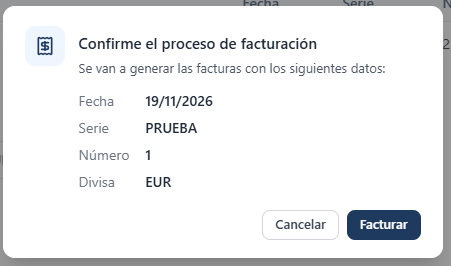
Click «Facturar»
«Confirme el proceso de facturación» (Confirm the invoicing process) opens, with the invoice's date, series, number and currency.
- 3
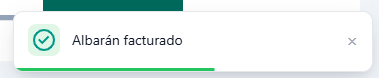
Confirm with «Facturar»
«Albarán facturado» (Delivery note invoiced) appears and the tick in the «Facturado» (Invoiced) column turns green.
You can also watch it on video: Issuing invoices: from the delivery note to the final invoice.

Duplicate a delivery note
- 1
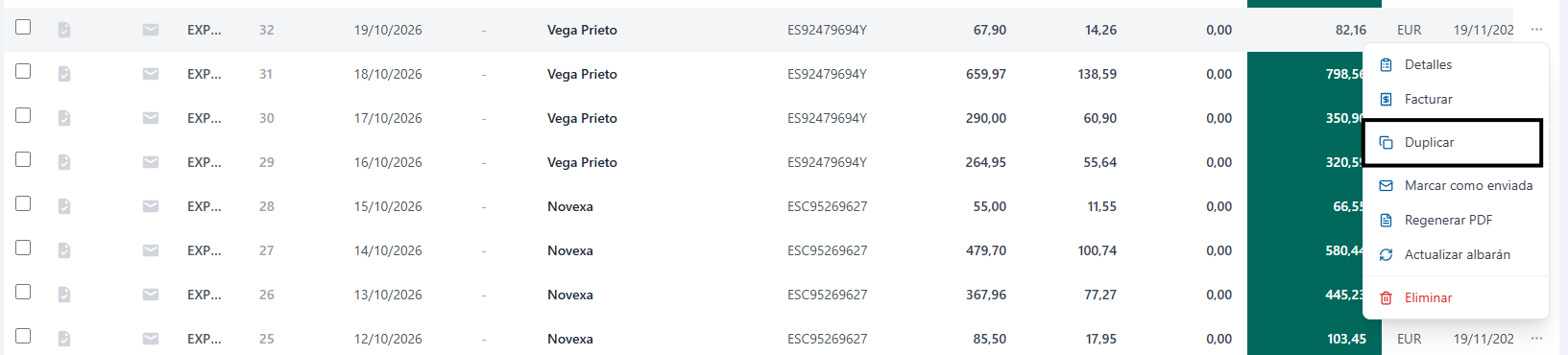
Choose «Duplicar»
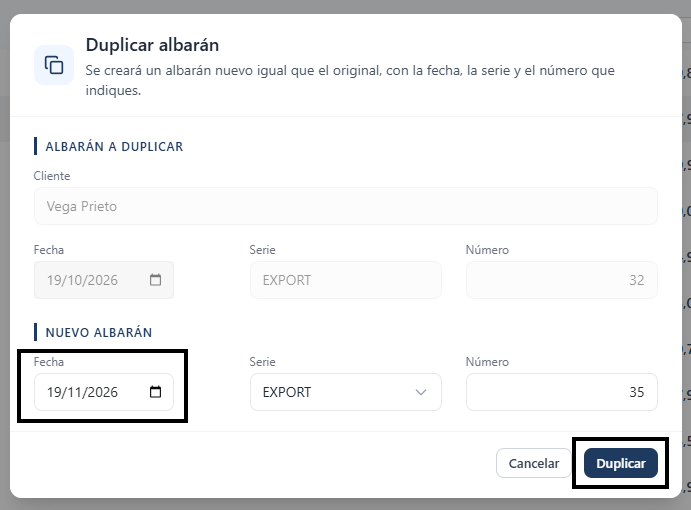
In the delivery note's row menu («Duplicar», Duplicate). The «Duplicar albarán» (Duplicate delivery note) window opens, with the original in «Albarán a duplicar» (Delivery note to duplicate) and the copy's data in «Nuevo albarán» (New delivery note).
- 2
Enter the date, series and number of the new delivery note
The date must be the same as or later than the original's. If «No existe ejercicio para la fecha seleccionada» (There is no financial year for the selected date) appears, close it and choose another date.
- 3
Click «Duplicar»
The new delivery note appears in the list with the series and number you entered. If it is created in another financial year, the message «Albarán generado en otro ejercicio» (Delivery note generated in another financial year) appears.
Mark a delivery note as sent
- 1
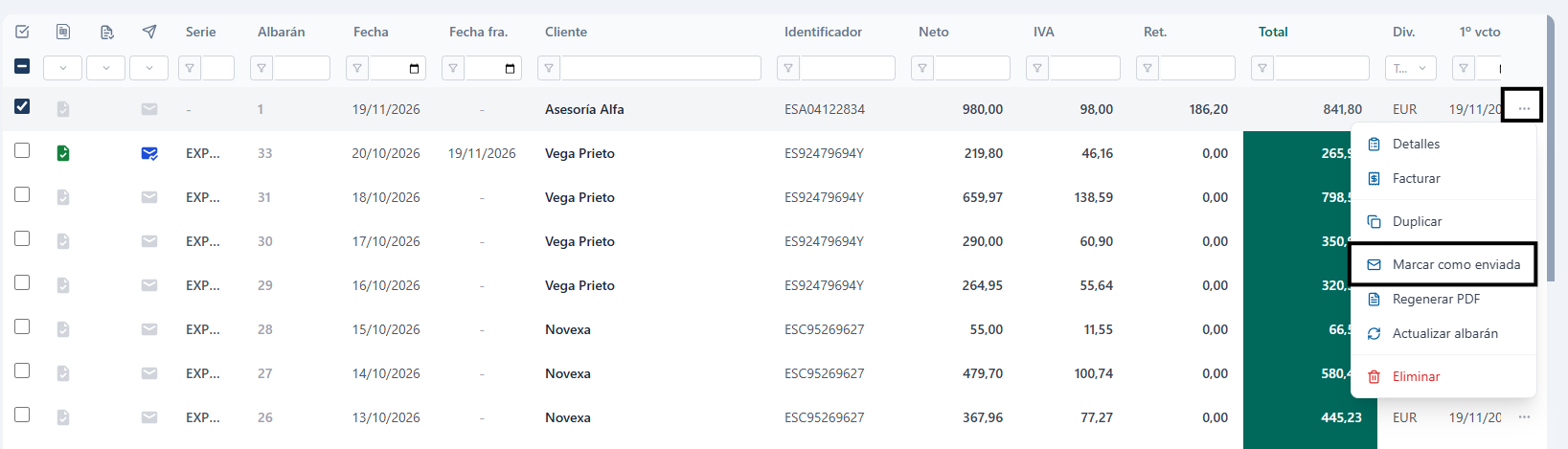
Choose «Marcar como enviada»
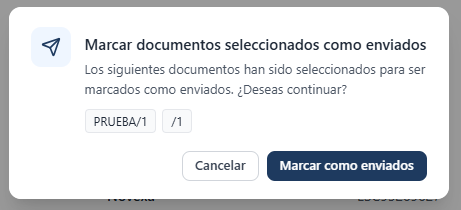
In the row menu («Marcar como enviada», Mark as sent). The «Marcar documentos seleccionados como enviados» (Mark selected documents as sent) window opens, with the delivery note's series and number.
- 2
Click «Marcar como enviados»
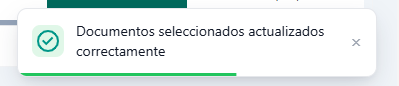
«Documentos seleccionados actualizados correctamente» (Selected documents updated successfully) appears and the delivery note is marked as sent.
Regenerate a delivery note's PDF
- 1
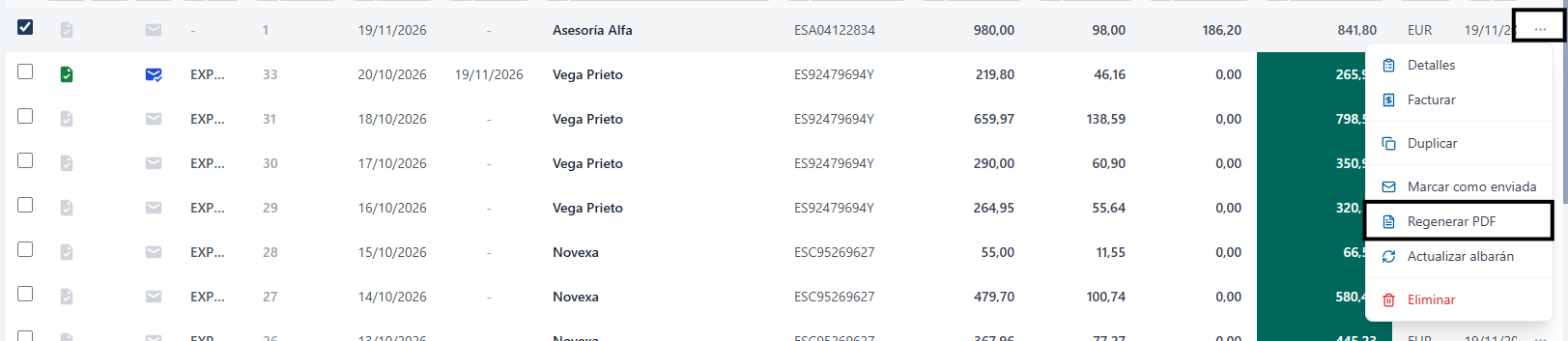
Choose «Regenerar PDF»
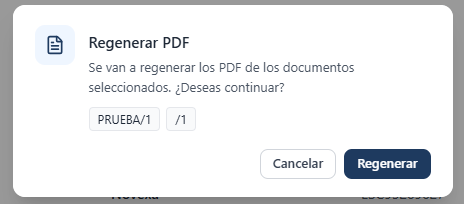
In the row menu («Regenerar PDF», Regenerate PDF). The «Regenerar PDF» window opens, asking you to confirm that the PDFs of the selected documents will be regenerated.
- 2
Click «Regenerar»
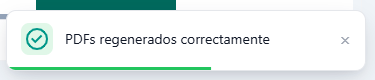
«PDFs regenerados correctamente» (PDFs regenerated successfully) appears.
Update a delivery note with current data
If your company's, the customer's or the items' data has changed since you created the delivery note, you can bring it into the delivery note. This is only possible for delivery notes that have not been invoiced and are not corrective.
- 1
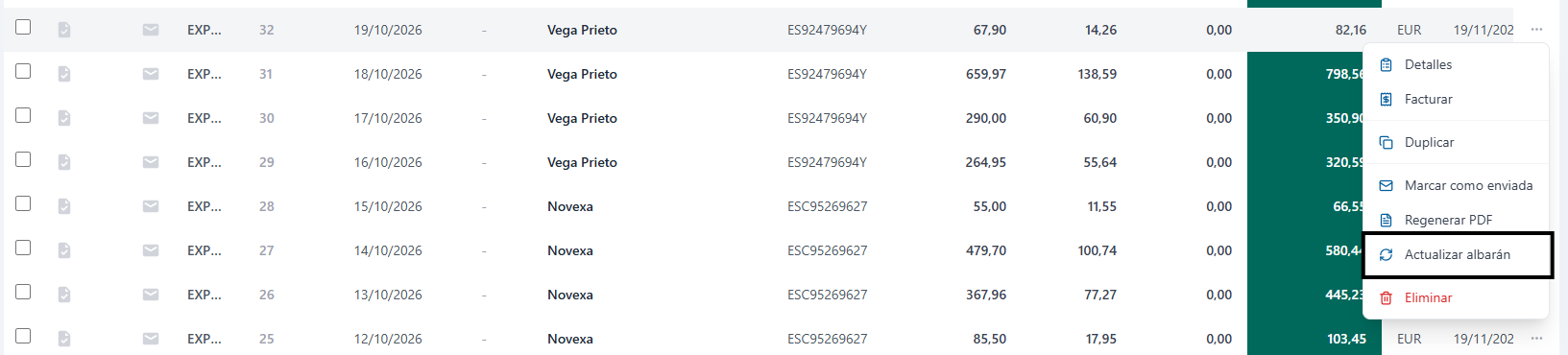
Choose «Actualizar albarán»
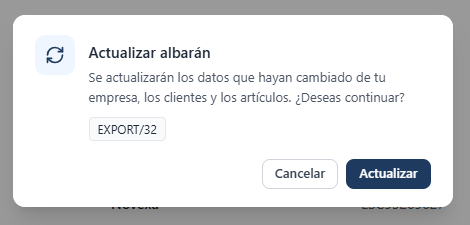
In the row menu («Actualizar albarán», Update delivery note). The «Actualizar albarán» window opens, warning that any data that has changed for your company, customers and items will be updated, and asks you to confirm.
- 2
Click «Actualizar»
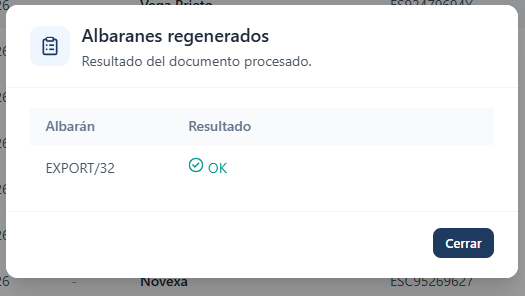
«Albaranes regenerados» (Regenerated delivery notes) opens, with the result for each delivery note (for example, «OK»).
- 3
Click «Cerrar»
The delivery note now has the latest company, customer and item data («Cerrar», Close).
Delete a delivery note
- 1
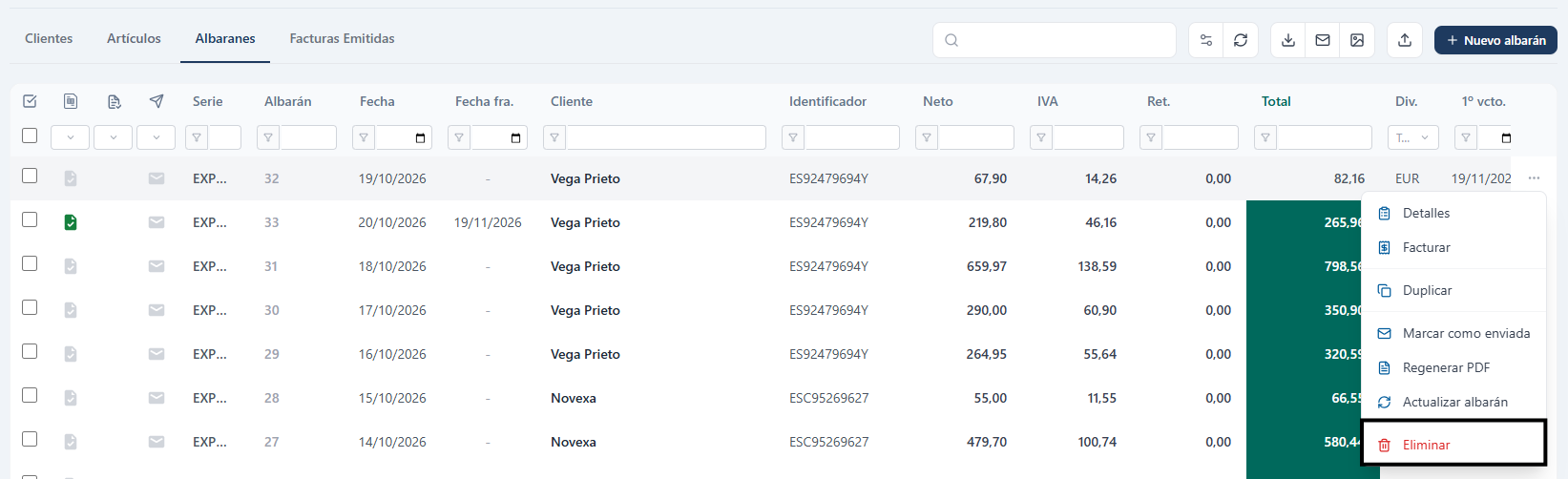
Choose «Eliminar»
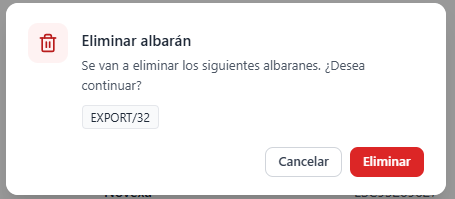
In the row menu («Eliminar», Delete). The «Eliminar albarán» (Delete delivery note) window opens and asks you to confirm.
- 2
Click «Eliminar»
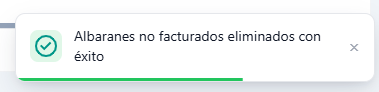
«Albaranes no facturados eliminados con éxito» (Uninvoiced delivery notes deleted successfully) appears and the delivery note disappears from the list.
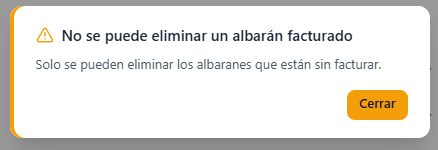
An invoiced delivery note cannot be deleted: the message «No se puede eliminar un albarán facturado» (An invoiced delivery note cannot be deleted) appears.