
Updated on 20 November 2026
Turning on Verifactu for a company
How to turn on the VERIFACTU mode: who signs the grant of representation, the authorised representative's details, signing with AutoFirma, how to leave it for later and how to turn off VERIFACTU in test mode.
Open the VERIFACTU activation
- 1
Find the company in the Invoicing tool sign-up
The company must be active (with the tick in the «Activa», Active, column).
- 2
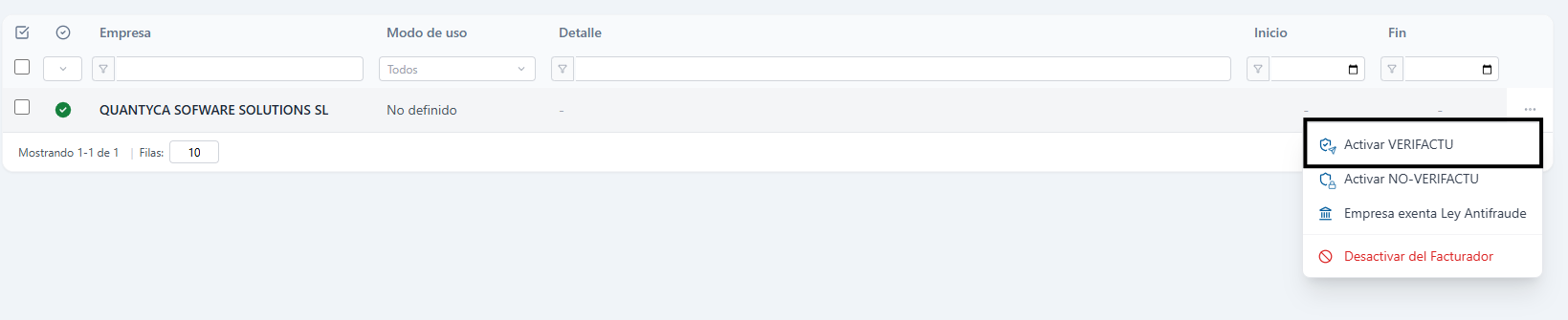
Choose «Activar VERIFACTU»
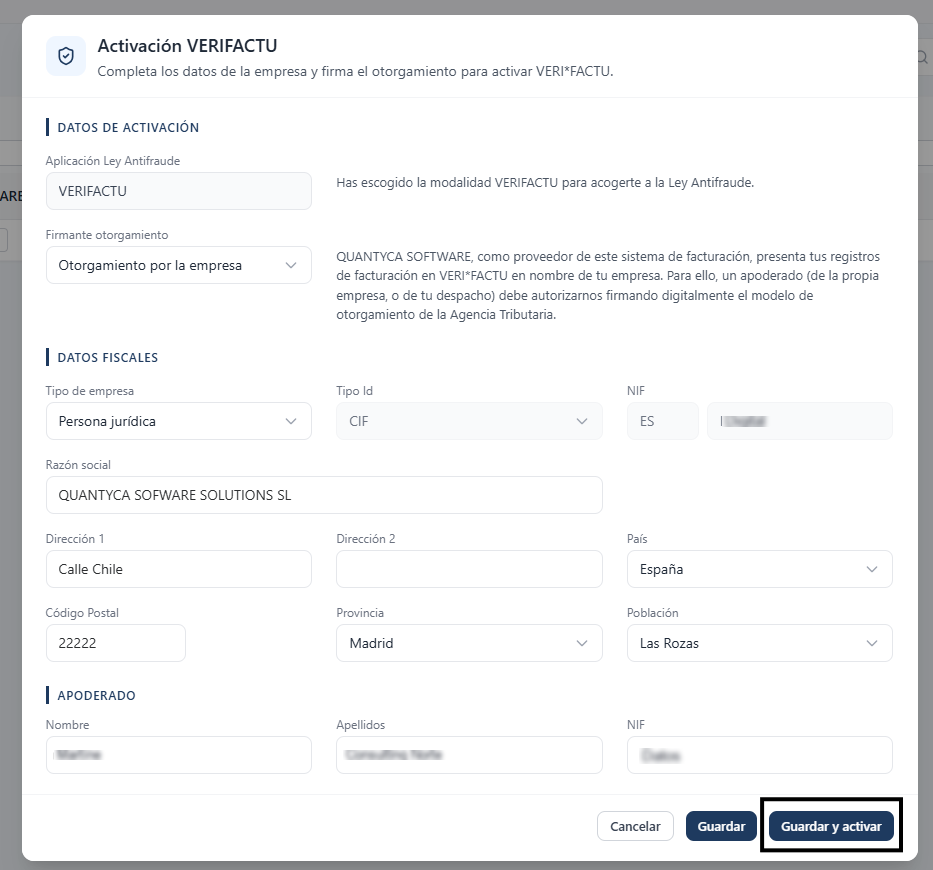
In the row's options menu. The «Activación VERIFACTU» (VERIFACTU activation) window opens, with «Aplicación Ley Antifraude» (Anti-Fraud Law application) set to «VERIFACTU» and the company's tax details already filled in. The company's tax ID cannot be changed. To leave without changing anything, click «Cancelar» (Cancel).
Choose who signs the grant of representation
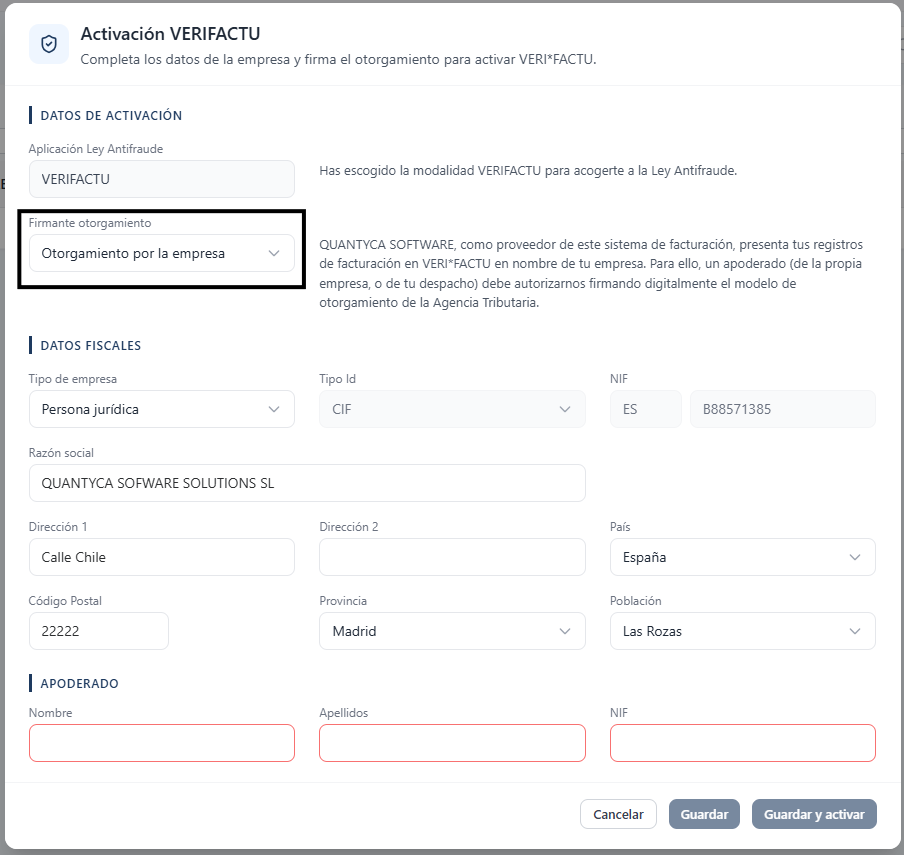
QUANTYCA SOFTWARE, as the provider of the invoicing system, submits the invoicing records to VERIFACTU on behalf of the company. To do so, an authorised representative (of the company itself or of your firm) must authorise it by digitally signing the Spanish Tax Agency's grant of representation form.
- 1
In «Firmante otorgamiento», choose who signs
«Otorgamiento por la empresa» (Grant by the company): an authorised representative of the company itself signs. The window opens with the last signer that was saved.
- 2
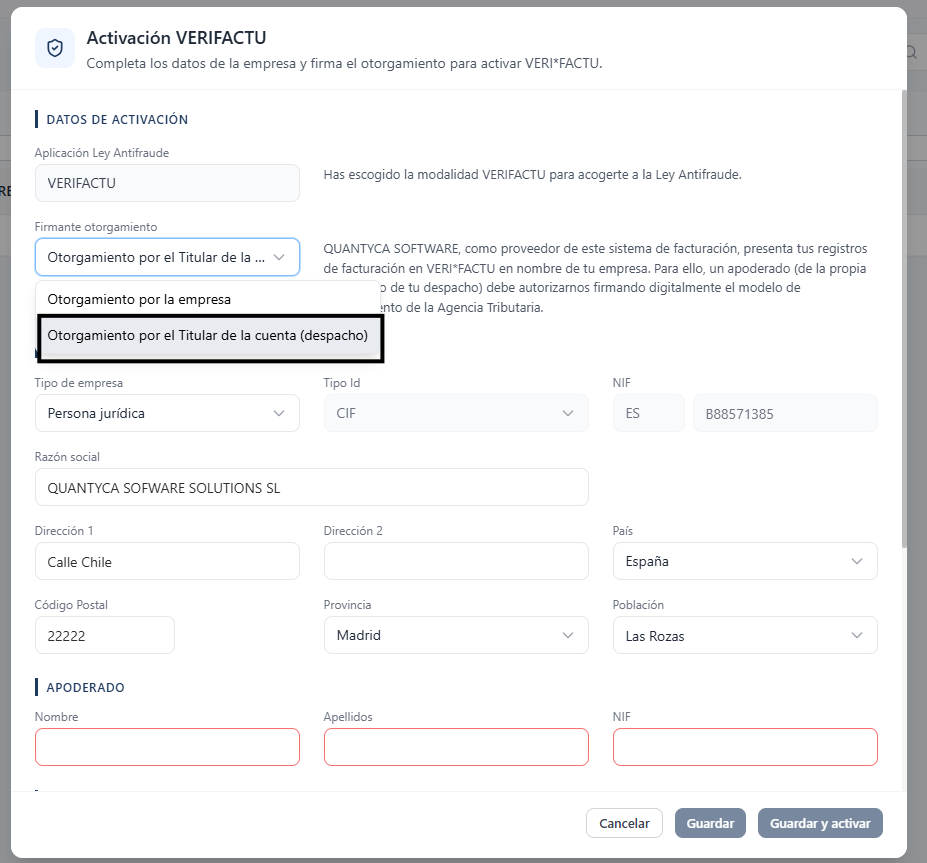
If your firm signs, fill in its details
With «Otorgamiento por el Titular de la cuenta (despacho)» (Grant by the account holder, firm), the «Datos fiscales despacho profesional» (Firm tax details) section appears: fill in «Nombre despacho» (Firm name), «NIF» (Tax ID), «Dirección 1» (Address 1), «País» (Country), «Provincia» (Province), «Población» (Town) and «Código Postal» (Postcode). Without these details, «Guardar» (Save) is disabled. They are saved for next time.
- 3
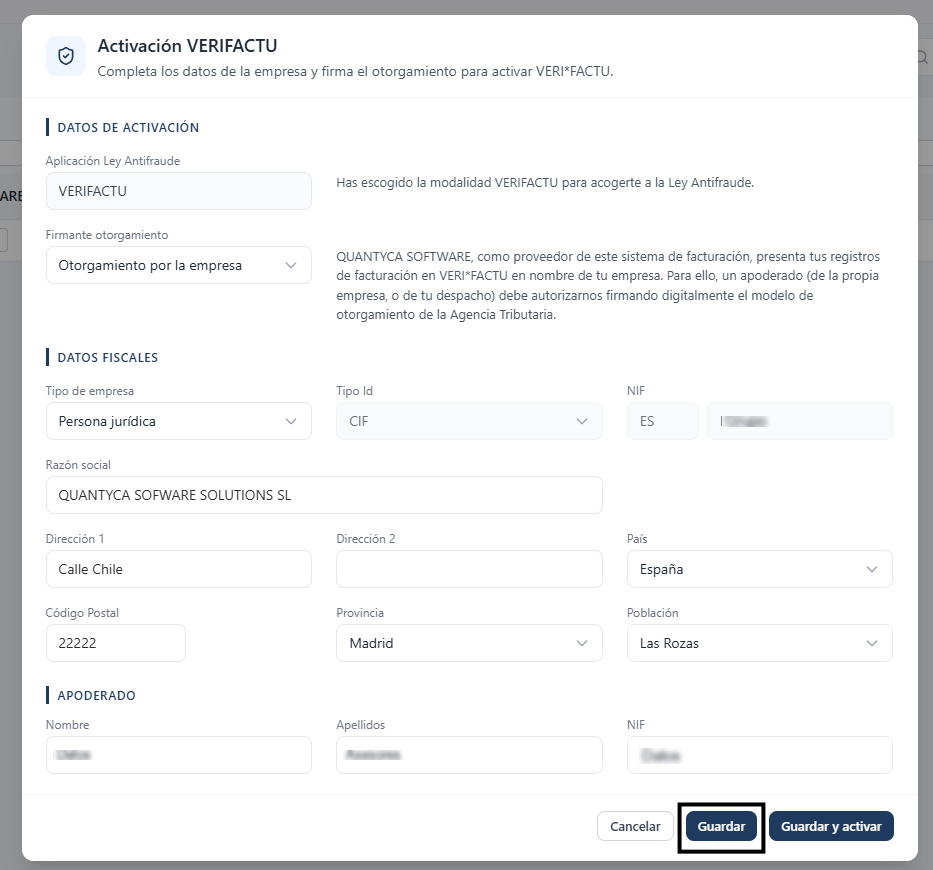
Enter the authorised representative's details
In «Apoderado» (Authorised representative), the first name, surnames and tax ID. Without these details, or with an invalid tax ID, «Guardar» and «Guardar y activar» (Save and activate) are disabled.
Sign the grant of representation
- 1
Click «Guardar y activar»
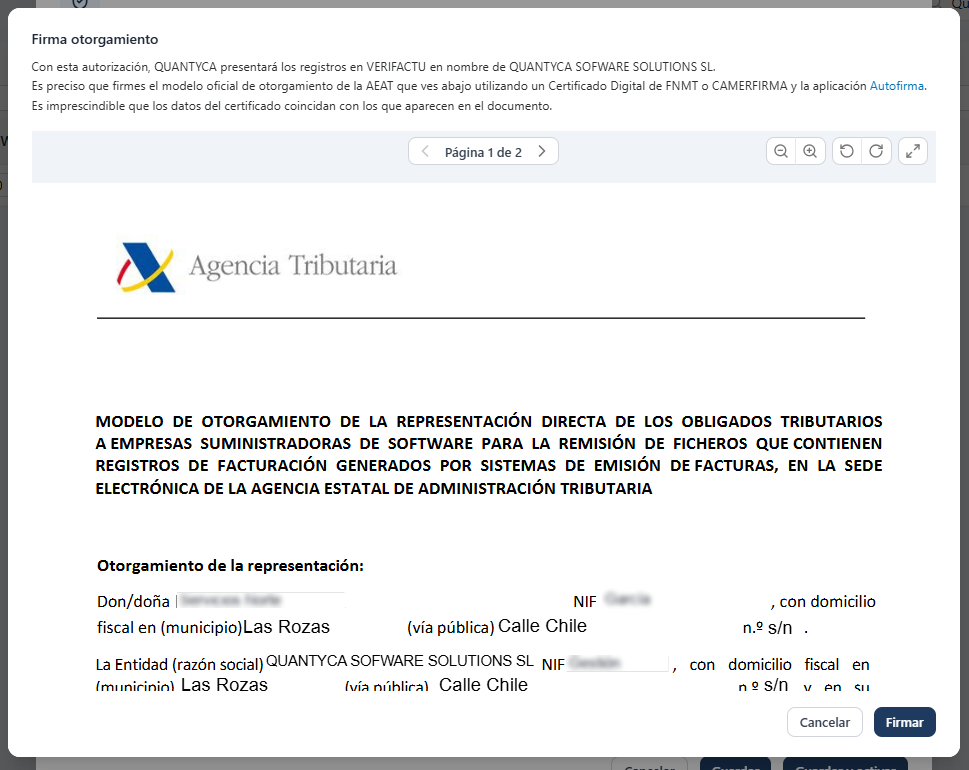
The Tax Agency's grant of representation form is generated and the «Firma otorgamiento» (Sign grant) window opens, showing the document.
- 2
Click «Firmar»
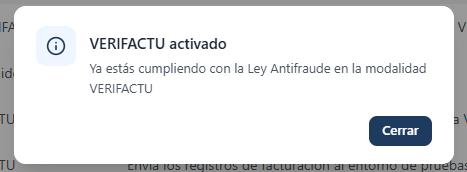
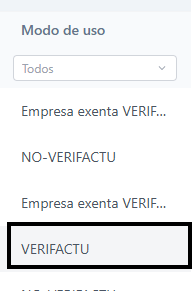
It is signed with AutoFirma («Firmar», Sign). «VERIFACTU activado» (VERIFACTU turned on) appears, confirming that you now comply with the Anti-Fraud Law in VERIFACTU mode, and the company's «Modo de uso» (Mode of use) changes to «VERIFACTU».
To sign you need the AutoFirma application and a digital certificate from FNMT or CAMERFIRMA whose details match those in the document. If you prefer to sign later, click «Cancelar» (Cancel): the company stays in the activation process, pending signature of the Tax Agency form.
Save without signing
- 1
Click «Guardar»
With the authorised representative's details entered. «Datos guardados correctamente.» (Data saved successfully) appears. If the «Firma otorgamiento» window opens, click «Cancelar» in it to sign later.
- 2
Click «Refrescar» and find the company
«Modo de uso» shows «No definido - en proceso de activación VERIFACTU» (Not defined - VERIFACTU activation in progress) and «Detalle» (Details) shows that the Tax Agency representation form must be signed («Refrescar», Refresh).
Turn off VERIFACTU in test mode
- 1
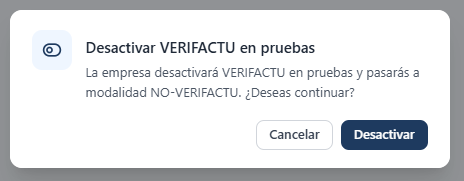
Choose «Desactivar VERIFACTU en pruebas»
In the company's menu. The «Desactivar VERIFACTU en pruebas» (Turn off VERIFACTU in test mode) message appears: the company will turn off VERIFACTU in test mode and you will switch to NO-VERIFACTU mode. It asks you to confirm.

- 2
Click «Desactivar»
After refreshing, the company's «Modo de uso» (Mode of use) goes back to «NO-VERIFACTU» («Desactivar», Turn off).
What each mode means: VERIFACTU, NO VERIFACTU and exempt.