
Updated on 19 November 2026
Documents: latest documents and PDF viewer
The list of documents added since you last logged in: view them in the PDF viewer, download the list and refresh it.
Latest documents: list of recent documents
- 1
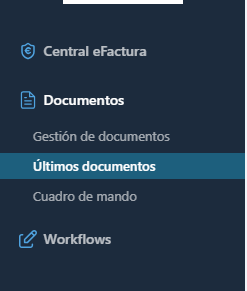
Click «Últimos documentos»
In the side menu, below «Documentos». «Últimos documentos» (Latest documents) opens, with the documents added since you last logged in, from newest to oldest.
View a document in the PDF viewer
- 1
Click the document's row
In the «Últimos documentos» list.

- 2
Open the viewer with «Ver documento»
If it is not already open. The PDF is shown and the viewer bar shows the page you are on, in the format «Página 1 de N» (Page 1 of N).
- 3
Hide the viewer
Click «Ver documento» (View document) again.
Download and refresh Latest documents
- 1
Click the download button
In the toolbar. The «Descargar documentos» (Download documents) window opens.

- 2
Choose «Listado Excel» and click «Descargar»
An .xlsx file with the list of documents is downloaded.
- 3
Click «Refrescar»
Click
 «Refrescar» (Refresh) to reload the list with the most recent documents.