
Updated on 19 November 2026
Payment details (payment methods and bank accounts)
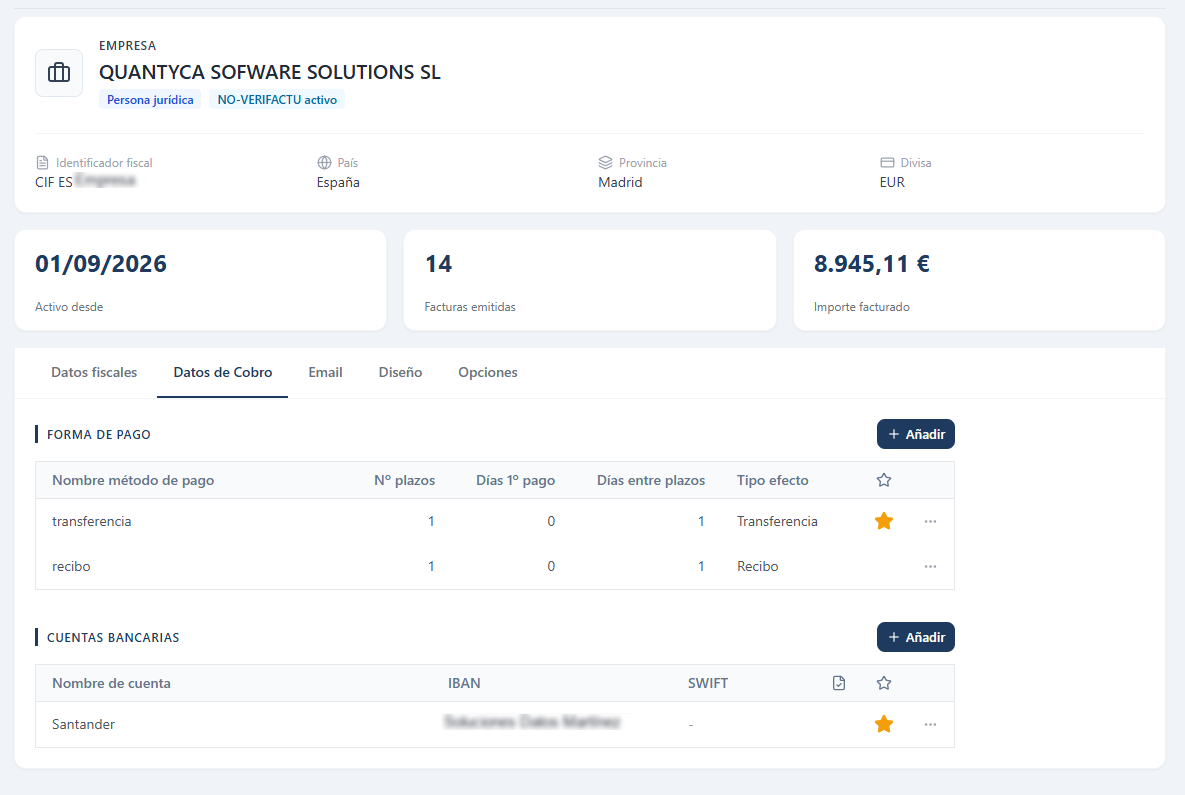
The «Datos de Cobro» (Payment details) tab in Settings: the company's payment methods and bank accounts.
The Payment details screen
- 1
Open the «Datos de Cobro» tab
In Settings. It shows two tables: «Forma de pago» (Payment method) at the top and «Cuentas bancarias» (Bank accounts) below. It has no read mode: you change it directly.
Add a payment method
- 1
Click «Añadir» in the «Forma de pago» table
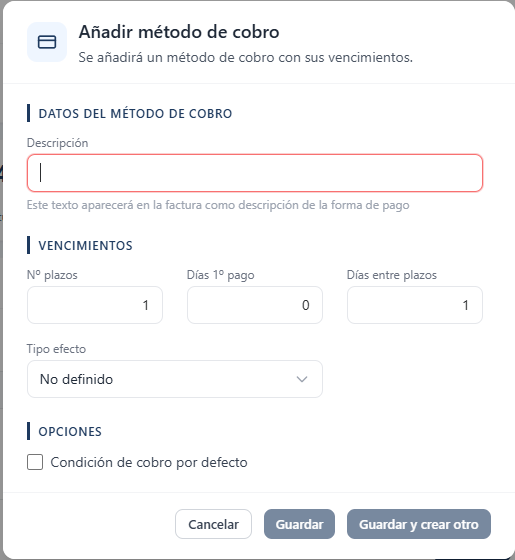
The «Añadir método de cobro» (Add payment method) window opens.

- 2
Fill in the details
The «Descripción» (Description) is the text that will appear on the invoice as the payment method. In «Nº plazos» (Number of instalments), «Días 1º pago» (Days to first payment) and «Días entre plazos» (Days between instalments), set the due dates: for example, 3 instalments, the first at 30 days and the rest every 30 days. Also choose the «Tipo efecto» (Payment instrument), for example «Recibo» (Direct debit). «Guardar» (Save) stays disabled until all these fields are filled in and valid.
- 3
Click «Guardar»
The new payment method appears in the «Forma de pago» table.
Edit or delete a payment method
- 1
Open the row menu
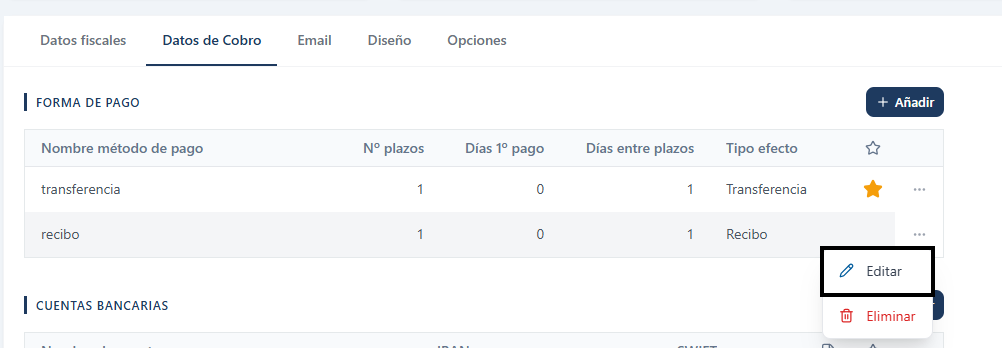
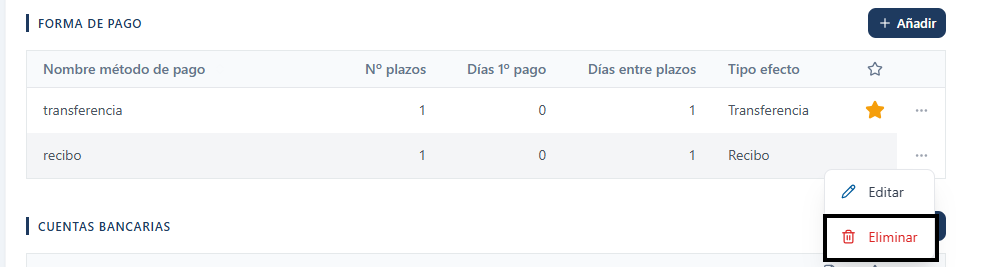
In the «Forma de pago» table, click the three-dot button of the row you want to change.
- 2
Choose «Editar» or «Eliminar»
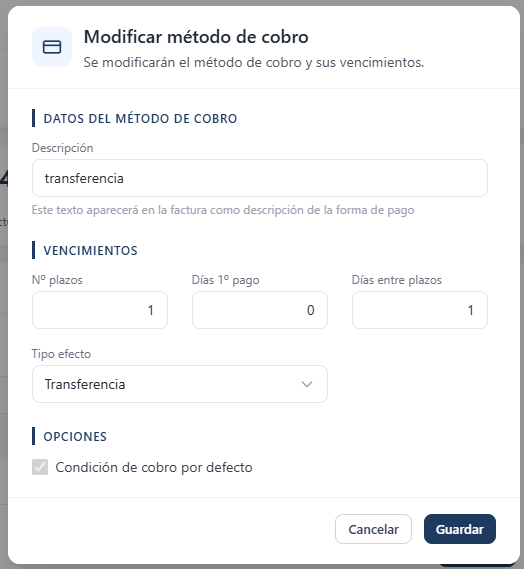
With «Editar» (Edit), the «Modificar método de cobro» (Edit payment method) window opens: change the details (for example, the description) and click «Guardar».
- 3
If you chose «Eliminar», confirm it
In the «Eliminar método de pago» (Delete payment method) window, click «Eliminar» (Delete). The payment method disappears from the table.
Add a bank account
- 1
Click «Añadir» in the «Cuentas bancarias» table
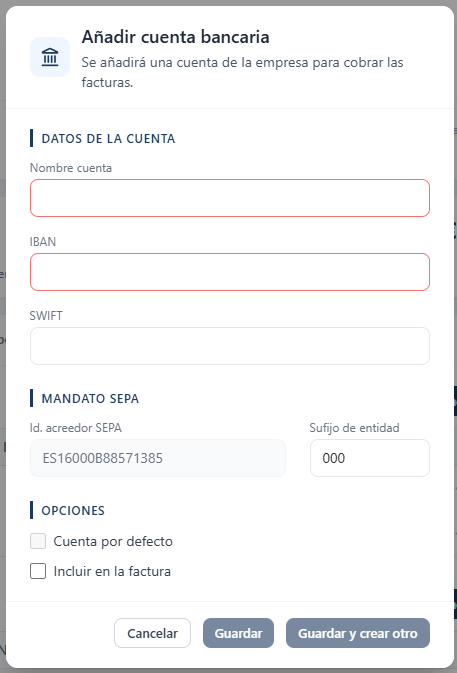
The «Añadir cuenta bancaria» (Add bank account) window opens.

- 2
Enter the account name and the IBAN
In «Nombre cuenta» (Account name) and «IBAN». «Guardar» is only enabled when both fields are filled in and the IBAN is valid; the check takes a few seconds. A Spanish IBAN with wrong check digits is marked as not valid. An IBAN that does not start with «ES» is accepted without the Spanish IBAN check.
- 3
Check the SEPA section
«Id. acreedor SEPA» (SEPA creditor ID) comes from the company details and cannot be changed, and «Sufijo de entidad» (Entity suffix) shows «000». The suffix must have 3 digits: with any other value (for example, «12» or «A12»), «Guardar» is not enabled.
- 4
Click «Guardar»
The account appears in the table. The «Incluir en la factura» (Include on the invoice, so that the account appears on invoices) and «Cuenta por defecto» (Default account) boxes stay unticked; you can tick them later by editing the account.