
Updated on 25 November 2026
Usage: checking module consumption
How to see the consumption of Facturas, Bancos and Dispatcher in a period, grouped by user or by company, and download it to Excel.
Check consumption by module and period
- 1
Go to Administración › «Uso»
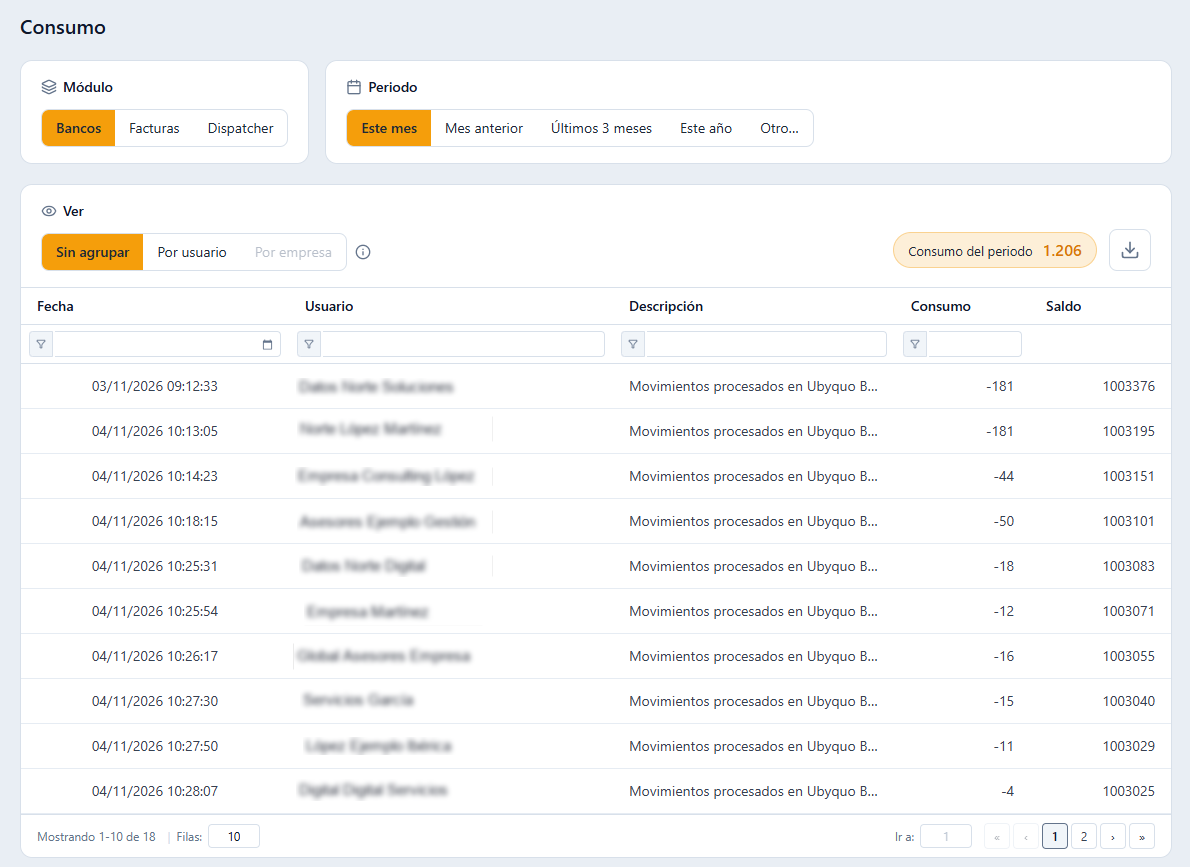
The «Consumo» (Consumption) screen opens, with this month's Bancos (Banks) consumption. «Uso» (Usage) is the menu option.
- 2
In «Módulo», choose the module
«Módulo» (Module): «Bancos» (Banks), «Facturas» (Invoices) or «Dispatcher».
- 3
In «Periodo», choose the period
«Periodo» (Period): «Este mes» (This month), «Mes anterior» (Previous month), «Últimos 3 meses» (Last 3 months) or «Este año» (This year). The table shows the period's transactions, with the «Fecha» (Date), «Usuario» (User), «Descripción» (Description), «Consumo» (Consumption) and «Saldo» (Balance) columns (Dispatcher has no «Saldo»), and «Consumo del periodo» (Consumption for the period) shows the total. If there are no transactions, «No existen elementos guardados» (No saved items) appears.
- 4
For other dates, choose «Otro…»
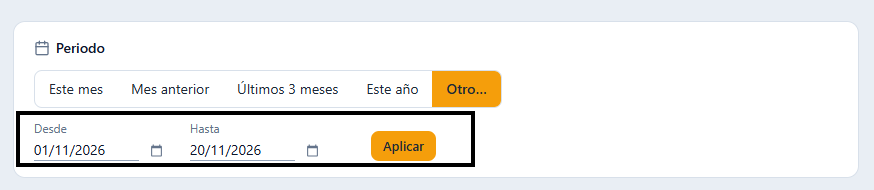
«Otro…» (Other…). Enter the start date in «Desde» (From) and the end date in «Hasta» (To) (day/month/year) and click «Aplicar» (Apply). «Hasta» does not accept a date before «Desde» or after today.
See consumption by user or by company
- 1
In «Ver», choose «Por usuario»
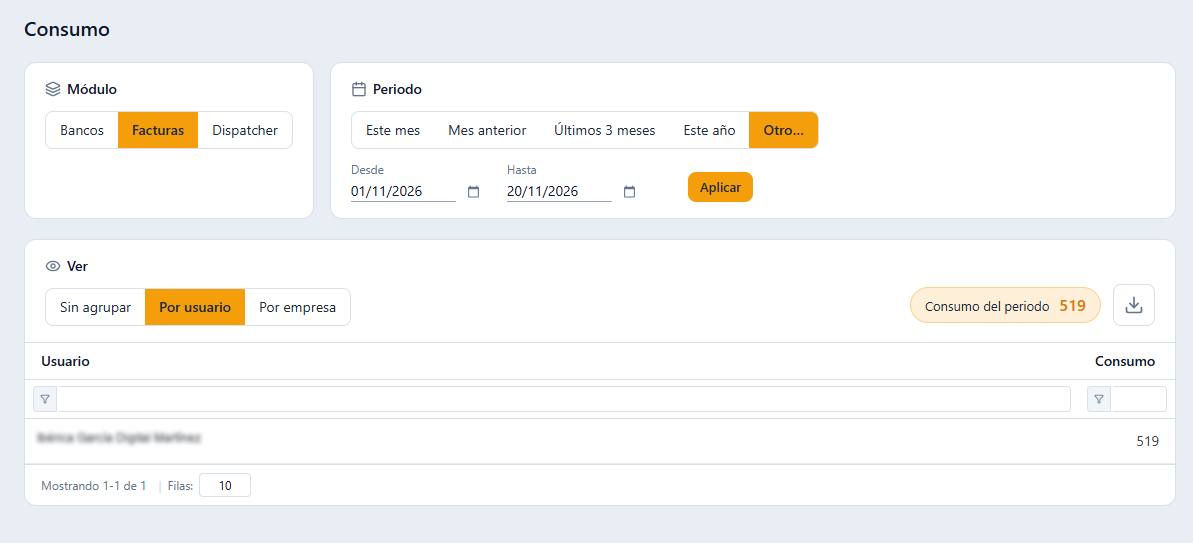
«Ver» (View), «Por usuario» (By user). The table shows one row per user with their consumption; together they add up to the «Consumo del periodo».
- 2
With the Facturas module, choose «Por empresa»
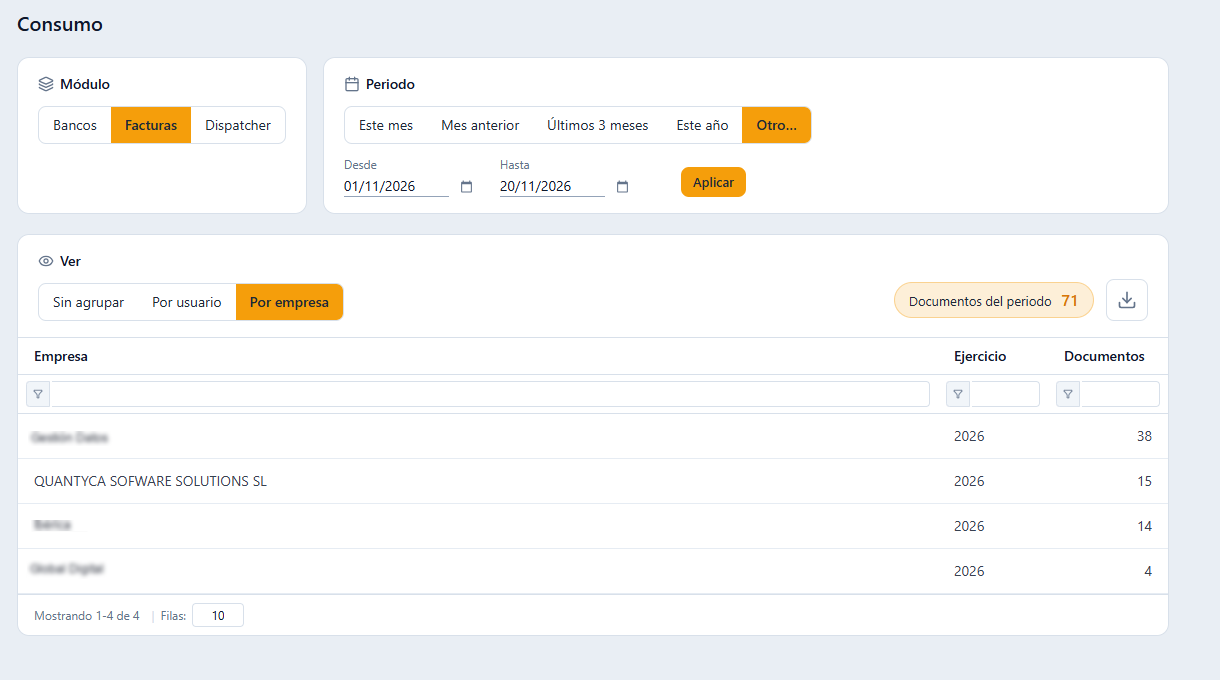
«Por empresa» (By company). The table shows the «Empresa» (Company), «Ejercicio» (Financial year) and «Documentos» (Documents) columns, and the total becomes «Documentos del periodo» (Documents for the period). With Bancos or Dispatcher, «Por empresa» is disabled; the icon next to it explains why, for example: «El consumo de Bancos por empresa se consulta en Ubyquo.» (Banks consumption by company is checked in Ubyquo.).
- 3
To see the transactions one by one again, choose «Sin agrupar»
«Sin agrupar» (Ungrouped), in «Ver».
Download the consumption to Excel
- 1
Click «Exportar a excel»
Click
 («Exportar a excel», Export to Excel). An .xlsx file named after the module is downloaded, with all the period's transactions and the filters applied.