
Updated on 25 November 2026
Workflows: signing documents
How to approve or reject a document with its comment and password, notify the next signatory, move to the next document, sign several at once, change a signature already made and what happens if you cannot sign.
Sign a document
- 1
Tick the checkbox of a document pending signature
In «Firmas pendientes» (Pending signatures), or in «Historial de firmas» (Signature history) after choosing the stage. Until you tick a document, «Firmar» (Sign) is disabled.
- 2
Click «Firmar»
Click
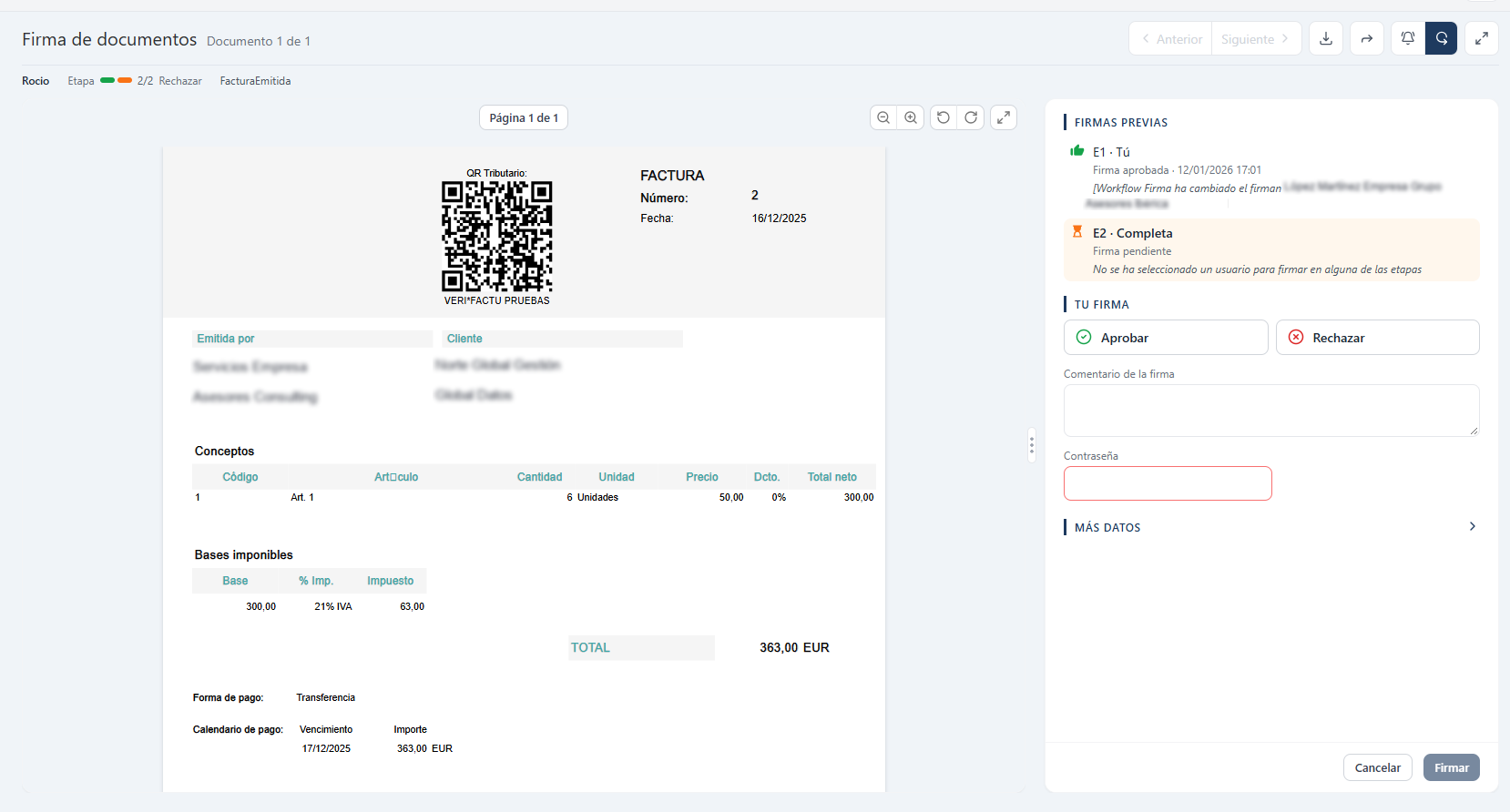
 . The signing screen opens with the document and its «Firmas previas» (Previous signatures): one line per stage with its signatory («Tú», You, on yours).
- 3
In «Tu firma», click «Aprobar» or «Rechazar»
«Tu firma» (Your signature), «Aprobar» (Approve), «Rechazar» (Reject). When you open it, neither is selected and «Firmar» is disabled.

- 4
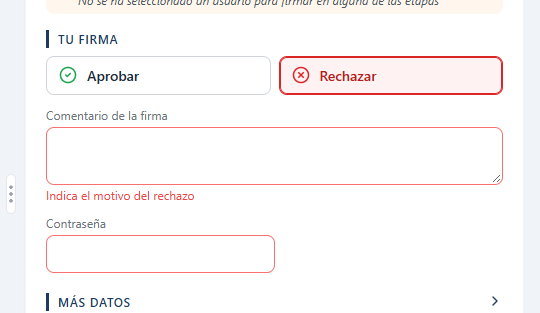
Enter the «Comentario de la firma»
«Comentario de la firma» (Signature comment). It is mandatory to reject: without it, «Indica el motivo del rechazo» (Enter the reason for rejection) appears and you cannot sign. To approve, it is not.
- 5
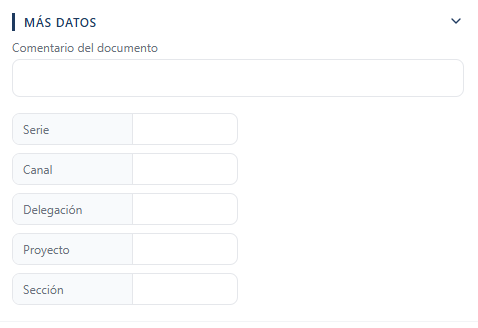
Fill in «Más datos», if you want
Click «Más datos» (More data) and fill in the «Comentario del documento» (Document comment) and the cost centres.
- 6
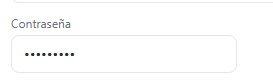
If the workflow asks for the password, enter it in «Contraseña»
«Contraseña» (Password). It is typed hidden. Without it, «Firmar» is disabled.
- 7
To notify the next signatory by email, click the notification button
On the signing toolbar, click
 («Si apruebas el documento, se notificará al siguiente firmante por correo», If you approve the document, the next signatory will be notified by email). When you open it, it is off; if you click it again, it turns off.
- 8
Click «Firmar»
Click
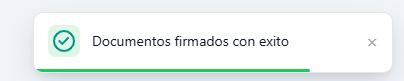
 . «Documentos firmados con exito» (Documents signed successfully) appears. If it could not be signed, «Error al firmar documento» (Error signing document) appears.
Load the next document automatically
- 1
Click «Carga automática del siguiente documento»
On the signing toolbar, click
 («Carga automática del siguiente documento», Load next document automatically) to turn it on or off. When you open it, it is on.
Move to another document or leave without signing
- 1
Click «Siguiente»
On the signing toolbar («Siguiente», Next: «Saltar documento», Skip document). The next document loads without signing the current one, and «Tu firma» goes back to having nothing selected.

- 2
To leave without signing, click «Cancelar»
«Cancelar» (Cancel). The signing screen closes and you go back to Workflows.
Sign several documents at once
- 1
Tick several pending documents of the same stage
In «Firmas pendientes» or in «Historial de firmas». The button becomes «Firmar seleccionadas» (Sign selected), with the number of ticked documents; for example,
 . If you tick documents from different stages, clicking it shows «Elige documentos de una sola etapa: solo se firman o se traspasan juntos los de la misma etapa.» (Choose documents from a single stage: only documents from the same stage are signed or transferred together.).
- 2
Click «Firmar seleccionadas»
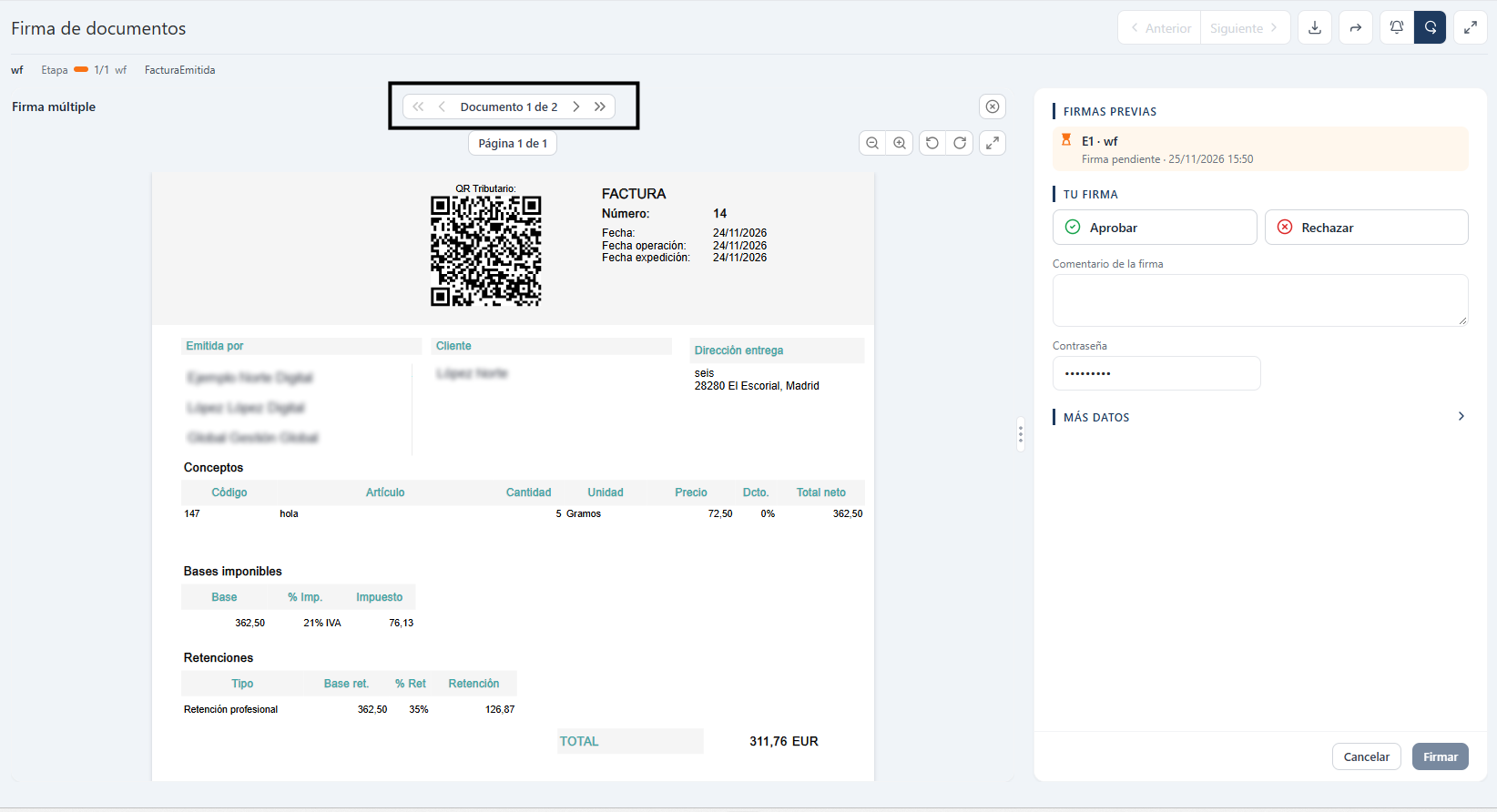
The signing screen opens with the «Firma múltiple» (Multiple signature) box, which shows the document displayed; for example, «Documento 1 de 2» (Document 1 of 2).
- 3
To see the others, use the «Firma múltiple» arrows
«Documento siguiente» (Next document), «Documento anterior» (Previous document), «Primer documento» (First document) and «Último documento» (Last document). That document loads and the position changes; for example, to «Documento 2 de 2».
- 4
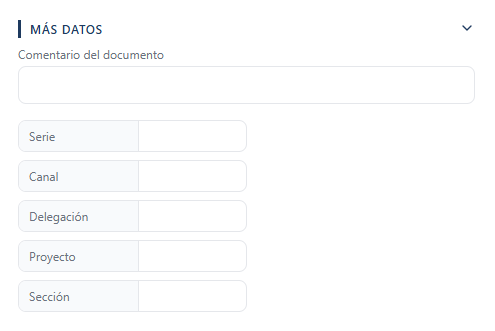
Click «Más datos» to check the comment and the cost centres
Data that does not match in all the documents appears as «#Varios#» (#Various#).
- 5
To leave out a document, display it and click «Quitar este documento de la firma múltiple»
Click
 («Quitar este documento de la firma múltiple», Remove this document from the multiple signature). That document is removed from the signature. If only one remains, the «Firma múltiple» box disappears.
- 6
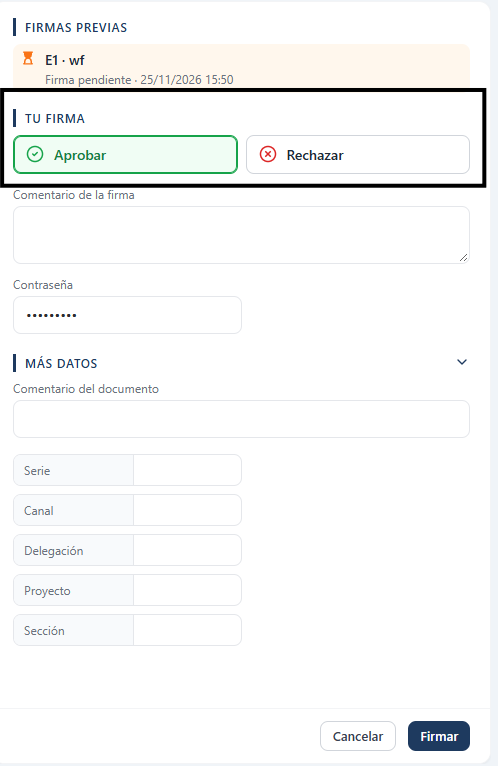
In «Tu firma», click «Aprobar» or «Rechazar» and enter the comment
To reject, the comment is mandatory. If the workflow asks for the password, enter it in «Contraseña».
- 7
Click «Firmar»
All the documents are signed at once with the same signature and «Documentos firmados con exito» appears. They are no longer pending in the stage.
Change a signature already made
- 1
In «Historial de firmas», tick a document you already signed and click «Firmar»
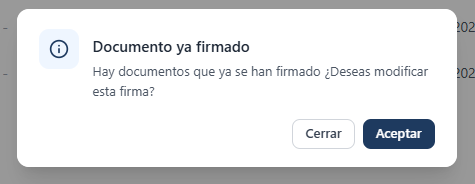
«Documento ya firmado» (Document already signed) appears, with the text «Hay documentos que ya se han firmado ¿Deseas modificar esta firma?» (Some documents have already been signed. Do you want to change this signature?).
- 2
Click «Aceptar» to open the signing screen and change it
«Aceptar» (OK). With «Cerrar» (Close), the signature stays as it is.
- 3
If it is already signed at a later stage, it cannot be changed
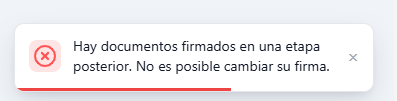
When you click «Firmar», «Hay documentos firmados en una etapa posterior. No es posible cambiar su firma.» (Some documents have been signed at a later stage. Their signature cannot be changed.) appears and the signing screen does not open.
If you cannot sign a document
- 1
Tick the document and click «Firmar»
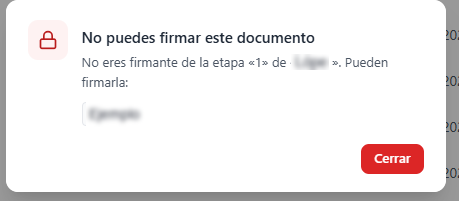
If you are not a signatory of that stage, «No puedes firmar este documento» (You cannot sign this document) appears, with the list of those who can sign it.
- 2
Click «Cerrar»
The warning closes and the signing screen does not open.
For someone else to sign: Transferring the signature to another signatory.