
Updated on 25 November 2026
Workflows: transferring the signature to another signatory and sending an email reminder
How to pass a stage's signature to another signatory, from the list or from the signing screen and with email notification, and send a reminder to the signatories of pending documents.
Transfer a document from the list
- 1
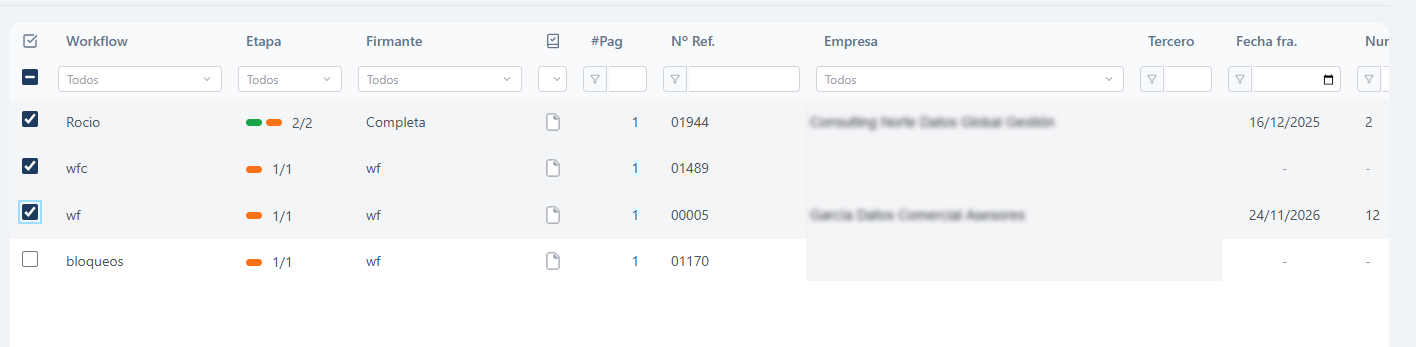
Tick the document's checkbox
In «Firmas pendientes» (Pending signatures) or, after choosing the stage, in «Historial de firmas» (Signature history). Until you tick a document, the transfer button is disabled.
- 2
Click «Transferir la firma de esta etapa a otro firmante»
Click
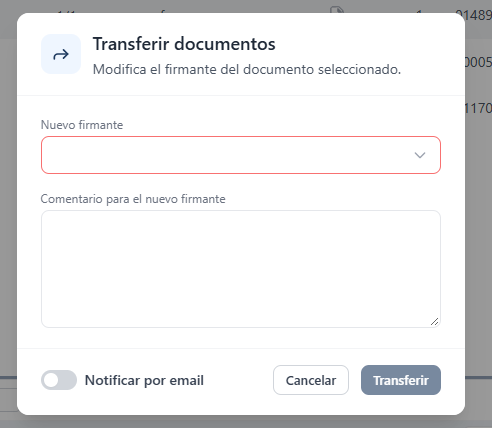
 on the toolbar («Transferir la firma de esta etapa a otro firmante», Transfer this stage's signature to another signatory). «Transferir documentos» (Transfer documents) opens, with the text «Modifica el firmante del documento seleccionado.» (Change the signatory of the selected document.). It also opens in stages with a «Grupo» (Group) signature.
- 3
Choose the signatory in «Nuevo firmante»
«Nuevo firmante» (New signatory). If the stage only has one possible signatory, it is already selected. Without a signatory, you cannot transfer.
- 4
Enter, if you want, a «Comentario para el nuevo firmante»
«Comentario para el nuevo firmante» (Comment for the new signatory). It is optional.
- 5
To notify them by email, turn on «Notificar por email»
«Notificar por email» (Notify by email). When the window opens, it is off.
- 6
Click «Transferir»
«Transferir» (Transfer). If it cannot be transferred, «Error al transferir firmante» (Error transferring signatory) appears. To leave without transferring, click «Cancelar» (Cancel): the window closes and nothing changes.
Transfer from the signing screen
- 1
Tick the document and click «Firmar»
«Firmar» (Sign). The signing screen opens.
- 2
Click «Transferir la firma de esta etapa a otro firmante»
It is on the signing toolbar. «Transferir documentos» opens.

- 3
Choose the «Nuevo firmante» and click «Transferir»
Enter the comment and turn on «Notificar por email» if you want to notify them by email. To leave without transferring, click «Cancelar».
Send a signature reminder by email
- 1
In «Firmas pendientes», tick the documents' checkboxes
With no document ticked, the button of the next step only warns «Marca los documentos de los que quieres recordar la firma.» (Tick the documents whose signature you want to remind about.).

- 2
Click «Enviar un recordatorio por correo a los firmantes de los documentos marcados»
Click
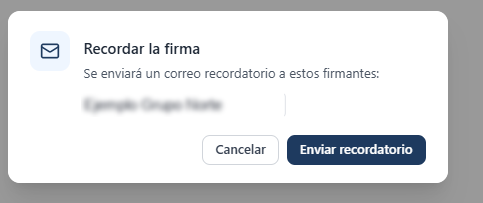
 on the toolbar («Enviar un recordatorio por correo a los firmantes de los documentos marcados», Send an email reminder to the signatories of the ticked documents). «Recordar la firma» (Signature reminder) opens, with «Se enviará un correo recordatorio a estos firmantes:» (A reminder email will be sent to these signatories:) and the list of signatories. If the ticked documents are only waiting for your signature, «Los documentos marcados solo esperan tu firma: no hay a quién recordársela.» (The ticked documents are only waiting for your signature: there is no one to remind.) appears.
- 3
Click «Enviar recordatorio»
«Enviar recordatorio» (Send reminder). The email is sent. With «Cancelar», the window closes without sending anything.