
Updated on 25 November 2026
User profiles: creating, copying, changing and deleting
How to check the profiles and their users, view a profile's record, create one with its modules, roles and departments, copy it, change it and delete it.
A profile groups the modules that can be accessed, the role in each one and the departments. Each user has a profile.
Check the profiles and their users
- 1
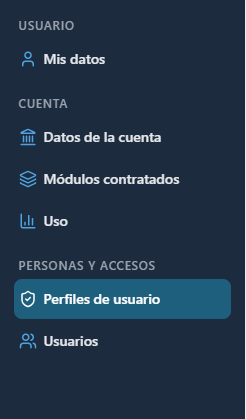
Go to Administración › «Perfiles de usuario»
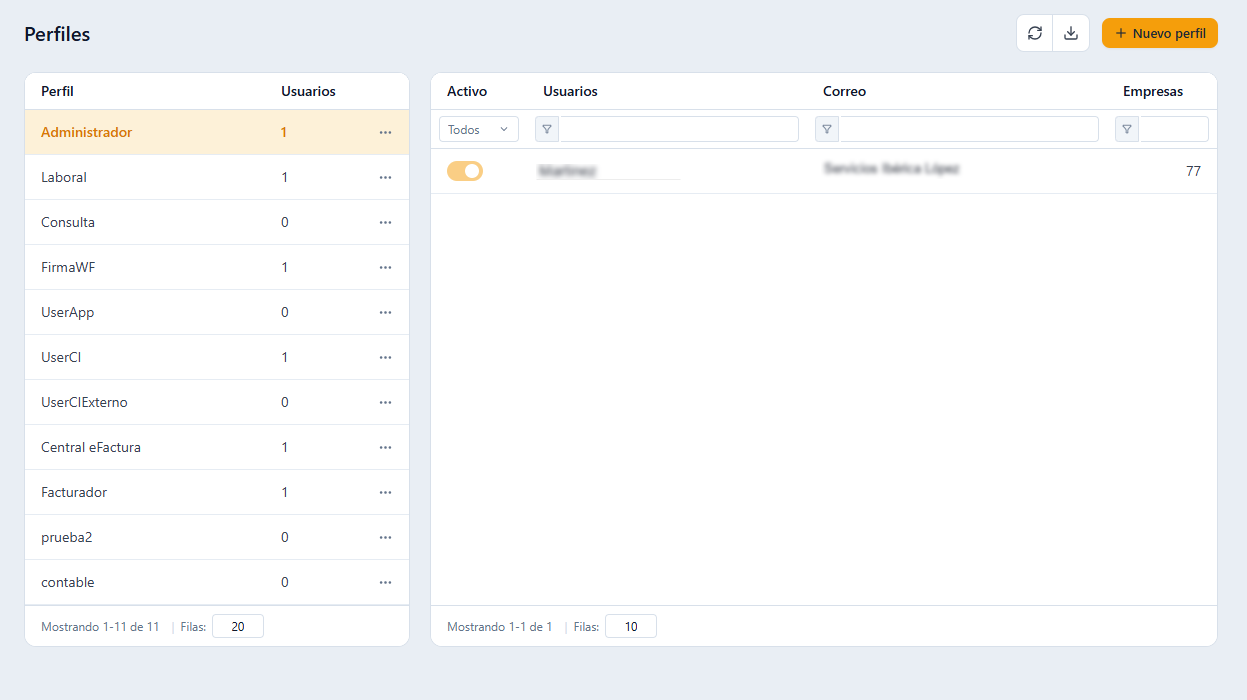
«Perfiles» (Profiles) opens: on the left, the list of profiles, with the «Perfil» (Profile) and «Usuarios» (Users: how many have it) columns and the «Nuevo perfil» (New profile) button; on the right, the users of the selected profile, with their «Correo» (Email) and «Empresas» (Companies).
- 2
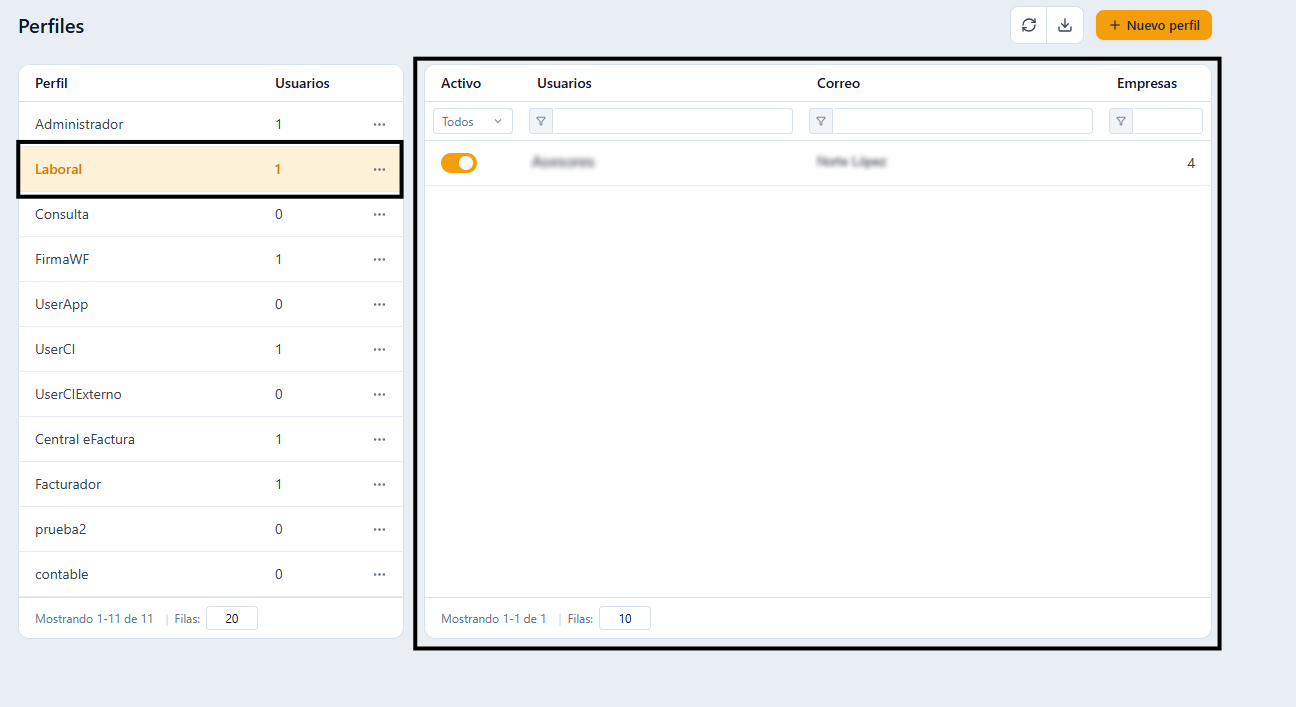
Click a profile to see its users
The table on the right shows the users who have that profile.
- 3
Click «Refrescar» to reload the list
Click
 («Refrescar», Refresh) on the toolbar.
- 4
To download the list, click the download button
Click
 on the toolbar. The «Listado de Perfiles» (List of profiles) file (.xlsx) is downloaded with the account's profiles.
View a profile's record
- 1
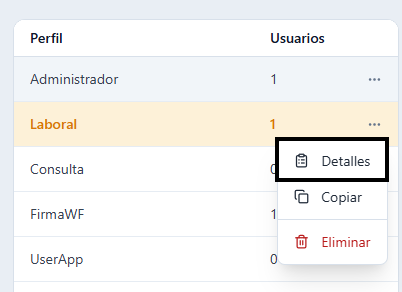
Open the profile's «Acciones» menu and choose «Detalles»
The «Acciones» (Actions) menu is the three dots (…) at the end of the row. «Detalles» (Details).
- 2
Check its tabs
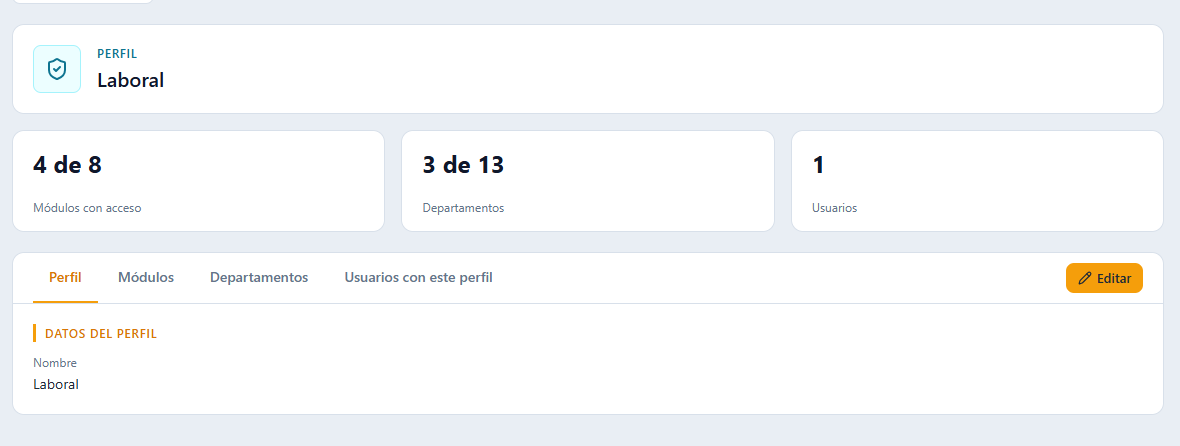
The profile's record opens in read mode: at the top, the name and the summary with the modules with access, the departments and the users; below, the «Perfil» (Profile), «Módulos» (Modules), «Departamentos» (Departments) and «Usuarios con este perfil» (Users with this profile) tabs. To change a tab, click
 («Editar», Edit).
- 3
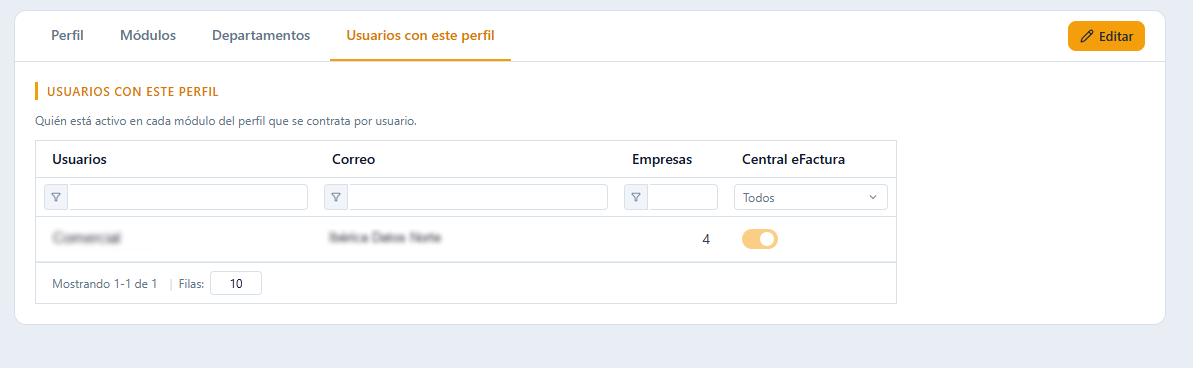
In «Usuarios con este perfil», check its users
Each user with their name, email, companies and one switch for each per-user module (such as Central eFactura), which shows whether they are active in it. It cannot be changed here.
- 4
Click «Volver a perfiles»
«Volver a perfiles» (Back to profiles) takes you back to the list of profiles.
Create a profile
- 1
Click «Nuevo perfil»
Click
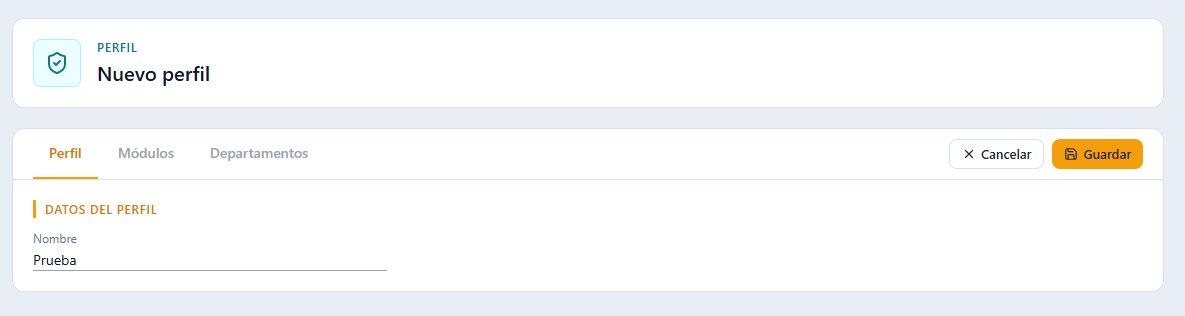
 . The «Nuevo perfil» record opens. The «Módulos» and «Departamentos» tabs are enabled after saving.
- 2
Enter the name and click «Guardar»
In «Nombre» (Name). The message «El perfil ha sido creado correctamente» (The profile has been created successfully) appears and the new profile's record opens. If you leave it empty, «Introduzca un nombre de perfil» (Enter a profile name) appears; if another profile already has that name, «El nombre del perfil está repetido» (The profile name is a duplicate).
- 3
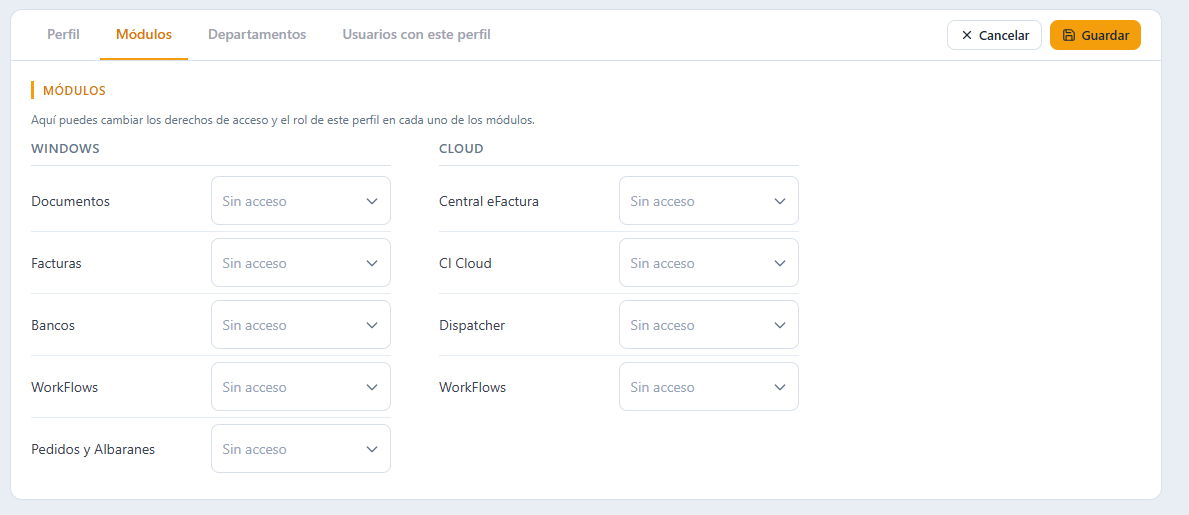
On the «Módulos» tab, click «Editar» and choose the role for each module
In the drop-down list of each module, Windows and Cloud, choose the profile's role, or leave it as «Sin acceso» (No access). The roles depend on the module; for example, «Supervisor», «Consulta» (Read-only) or «Gestión facturas» (Invoice management). Click «Guardar» (Save): the message «El perfil ha sido modificado correctamente» (The profile has been changed successfully) appears.
- 4
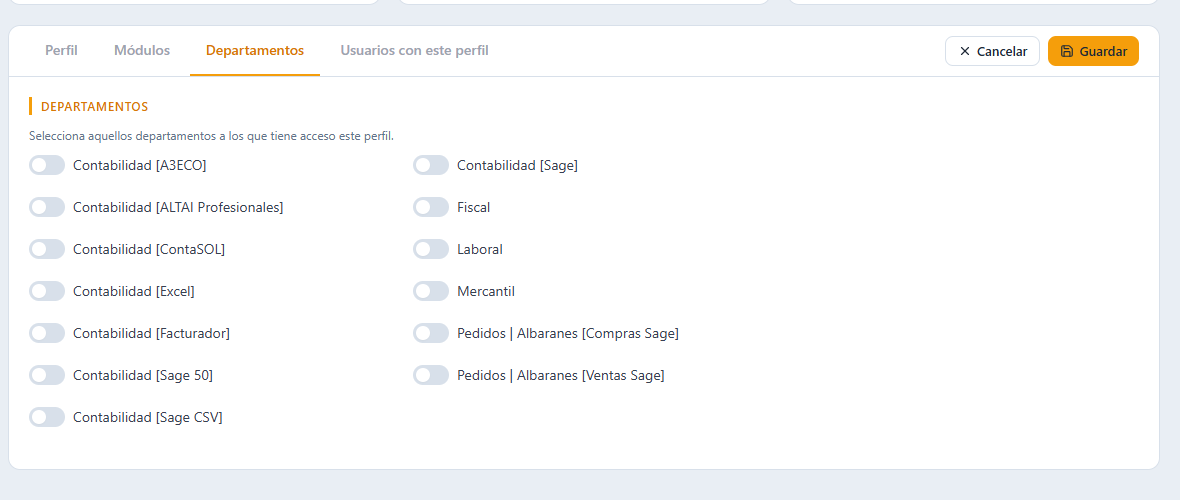
On the «Departamentos» tab, click «Editar» and turn on its departments
Turn on the departments the profile will have access to and click «Guardar».
- 5
Click «Volver a perfiles»
The new profile appears in the list. To leave without creating it, click «Cancelar» (Cancel) before saving.
Copy a profile
- 1
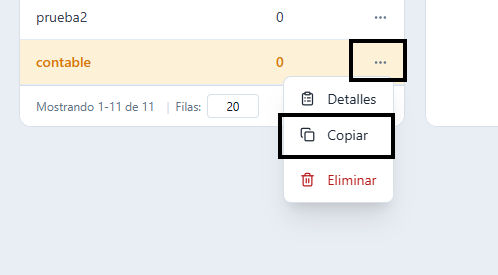
Open the profile's «Acciones» menu and choose «Copiar»
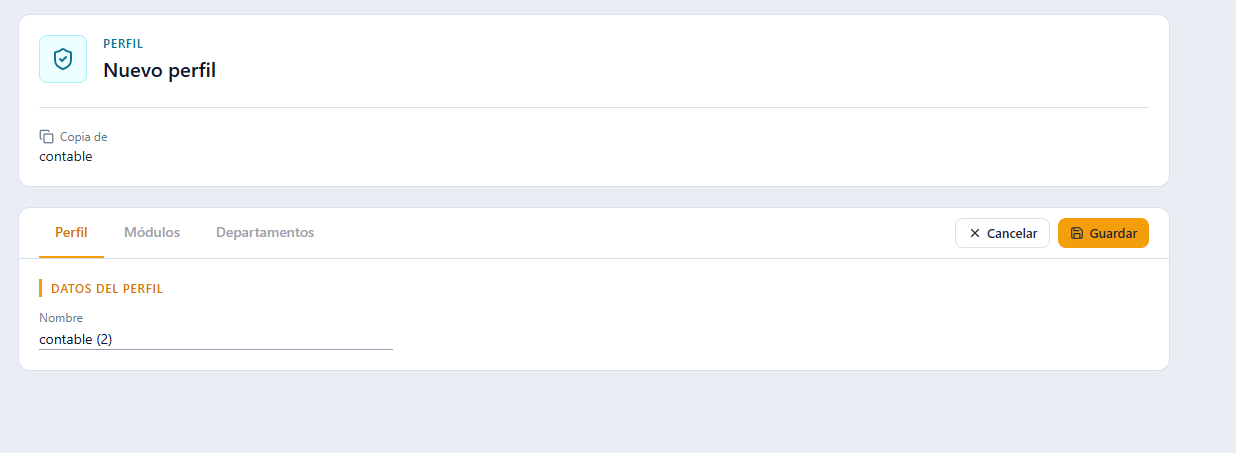
«Copiar» (Copy). The «Nuevo perfil» record opens, with «Copia de» (Copy of) and the original profile's name, and suggests the same name followed by «(2)».
- 2
Enter a different name, if you want, and click «Guardar»
The copy has the same modules and departments as the original.
Change a profile
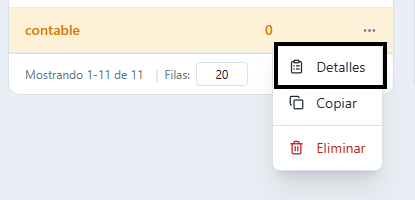
- 1
Open the profile's «Acciones» menu and choose «Detalles»
The profile's record opens.
- 2
Open the tab you want to change and click «Editar»
Change what you need and click «Guardar». The message «El perfil ha sido modificado correctamente» appears.

Delete a profile
- 1
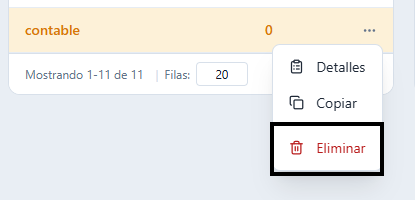
Open the profile's «Acciones» menu and choose «Eliminar»
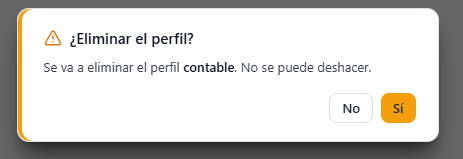
«Eliminar» (Delete). The warning «¿Eliminar el perfil?» (Delete the profile?) appears.
- 2
Click «Sí»
«Sí» (Yes). The message «El perfil ha sido eliminado correctamente» (The profile has been deleted successfully) appears and the profile disappears from the list. With «No», it is not deleted.
A profile with users cannot be deleted. In the «Administrador» (Administrator) profile, the «Acciones» menu only has «Detalles».