Updated on 25 November 2026
Users: creating, changing, deleting, resetting the password and folder access rules
How to check the users, create a new one, view and change their record, delete them, send them a link to create a new password, and define and recalculate their folder access rules.
Check the users
- 1
Go to Administración › «Usuarios»
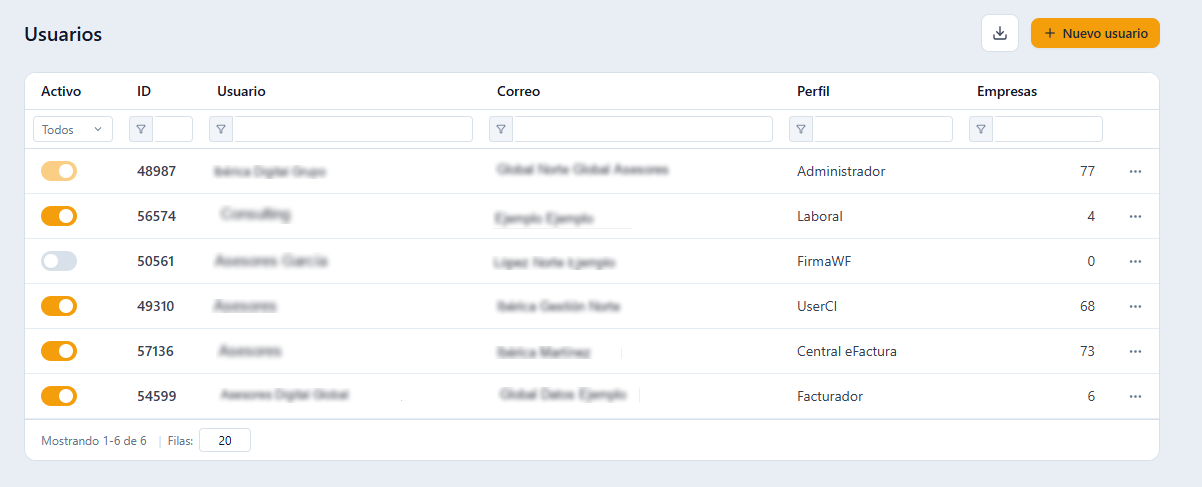
«Usuarios» (Users). The list of users opens, with a row of filters below the headers, the «Nuevo usuario» (New user) button and a button to download the list. Your user has «(tú)» (you) after the name.
Create a user
- 1
Click «Nuevo usuario»
Click
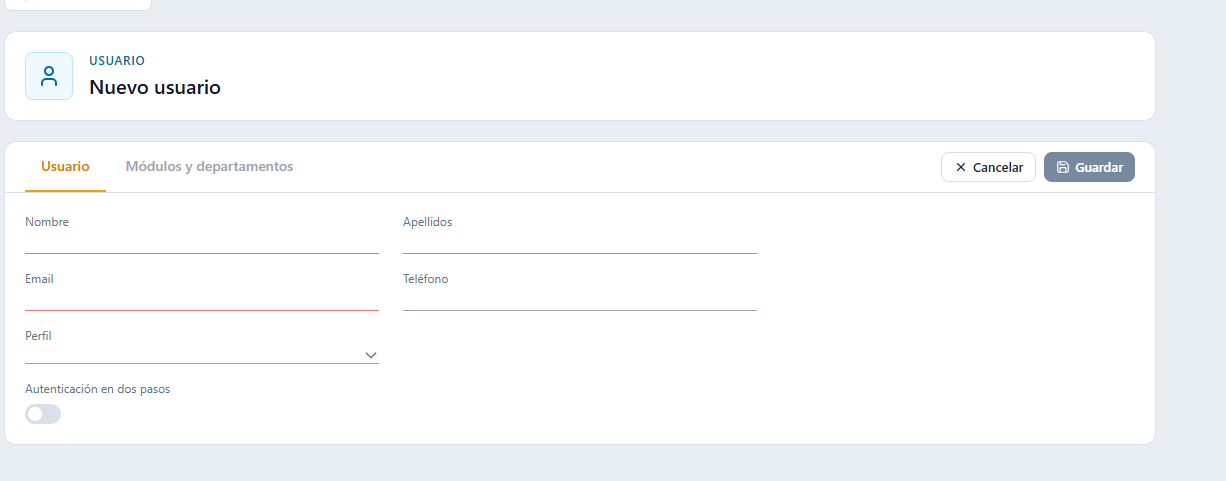
 . The «Nuevo usuario» record opens. The «Módulos y departamentos» (Modules and departments) tab is enabled after saving.
- 2
Fill in the first name, last name and email
In «Nombre» (First name), «Apellidos» (Last name) and «Email» and, if you want, «Teléfono» (Phone). If the email does not have a valid format, the field is marked in red. You can also turn on «Autenticación en dos pasos» (Two-step authentication).
- 3
Choose the profile in the «Perfil» drop-down list
«Perfil» (Profile). «Guardar» (Save) is enabled when the first name, last name, email and profile are filled in.
- 4
Click «Guardar»
The message «El usuario [nombre] ha sido creado. Le hemos enviado su contraseña por email.» (User [name] has been created. We have sent them their password by email.) appears. If there is already a user with that email, «El email introducido ya está en uso o alguno de los datos es incorrecto» (The email entered is already in use or some of the data is incorrect) appears and the user is not created. «Cancelar» (Cancel) leaves without creating it.
- 5
Click «Volver a usuarios»
«Volver a usuarios» (Back to users). The new user appears in the list.
The user's modules, roles and departments are those of their profile: User profiles.
View and change a user's record
- 1
Open the user's «Acciones» menu and choose «Detalles»
The «Acciones» (Actions) menu is the three dots (…) at the end of the row; «Detalles» (Details). The user's record opens in read mode, with the «Usuario» (User), «Módulos y departamentos» and «Reglas y acceso a carpetas» (Rules and folder access) tabs, and the «Editar» (Edit) and «Volver a usuarios» buttons.

- 2
Click the «Módulos y departamentos» tab
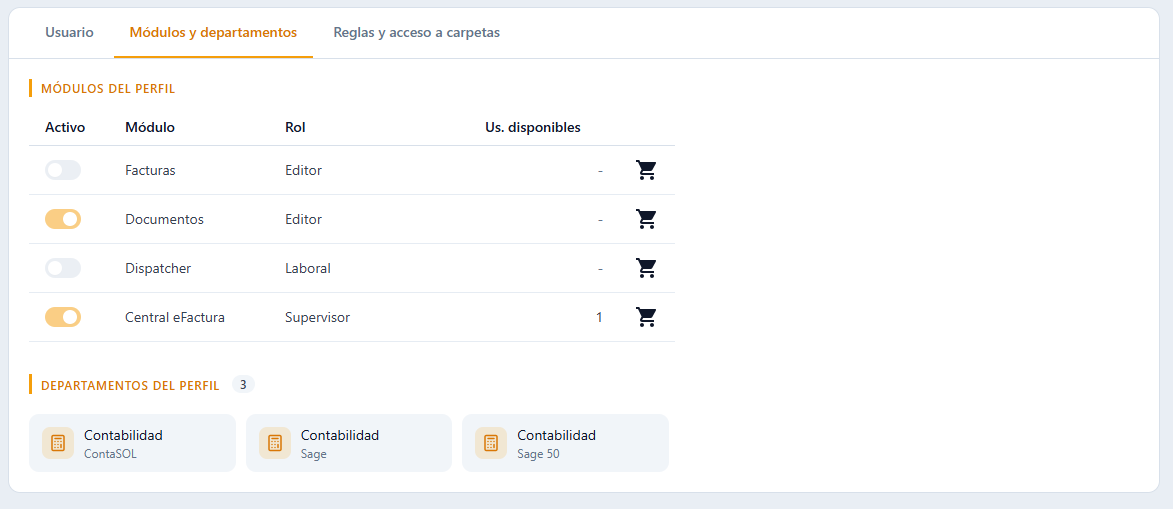
It shows the profile's modules, each with its «Activo» (Active) switch, its role and the available users, and the profile's departments.
- 3
To change their details, click «Editar», change them and click «Guardar»
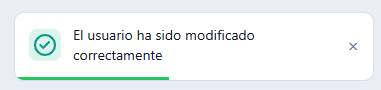
The message «El usuario ha sido modificado correctamente» (The user has been changed successfully) appears.
- 4
Click «Volver a usuarios»
You go back to the list.
Delete a user
- 1
Open the user's «Acciones» menu and choose «Eliminar»
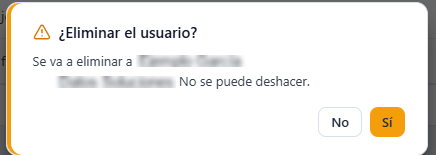
«Eliminar» (Delete). The warning «¿Eliminar el usuario?» (Delete the user?) appears; it cannot be undone.

- 2
Click «Sí»
«Sí» (Yes). The user disappears from the list. With «No», it is not deleted.
Reset a user's password
- 1
Open the user's «Acciones» menu and choose «Resetear contraseña»
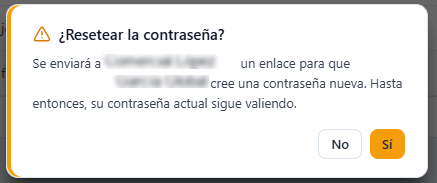
«Resetear contraseña» (Reset password). The warning «¿Resetear la contraseña?» (Reset the password?) appears: a link will be sent to the user's email so that they can create a new password and, until then, their current password still works.

- 2
Click «Sí»
The link is sent. With «No», nothing is sent.
Your own user does not have this option: you change your password in My details.
Define the folder access rules
- 1
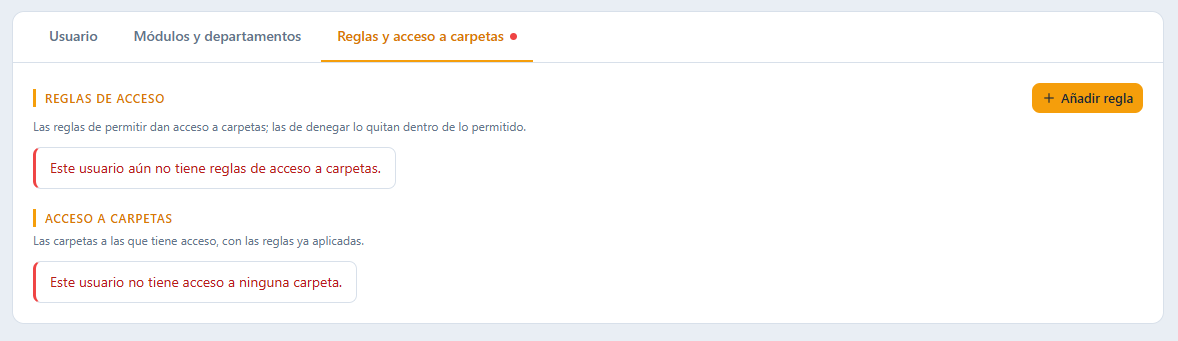
In the user's record, click the «Reglas y acceso a carpetas» tab
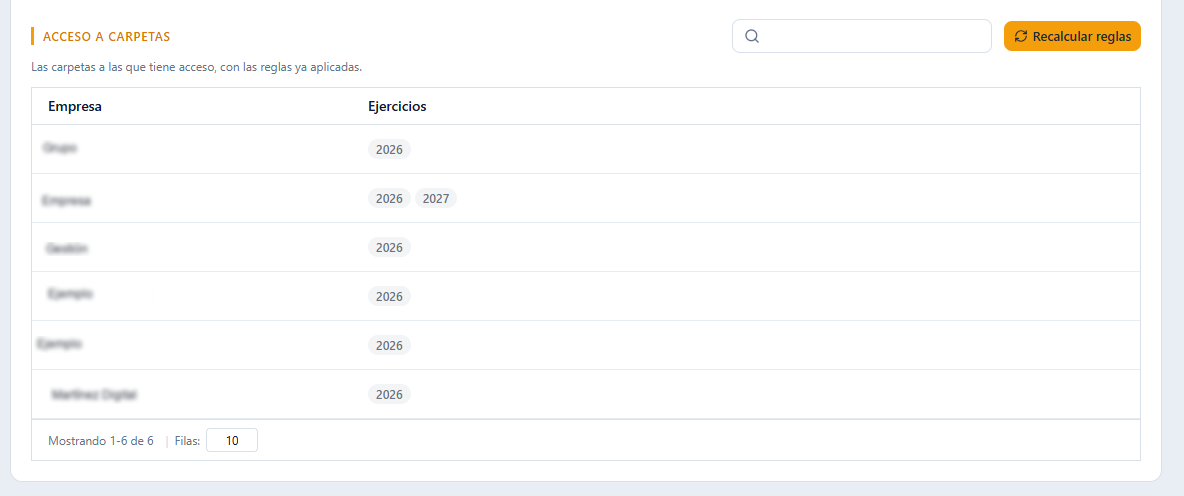
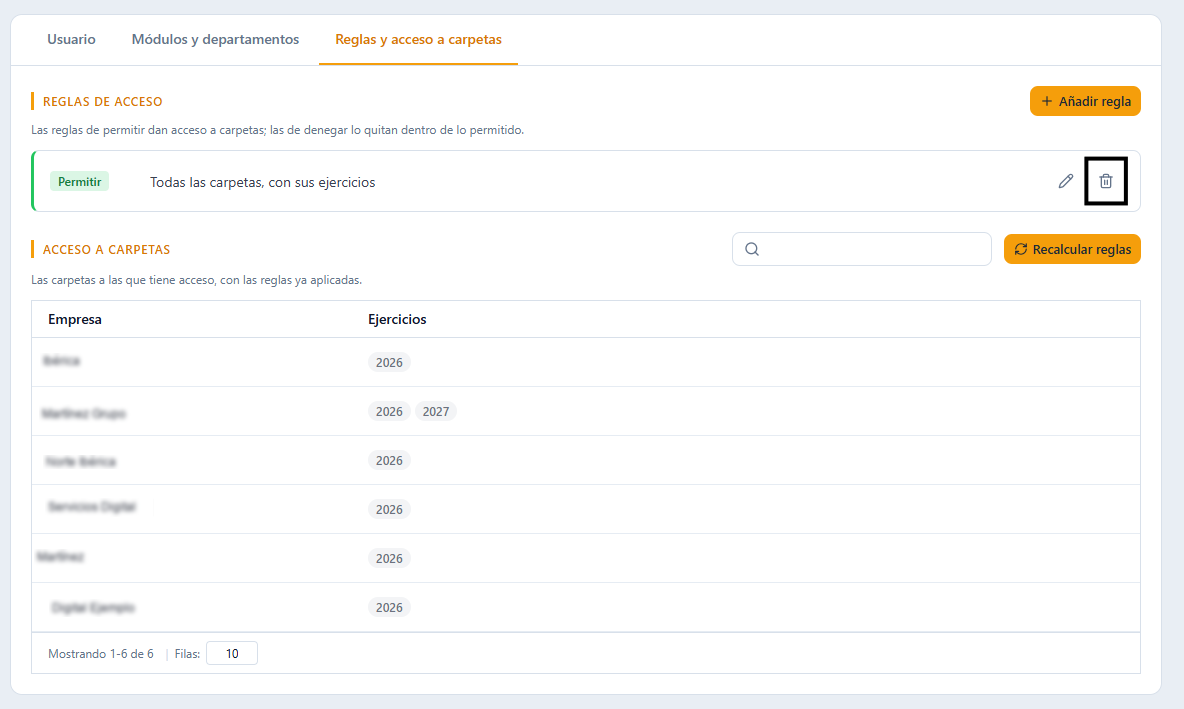
It shows their «Reglas de acceso» (Access rules) and, below, their «Acceso a carpetas» (Folder access): the folders they can access with the rules already applied. Allow rules give access to folders; deny rules remove it within what is allowed.
- 2
Click «Añadir regla»
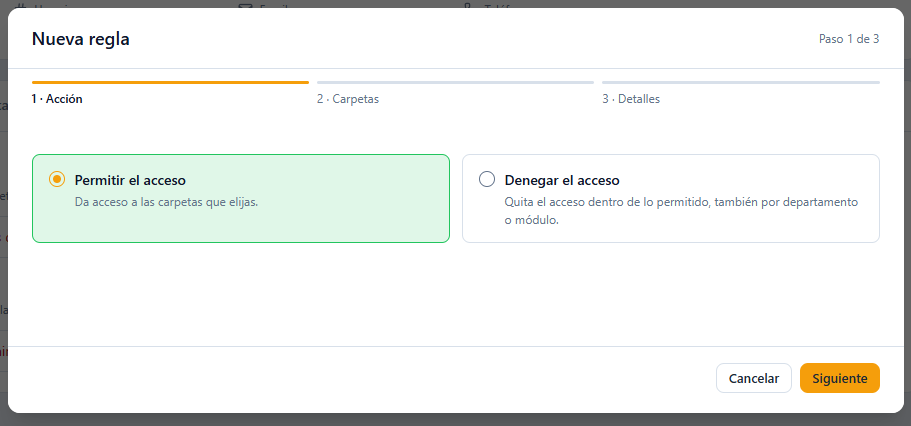
«Añadir regla» (Add rule). The «Nueva regla» (New rule) wizard opens, with three steps: «Acción» (Action), «Carpetas» (Folders) and «Detalles» (Details).
- 3
Choose «Permitir el acceso» or «Denegar el acceso» and click «Siguiente»
«Permitir el acceso» (Allow access) gives access to the folders you choose; «Denegar el acceso» (Deny access) removes it within what is allowed, also by department or module. «Siguiente» (Next).
- 4
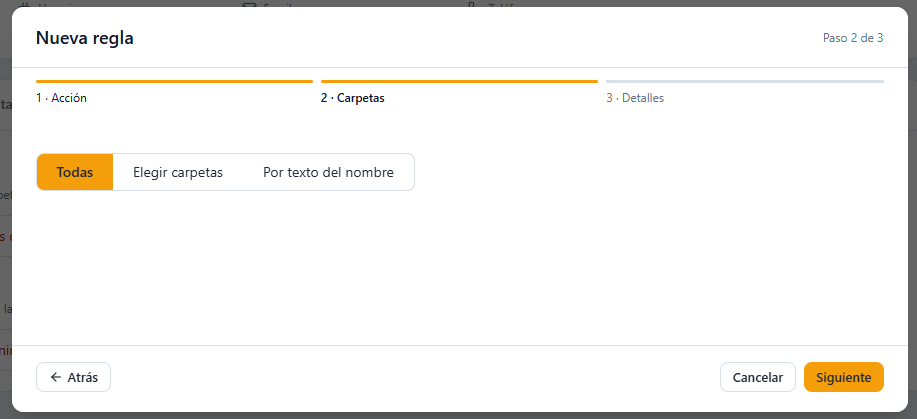
Choose the folders and click «Siguiente»
«Todas» (All), «Elegir carpetas» (Choose folders) or «Por texto del nombre» (By text in the name). With «Por texto del nombre», choose «Contiene el texto» (Contains the text) or «No lo contiene» (Does not contain it) in «Su nombre» (Its name) and enter the text in «Texto del nombre de la carpeta» (Text of the folder name).
- 5
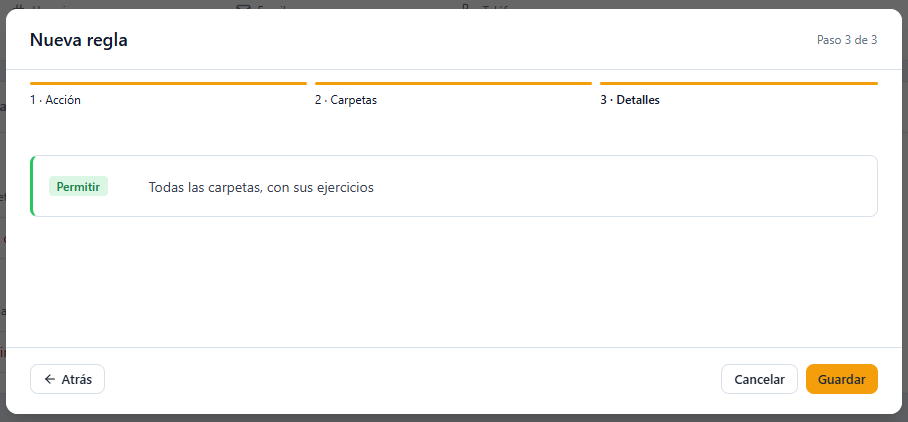
Check the rule and click «Guardar»
The «Detalles» step summarises the rule. Once saved, it appears in the list marked as «Permitir» (Allow) or «Denegar» (Deny).
- 6
To delete a rule, click its bin icon
It is the «Eliminar regla» (Delete rule) button. The warning «¿Eliminar esta regla?» (Delete this rule?) appears; when you confirm it, the rule disappears from the list.
Recalculate folder access
- 1
Click «Recalcular reglas»
«Recalcular reglas» (Recalculate rules) is in «Acceso a carpetas», on the «Reglas y acceso a carpetas» tab of the user's record. The table shows the companies the user can access according to their rules and their profile, with their financial years.