
Updated on 25 November 2026
Workflows: documents pending signature
How to see the documents pending signature in all workflows, filter them by document type, see only yours and check a document's signature tracking.
See the documents pending signature
- 1
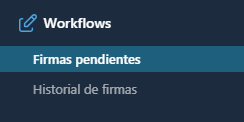
Click «Workflows» in the side menu
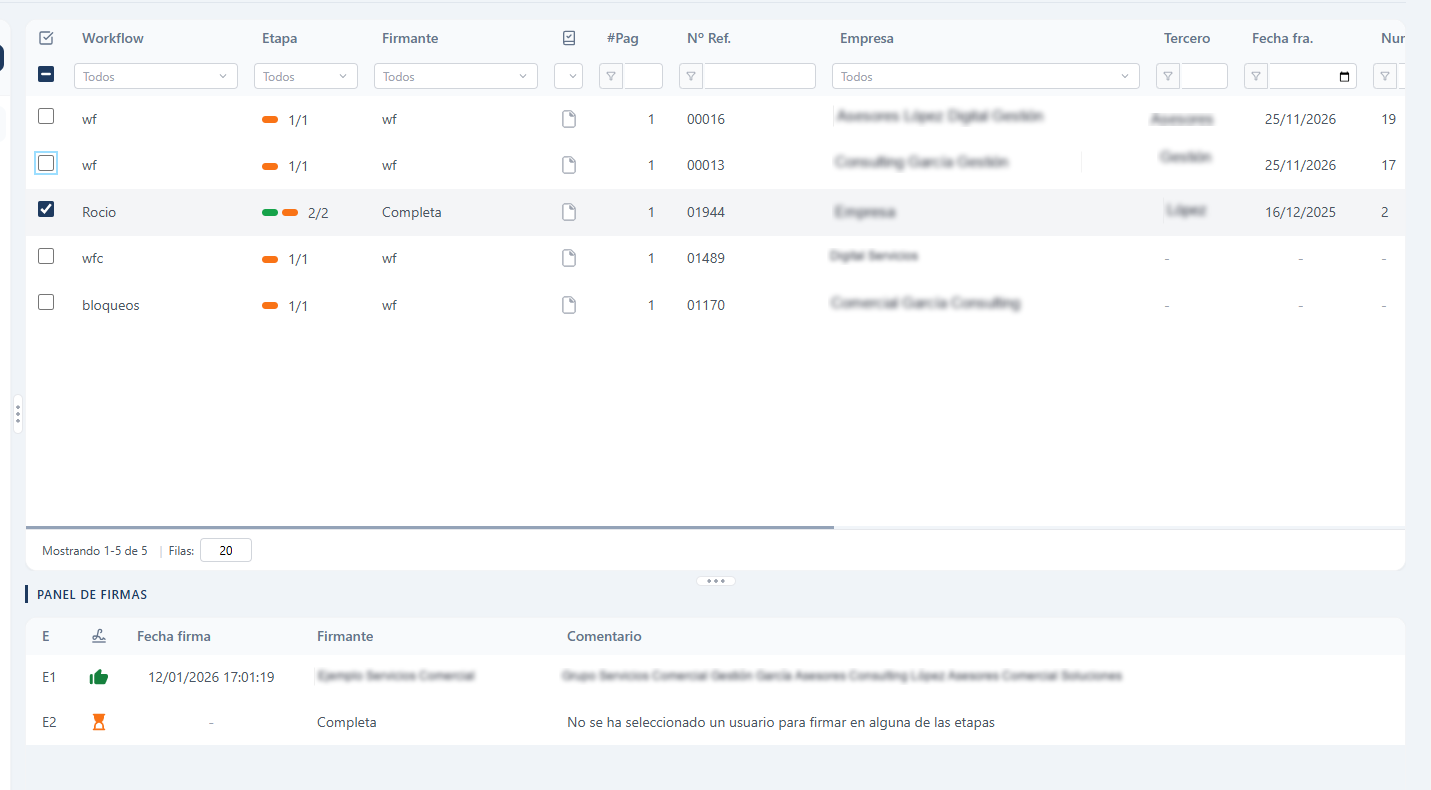
If you are already in Workflows, click «Firmas pendientes» (Pending signatures), below «Workflows». «Firmas pendientes» opens, with the documents pending signature in all workflows: their «Workflow», their «Etapa» (Stage) and their «Firmante» (Signatory).
Choose a document type
- 1
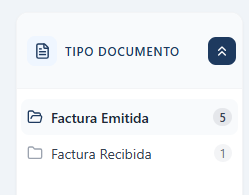
Click a document type
In «Tipo documento» (Document type), each type shows how many documents it has pending. The list shows only the documents of that type.
See only your pending signatures
- 1
Click «Mostrar solo mis firmas pendientes»
If you are an administrator, click
 on the toolbar («Mostrar solo mis firmas pendientes», Show only my pending signatures). Only the pending signatures that are yours remain.
- 2
To see everyone's again, click «Mostrar las firmas pendientes de todos los usuarios»
It is the same button («Mostrar las firmas pendientes de todos los usuarios», Show all users' pending signatures). All users' pending signatures come back.
Check a document's signature tracking
- 1
Tick a document's checkbox
Below the list, the «Panel de firmas» (Signature panel) shows its tracking: one row per stage, as in «Historial de firmas» (Signature history).
To sign them: Signing documents.