
Updated on 9 October 2026
How to create companies and fiscal years in Ubyquo
Add the companies and fiscal years from your ERP in bulk or one by one from Gestionar Carpetas (Manage Folders).
Two ways
With Creación masiva (Bulk creation) you add several companies and fiscal years from your ERP at once; with Creación manual (Manual creation), a single company and its fiscal year.
If you use Sage Seos (Cloud)
Follow the procedure in SAGE - CSV connector.
Option 1 Bulk creation
- 1
Open “Gestionar Carpetas”
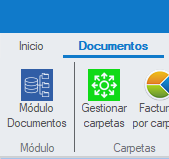
Go to Documentos › Gestionar Carpetas (Documents › Manage Folders).
- 2
Click “Creación masiva”
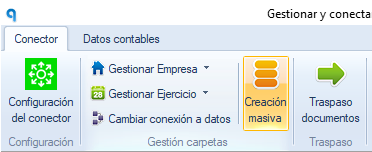
Click Creación masiva.
- 3
Choose the companies and fiscal years
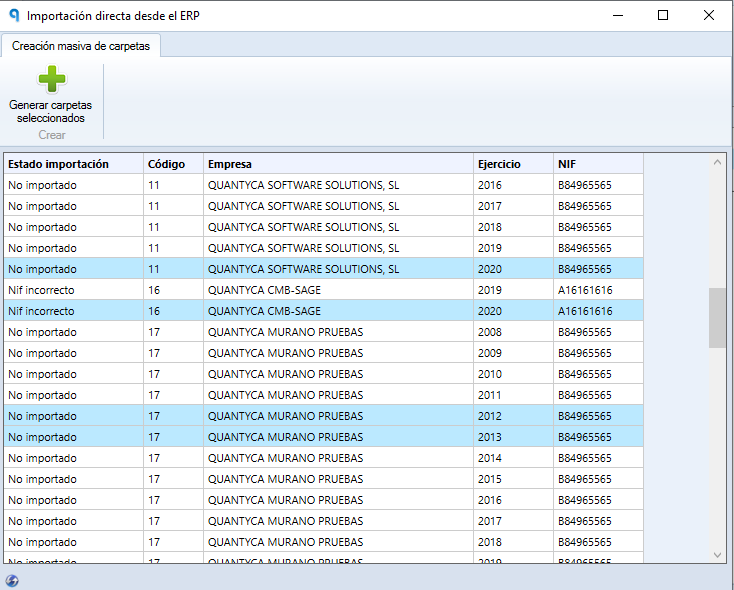
The window shows the companies and fiscal years available in your ERP. Select the ones you want to add and click Generar carpetas seleccionadas (Generate selected folders).
If you use A3ECO or A3CON and they do not appear in the list, refresh it: from the Documentos, Facturas or Bancos tab, click Gestionar Carpetas, choose Cambiar conexión a datos (Change data connection), click Refrescar (Refresh)
 (bottom left), wait for it to finish and close the window.
Check the import
The Estado importación (Import status) column must show Importación correcta (Import successful).
- 4
Grant permissions
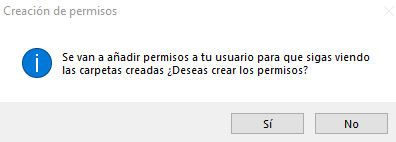
If the user doing it is not an administrator, a window asking for permissions appears: click Sí (Yes).
- 5
Close the windows
Close the open windows to go back to the main Documentos view.
Option 2 Manual creation
- 1
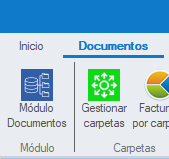
Open “Gestionar Carpetas”
Go to Documentos › Gestionar Carpetas.
- 2
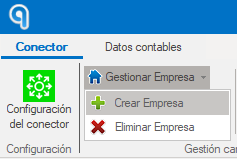
Create the company
Click Gestionar Empresa › Crear Empresa (Manage Company › Create Company).
- 3
Fill in its details
Enter the details and click Guardar (Save):
Company nameCIF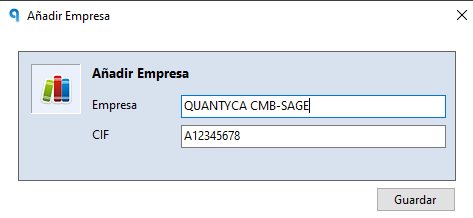
- 4
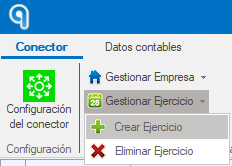
Create the fiscal year
Go to Gestionar Ejercicio › Crear Ejercicio (Manage Fiscal Year › Create Fiscal Year), enter the year and click Guardar.
- 5
Synchronize the chart of accounts
To finish, synchronize the Plan Contable (chart of accounts) for the company and fiscal year.