
Updated on 23 September 2026
Ubyquo CSV connector for Sage SEOS
Work with Ubyquo without a local installation by exchanging Excel and CSV files with Sage SEOS.
The Ubyquo CSV connector for Sage SEOS and Cloud environments lets you work with Ubyquo when a local installation is not possible on the server or environment where Sage runs.
Information is exchanged through Excel and CSV files generated from Sage, so you can import accounting information into Ubyquo and export journal entries from Ubyquo to Sage.
Supported modules
The connector supports the following modules:
- Documents
- Invoices
- Banks, except cancellation of receivables/payables
- WF (Workflow)
- Dispatcher
- CIC
What the connector lets you do
The connector lets you:
- Import and export information through Excel files generated from Sage.
- Get company information, such as the chart of accounts, third parties and journals.
- Import journal entries from Ubyquo into Sage.
- View the invoices linked to journal entries directly from Sage.
Exporting information from Sage to Ubyquo
Before working with the companies in Ubyquo, you need to export the companies, fiscal years and accounting data from Sage.
Exporting companies and fiscal years
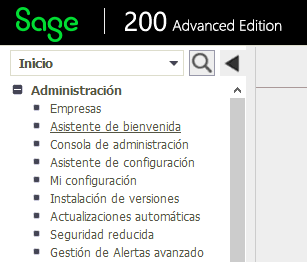
In Sage 200, go to:
Drop-down menu > Inicio > Empresas (Home > Companies)
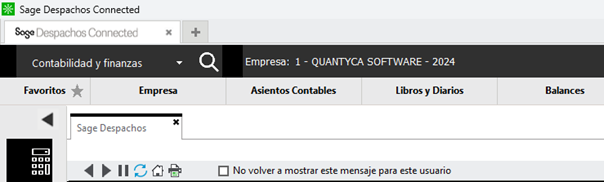
In Sage Despachos, go to:
Contabilidad y Finanzas > Empresas (Accounting and Finance > Companies)
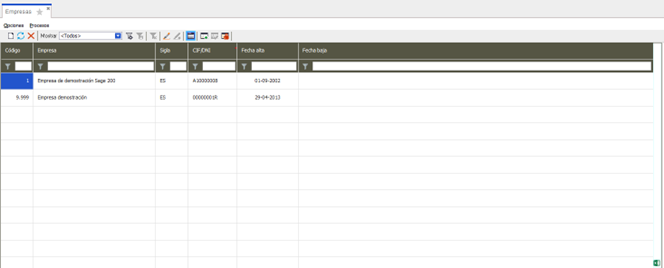
- Click the Excel icon at the bottom right.
- Select Según datos en pantalla (According to data on screen).
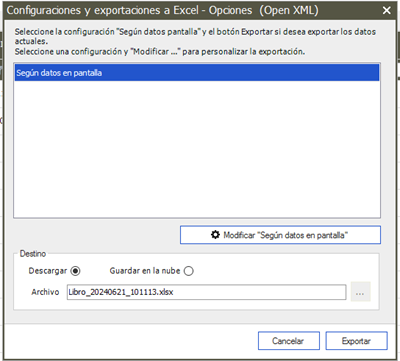
- Enter the file name.
- Select Descargar (Download).
- When Sage asks whether you want to run the export, select Sí (Yes).
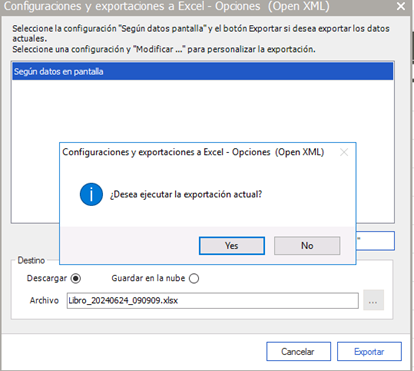
The file will be saved in the Descargas (Downloads) folder.
Editing the companies Excel file
Open the downloaded Excel file and edit the last column:
- Find the Fecha de Baja (Termination date) column.
- Rename it Ejercicio (Fiscal year).
- Enter the corresponding year in each row.

This file will later be used to create the companies and fiscal years in Ubyquo.
Exporting the chart of accounts and the journal
Once you have the list of companies, you need to export the chart of accounts and the journal from Sage.
Sage 200
Go to:
Inicio > Exportar Conta CSV (Home > Export Accounting CSV)
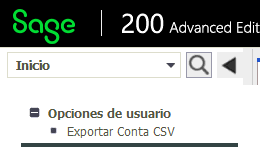
Sage Despachos
Go to:
Opciones > Exportar Conta CSV (Options > Export Accounting CSV)

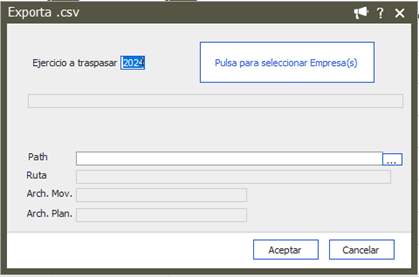
Selecting the companies
- Click Seleccionar Empresa(s) (Select Company(ies)).
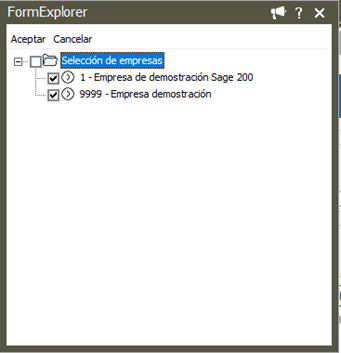
- Select the companies you want to export.
- Click Aceptar (OK).
Generating the files
- Set the export path to:
K:\
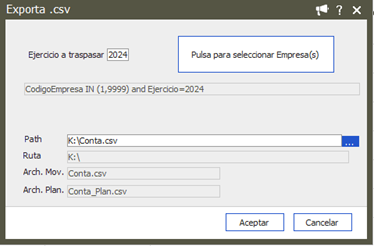
- Sage will generate the following files:
- Chart of accounts
- Journal
- .bat file
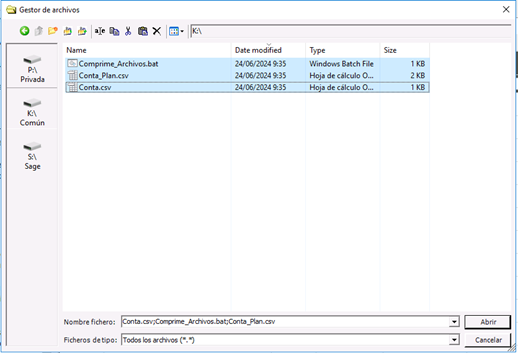
In Sage 200, you can open the folder from the top right.
In Sage Despachos, the folder is on the left side, via the folder icon.

- Go to the folder where the files were generated.
- Select the three files.
- Click Abrir (Open) to download them to your computer.
Creating the Conta.zip file
Run Comprime_Archivos.bat by double-clicking it.
The process will generate a file:
Conta.zip
This is the file you will later import into Ubyquo.

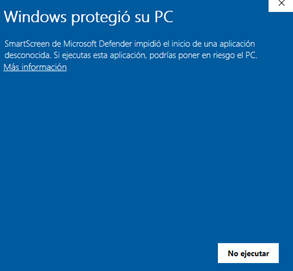
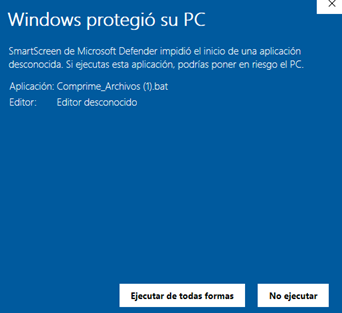
If a Windows security warning appears, select:
More info > Run anyway
Creating and configuring the companies in Ubyquo
Once the Sage files are ready, you can create the companies and fiscal years in Ubyquo.

Creating companies from the Excel file
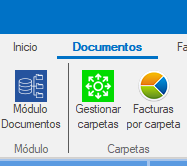
- Open Ubyquo and go to Gestionar Carpetas (Manage Folders).
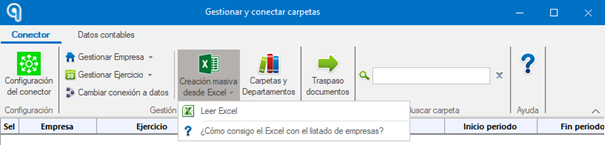
- Select Creación masiva desde Excel > Leer Excel (Bulk creation from Excel > Read Excel).
- Select the Excel file with the companies.
- Tick the companies you want to create.
Synchronizing the accounting data
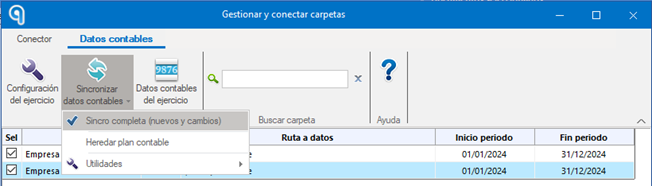
- Go to Datos contables > Sincronizar datos contables (Accounting data > Synchronize accounting data).
- Select Sincronización completa (Full synchronization).
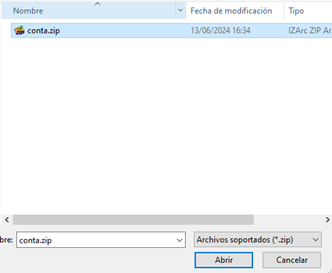
- Select the Conta.zip file.
- Click Abrir (Open).
Once the synchronization is finished, the companies will be available to work with in Ubyquo.
Exporting journal entries from Ubyquo to Sage SEOS
Once the companies are set up, you can export the journal entries generated in Ubyquo to Sage using Excel files.
There are two methods for sending the files to the Sage SEOS environment.
Method 1: Manual export via Excel
- Verify the invoices in Ubyquo and run the export.

- Save the generated Excel file in the Descargas (Downloads) folder.
- Drag the file to the SEOS computer.
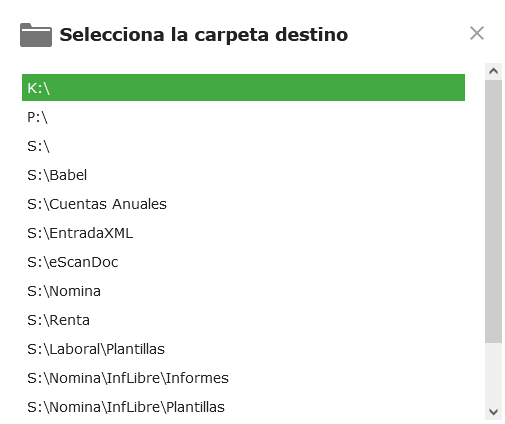
- When Sage asks for the path, select:
K:\
Method 2: Upload files directly from Sage SEOS
You can also send the file directly to the SEOS environment using the Sage icon next to the Windows clock.
Accessing the hidden icons
- Open the hidden icons next to the Windows clock.
- Look for the white Sage icon.
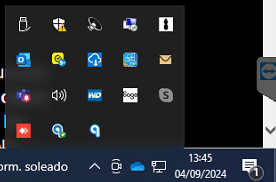
If the icon does not appear:
- Open the Sage window.
- Find the cloud icon at the top.

Uploading the file to Sage SEOS
- Right-click the Sage icon.
- Select Subir archivos (Upload files).
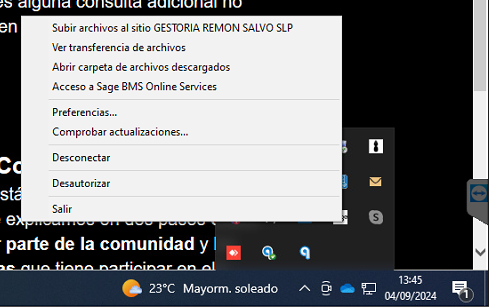
- Find and select the Excel file generated from Ubyquo.
- Under Destino (Destination), select drive K: as the upload path.
Importing the journal entries into Sage
Once the file is available in Sage SEOS:
- In Sage, select the Importar (Import) option.
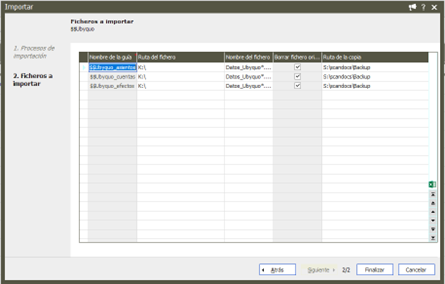
- Click Siguiente (Next).
- Click Finalizar (Finish).
- Review the import summary.
- Click Aceptar (OK).
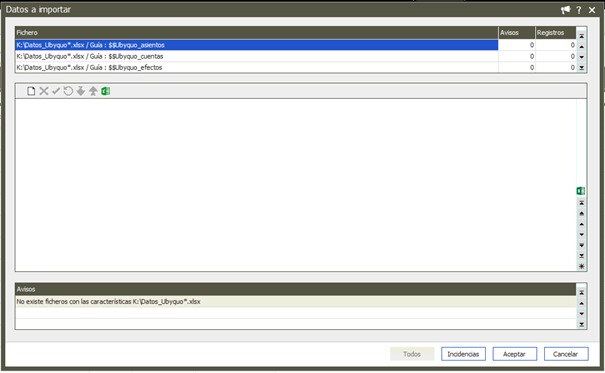
The journal entries exported from Ubyquo will be imported into Sage.
Viewing the linked invoices from Sage
Once the journal entry is imported, you can open the original document from Sage.
- Go to the journal entry generated.
- Select Ver factura asociada (View linked invoice).
- Click Ver documento (View document).
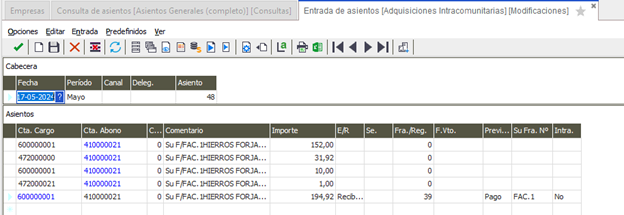
A browser tab will open to access the Ubyquo CIC viewer.
Enter your Ubyquo e-mail and password to sign in.
Once you are signed in, you will be able to see the document linked to the journal entry in the Ubyquo CIC Viewer.
Important: to view the invoices correctly, you must have an Ubyquo CI session open.