
Updated on 21 September 2026
Filtering companies and fiscal years in Ubyquo
Show only the companies and fiscal years you need to work in a more organized way and load faster.
In Ubyquo you can use a company and fiscal year filter from the Documentos (Documents), Facturas (Invoices) or Bancos (Banks) tabs to show only the folders you need.
Reducing the number of visible companies and fiscal years lets you work with a more organized view and can improve data loading speed and efficiency.
How to set up the company filter
Open the filter settings
From the Documentos, Facturas or Bancos tabs, find the key-shaped icon at the bottom of the documents block.
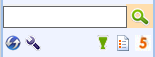
Click the icon to open the filter settings window.
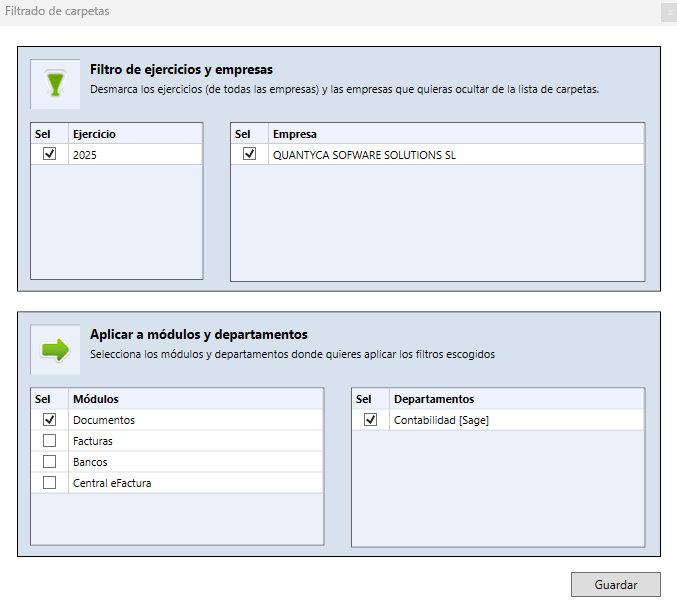
Select companies and fiscal years
In the settings window you can:
- Select the fiscal years you want to see.
- Select the companies you want to see.
- Choose which modules to apply the filter to:
- Documentos
- Facturas
- Bancos
- Select the corresponding department, usually linked to the accounting software you use.
Apply the filter
Once the filter is set up, click the green funnel icon, next to the key icon.
The filter will be applied to the current module, showing only the selected companies and fiscal years.
Saving the filter
The filter settings are saved automatically and kept when you start Ubyquo.
This way, you do not need to set it up again every time you open the program.
How to remove or undo the filter
To turn off the filter and show all available companies and fiscal years again, click the green funnel icon again.