
Updated on 21 September 2026
Creating users and setting up permission rules
Control who can access each department, module and folder by assigning profiles and permission rules.
User and permission rule management in Ubyquo
Ubyquo lets you create users, assign profiles and set up permission rules to control access to departments, modules and folders.
You can watch the following video to see the whole process:
Set up the user profile's department
Before creating new users, you need to set up, just once, the department linked to the user profile you are going to use.
- Go to the Inicio (Home) tab and click the top-left icon.

If account administration does not open, see the article Account administration does not open in Ubyquo.
- Go to Perfiles de usuario (User profiles).
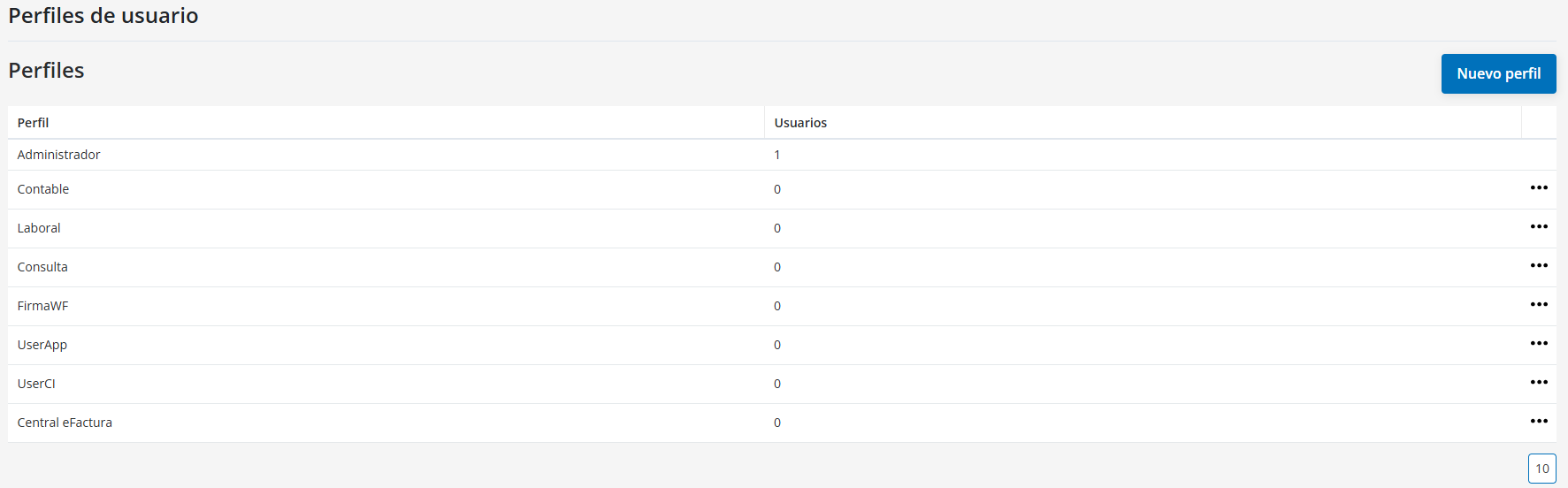
- Find the profile you are going to use, usually Contable (Accountant) or FirmaWF, and click the three dots on the right to select Editar (Edit).
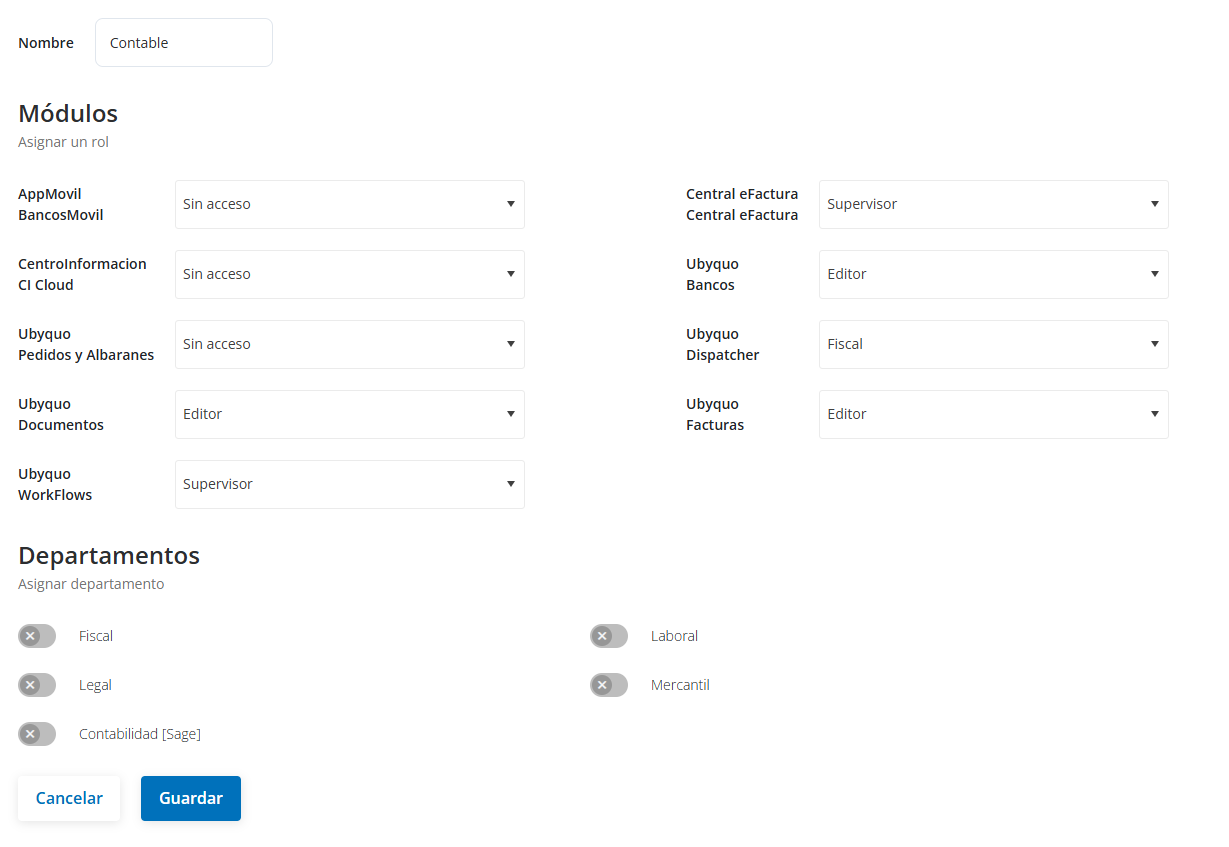
- When editing the profile, select the corresponding department. It will usually be the accounting software used.
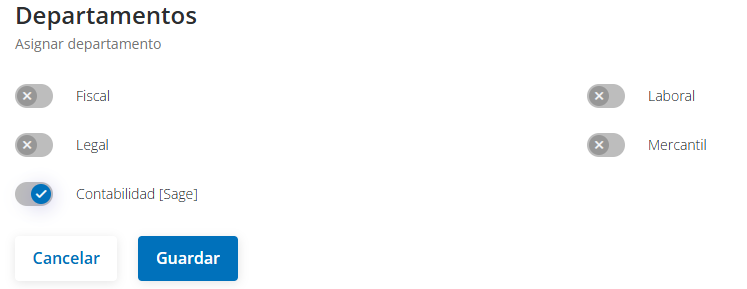
The department set in the profile lets you correctly link users to the corresponding folders and companies.
Create a new user
Once the profile is set up, you can create the users who will have access to Ubyquo.
- Go to Inicio and click the top-left icon.
If account administration does not open, see the article Account administration does not open in Ubyquo.
- Select the Usuarios (Users) tab.

- Click Nuevo usuario (New user) and fill in the requested details:
- Nombre y Apellidos (First and last name): required.
- Email: required.
- Teléfono (Phone): optional.
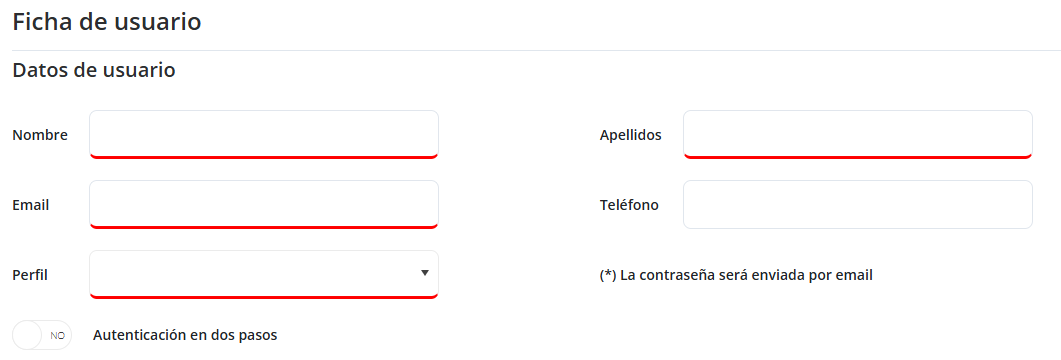
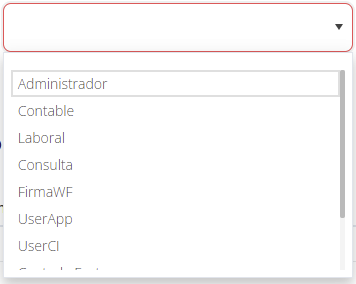
- Assign the corresponding Perfil de usuario (User profile). The profile determines access to the configured modules and departments.
The login password is sent automatically by email.
Edit an existing user
To change a user's details or set up their permission rules:
- Select the user.
- Click Editar.


From this screen you can change the user's settings and add their access rules.
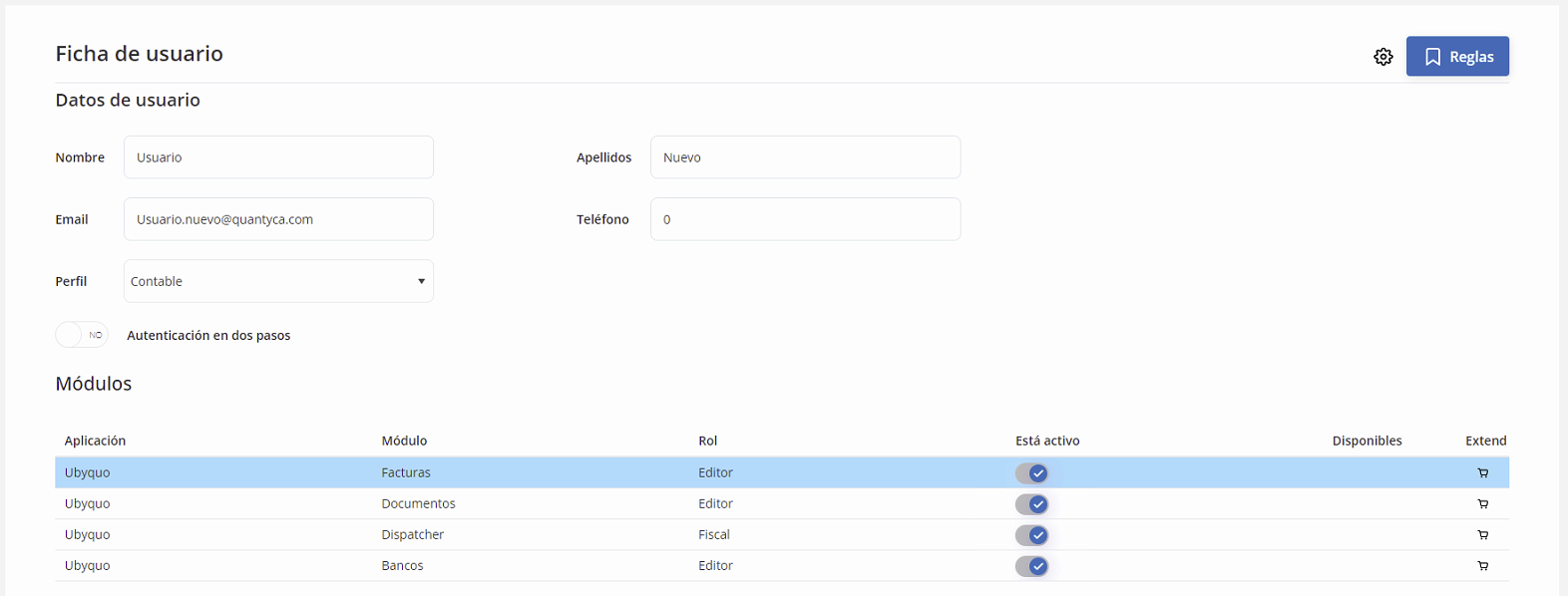
After making changes to permissions, use Regenerar acceso a carpetas (Regenerate folder access) to update the user's access.

Create permission rules
Permitir (Allow) type rules let you define which departments, modules and folders a user can access.
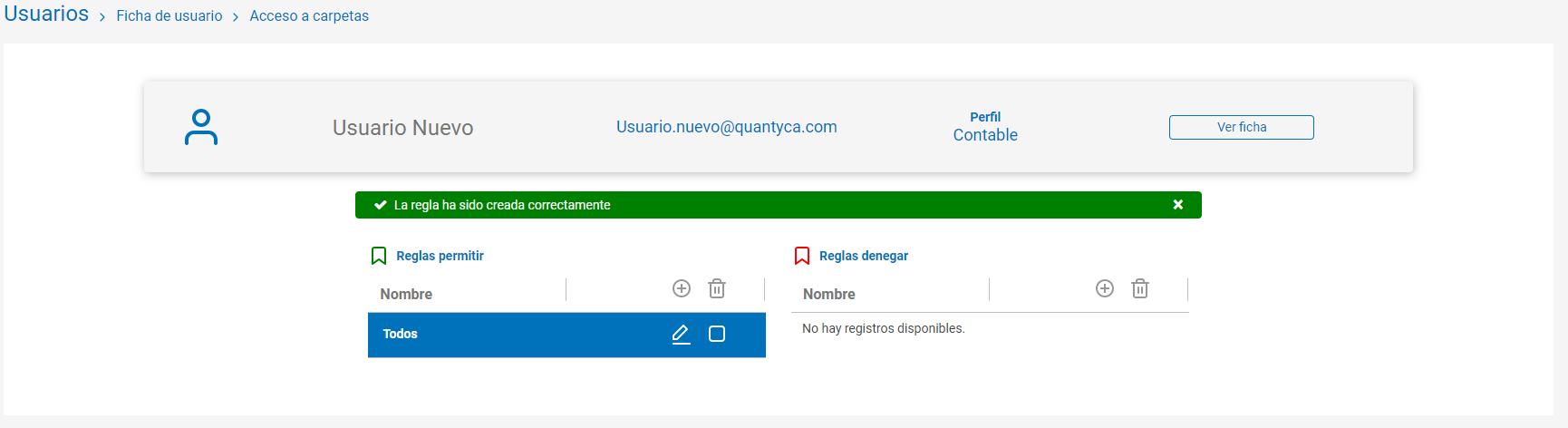
- Click Crear Regla (Create rule).
- Select the Permitir type.
- Give the rule a descriptive name.
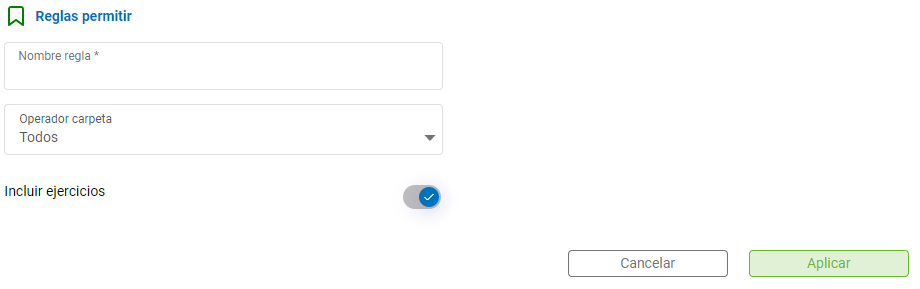
Define folder access
You can use different operators to set the folders the user will have access to:
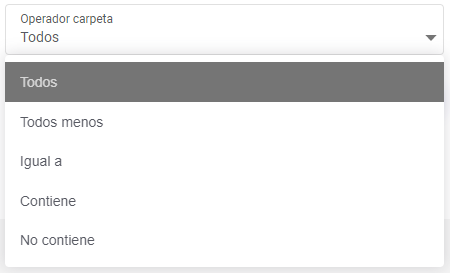
- Todos (All): allows access to all folders.
- Todos menos / Igual a (All except / Equal to): lets you select specific folders using Ver Carpetas (View folders).

- Contiene / No contiene (Contains / Does not contain): lets you filter folders by name.
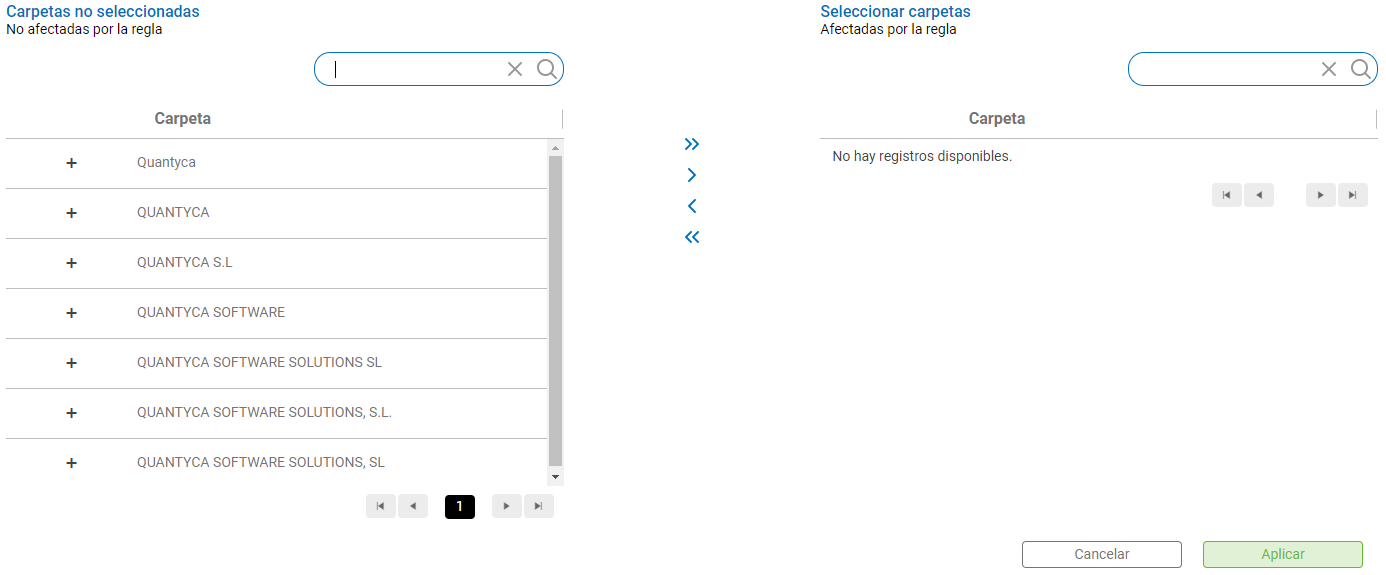

You can tick Incluir ejercicios (Include fiscal years) so that the configured access also applies to future fiscal years.
Create restriction rules
Denegar (Deny) type rules let you restrict a user's access to certain departments, modules or folders.
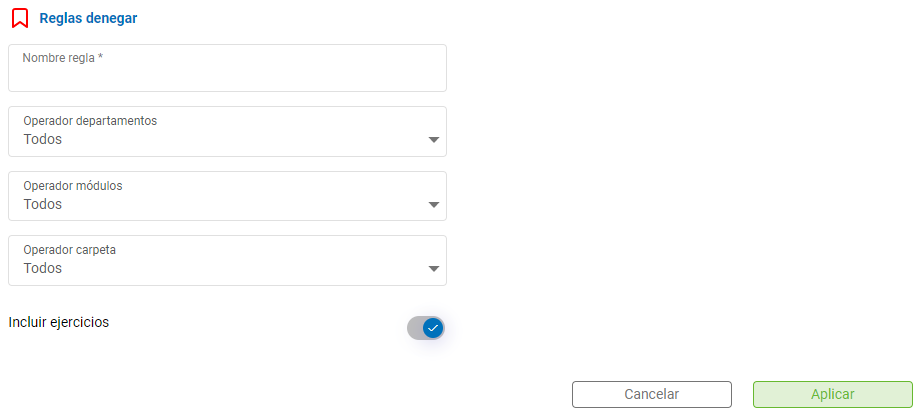
- Click Crear Regla.
- Select the Denegar type.
- Give it a descriptive name.
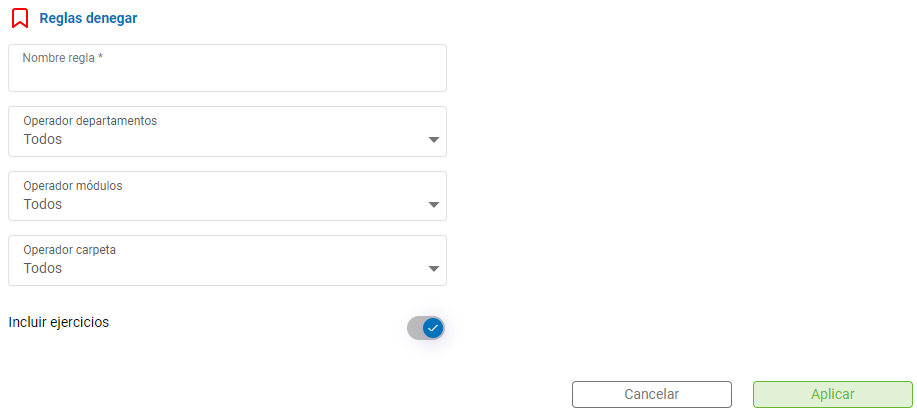
Set up the departments, modules and folders you want to apply the restriction to.
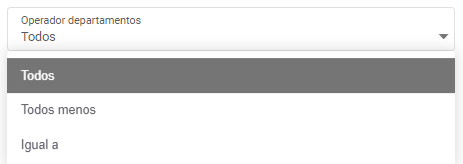
You can use the following operators:
- Todos.
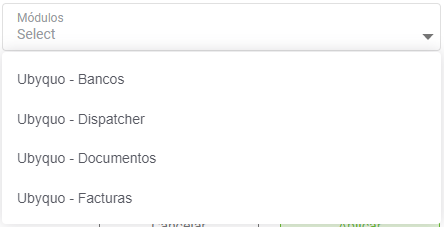
- Todos menos / Igual a, using the Departamentos (Departments), Módulos (Modules) and Ver Carpetas buttons.
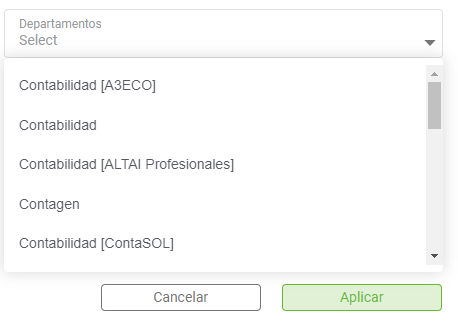
- Contiene / No contiene, to set restrictions based on folder names.
You can also apply the restriction to future fiscal years.
Manage permission rules
Once the rules are created, you can manage them from the user's settings:
- Editar Regla (Edit rule): changes an existing rule.
- Borrar Regla (Delete rule): removes a rule that is no longer needed.