
Updated on 22 September 2026
Ubyquo looks out of proportion over Remote Desktop (RDP)
Fix the Windows scaling and resolution so Ubyquo displays properly over Remote Desktop.
Display problems in Ubyquo
If Ubyquo looks too large or out of proportion, or some fields of the invoice editor do not display correctly when you connect through Remote Desktop (RDP), the problem may be related to the Windows display scaling and resolution settings.
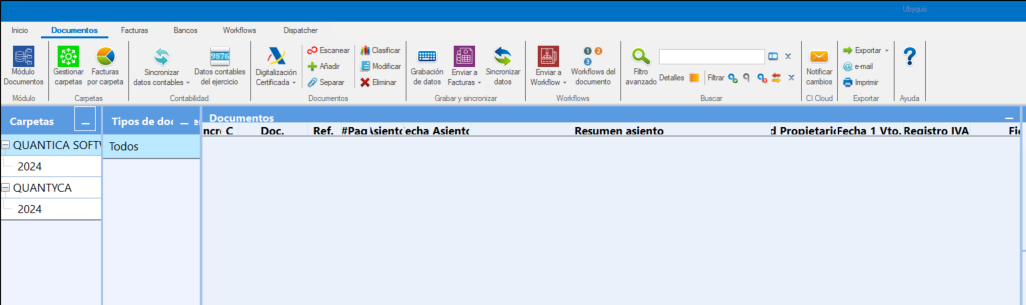
Ubyquo window:
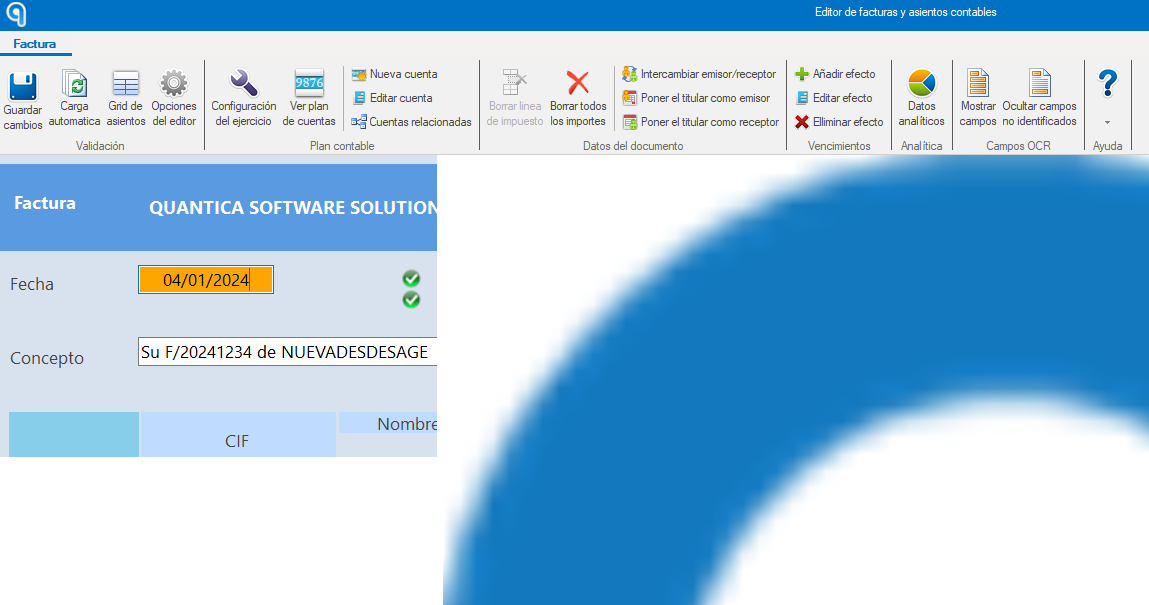
Invoice editor:
Step 1: Basic display adjustment
- Right-click on the desktop.
- Select Configuración de pantalla (Display settings).
- Under Escala y distribución (Scale and layout), find the option: Cambiar el tamaño del texto, las aplicaciones y otros elementos (Change the size of text, apps, and other items)
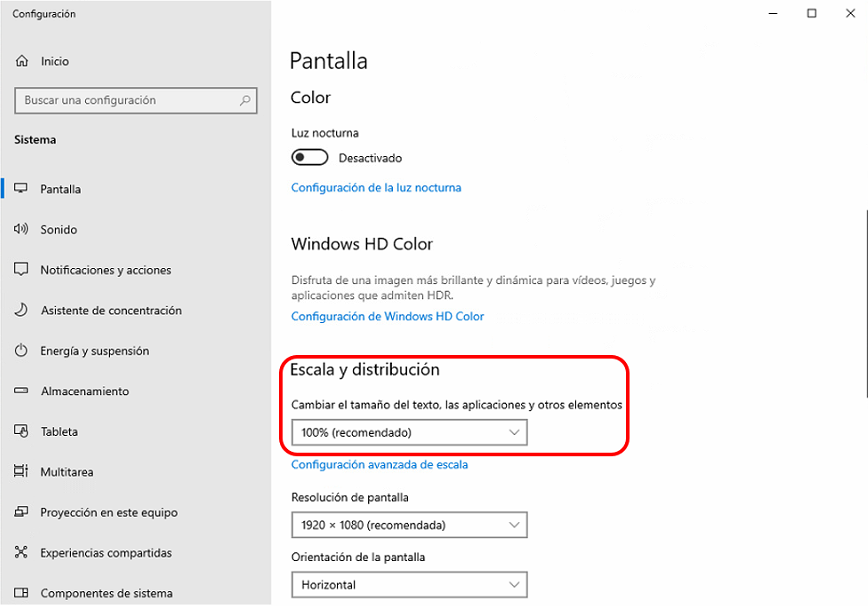
- Set the scale to the level you want. To remove the zoom effect, select 100%.
- Close the Remote Desktop connection.
- Reconnect and check whether Ubyquo now displays correctly.
Step 2: Advanced adjustment for Remote Desktop (RDP) connections
If the problem continues after adjusting the display scale, you can make a specific adjustment for Remote Desktop (RDP) connections.
- Open the Editor del Registro (Registry Editor):
- — Press Inicio (Start).
- — Type
regedit. - — Press Enter.
- Go to the following key:
HKEY_LOCAL_MACHINE\SYSTEM\CurrentControlSet\Control\Terminal Server\WinStations - Inside WinStations, right-click on an empty space and select: Nuevo > Valor DWORD (32 bits) (New > DWORD (32-bit) Value)
- Give the new value the following name:
IgnoreClientDesktopScaleFactor - Double-click IgnoreClientDesktopScaleFactor and set the value to:
1 - Click Aceptar (OK) and close the Editor del Registro.
- Restart the server.
Recommendations
This adjustment can fix scaling and display problems of Ubyquo in Remote Desktop sessions, especially when the application looks too large or some fields of the invoice editor do not display correctly.
Before making changes to the Windows Registry, we recommend checking the display scale first and setting it to 100%.
If you have no experience editing the Windows Registry, we recommend having a system administrator make the change.