
Updated on 21 September 2026
How to open a new fiscal year in Ubyquo
How to bring the new fiscal year created in your accounting software into Ubyquo, in bulk or manually.
To open a new fiscal year in Ubyquo, the fiscal year must have been created beforehand in the accounting software.
If the fiscal year does not exist in the accounting software, it will not appear in Ubyquo and it will not be possible to connect it.
There are two ways to create the new fiscal year in Ubyquo:
- Creación masiva (Bulk creation), to bring in one or more fiscal years available in the accounting software.
- Creación manual (Manual creation), to create and connect a single fiscal year.
Bulk creation of a new fiscal year
Creación masiva lets you bring in the new fiscal years available in the accounting software.
Go to Gestionar Carpetas
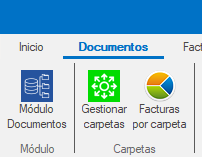
Go to the Documentos, Facturas or Bancos tab (Documents, Invoices or Banks) and click Gestionar Carpetas (Manage Folders).
Refresh the data connection
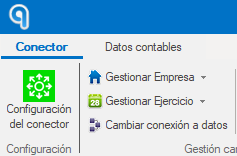
Select Cambiar conexión a datos (Change data connection).
This step is especially important if you use A3ECO or A3CON, as it refreshes the information and shows the new fiscal years available.
At the bottom left, click Refrescar (Refresh).
When the process finishes, close the window.
Open Creación masiva
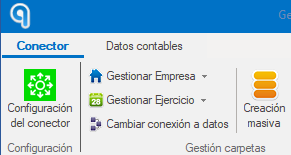
Go back to Gestionar Carpetas and click Creación masiva (Bulk creation).
Select the fiscal year
Go to the Ejercicio (Fiscal year) tab and filter by the year you want to open.
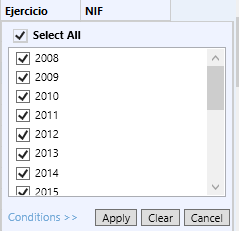
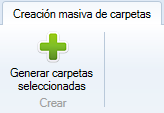
Tick the fiscal years you want to bring in and click Generar carpetas seleccionadas (Generate selected folders).
Manual creation of a new fiscal year
Creación manual lets you create a single fiscal year. This procedure requires you to connect the data path for the fiscal year manually.
Go to Gestionar Carpetas
Go to the Documentos, Facturas or Bancos tab (Documents, Invoices or Banks) and click Gestionar Carpetas (Manage Folders).
Refresh the data connection
Click Cambiar conexión a datos > Refrescar (Change data connection > Refresh) and wait for the process to finish.
This step is especially important if you use A3ECO or A3CON.
When it finishes, close the window.
Select the company
Go back to Gestionar Carpetas and select the company you want to add the new fiscal year to.
Create the fiscal year
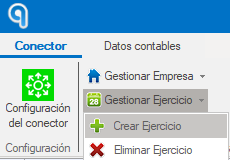
Click Gestionar Ejercicio > Crear Ejercicio (Manage Fiscal Year > Create Fiscal Year).
Select the year
Choose the year of the new fiscal year.
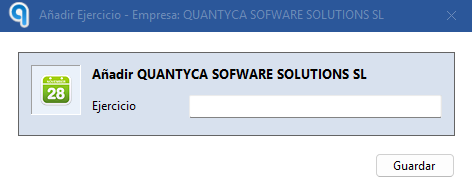
Click Guardar (Save).
Connect the data path
After saving, the “Ruta de conexión a datos” (Data connection path) window will appear.
In this window:
- Select the corresponding company.
- Select the fiscal year you want to connect.
- Confirm the corresponding data path.
Once the connection is confirmed, the new fiscal year will be available in Ubyquo.