
Updated on 21 September 2026
How to download and install a new version of Ubyquo
Learn how to download and install the new version from the server when the notice appears.
When an update notice appears on starting Ubyquo, the update must be done directly from the server where Ubyquo is installed.
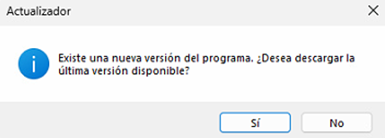
For this reason, all users must tell the person who has access to the server so they can carry out the update.
Before starting the update
All users must close Ubyquo on their computers before the process starts.
The update can take up to 1 hour. During this time, users will not be able to use Ubyquo.
Steps to update Ubyquo
Log in to the server
Log in to the server where Ubyquo is installed.
Download the update
Open Ubyquo from the server. When the update notice appears, click “Descargar” (Download).
If the download does not start properly, you can also download the installer directly from the following link:
Close Ubyquo and start the installation
Once the download has finished, Ubyquo will ask you to close the application to start the installation.
Confirm the closing and continue with the process.
Complete the installation
Follow the on-screen instructions until the installation of the new version of Ubyquo is finished.
Restart recommended after updating
Once the update has finished, we recommend restarting:
- The main server.
- The intermediate server, if applicable.
- The users' computers.
Do you need help with the update?
If you prefer our technical team to carry out the update, you can schedule an appointment from the following link:
You can also contact our technical team by writing to soporte@quantyca.com.
Does something look wrong after updating?
If, after the update, Ubyquo looks out of proportion or some interface elements are not displayed correctly, see the following article: