
Updated on November 25, 2026
Workflows: general options and options of each workflow
How to open the workflow options, check the general ones and those of each workflow (password when signing, additional information and cost centres) and edit them.
Open the workflow options
- 1
Click «Configuración», next to the screen title
«Configuración» (Settings), in «Firmas pendientes» (Pending signatures) or in «Historial de firmas» (Signature history).

- 2
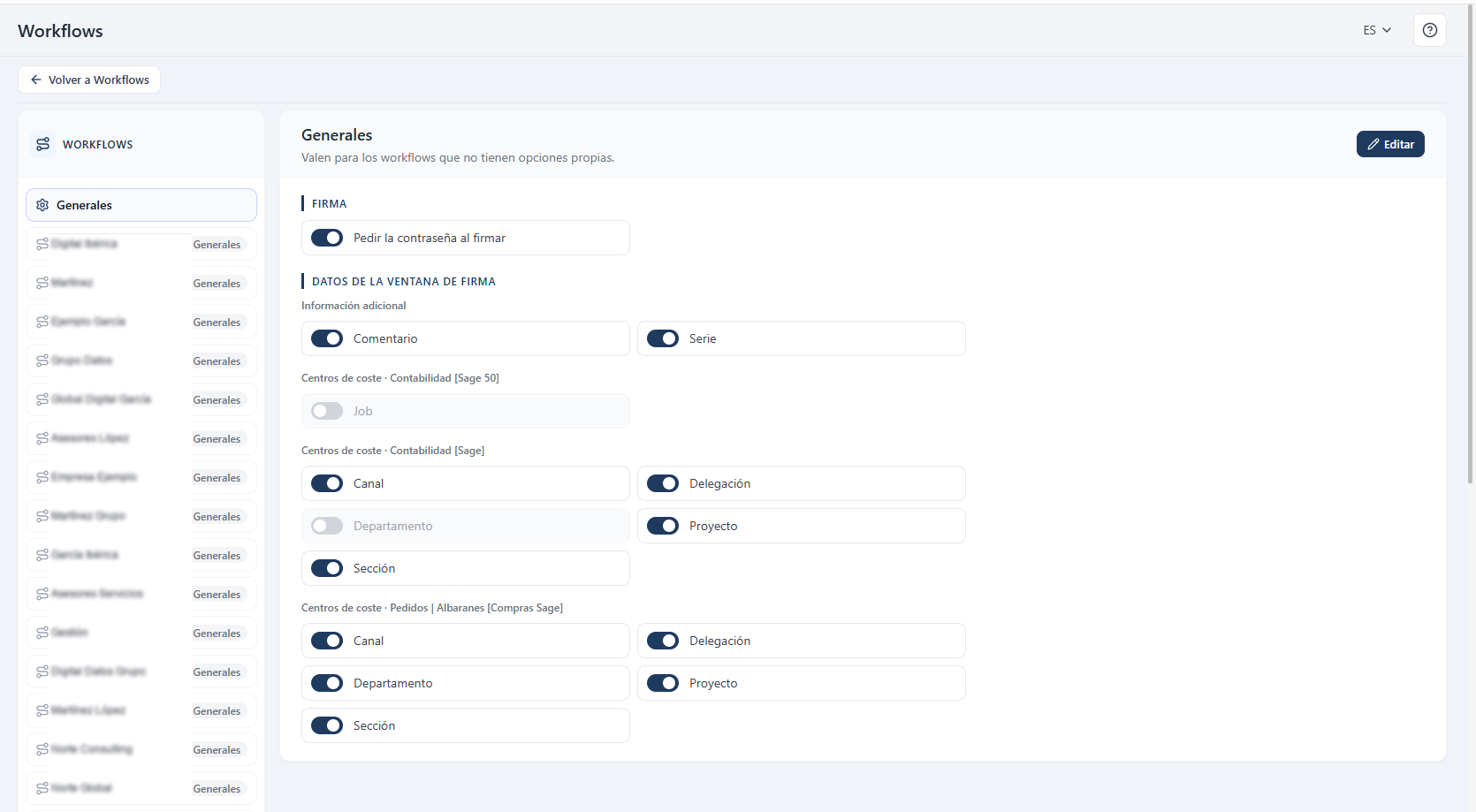
Check the «Workflows» list
The options open. On the left, the «Workflows» list: first «Generales» (General) and then each workflow in alphabetical order, labelled «Generales» or «Propias» (Own) depending on the options it uses.
- 3
To leave, click «Volver a Workflows»
«Volver a Workflows» (Back to Workflows) takes you back to Workflows.
Check the general options
- 1
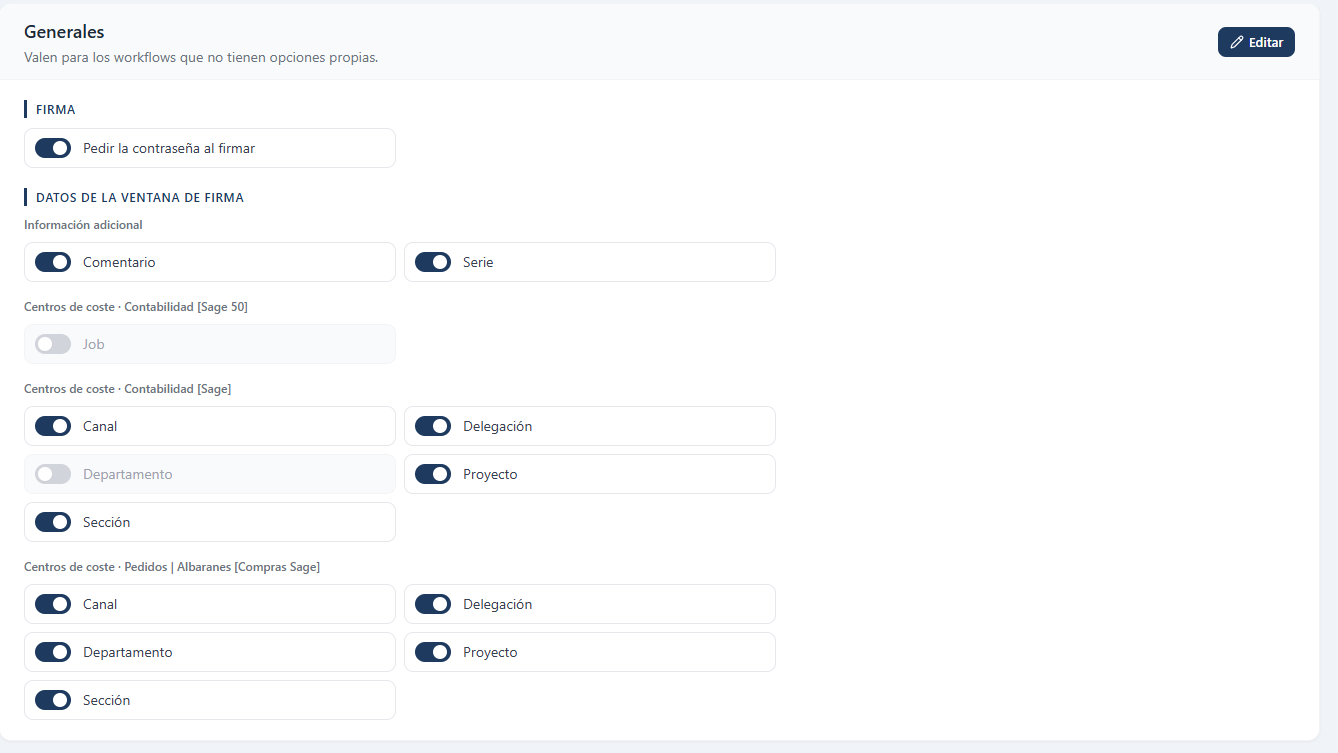
Click «Generales» in the list
It is already selected when you open it. On the right it says «Valen para los workflows que no tienen opciones propias.» (They apply to workflows that do not have their own options.) and shows its options: in «Firma» (Signature), «Pedir la contraseña al firmar» (Ask for the password when signing), and in «Datos de la ventana de firma» (Signing window data), the «Información adicional» (Additional information) and the cost centres.
- 2
Check the switches
Without clicking «Editar» (Edit) they are read-only: clicking them does not change them.
Check the options of a workflow
- 1
Click a workflow in the list
Its name appears at the top right.
- 2
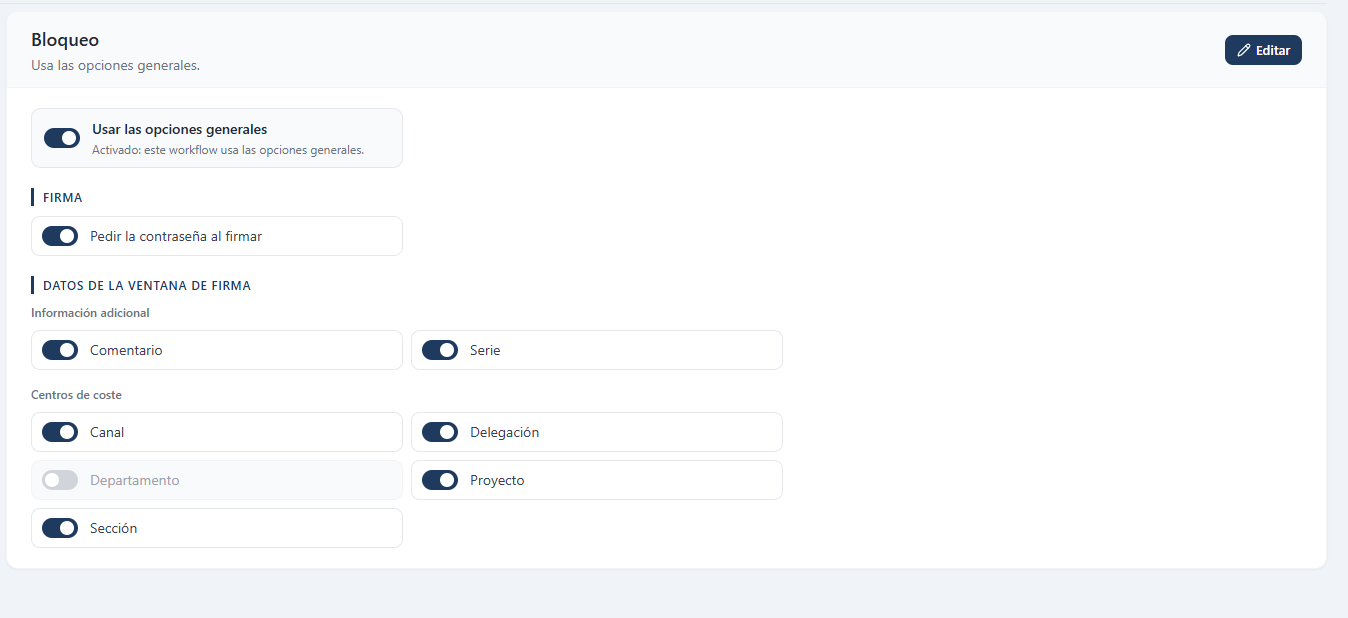
If its label is «Generales», check «Usar las opciones generales»
«Usar las opciones generales» (Use the general options) is on, with the text «Activado: este workflow usa las opciones generales.» (On: this workflow uses the general options.), and the workflow says «Usa las opciones generales.» (Uses the general options.): its options are the same as those of «Generales».
Edit the options
- 1
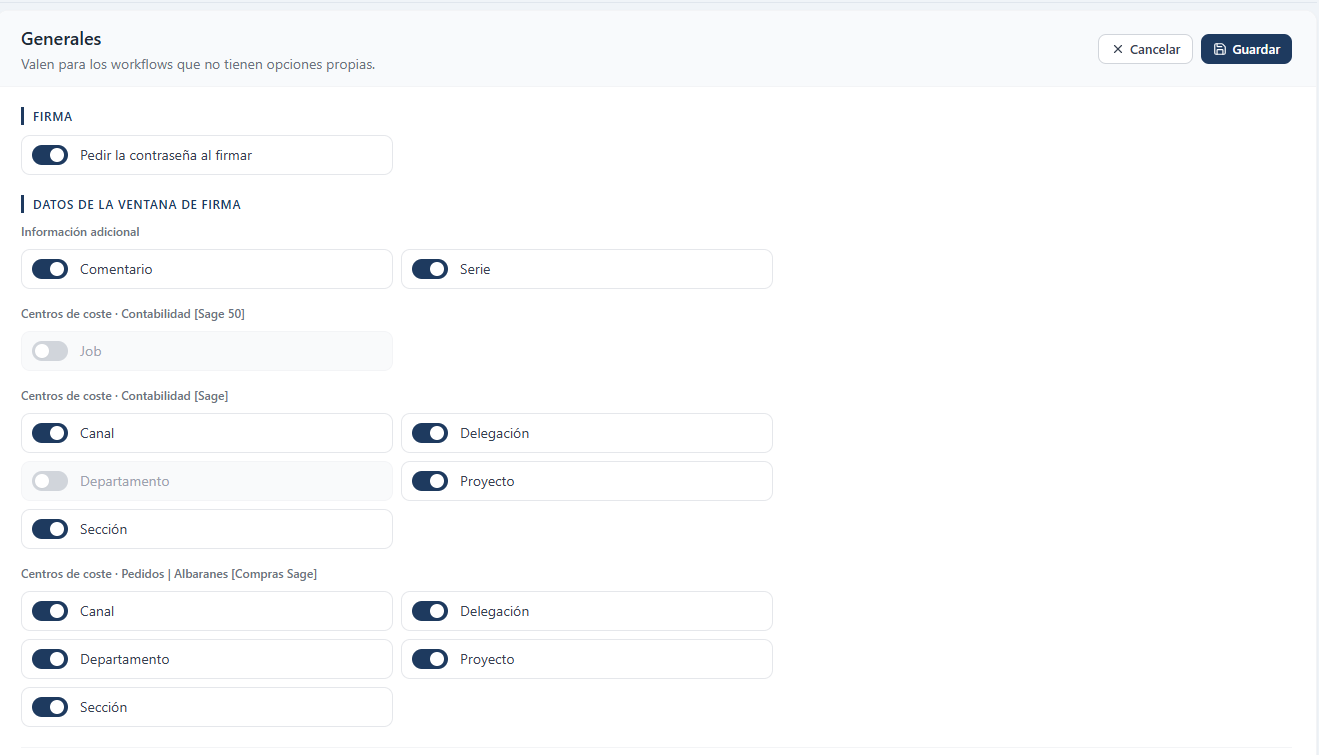
Choose «Generales» or a workflow and click «Editar»
Click
 . The switches can now be changed. While you edit, you cannot choose another workflow in the list.
- 2
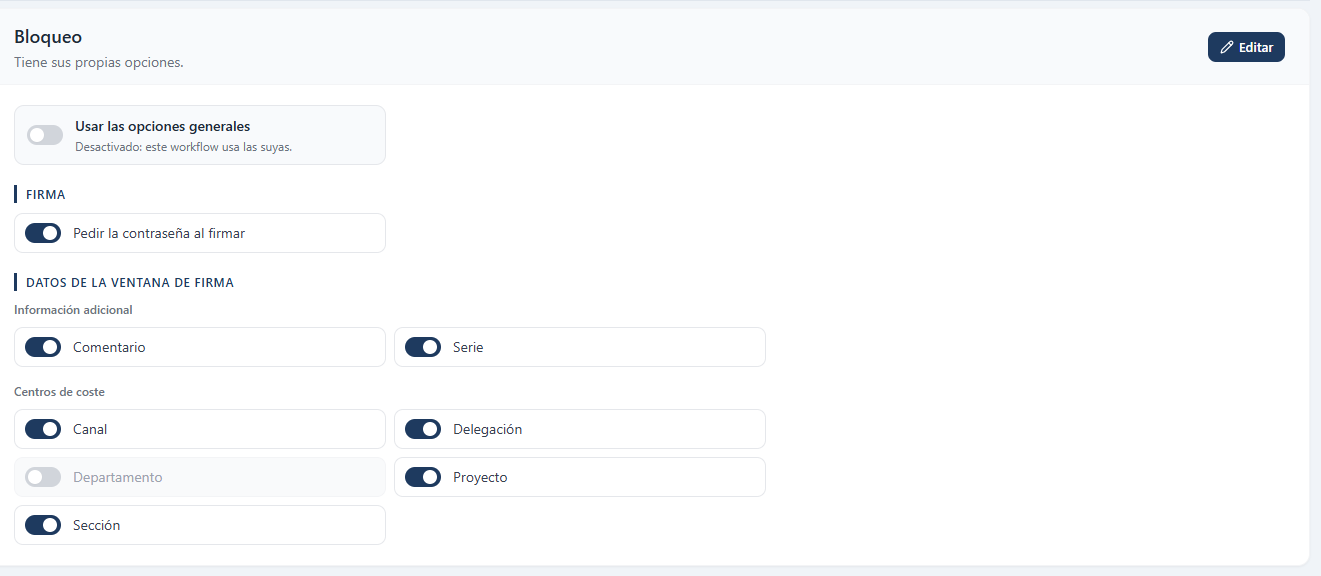
For a workflow to have its own options, turn off «Usar las opciones generales»
While it is on, its other options cannot be changed. When you turn it off, it says «Desactivado: este workflow usa las suyas.» (Off: this workflow uses its own.).
- 3
Click «Guardar» or «Cancelar»
«Guardar» (Save). With «Cancelar» (Cancel) you leave without changing anything: the options stay as they were and the «Editar» button comes back.