Updated on November 19, 2026
The «Email» tab in Settings: the template of the email sent with the «Enviar por correo electrónico» (Send by email) option, and its keywords.
The email template
- 1
Open the «Email» tab
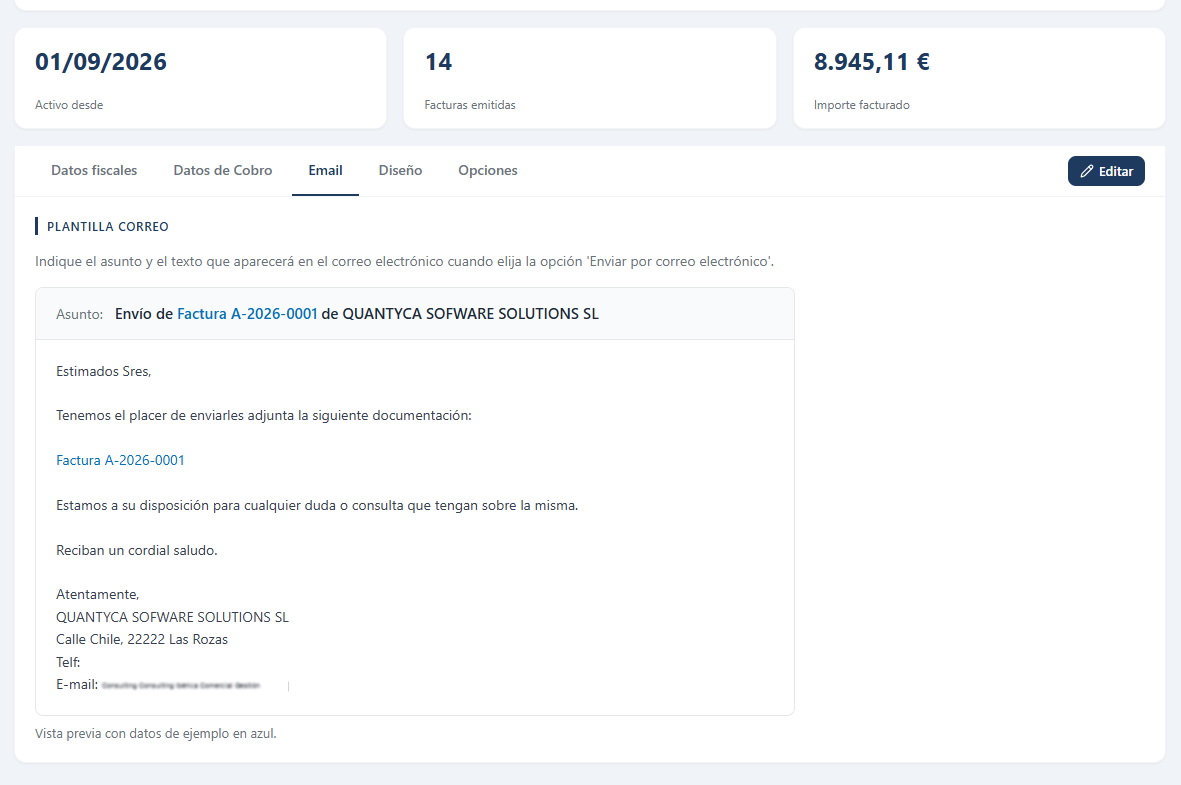
In Settings. It opens in read mode, with a preview of the email («Vista previa con datos de ejemplo en azul.», Preview with sample data in blue): the keywords are already replaced with sample data.
- 2
Click «Editar»
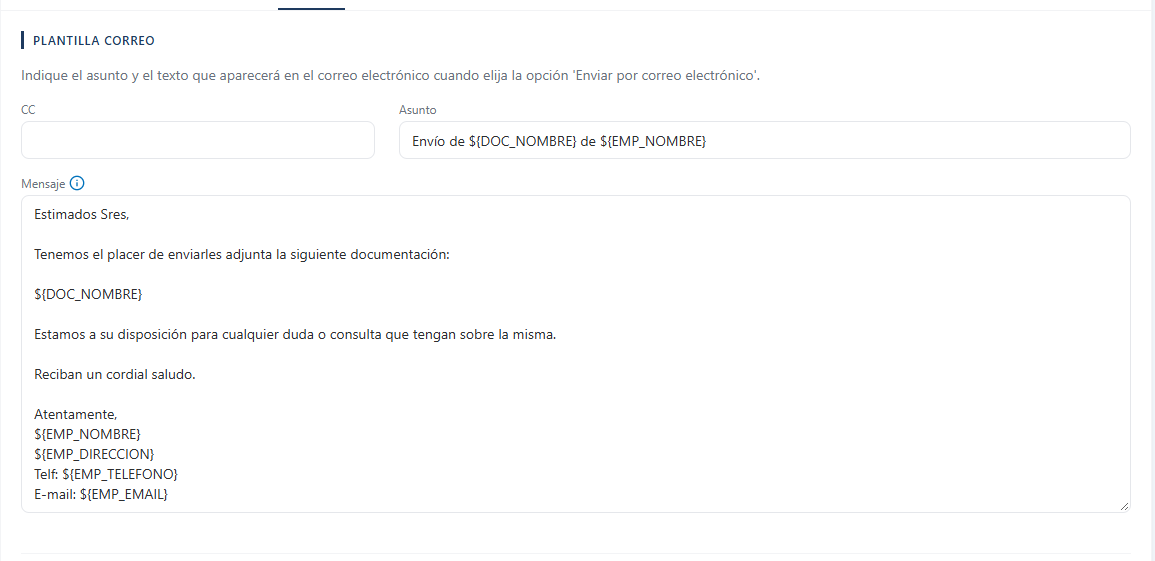
The «Plantilla correo» (Email template) is shown, with the «CC» (addresses that will receive a copy), «Asunto» (Subject) and «Mensaje» (Message) fields already filled in with the current settings.

- 3
Change what you need and click «Guardar»
The template is saved («Guardar», Save) and the tab goes back to the preview.
Message keywords
- 1
Click the information icon next to «Mensaje»
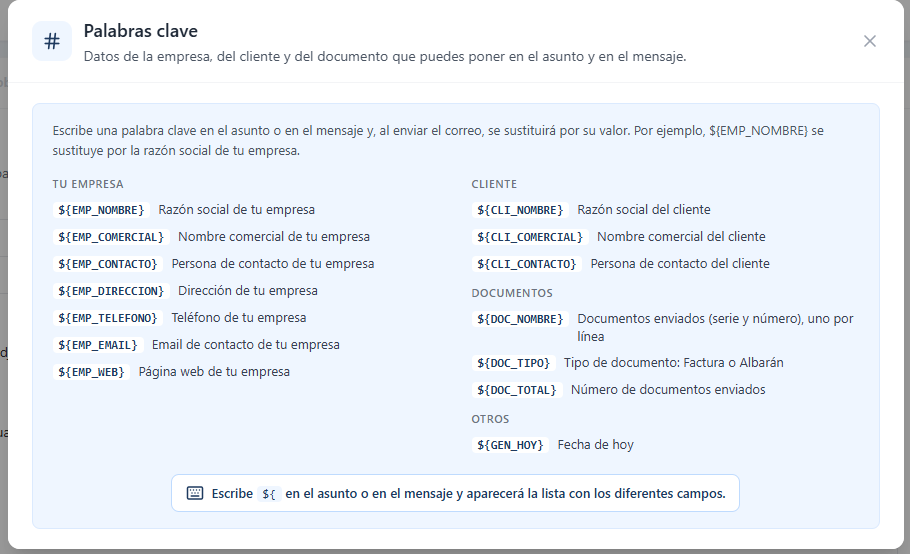
With the tab in edit mode, click the «i» next to «Mensaje». The «Palabras clave» (Keywords) window opens, explaining how to insert automatic data in the text; for example, ${EMP_NOMBRE}, which is replaced with your company name.
Tip: type ${ in the subject or the message and the list of keywords appears so you can choose the one you need.