Updated on November 20, 2026
Company administration (invoicing tool companies): list, sign-up, activation and tax regime menu
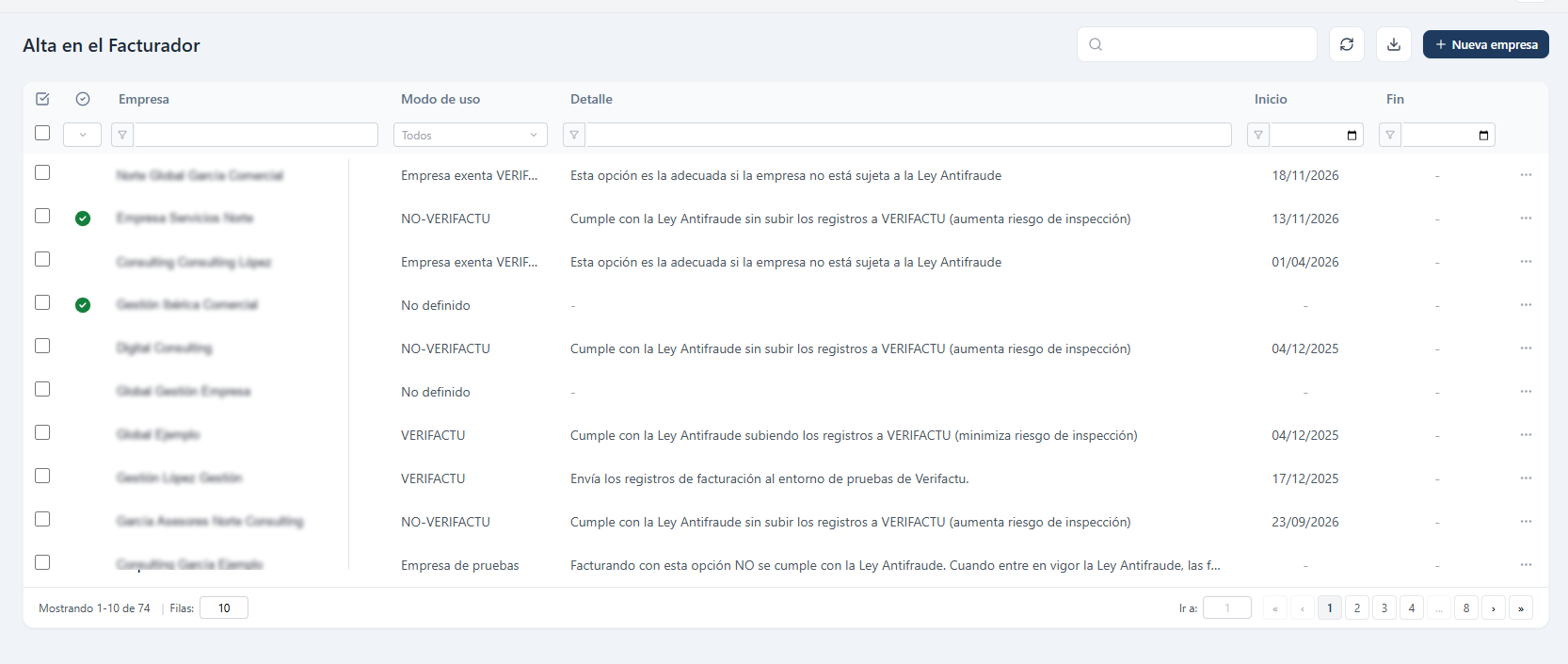
The «Alta en el Facturador» (Invoicing tool sign-up) screen: the company list, and how to search for a company, add it, turn it on or off, choose its Anti-Fraud Law mode and download the list.
The Invoicing tool sign-up screen
- 1
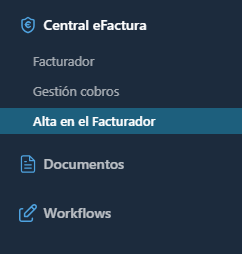
Click «Alta en el Facturador»
In the side menu, below «Central eFactura».
- 2
Check the company list
A table shows all the companies in the CIC: whether it is active in the Invoicing tool («Activa», Active, column), its «Modo de uso» (Mode of use) under the Anti-Fraud Law, the details and the «Inicio» (Start) and «Fin» (End) dates. At the top is the «Nueva empresa» (New company) button.
Search for a company
- 1
Type the name and click the search button
In the search box. The table shows only the companies whose name matches the text.


- 2
Click «Limpiar búsqueda»
All the companies in the list are shown again («Limpiar búsqueda», Clear search).
Add a new company
- 1
Click «Nueva empresa»
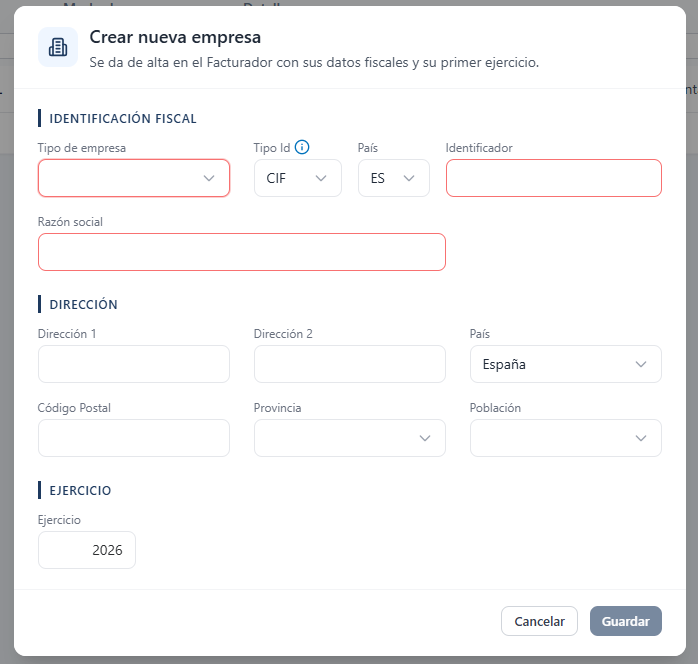
The «Crear nueva empresa» (Create new company) window opens, with the «Identificación fiscal» (Tax identification), «Dirección» (Address) and «Ejercicio» (Financial year) sections. To close it without creating a company, click «Cancelar» (Cancel).
How to fill it in: Invoicing tool sign-up: filling in a new company's details. The «Nueva empresa» button only appears with the Contabilidad [Facturador] master turned on.

Turn a company on or off
- 1
Look at the «Activa» column
A green tick means the company is active in the Invoicing tool; if the cell is empty, it is turned off.

- 2
Choose «Activar» or «Desactivar del Facturador»
In the row's options menu (the button at the end of the row): «Activar» (Turn on) or «Desactivar del Facturador» (Turn off in the Invoicing tool). After a few seconds, when you search for the company again, the «Activa» column shows the new status.
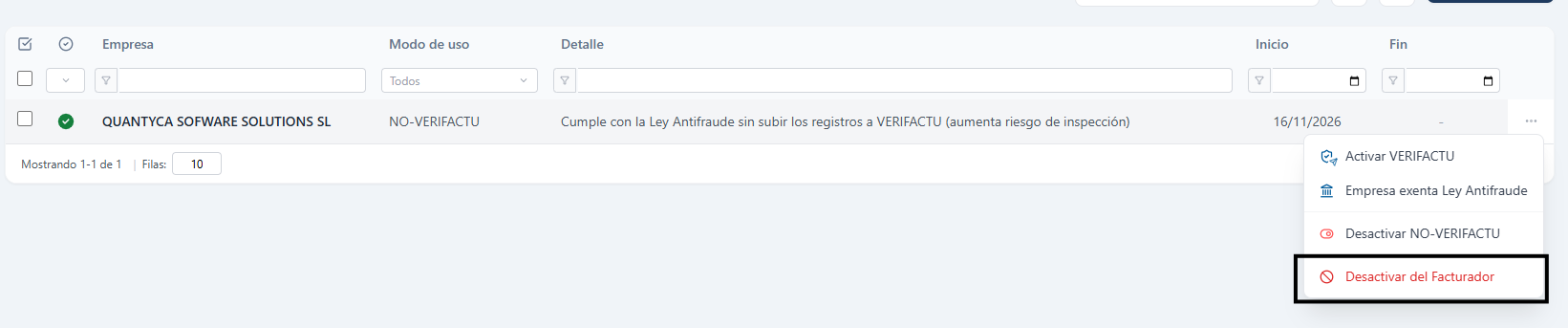
Choose the Anti-Fraud Law mode
- 1
Open the menu of an active company
It offers «Activar VERIFACTU» (Turn on VERIFACTU), «Activar NO-VERIFACTU» (Turn on NO-VERIFACTU), «Empresa exenta Ley Antifraude» (Company exempt from the Anti-Fraud Law) and «Desactivar del Facturador».
How to do each one: Turning on Verifactu for a company, Turning on NO-Verifactu for a company and Marking a company as exempt from the Anti-Fraud Law. What each mode means: VERIFACTU, NO VERIFACTU and exempt.

Download the company list in Excel
- 1
Click the download button
Click
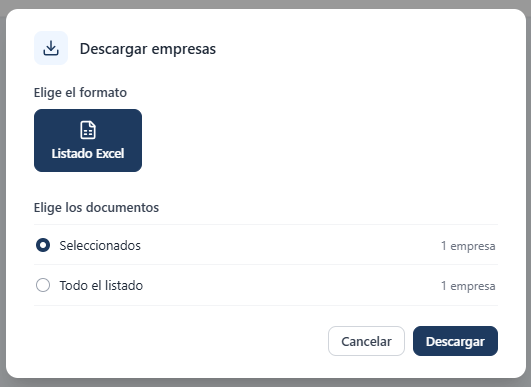
 in the list toolbar. The «Descargar empresas» (Download companies) window opens, with the «Listado Excel» (Excel list) format.
- 2
Choose which companies and click «Descargar»
In «Elige los documentos» (Choose the documents), select «Todo el listado» (The whole list), or «Seleccionados» (Selected) if you have ticked some companies first. An .xlsx file is downloaded with the same columns as the list («Descargar», Download).