Updated on November 19, 2026
Editing items, one by one or in bulk, and deleting them
How to view an item's record, change its details, change several items at once and delete an item.
View an item's record
- 1
Open the row menu and choose «Detalles»
In the item list, click the three-dot button on the item's row and choose «Detalles» (Details).

- 2
Check the details
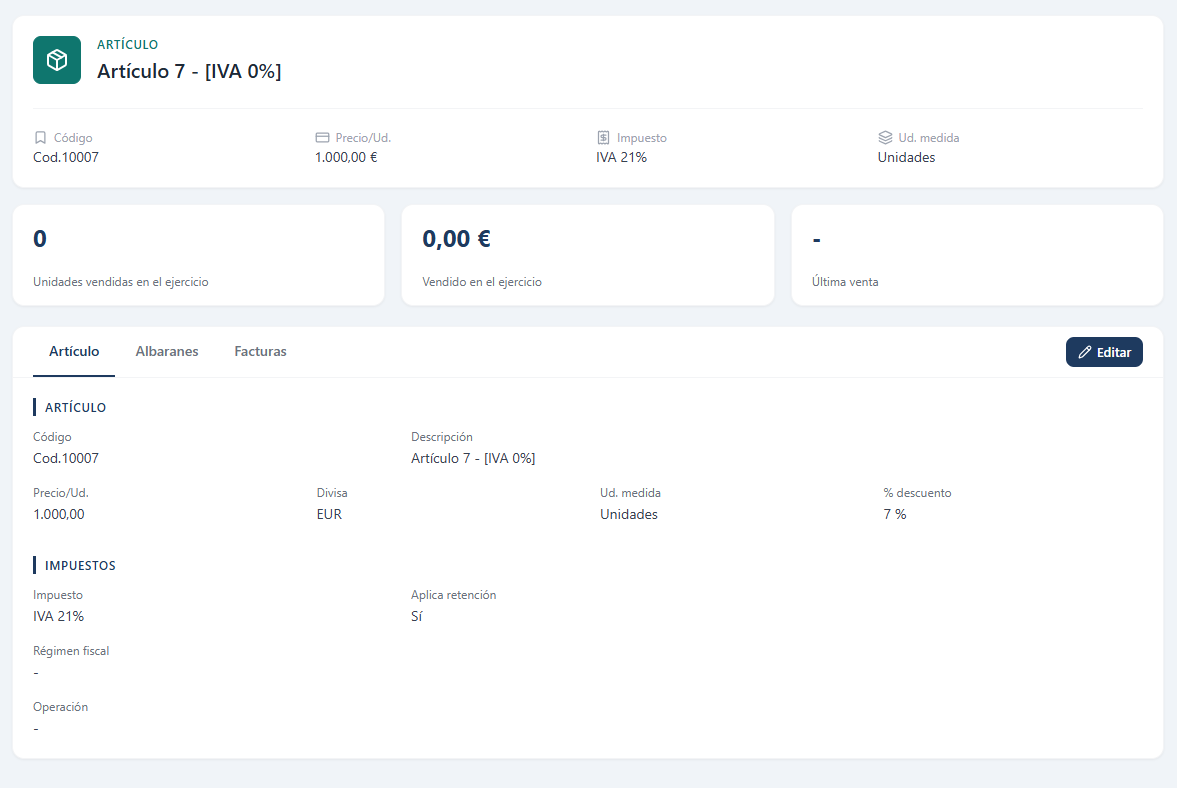
The record opens in read mode: at the top, the item summary, with the units and amount sold in the financial year and the last sale; below, its details, with no fields to type in. To go back to the list, click «Volver a artículos» (Back to items).
Edit an item
- 1
Click «Editar»
In the item's record («Editar», Edit). The fields appear with the saved values.
- 2
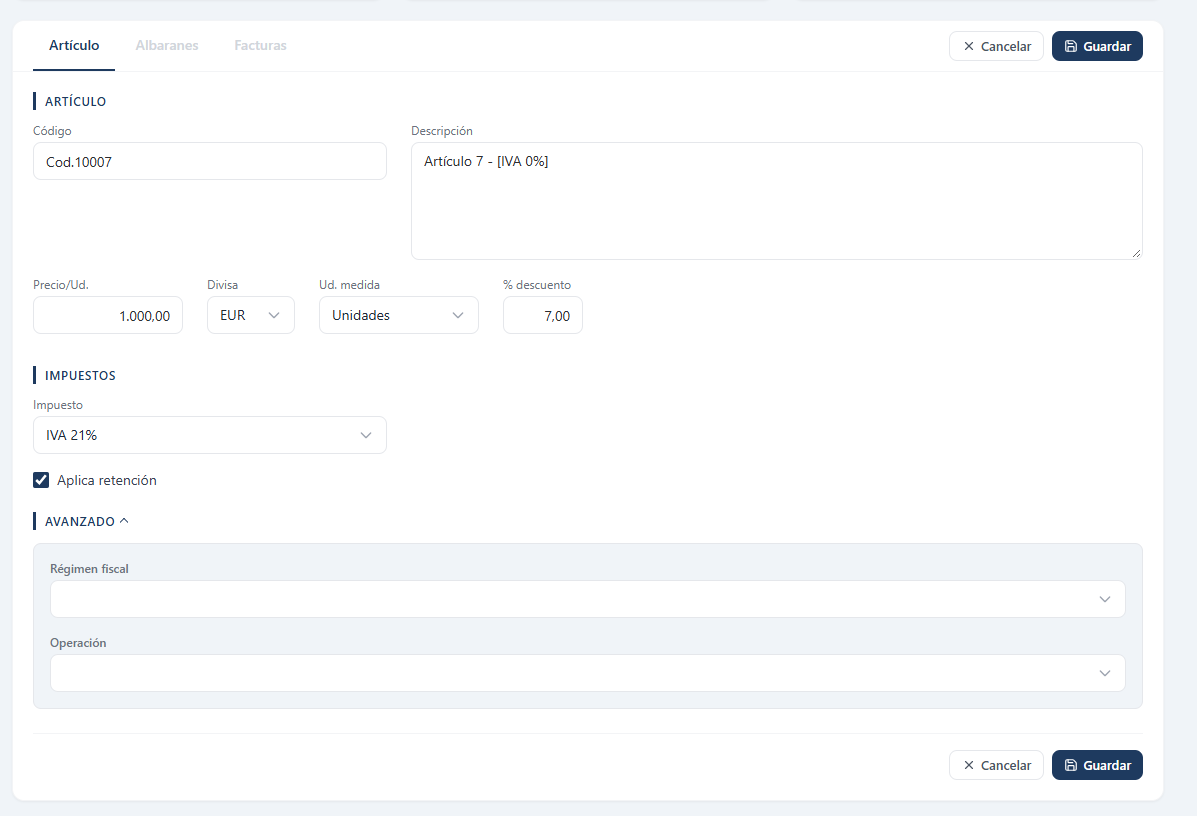
Change the details and click «Guardar»
The record goes back to read mode with the changes («Guardar», Save). When you go back with «Volver a artículos», the list shows the new details; for example, the new price, with a decimal comma («50,00»). To leave without saving, click «Cancelar» (Cancel).
Change several items at once
- 1
Select the items
In the list, tick the box of each item you want to change.

- 2
Choose «Modificación masiva»
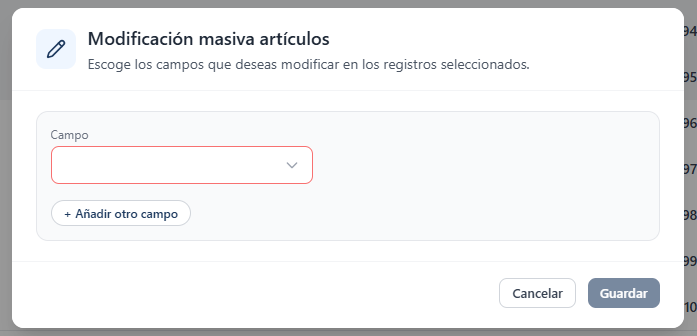
Click the three-dot button on one of the selected rows and choose «Modificación masiva» (Bulk edit). The «Modificación masiva artículos» (Bulk edit items) window opens.

- 3
Choose the field and type the new value
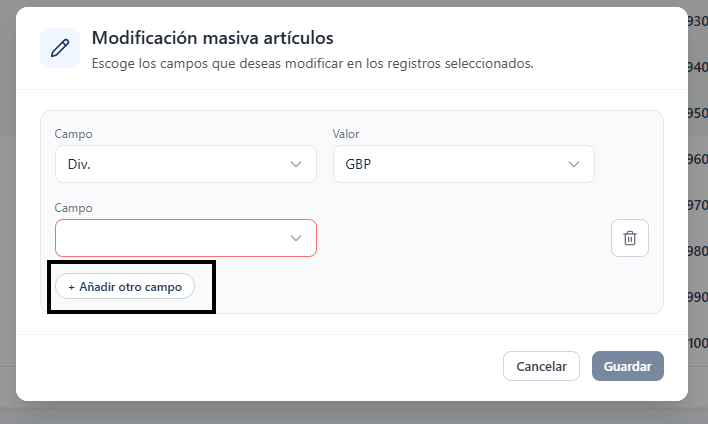
In «Campo» (Field), choose the field you want to change (for example, «Dcto», the discount) and type the new value. To change another field at the same time, click «Añadir otro campo» (Add another field), for example for the «Precio» (Price). If you added a line you do not want after all, delete it with its bin: that field is not changed.
- 4
Click «Guardar»
The window closes and all the selected items show the new values in the list.
Delete an item
- 1
Find the item
If you do not see it on the page, type its description in the search box and click «Buscar» (Search).
- 2
Open the row menu and choose «Eliminar»
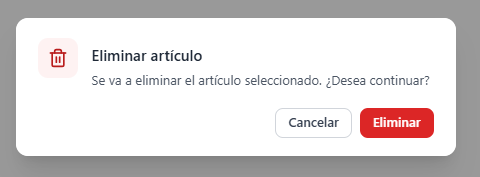
The «Eliminar artículo» (Delete item) message appears, asking you to confirm that you want to delete the selected item.

- 3
Click «Eliminar»
The item disappears from the list («Eliminar», Delete).