
Updated on November 19, 2026
Design
The «Diseño» (Design) tab in Settings: language, dates, logo, columns, aliases and texts of the invoice and delivery note PDF.
Language, dates and delivery address
- 1
Open the «Diseño» tab and click «Editar»
In Settings («Editar», Edit). The PDF options are turned on with switches or chosen from drop-downs.
- 2
Choose the invoice language
In «Idioma factura» (Invoice language): Catalan, German, English, Spanish, French, Italian or Portuguese. The fixed texts of the invoice PDF appear in the chosen language; for example, «INVOICE» in English or «FACTURE» in French.

- 3
Turn on «Mostrar fecha operación»
(Show transaction date) and choose «Usar fecha factura» (Use invoice date), «Usar fecha albarán» (Use delivery note date) or «Informar manualmente» (Enter manually). The drop-down only appears with the switch on. The invoice PDF shows «Fecha operación» (Transaction date). With «Informar manualmente», the transaction date is entered when invoicing, in «Proceso de facturación» (Invoicing process), and that is the date shown on the PDF.

- 4
Turn «Mostrar fecha expedición» and «Mostrar dirección de entrega» on or off
When on (Show issue date, Show delivery address), the invoice PDF shows «Fecha expedición» (Issue date) and the «Dirección entrega» (Delivery address) section; when off, they do not appear.
Logo
- 1
Click «Arrastra aquí la nueva imagen»
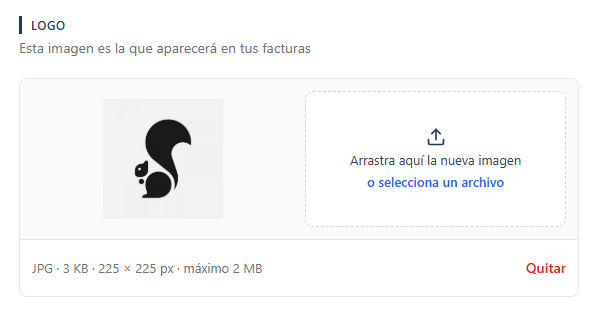
This is the area where you upload the logo («Arrastra aquí la nueva imagen», Drag the new image here). Your computer's file browser opens. You can also drag the file onto that area. The image can be up to 2 MB.
- 2
Choose the image file
A preview of the logo appears. To remove it, click «Quitar» (Remove).
Item table columns and delivery note number
- 1
Choose the visible columns
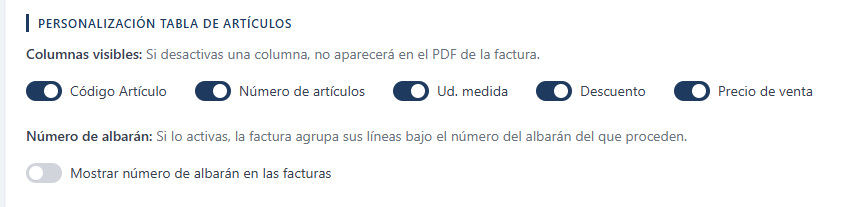
In «Columnas visibles» (Visible columns), turn on or off «Código Artículo» (Item code), «Número de artículos» (Number of items), «Ud. medida» (Unit of measure), «Descuento» (Discount) and «Precio de venta» (Sale price). Columns turned off no longer appear in the line table of the invoice PDF.
- 2
Turn «Mostrar número de albarán en las facturas» on or off
When on (Show delivery note number on invoices), the invoice groups its lines under the number of the delivery note they come from («Albarán:» and its number); when off, it does not appear.
Delivery note and item aliases
- 1
Choose the delivery note alias
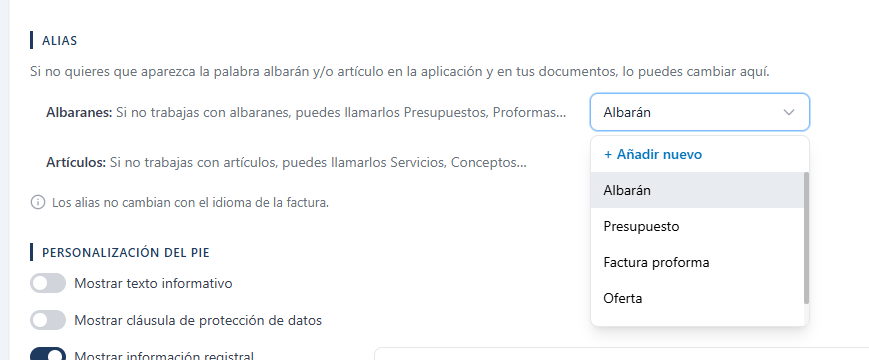
In «Alias de albarán» (Delivery note alias): «Albarán» (Delivery note), «Presupuesto» (Quote), «Factura proforma» (Pro forma invoice), «Oferta» (Offer) or «Pedido» (Order). The delivery note PDF uses the chosen name.
- 2
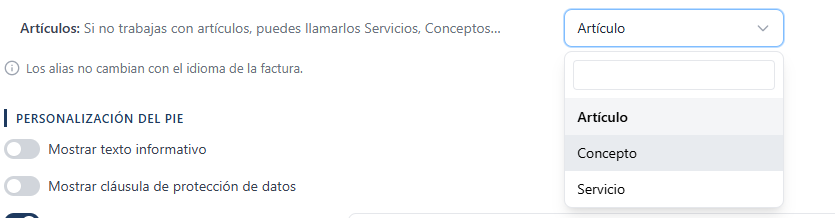
Choose the item alias
In «Alias de artículo» (Item alias): «Artículo» (Item), «Concepto» (Concept) or «Servicio» (Service). In the delivery note PDF, the «Código Artículo» column is renamed «Código Concepto» or «Código Servicio».
- 3
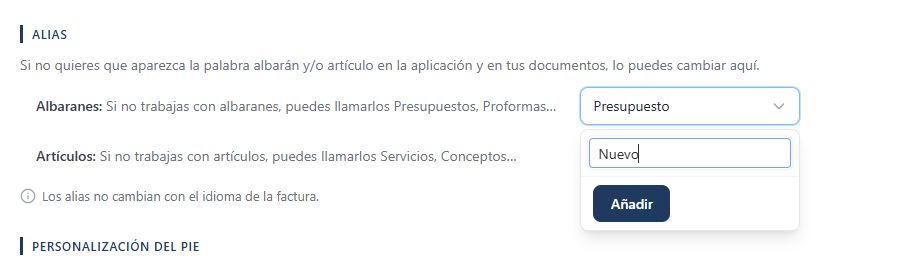
Create your own alias, if you need one
Open either list, click «+ Añadir nuevo» (Add new), type the alias in the box that appears and click «Añadir» (Add). The new alias is added to the list, alongside the usual ones.
- 4
Choose the new alias in the list
It is selected. If you leave with «Cancelar» (Cancel), the new alias is not kept.
Aliases change the name in the application and in your documents, and they do not change with the invoice language.
Information text, data protection and registry information
- 1
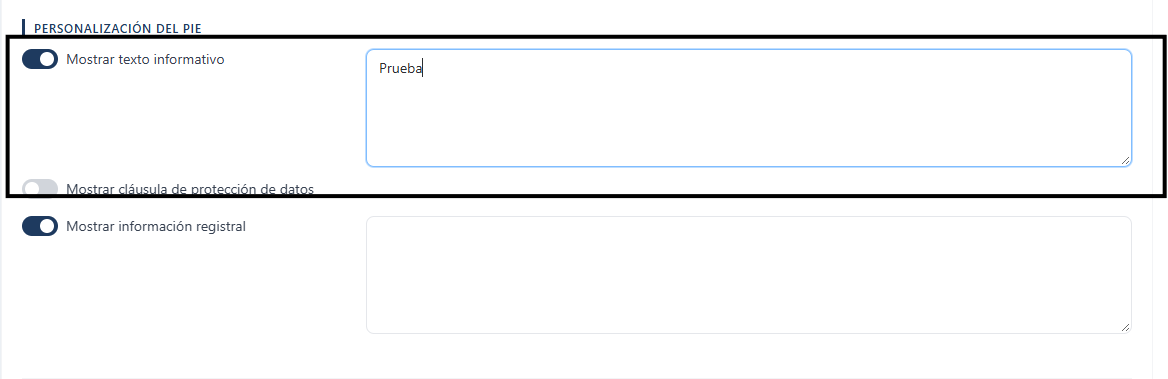
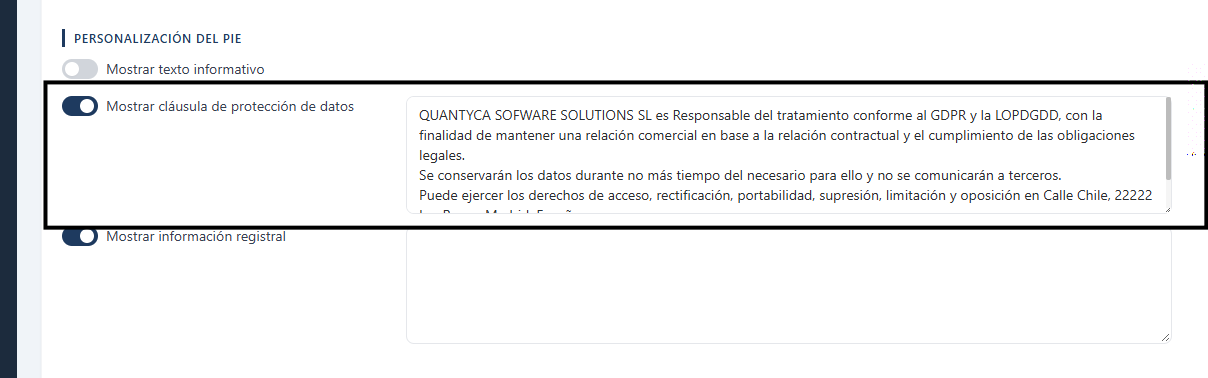
Turn the option on and type the text
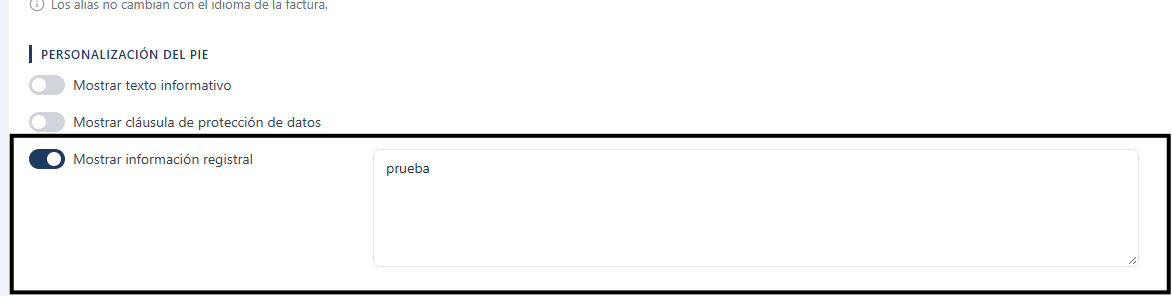
Turn on «Mostrar texto informativo» (Show information text), «Mostrar cláusula de protección de datos» (Show data protection clause) or «Mostrar información registral» (Show registry information) and type the text in the box that appears. The text appears on the PDF of invoices and delivery notes.
- 2
To remove it, turn the switch off
The text no longer appears on the PDF.
When you finish, click «Guardar» (Save). «Cancelar» (Cancel) discards the changes.