
Updated on November 19, 2026
Downloading the item list in Excel
How to download your Invoicing tool items to an Excel file and reload the list with up-to-date data.
Download the item list in Excel
- 1
Click «Descargar artículos»
On the «Artículos» (Items) tab, click
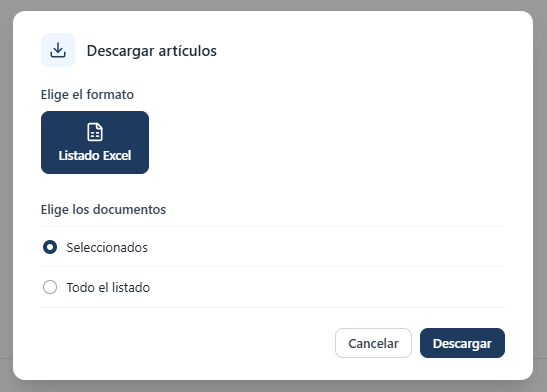
 in the toolbar. The «Descargar artículos» (Download items) window opens.
- 2
Choose which items to download
In «Elige los documentos» (Choose the documents), select «Todo el listado» (The whole list), or «Seleccionados» (Selected) if you have ticked some items in the list first. The format is «Listado Excel» (Excel list).
- 3
Click «Descargar»
An .xlsx file is downloaded («Descargar», Download). With «Todo el listado» it includes all the items, including those on the other pages of the list.
Refresh the list
- 1
Click «Refrescar»
Click
 in the toolbar («Refrescar», Refresh). The item list reloads with up-to-date data.