
Updated on November 20, 2026
Importing invoices from the Excel template or in Facturae format
How to download the import template, import an Excel file of invoices, what happens if it has incorrect data, and import a Facturae e-invoice.
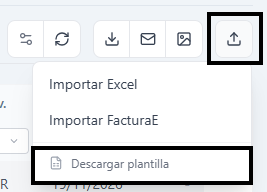
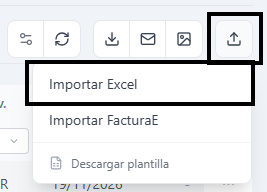
On the Invoicing tool's «Facturas emitidas» (Issued invoices) tab, the «Importar» (Import) button on the toolbar has three options: «Importar Excel» (Import Excel), «Importar FacturaE» (Import FacturaE) and «Descargar plantilla» (Download template).
Download the import template
- 1
Click «Importar» and choose «Descargar plantilla»
An Excel template (.xlsx) is downloaded.
- 2
Fill in the template and save it
Enter the data of the invoices you want to import.
Import an Excel file of invoices
- 1
Click «Importar» and choose «Importar Excel»
The file browser opens.
- 2
Choose the .xlsx file with the invoices and open it
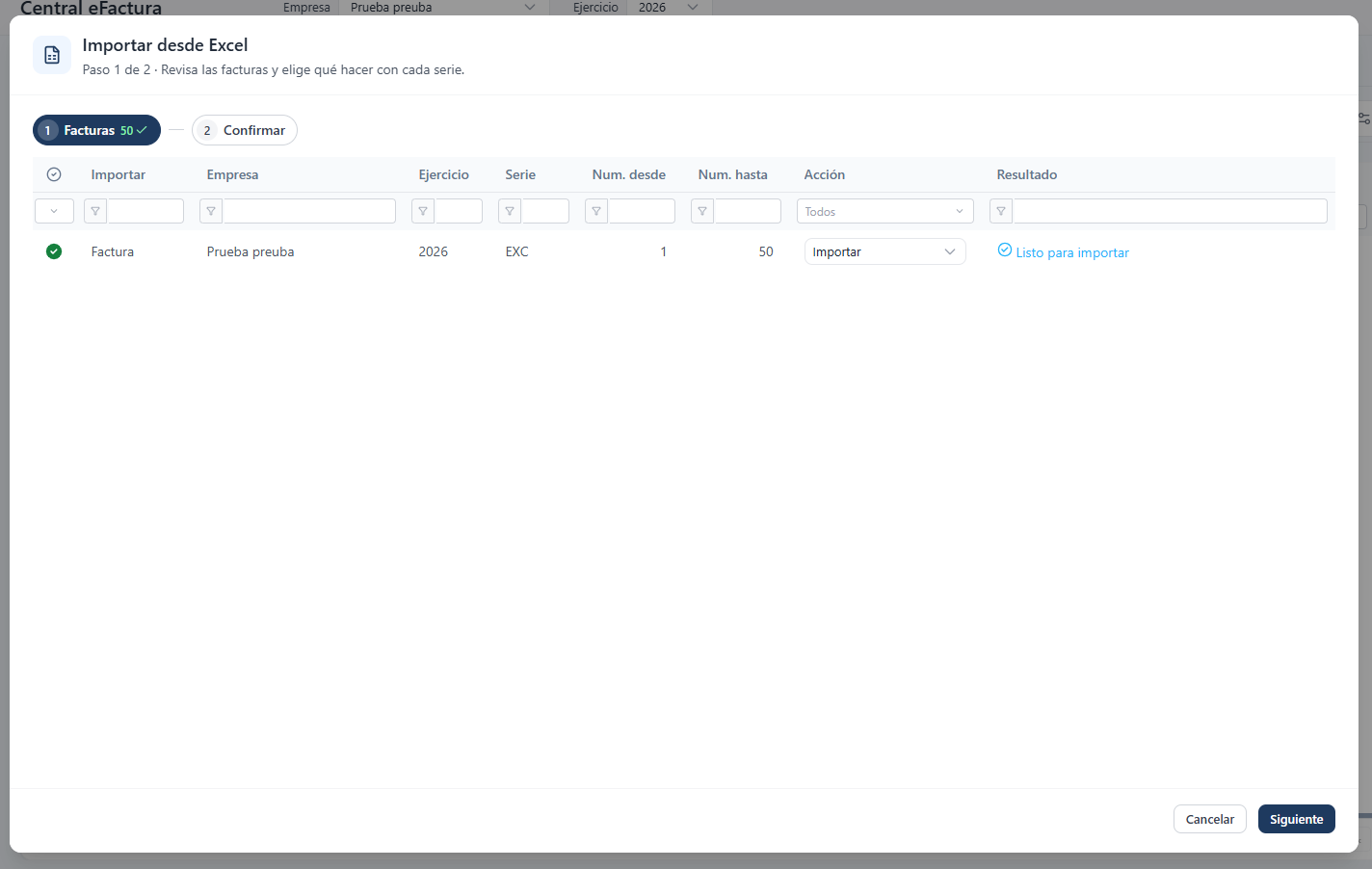
The «Importar desde Excel» (Import from Excel) wizard opens, with one step for each sheet with data and a final one, «Confirmar» (Confirm).
- 3
Check the invoices and click «Siguiente»
Each row shows the company, the financial year, the series and the numbers that will be imported; the correct ones show «Listo para importar» (Ready to import). In the «Acción» (Action) column you choose what to do with each series. Click «Siguiente» (Next) until you reach «Confirmar».
- 4
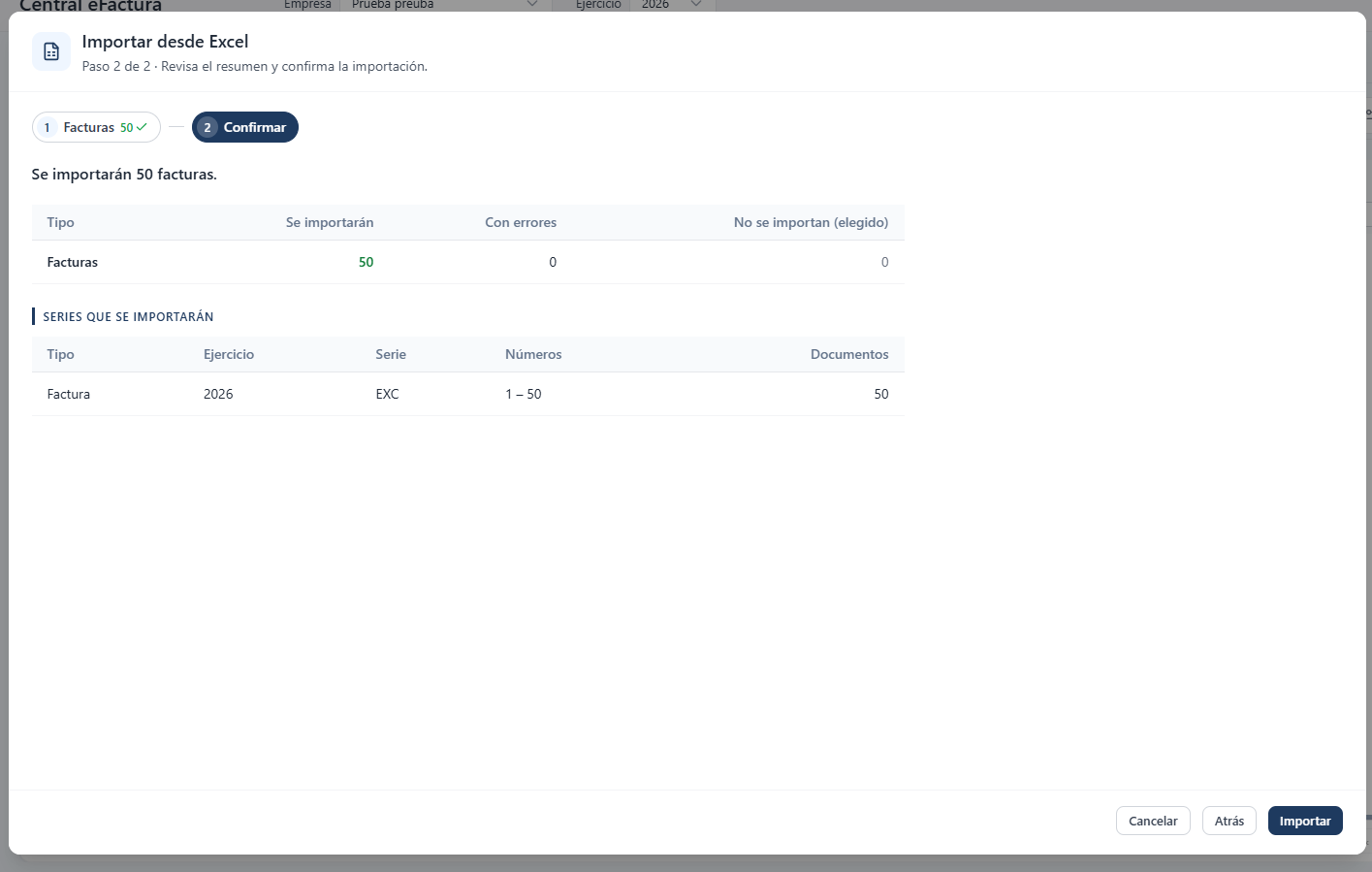
In «Confirmar», check the summary and click «Importar»
It shows how many invoices will be imported, how many have errors and how many are not imported, and the series that will be imported.
- 5
Click «Cerrar» and then «Refrescar»
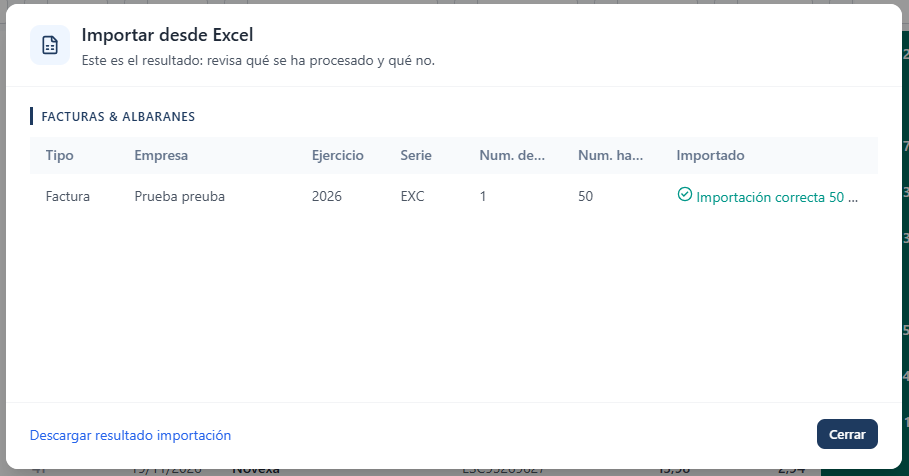
When it finishes, the window shows the result of each series («Importación correcta», Import successful) and the «Descargar resultado importación» (Download import result) link. Click «Cerrar» (Close) and, after «Refrescar» (Refresh), the imported invoices appear in the list.
If the Excel file has incorrect data
- 1
Check the reason on each invoice
If any data is not valid, the invoice shows the reason in the wizard; for example, «CIF emisor o cliente inválido» (Invalid issuer or customer tax ID).
- 2
If no row can be imported, click «Cancelar»
The import is blocked: «Siguiente» or «Importar» are not enabled, or «No hay nada que importar» (Nothing to import) appears. Click «Cancelar» (Cancel), correct the Excel file and import it again.
Import a Facturae e-invoice
- 1
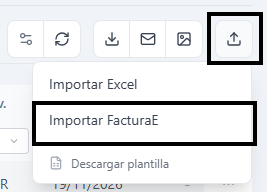
Click «Importar» and choose «Importar FacturaE»
The file browser opens.
- 2
Choose the Facturae file and open it
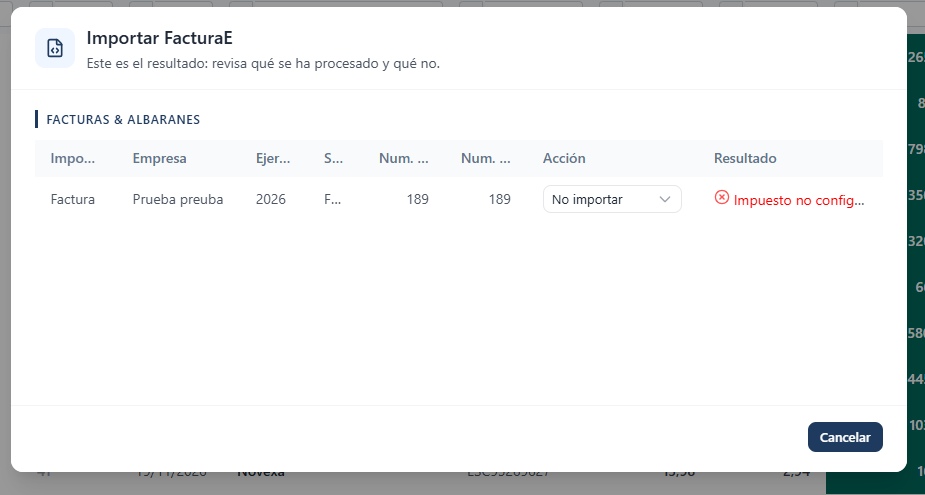
The «Importar FacturaE» window opens with the result of each file. If an invoice cannot be imported, its «Resultado» (Result) shows the reason (for example, «Impuesto no configurado», Tax not configured) and its «Acción» is set to «No importar» (Do not import).
- 3
If the file is not a valid Facturae, read the message
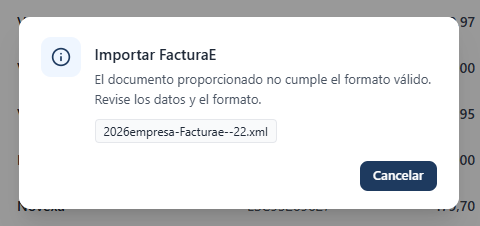
The message «El documento proporcionado no cumple el formato válido. Revise los datos y el formato.» (The document provided does not have a valid format. Check the data and the format.) appears, with the file name. No invoice is created.
- 4
Close the window
Click «Cancelar» (Cancel).
You can also watch it on video: Importing invoices from other applications from Excel.