
Updated on November 19, 2026
Documents: dashboard
The folder view by company: how many documents each one has in each department and how many are still to be posted. From here you can also search for a company, view its documents and download the list.
The Documents dashboard
- 1
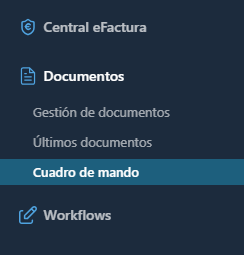
Click «Documentos» in the side menu
«Gestión de documentos» (Document management) opens and, below «Documentos», the side menu shows «Gestión de documentos», «Últimos documentos» (Latest documents) and «Cuadro de mando» (Dashboard).
- 2
Click «Cuadro de mando»
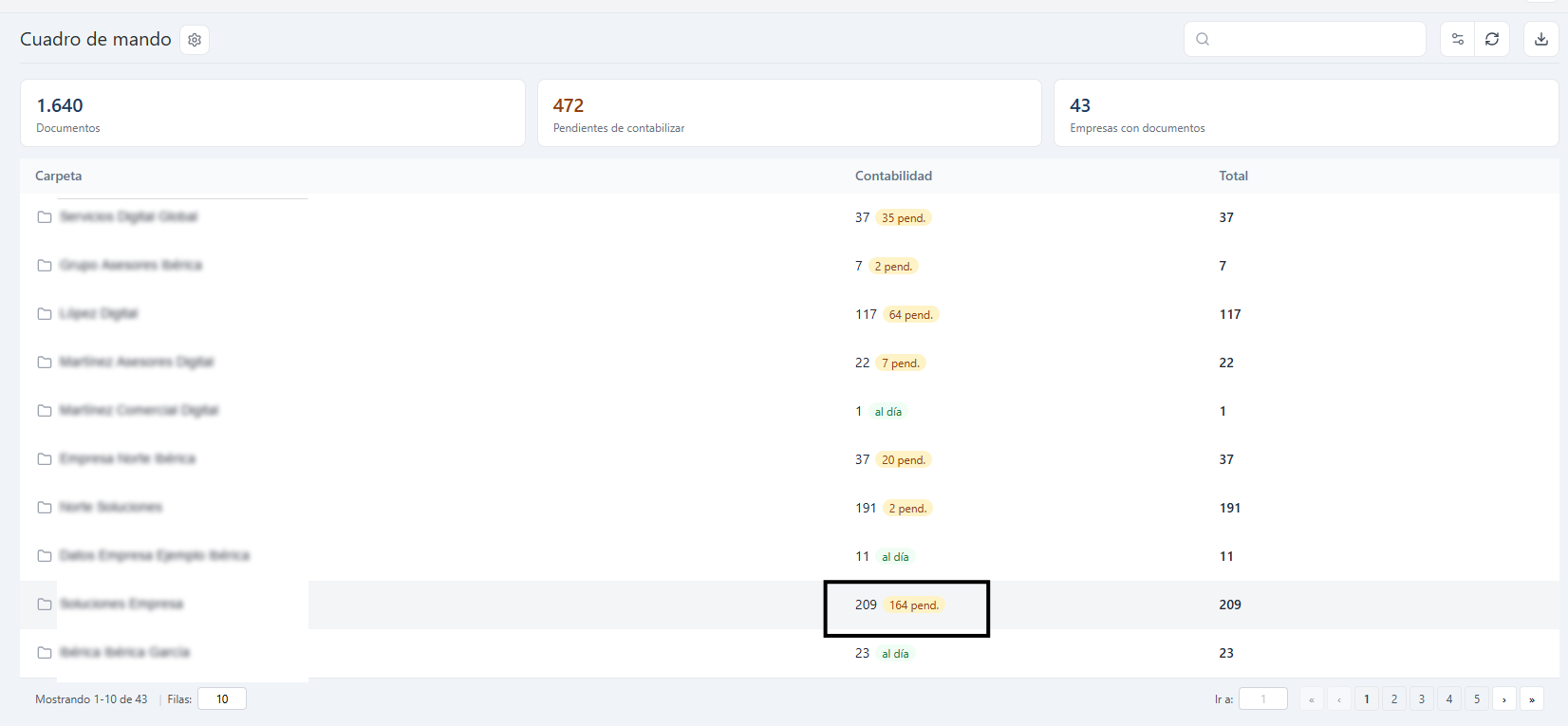
At the top there are three boxes: «Documentos» (Documents), «Pendientes de contabilizar» (Pending posting) and «Empresas con documentos» (Companies with documents). Below is the folder table: one row per company («Carpeta», Folder, column) and one column per department, for example «Contabilidad» (Accounting), with its number of documents. Next to the number, a label shows how many are still to be posted (for example, «35 pend.») or whether everything is posted («al día», up to date). Only folders that have at least one document are shown.

Search for a company
- 1
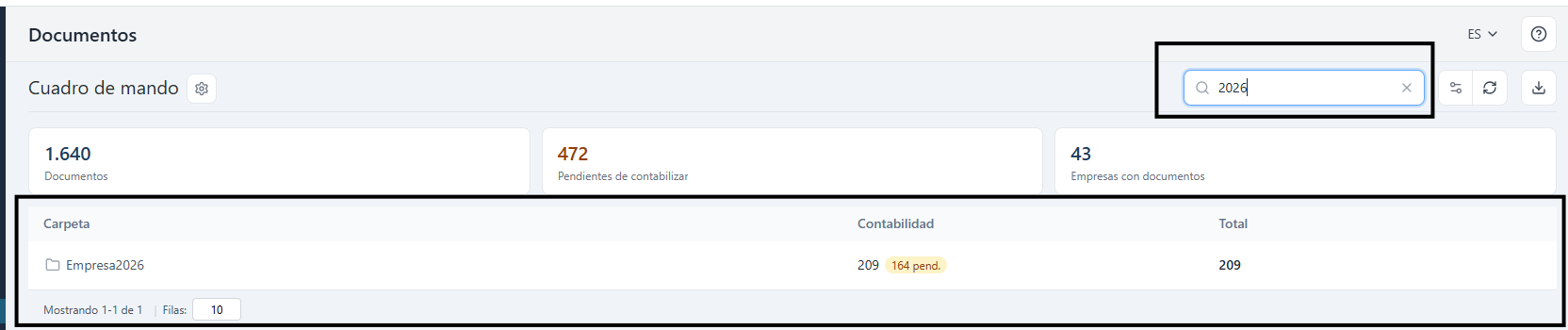
Type the company name and click the search button
In the search box. Only the matching folders remain; if none match, the table is empty.
- 2
Click «Limpiar búsqueda»
To see them all again («Limpiar búsqueda», Clear search).
View the documents in a folder
- 1
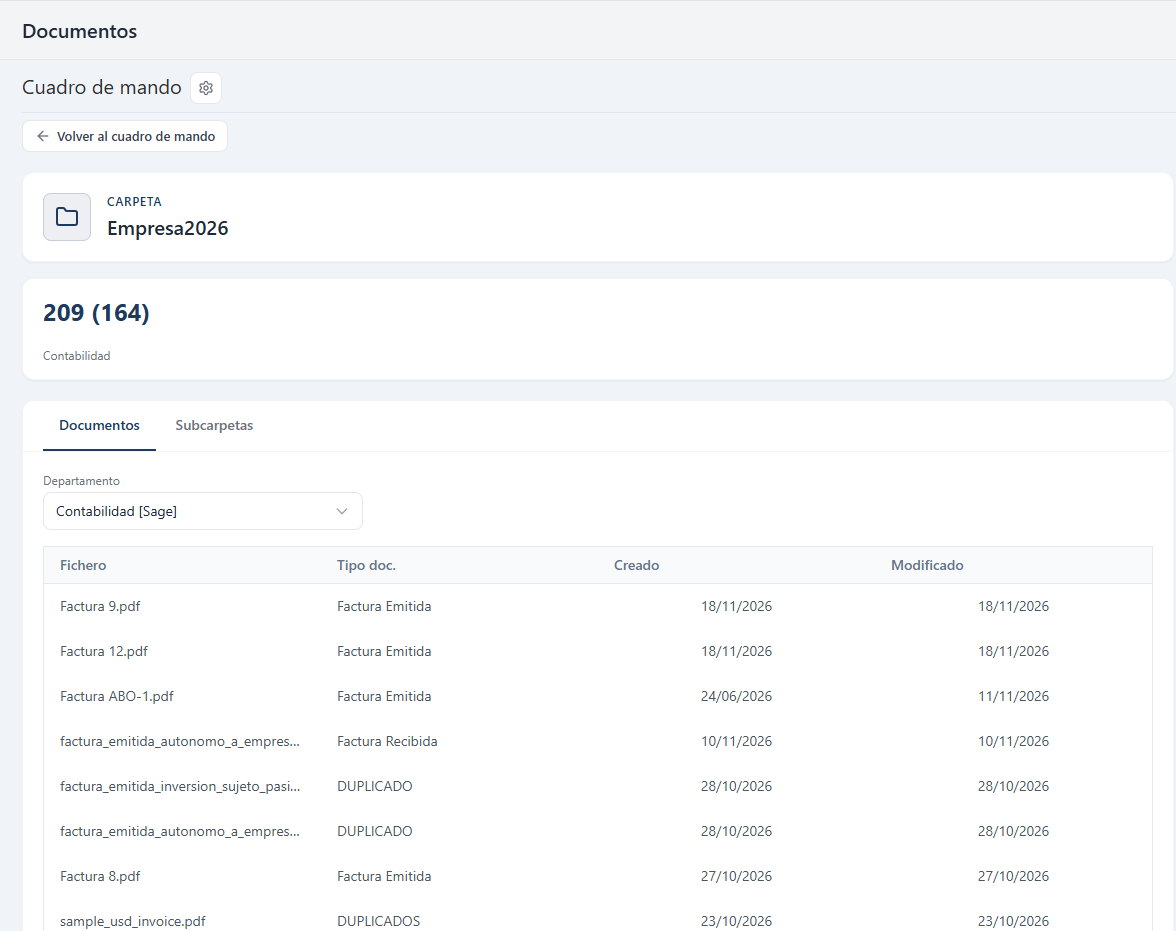
Click a company's number of documents
In the department column, for example «Contabilidad» (Accounting). The company's folder opens, with all its documents and a drop-down to choose the «Departamento» (Department). To go back, click «Volver al cuadro de mando» (Back to the dashboard).
Download and refresh the folder view
- 1
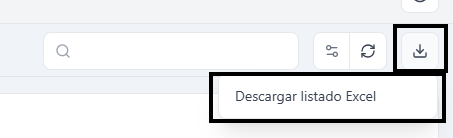
Click the download button and choose «Descargar listado Excel»
In the toolbar («Descargar listado Excel», Download Excel list). An .xlsx file is downloaded with the folders shown in the table and, at the end, a «Total» column.
- 2
Click «Refrescar»
Click
 «Refrescar» (Refresh). The table reloads with up-to-date data.