
Updated on November 19, 2026
Options
The «Opciones» (Options) tab in Settings: e-invoice format, what is generated when importing invoices, uploading invoices to Documents and sending them to the customer when invoicing.
Default e-invoice format
- 1
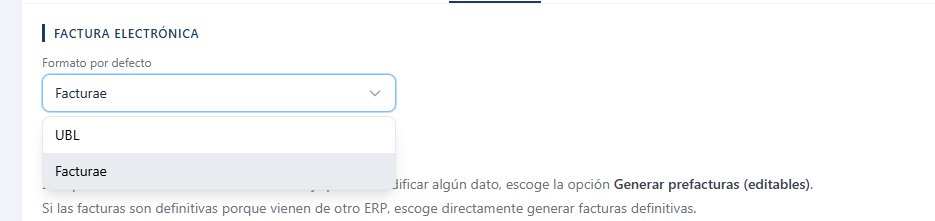
Open the «Formato por defecto» drop-down
In the «Factura electrónica» (E-invoice) section («Formato por defecto», Default format).
- 2
Choose «Facturae» or «UBL»
The drop-down shows the chosen format.
What is generated when importing invoices
- 1
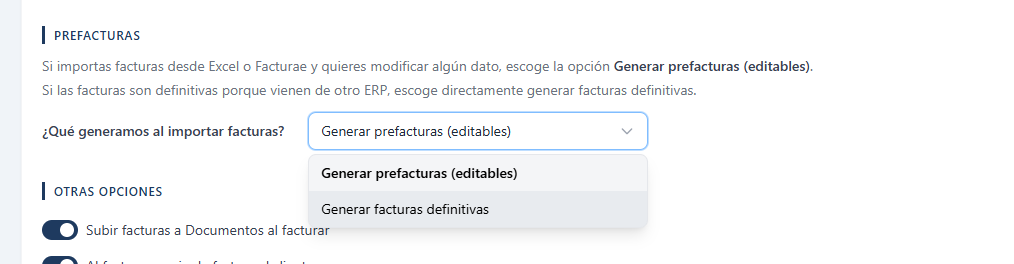
Choose what is generated
In «¿Qué generamos al importar facturas?» (What do we generate when importing invoices?), choose «Generar prefacturas (editables)» (Generate draft invoices, editable) if you import invoices from Excel or Facturae and want to be able to change some data, or «Generar facturas definitivas» (Generate final invoices) if they are already final (for example, because they come from another ERP): they come in directly as final invoices, not as drafts.
Upload invoices to Documents
- 1
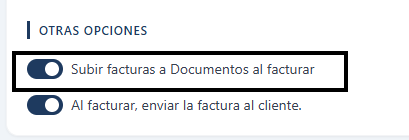
Turn «Subir facturas a Documentos al facturar» on or off
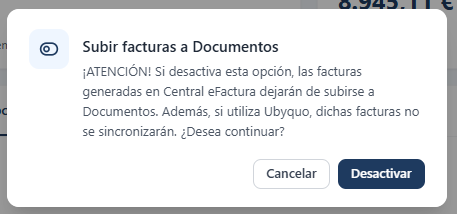
Depending on whether you want invoices to be uploaded automatically to Documents when you invoice (Upload invoices to Documents when invoicing). When you turn it off, the «Subir facturas a Documentos» notice appears, warning that invoices will no longer be uploaded to Documents and that, if you use Ubyquo, they will not be synchronised: click «Desactivar» (Turn off) to confirm or «Cancelar» (Cancel) to keep it on. Turning it on does not ask for confirmation.
Send the invoice to the customer when invoicing
- 1
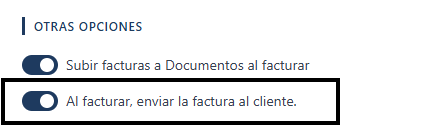
Turn «Al facturar, enviar la factura al cliente» on or off
When on (When invoicing, send the invoice to the customer), the invoice is sent to the customer at the moment of invoicing.
When you finish, click «Guardar» (Save). «Cancelar» (Cancel) discards the changes.