
Updated on November 25, 2026
My details: personal details, password and access permissions
How to change your first name, last name, phone number and two-step authentication, change your password and check which modules and folders you can access.
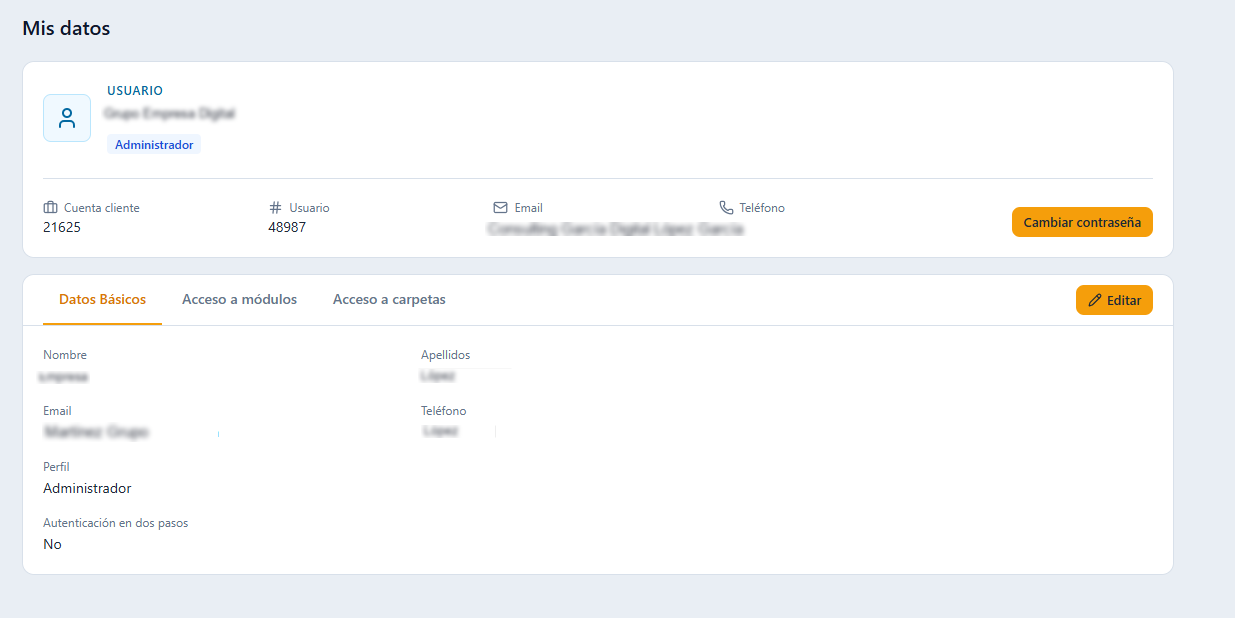
Administración › «Mis datos» (Administration › My details) shows the details of the user you are logged in with: at the top, the summary (customer account, user number, email and phone) and the «Cambiar contraseña» (Change password) button; below, the «Datos Básicos» (Basic details), «Acceso a módulos» (Module access) and «Acceso a carpetas» (Folder access) tabs.
Edit my basic details
- 1
Go to Administración › «Mis datos»
The «Datos Básicos» tab opens in read mode.
- 2
Click «Editar»
Click
 («Editar», Edit). The fields appear, with the «Cancelar» (Cancel) and «Guardar» (Save) buttons. While you edit, the other tabs are disabled.
- 3
Change your first name, last name or phone number
If you leave the first name or last name empty, the previous value is kept.
- 4
Turn two-step authentication on or off
With the «Autenticación en dos pasos» (Two-step authentication) switch.
- 5
Click «Guardar»
The message «Los datos han sido cambiados correctamente» (The details have been changed successfully) appears and the tab returns to read mode with the new details.
The email and the profile cannot be changed here.
Change the password
- 1
Click «Cambiar contraseña»
In «Mis datos», click
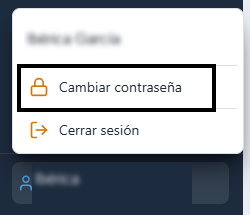
 . You can also do it from the side menu: click the button with your name and choose «Cambiar contraseña».
- 2
Enter the current password and the new one
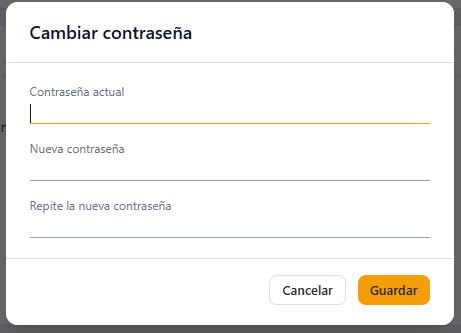
The «Cambiar contraseña» window opens. Enter the current password in «Contraseña actual» (Current password), the new one in «Nueva contraseña» (New password) and repeat it in «Repite la nueva contraseña» (Repeat the new password). It must have at least 8 characters, a number, an uppercase letter and a lowercase letter.
- 3
Click «Guardar»
The message «La contraseña se ha cambiado correctamente» (The password has been changed successfully) appears. The next time you log in, use the new password. «Cancelar» closes the window without changing anything.
Before logging out, make sure you remember the new password.
If the password is not changed, check the warning: «La contraseña debe tener un mínimo de 8 caracteres, un número, una mayúscula y una minúscula» (The password must have at least 8 characters, a number, an uppercase letter and a lowercase letter) if the new one does not meet the requirements, or «La contraseña no es correcta» (The password is not correct) if the current one is wrong or the new one and its repetition do not match.
Check my access permissions
- 1
Click the «Acceso a módulos» tab
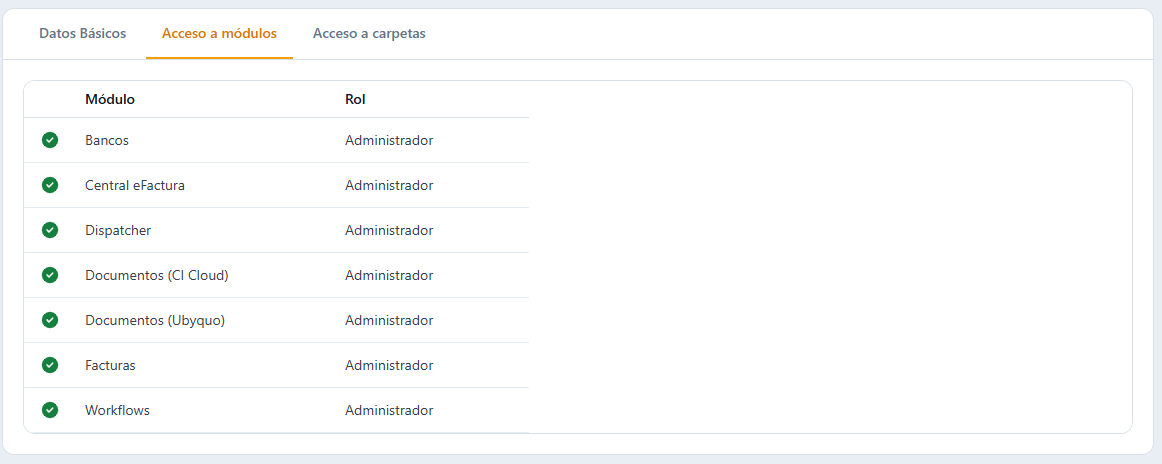
A table shows the modules you can access and your «Rol» (Role) in each one.
- 2
Click the «Acceso a carpetas» tab
A table shows the companies you can access, with the «Empresa» (Company) and «Ejercicios» (Financial years) columns. If you can access all of them, «Acceso a todas las carpetas.» (Access to all folders.) appears.

- 3
Click «Refrescar» to update the data
«Refrescar» (Refresh) is on the toolbar.
The modules, the role and the folders depend on your profile and your access rules: User profiles and Users.