
Updated on September 21, 2026
Utilities and application settings
Learn about the Home tools for changing the language, enabling Duplicates or restarting services.
Utilities and application settings in Ubyquo
From the Utilidades (Utilities) icon, available on the Inicio (Home) tab, you can access different management, maintenance and advanced configuration tools for Ubyquo.
Available utilities
Idiomas (Languages)
Lets you select Ubyquo's language from:
- Español (Spanish)
- Inglés (English)
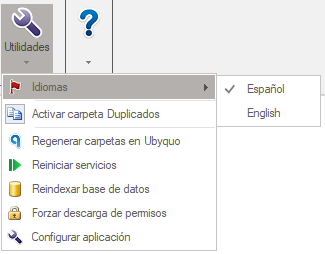
Activar carpeta de Duplicados (Enable Duplicates folder)
Lets you enable the automatic duplicate document alert and turn on the folder used to manage these documents.
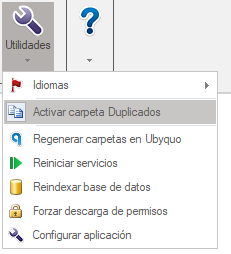
Regenerar carpetas en Ubyquo (Regenerate folders in Ubyquo)
Regenerates the company folders within Ubyquo Import, the service in charge of adding documents in the background.
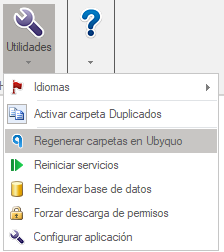
Reiniciar servicios (Restart services)
This option is only available on the computer where Ubyquo was installed.
Lets you restart Ubyquo's main services.
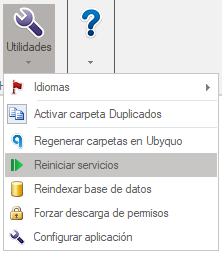
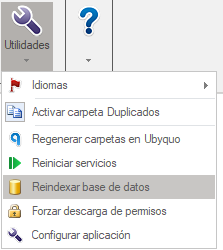
Reindexar BBDD (Reindex database)
Lets you reindex Ubyquo's database to optimize its operation and improve performance.
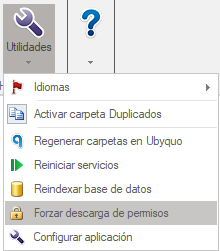
Forzar descarga de permisos (Force permission download)
Lets you manually update a user's permissions, even when the user does not have an administrator profile.
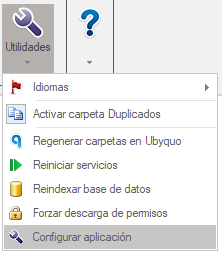
Configuración de aplicación (Application settings)
From Configuración de aplicación you can access several technical sections to configure how Ubyquo works.
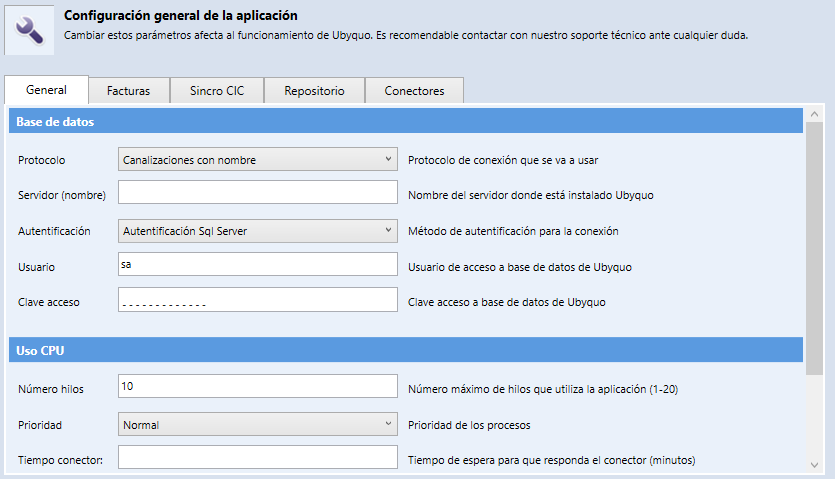
General
In this section you can set different general parameters of the application.
Lets you configure access to the database, including:
- Protocol
- Server
- Authentication type
- User
- Password
Lets you limit CPU usage by setting:
- Number of threads.
- Priority.
- Connector run time.
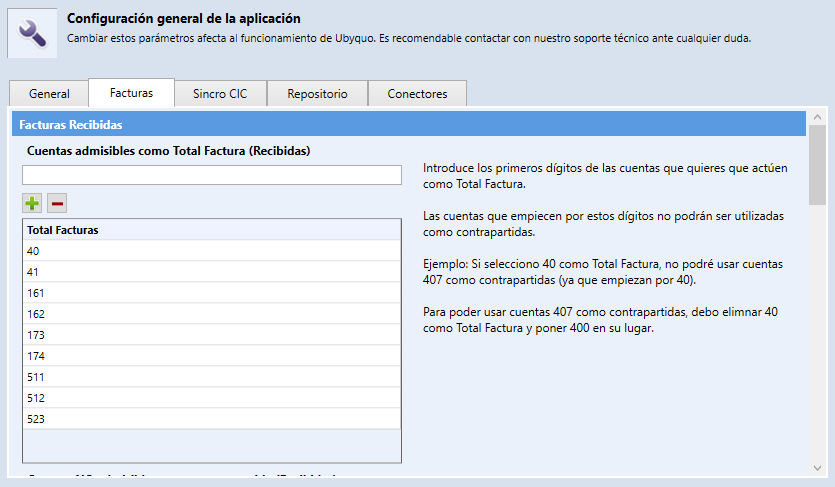
Facturas (Invoices)
Lets you set up the accounting accounts depending on whether they correspond to customers/suppliers or income/expenses.
You must specify:
- The account digits that will act as the invoice total (customer/supplier).
- The accounts you want to exclude so they are not used as a contra account for income/expense.
Sincro CIC (CIC sync)
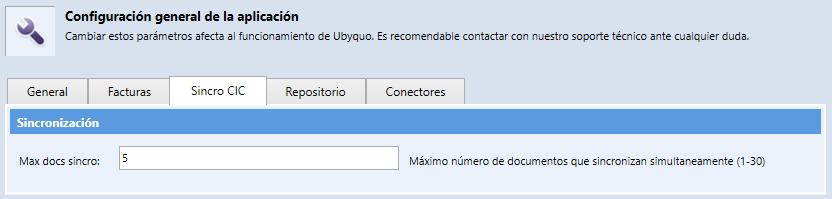
Lets you set the maximum number of documents that can be synchronized at the same time.
The default value is 5 documents.
Increasing this number can overload the service and cause errors during synchronization.
Repositorio (Repository)
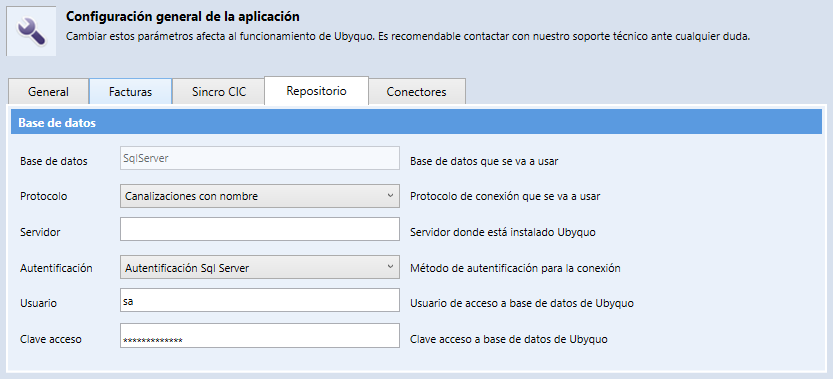
Lets you configure the document database, including:
- Protocol
- Server
- Authentication type
- User
- Password
Conectores (Connectors)
This section lets you configure the Sage connector and different options related to accounting data synchronization.
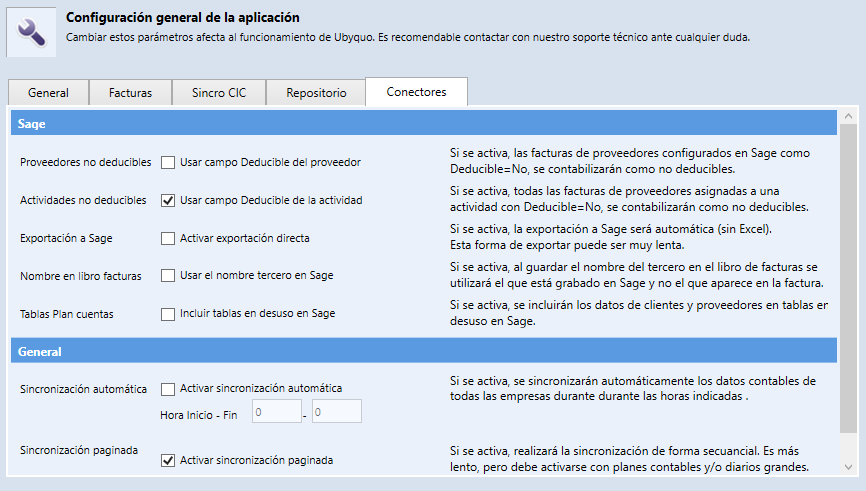
The available options include:
- Proveedores no deducibles (Non-deductible suppliers): invoices from suppliers with
Deducible = Noare posted as non-deductible. - Actividades no deducibles (Non-deductible activities): applies the same logic to the activities assigned in Sage.
- Exportación a Sage (Export to Sage): if enabled, the export is done automatically, without having to use Excel. This option may take longer to complete the export.
- Nombre en libro facturas (Name in invoice ledger): uses the third party's name registered in Sage.
- Tablas plan de cuentas (Chart of accounts tables): includes customer and supplier data in the table that is no longer used in Sage.
General: scheduled synchronization
Lets you set up automatic synchronizations for all companies and set the time they should run.
It also lets you enable paged synchronization, especially useful for improving performance when working with large charts of accounts or journals.