
Updated on September 21, 2026
Sending documents to Workflow and checking a document's Workflow
How to send documents for approval automatically or manually, depending on your Workflow rules.
In Ubyquo you can send documents to the Workflows module to manage their approval. Sending can be automatic or manual, depending on how the Workflow rules are set up.
Send a document to Workflow
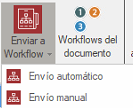
There are two ways to send a document to Workflow:
Automatic sending
Automatic sending lets you send the document straight to the corresponding Workflow.
To use this option:
- The Workflow rules must already be set up.
- The document will be sent automatically to the Workflow that matches those rules.
- It is recommended to use it after sending to automatic posting from the Facturas (Invoices) tab.
Manual sending
Manual sending lets you choose directly the Workflow you want to send the document to.
This option is useful when you want to decide manually which Workflow should handle a document.
Check a document's Workflow
Once the document has been sent to Workflow, you can check its status from the Workflow del documento (Document Workflow) icon.
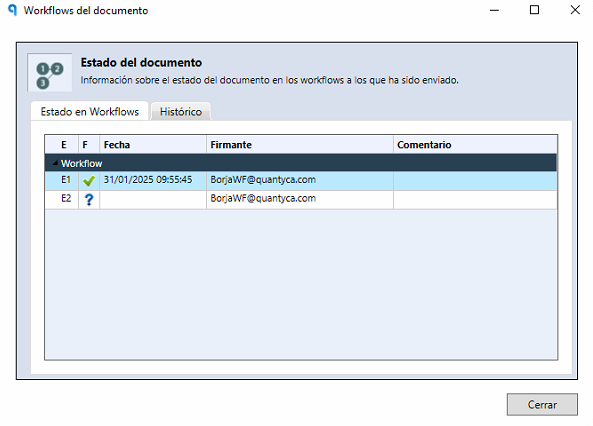
From this option you can see information about the approval process, such as:
- Which Workflow stage the document is in.
- Whether the document has been rejected.
- Whether the document has been withdrawn from the Workflow.
- Which user has rejected or approved the document.