
Updated on September 21, 2026
How to add and fill in analytical fields on invoices
Discover the four ways to enter or edit the analytical information of your invoices.
In Ubyquo you can add and fill in the analytical fields of invoices from different points in the application.
There are four ways to enter or edit analytical information, depending on the stage of the process and the view you are working in.
Adding analytical fields from Documents
When you add an invoice from the Documentos tab, you can enter the corresponding analytical fields right away.
You can add the invoice by dragging it into Ubyquo or by using the “Añadir” (Add) button.
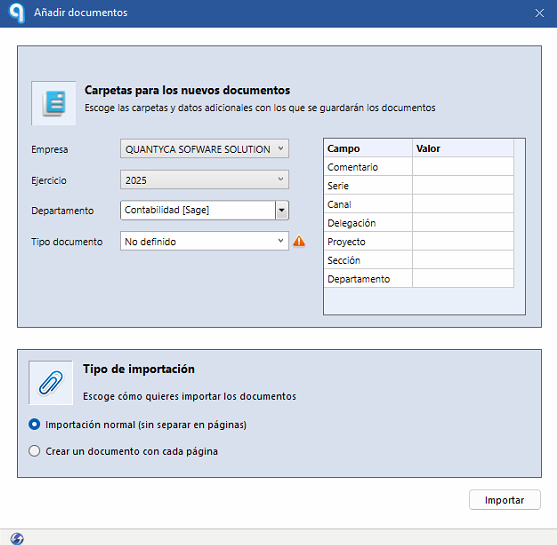
Updating analytical fields from Invoices
When the invoice is in the Por contabilizar (To be posted) stage of the Facturas tab, you can update its analytical fields.
- Select one or several invoices.
- Right-click the selection.
- Select “Actualizar campo” (Update field).
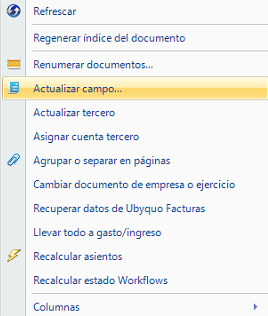
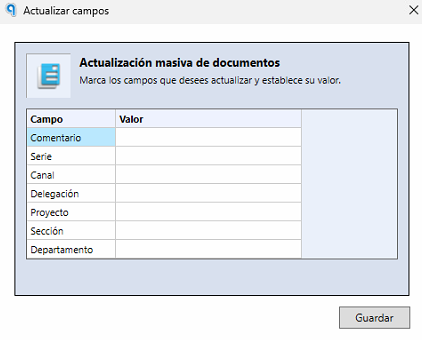
This option lets you update the analytical fields of several invoices at once.
Adding analytical fields from the invoice editor
You can also fill in the analytical fields directly from the invoice editor.
- Open the invoice from the Facturas tab.
- At the top, click “Datos analíticos” (Analytical data).
- Fill in the corresponding analytical fields.

Adding analytical fields from the journal entry grid
If you have the Grid de asientos (Journal entry grid) enabled in the invoice editor, you can enter the analytical values directly in the corresponding cell.
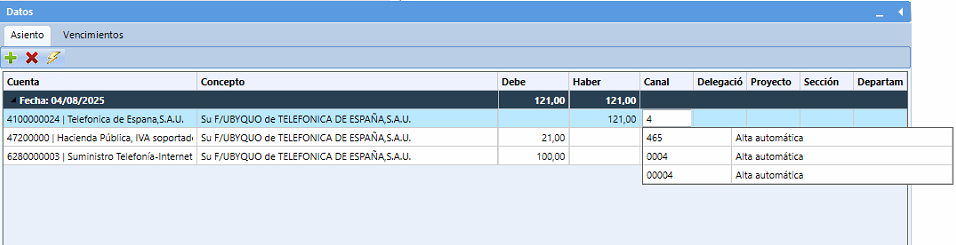
This option lets you fill in the analytical information directly on the invoice's journal entries.
Complete the analytical data before posting
Whichever method you use, make sure the analytical fields are correctly filled in before exporting or posting the invoices to the ERP.