
Updated on September 22, 2026
Ubyquo looks out of proportion or fields are missing: adjust the DPI
Fix the display by adjusting the DPI setting when the Windows display scale is above 100%.
If Ubyquo looks out of proportion, some texts or fields don't display correctly, or the program's windows don't fit the screen size, the problem may be related to the Windows scale and DPI (PPP in Spanish) setting.
This problem is especially common on laptops or on computers that use a display scale above 100%.
Examples of display problems
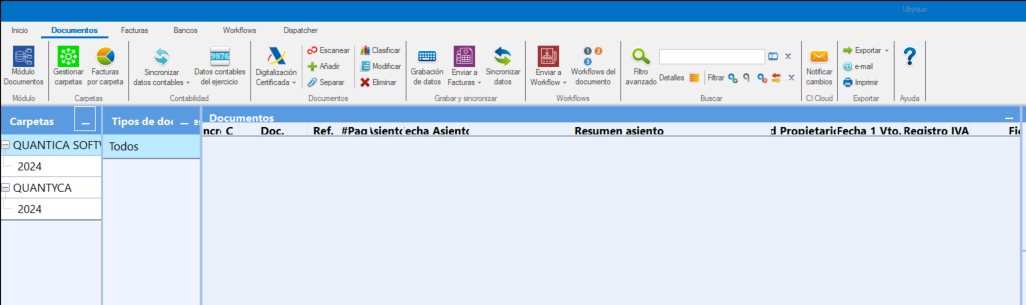
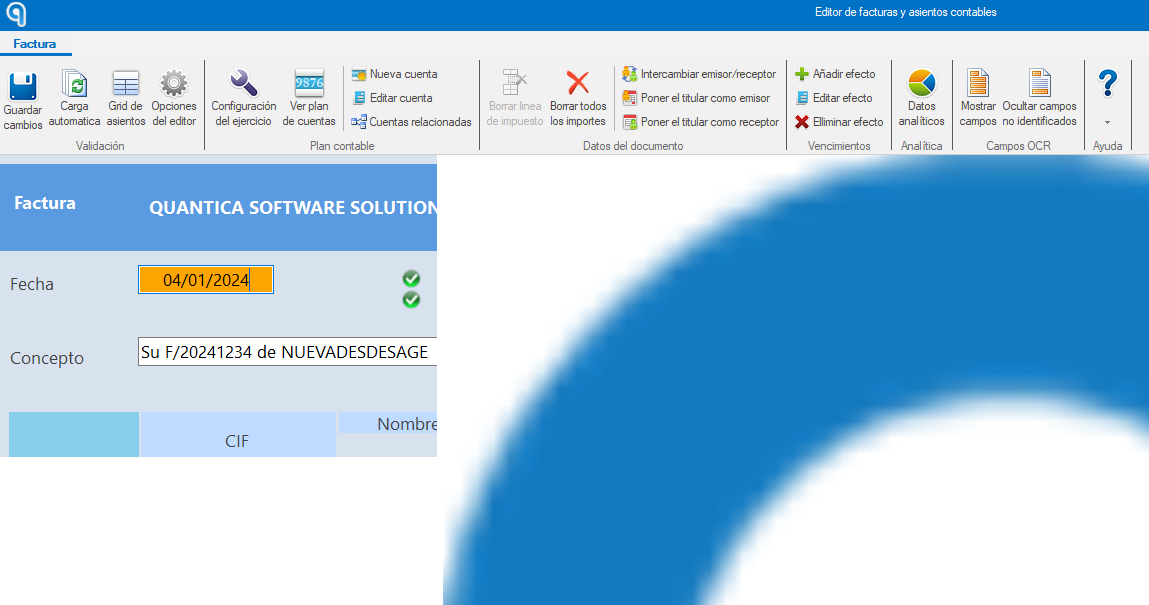
Some Ubyquo elements may appear out of proportion or not display correctly.
Ubyquo window:
Invoice Editor:
Set Ubyquo's DPI scaling
To fix the display, change the compatibility settings of the Ubyquo shortcut.
- Right-click the Ubyquo icon or the shortcut you use to start the program.
- Select Propiedades (Properties).
- Go to the Compatibilidad (Compatibility) tab.
- Click Cambiar configuración elevada de PPP (Change high DPI settings).
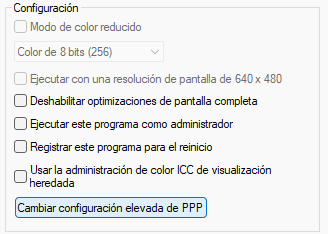
- Check the option: Invalidar el comportamiento de ajuste de PPP alto (Override high DPI scaling behavior)
- In the Ajuste realizado por: (Scaling performed by:) drop-down, select Sistema (System).
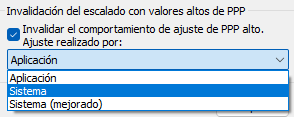
- Click Aceptar (OK) and apply the changes.
Close and reopen Ubyquo to check whether the display has been fixed.
Check the Windows display scale
If the problem continues, check the Windows scale setting.
- Right-click the desktop.
- Select Configuración de pantalla (Display settings).
- Under Escala y distribución (Scale and layout), find the option Cambiar el tamaño del texto, las aplicaciones y otros elementos (Change the size of text, apps, and other items).
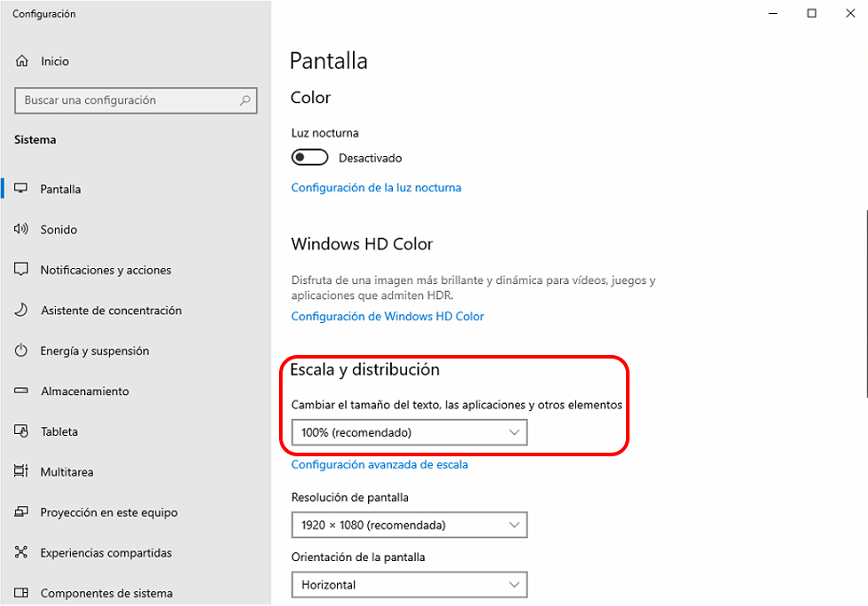
- Check the configured scale percentage.
- If necessary, set the scale to 100%.
After changing the setting, reopen Ubyquo and check how the windows and the Invoice Editor display.