
Updated on 23 September 2026
Sage analytical fields: set up and synchronize in Ubyquo
Create channels, projects or departments in Sage and synchronize them so you can use them in Ubyquo.
To use Sage analytical fields in Ubyquo, you must first create and configure them in Sage and then synchronize the accounting data in Ubyquo.
The analytical fields available will depend on the company's configuration in Sage.
Create the analytical fields in Sage
Before configuring analytical fields in Ubyquo, make sure they are created and configured in Sage.
Available analytical fields
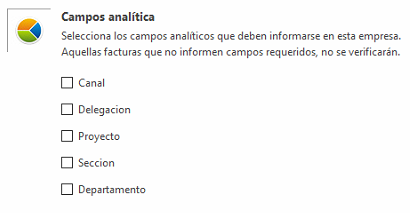
The available analytical fields include:
- Canal (Channel)
- Delegación (Branch office)
- Proyecto (Project)
- Sección (Section)
- Departamento (Department)
Create an analytical value in Sage
- In Sage, go to the corresponding tables.
- Find the analytical master you want to set up, for example, Canales (Channels).
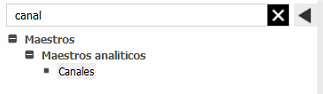
- Enter the channel name or code.
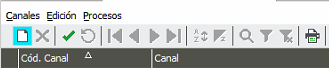
- Click Aceptar (OK) to save the changes.
The Sage company must have the corresponding analytical fields configured and support them. If a field does not exist or is not available in Sage, it will not be available in Ubyquo either.
Synchronize the analytical fields with Ubyquo
Once the analytical fields have been created in Sage, you need to synchronize the accounting data so they are available in Ubyquo.
You can find the full procedure in Synchronize accounting data.
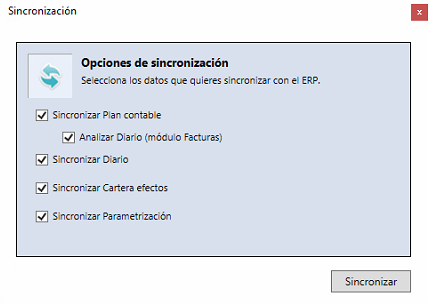
To synchronize:
- Go to the accounting data synchronization menu.
- Select all the options.
- Run Sincronizar datos contables (Synchronize accounting data).
- Do a full synchronization.
Once the synchronization is finished, the analytical fields configured in Sage will be available in Ubyquo.
Make analytical fields mandatory in Ubyquo
Ubyquo lets you set certain analytical fields as mandatory so that an invoice cannot be verified without completing the required analytical information.
Configure the mandatory fields
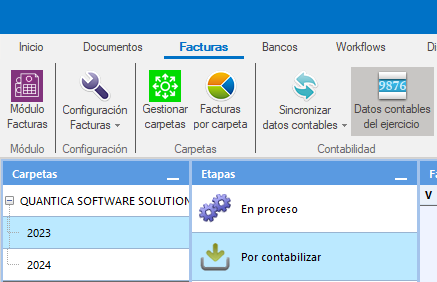
- Go to the Documentos (Documents) or Facturas (Invoices) tab.
- Select the fiscal year you want to configure.
- Click Datos contables del ejercicio (Fiscal year accounting data).
- Go to the Configuración (Settings) tab.
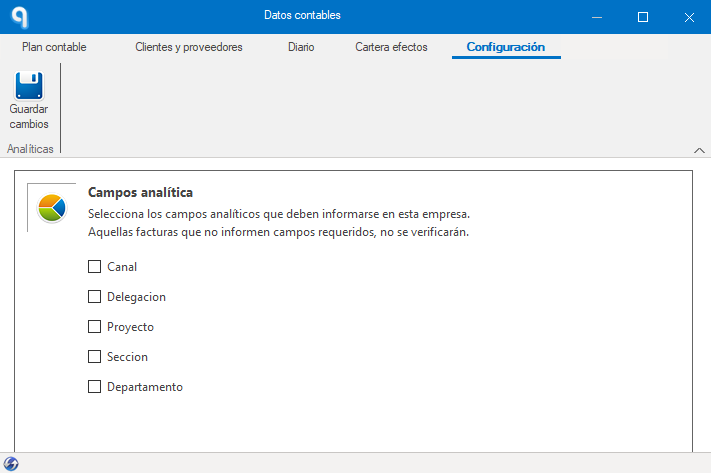
- Check the mandatory analytical fields you want to require.
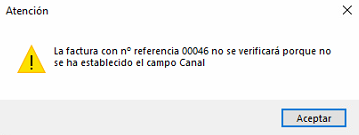
With this configuration, Ubyquo will not allow you to verify invoices that do not have the fields marked as mandatory filled in.