
Updated on 9 October 2026
Sage VAT pro rata in Ubyquo
How Ubyquo works with Sage’s general and special VAT pro rata, and what you need to set up.
Ubyquo is compatible with Sage’s VAT (IVA) pro rata. What you need to set up depends on the type of pro rata the company uses.
General pro rata
It needs no special setup in Ubyquo: invoices are exported to Sage with 100% of the VAT deductible and Sage applies the company’s pro rata percentage when generating the tax forms.
Special pro rata
It requires specific setup and customization: contact the Quantyca Sales Department.
Who
The setup in Ubyquo requires an Administrator user.
How the general pro rata works
Invoices are exported from Ubyquo as if there were no pro rata, so they appear in Sage with 100% of the VAT deductible. When you generate Form 303 from Impresos Oficiales > Preparación de liquidaciones (Official forms > Tax return preparation), Sage automatically applies the company’s pro rata percentage and calculates the corresponding deductible VAT.
Part 1 Set up Sage
- 1
Set up the activities
For each activity, state whether it is deductible:
Deducible: Sí (Deductible: Yes)Deducible: No (Deductible: No)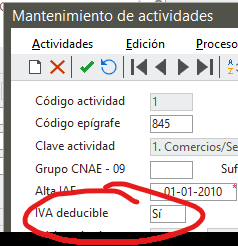
- 2
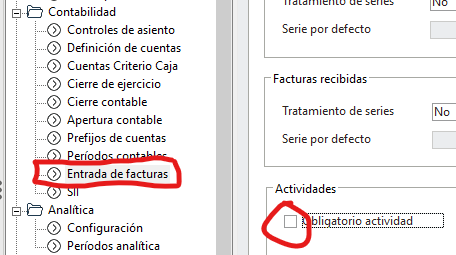
Make the activity mandatory
If you use more than one channel per activity, go to Asistente de configuración > Contabilidad > Entrada de facturas (Setup wizard > Accounting > Invoice entry) and turn on Obligatorio actividad (Activity required).
- 3
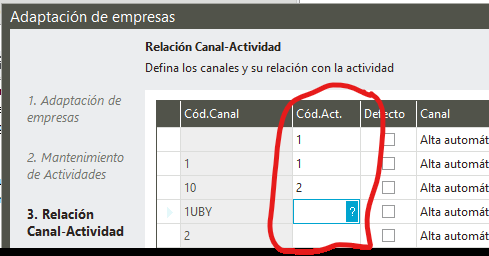
Link channels and activities
In the form that becomes available, set up the relationship between channels and activities.
- 4
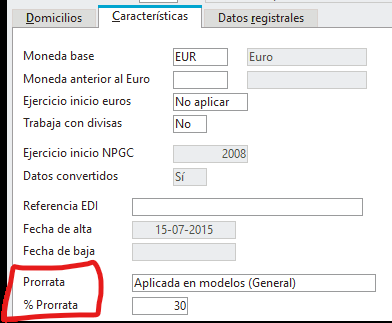
Set up the pro rata
In the company settings, choose Prorrata = Aplicada en modelos (General) (Pro rata = Applied in forms (General)) and set the pro rata percentage.
Part 2 Set up Ubyquo
- 5
Open the application settings
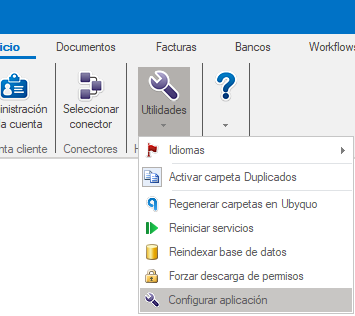
Go to Inicio > Utilidades > Configurar aplicación (Home > Utilities > Configure application).
- 6
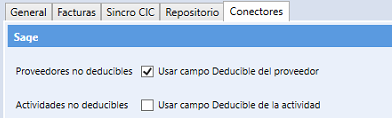
Untick “Actividad deducible”
Untick the Actividad deducible (Deductible activity) option. This way, Sage applies the general pro rata when generating the tax forms.
- 7
Make the channel mandatory Optional
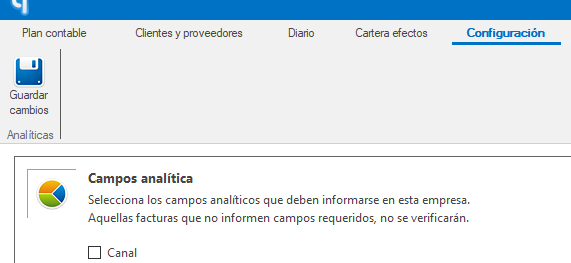
If you work with channels in Sage, go to Datos contables > Configuración (Accounting data > Settings) and tick Obligatorio informar de canal (Channel required). Ubyquo will ask for the channel when needed.
Part 3 Check the deductible VAT in Sage
- 8
Open Form 303
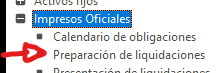
Go to Impresos Oficiales > Preparación de liquidaciones > Modelo 303 (Form 303).
- 9
Check the period
Select the period and look at the accumulated transactions: Sage shows the deductible amount after applying the general pro rata percentage.