
Updated on 23 September 2026
Export invoices to Sage with the Import Manager
How to move invoices from Ubyquo to Sage in two steps and track their status until they are posted.
Exporting invoices from Ubyquo to Sage takes two main steps: first you export the invoices from Ubyquo, and then you import them into Sage using the Gestor de importaciones (Import Manager).
Once they have been imported and posted, you can check the status of the invoices from Ubyquo and open the original document directly from Sage.
Export the invoices from Ubyquo
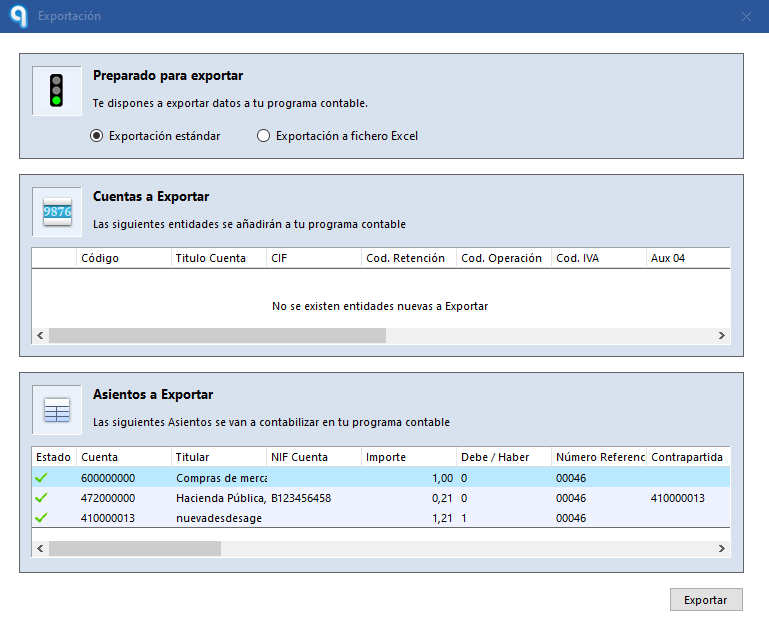
- In Ubyquo, export the invoices to the Sage accounting software.
- After the export, the invoices automatically move from the Por contabilizar (To be posted) folder to Exportados (Exported).
- In the Exportados folder, the invoices will appear with a question mark (?) icon.
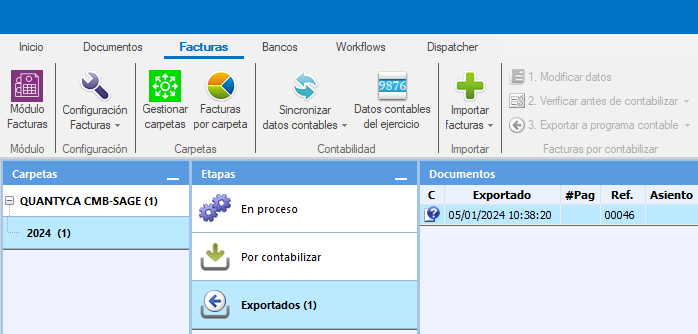
The (?) icon means the invoice has been exported from Ubyquo but has not yet been imported into Sage.
Import the invoices into Sage
Once the export from Ubyquo is done, you must run the import process in Sage.
- Open Sage.
- Go to Importación / Exportación > Gestor de importaciones (Import / Export > Import Manager).
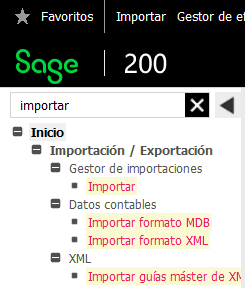
- Find the $$Ubyquo process.
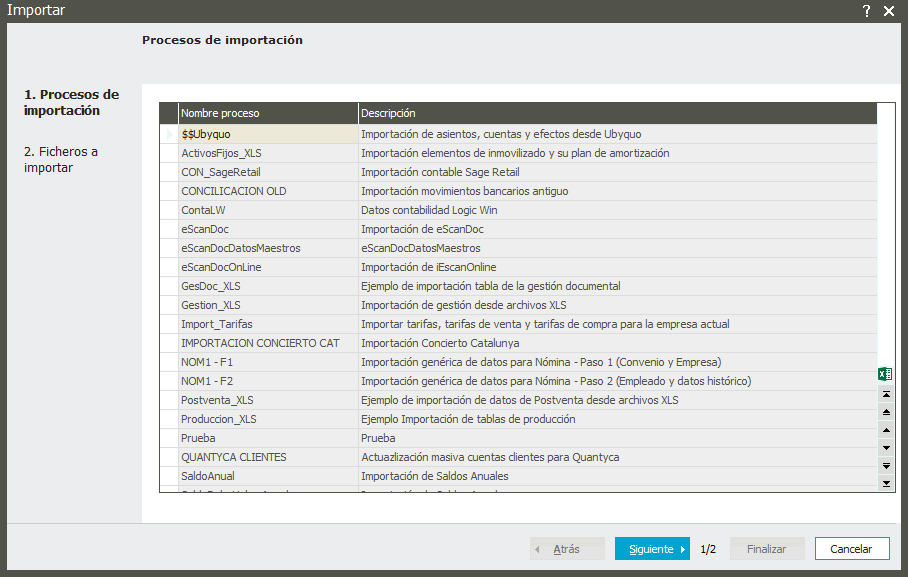
- Click Siguiente (Next).
- When the process finishes, click Finalizar (Finish).
This process will generate in Sage the journal entries and the necessary accounts for the imported invoices.
Check the pending invoices in Ubyquo
After the import in Sage, you can check from Ubyquo whether the invoices have already been posted.
- Go to Ubyquo Facturas (Invoices).
- Open the Exportados folder.
- Click Comprobar Facturas Pendientes (Check Pending Invoices).
- Select Comprobar Pendientes este ejercicio (Check pending items this fiscal year).
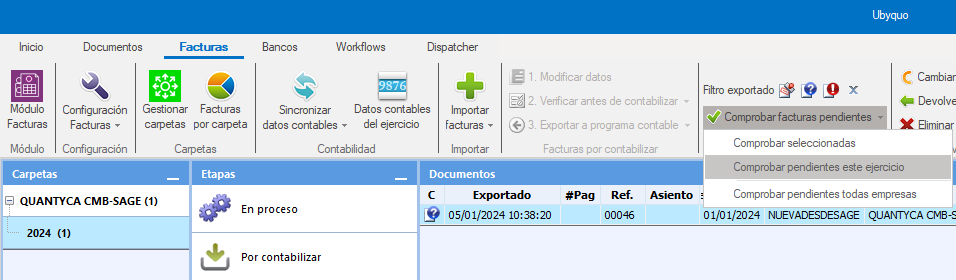
Ubyquo will check whether the exported invoices are already posted in Sage and will update the information accordingly.
Result of the check
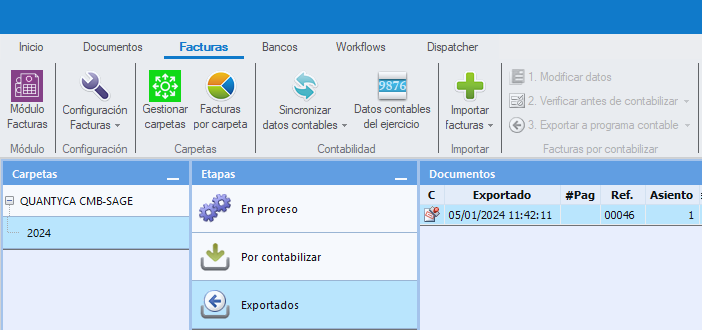
When an invoice has been posted successfully:
- The question mark icon (?) will change to the posted stamp (C).
- The journal entry number assigned by Sage will appear.
- The invoice will be identified as posted in Ubyquo.
View the attached document from Sage
Once the invoice is posted, you can open the original document from the journal entry in Sage.
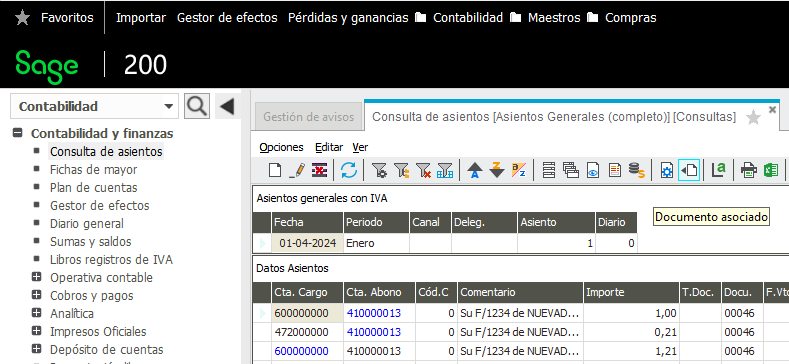
- In Sage, go to the journal entry you want to look at.
- Click the Documento asociado (Attached document) icon.
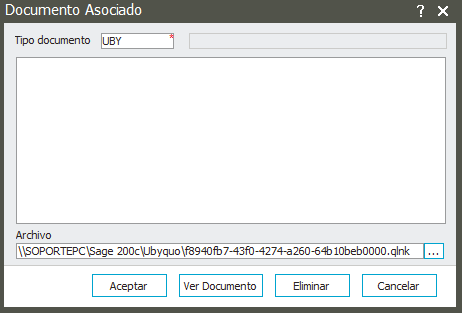
- In the window that appears, click Ver Documento (View Document).
- Enter your Ubyquo Facturas user and password.
You can turn on the options:
- Recordar usuario (Remember user)
- Recordar contraseña (Remember password)
This way, you won't have to enter your credentials every time you open a document from Sage.
Result
The Ubyquo document viewer will open with the image of the invoice linked to the Sage journal entry.