
Updated on 9 October 2026
Direct export of invoices to Sage
Export your invoices to Sage and get the posting status and the journal entry number back in Ubyquo.
The direct export from Ubyquo to Sage exports the invoices and automatically brings back to Ubyquo the posting status and the journal entry number generated by Sage.
Part 1 Export the invoices
- 1
Select the invoices
In Ubyquo, open the Por contabilizar (To be posted) folder and select the invoices you want to export.
- 2
Start the direct export
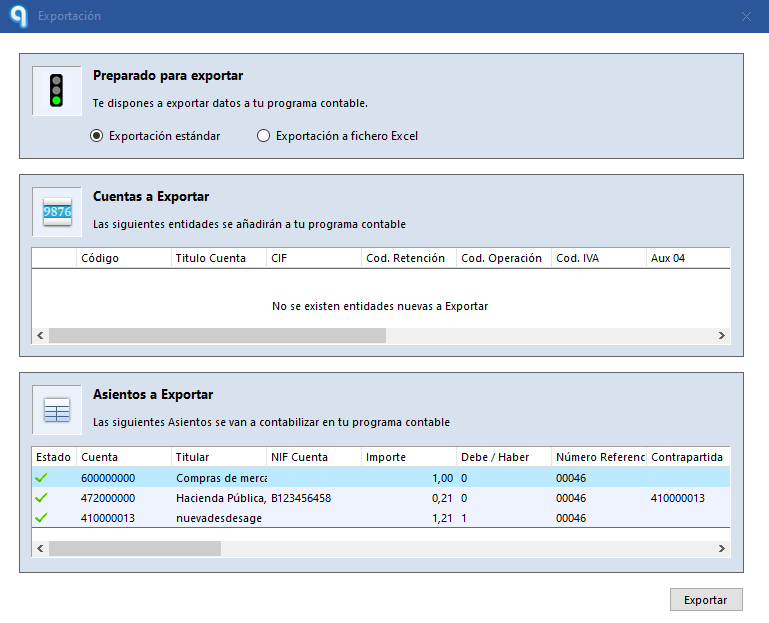
Run the direct export to Sage. When it finishes, the invoices automatically move to the Exportados (Exported) folder.
Check the stamp and the entry number
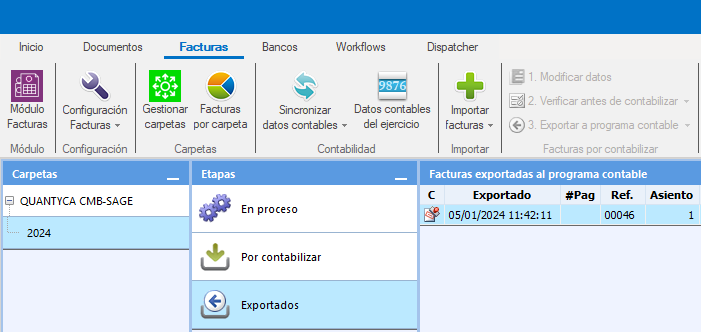
The invoices appear with the posted stamp (C) and, next to each one, the journal entry number assigned by Sage. This confirms that Ubyquo has correctly recorded the posting generated by Sage.
Part 2 View the attached document from Sage
- 3
Open the attached document
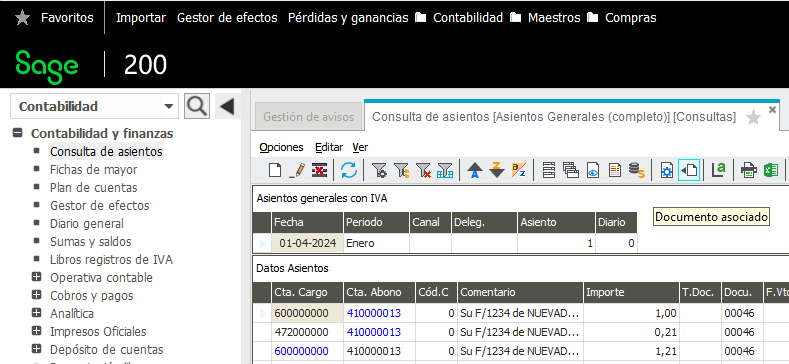
Open Sage, go to the journal entry you want to look at and click the Documento asociado (Attached document) icon.
- 4
Click “Ver Documento”
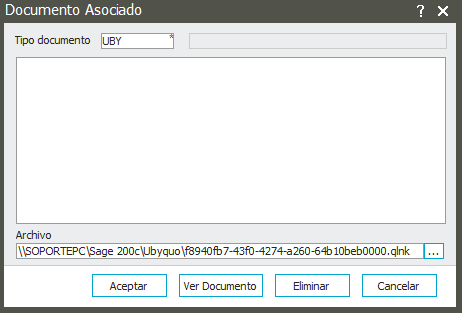
In the window that appears, select Ver Documento (View Document): the Ubyquo web viewer opens.
- 5
Sign in
Enter your Ubyquo Facturas user and password. The viewer shows the image of the document linked to the journal entry.
Turn on Recordar usuario (Remember user) and Recordar contraseña (Remember password) so you don't have to enter them next time.
Done! Ubyquo shows the invoice as posted with the Sage journal entry number, and from Sage you can open the document attached to each entry.