Updated on 24 September 2026
Import the breakdown of a remittance from Excel
Break a remittance down into its individual operations from an Excel file with description, NIF and amount.
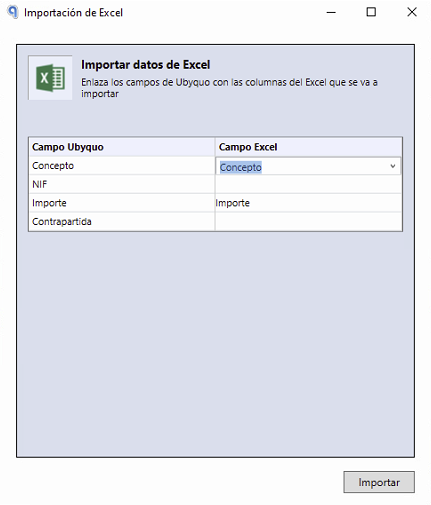
To manage a bank remittance correctly, you need the Excel file with the breakdown data for each operation:
- Concepto (Description)
- NIF
- Importe (Amount)
- Contrapartida (Contra account) (optional)
Steps to import the remittance in Ubyquo
Open the Transactions editor
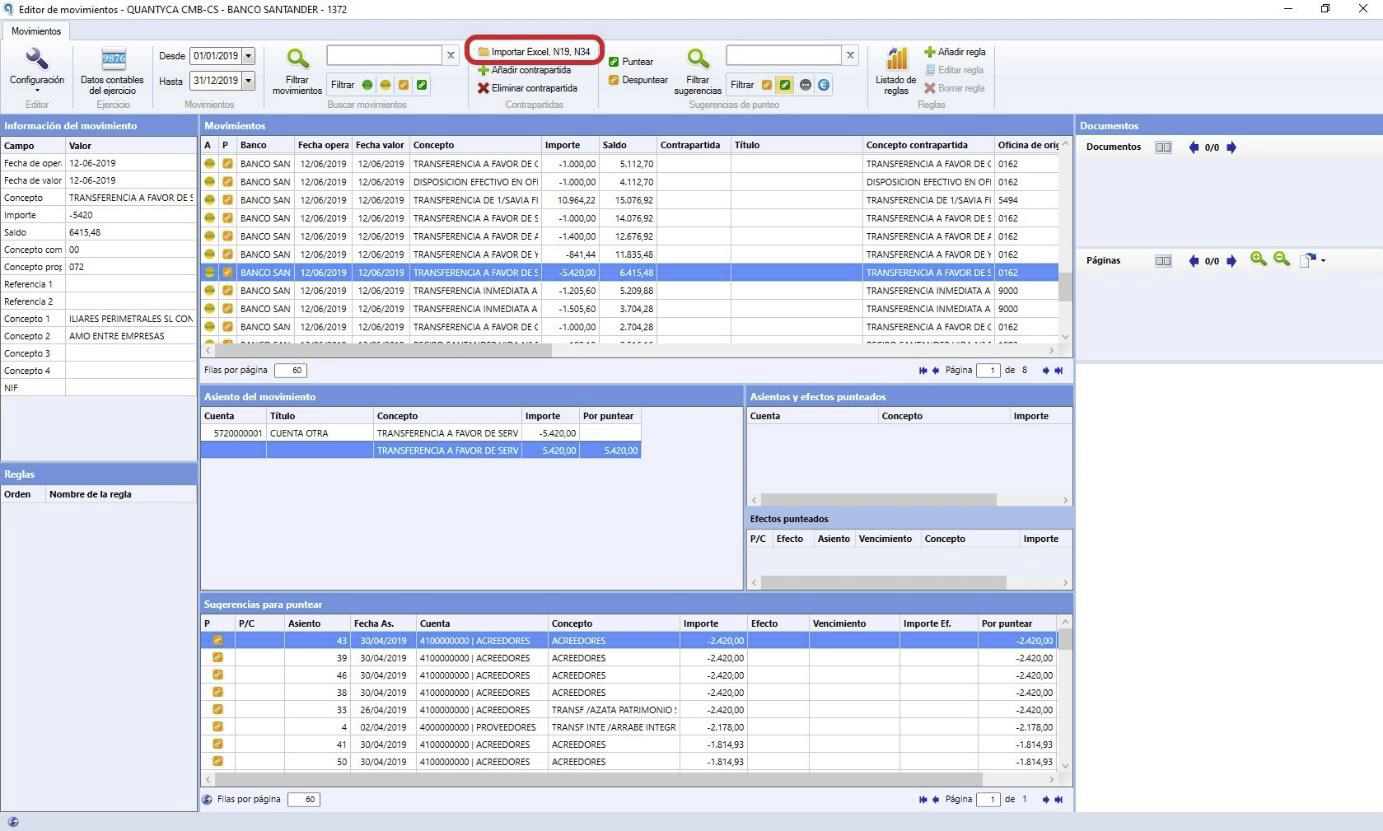
Double-click the relevant bank transaction to open the Editor de Movimientos (Transactions editor).
Select the import option
At the top of the editor, click Importar Excel N19, N34 (Import Excel N19, N34).
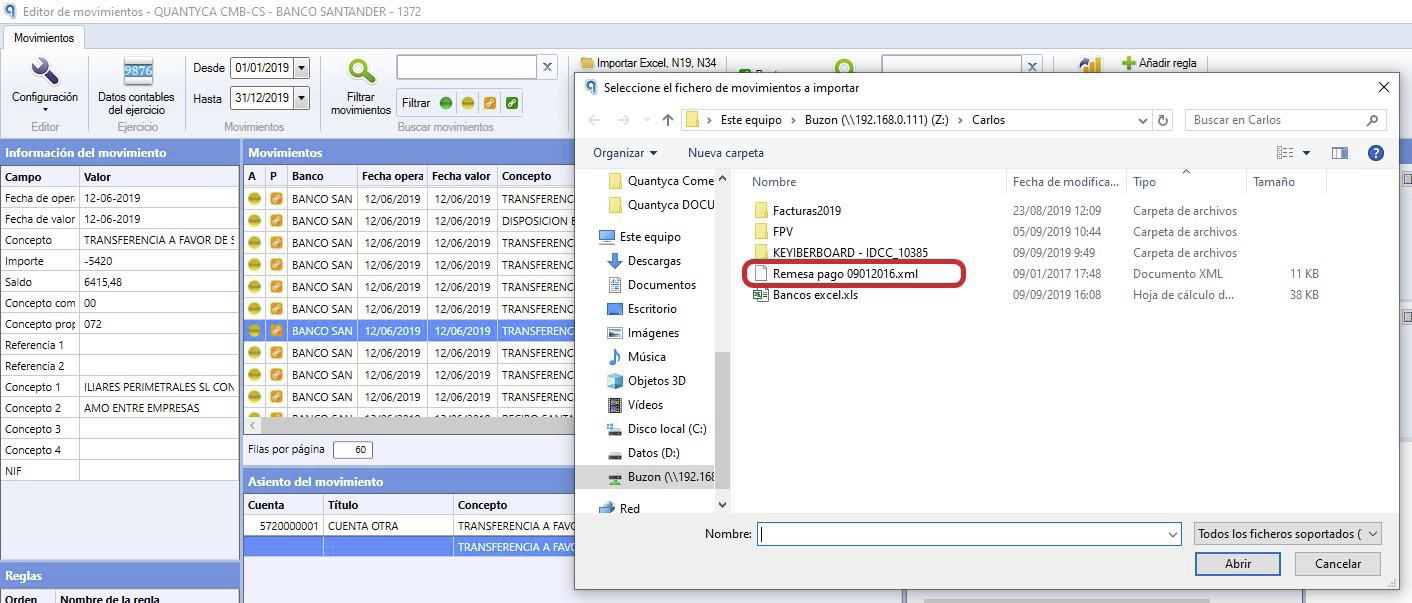
Select the remittance type
Select the corresponding remittance type:
- Remesa estándar (Standard remittance)
- Remesa de efectos comerciales (Commercial bills remittance)
Review the breakdown
Ubyquo will automatically break down the remittance, assigning:
- Concepto
- NIF
- Importe
- Contra accounts, as long as the NIF is provided or the contra accounts were entered beforehand.
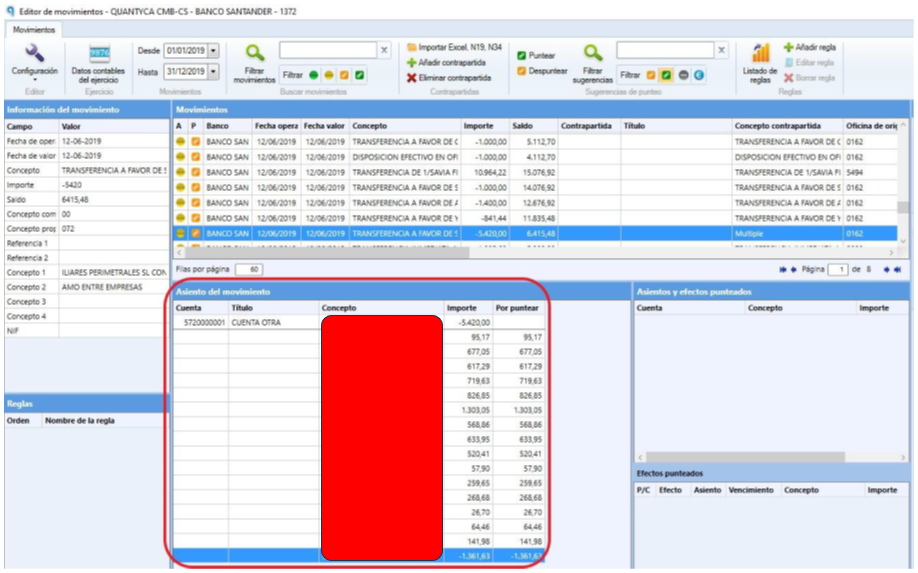
What happens if the amount does not match?
If the total amount in the Excel file does not match the amount of the bank transaction, Ubyquo will show a warning message.
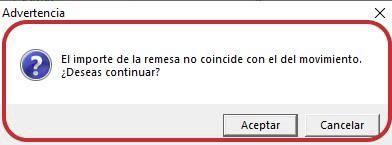
In this case, two situations can arise:
Option 1. The wrong document was selected
Check that the Excel file you selected corresponds to the remittance of the bank transaction you are working on.
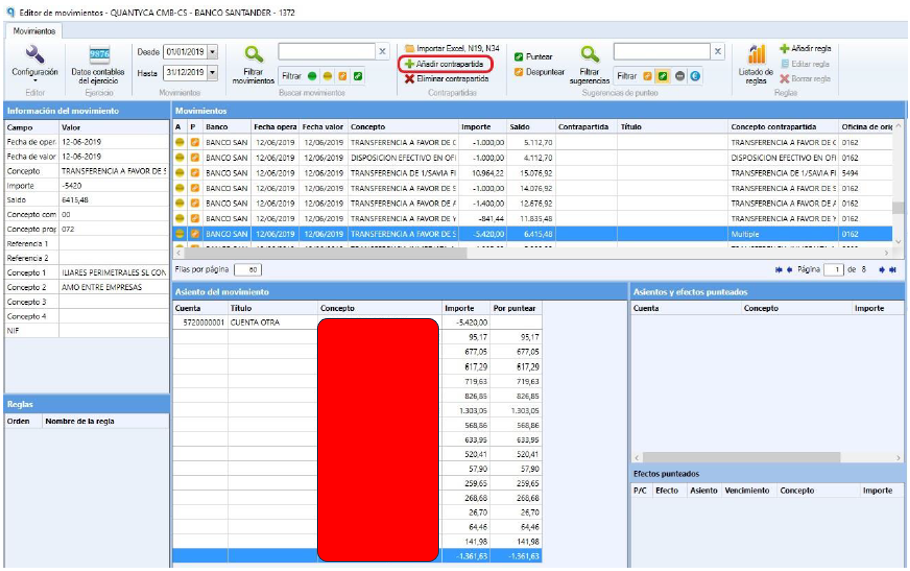
Option 2. The document is correct, but contra accounts are missing
If the file is correct but the breakdown does not reach the total amount of the bank transaction because contra accounts are missing, you can complete the breakdown manually.
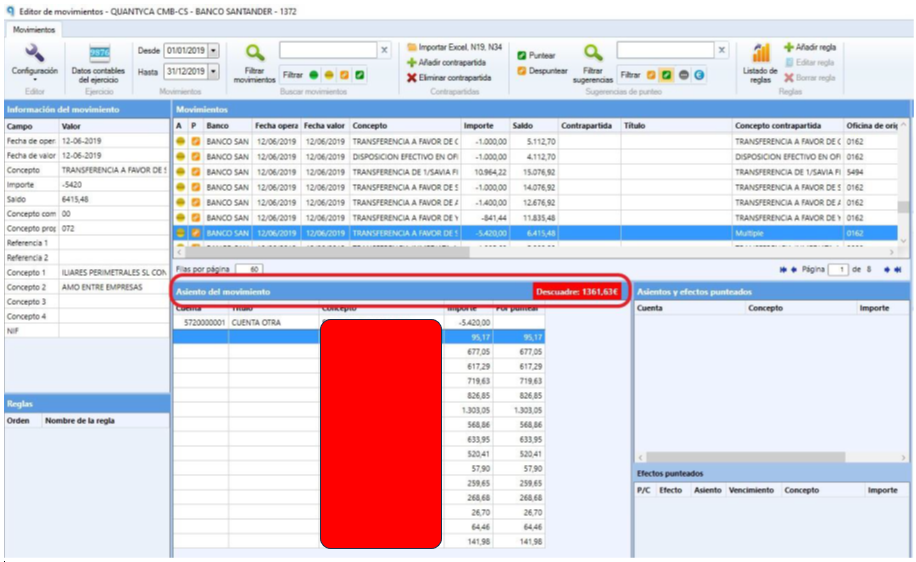
Add contra accounts manually
At the top of the editor, click Añadir contrapartidas (Add contra accounts) to complete the breakdown and adjust the total amount of the transaction.