
Updated on 18 September 2026
How do I issue invoices in CENTRAL eFACTURA?
Send the delivery note to your customer and turn it into an e-invoice once they approve it.
Once the creation of a delivery note is complete, you can start issuing invoices electronically with the Central eFactura module.
Issued invoices cannot be modified once generated; they can only be corrected with a credit note (rectificativa).
Send the delivery note to the customer
- Open Central eFactura and choose Facturador (Invoicing tool).
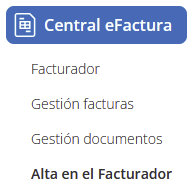
- Select the Empresa (Company) and Ejercicio (Fiscal year).

- Go to the Albaranes (Delivery notes) tab.
- Click the email icon to send the delivery note to the customer.

- The system will automatically generate an email using the configured template.
- The customer will receive the email with the delivery note attached as a PDF.
Invoice the delivery note once the customer approves it
- In the Albaranes list, select the delivery note to invoice.
- Click the three dots on the right.

- A drop-down menu will open:
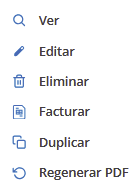
- — Ver (View)
- — Editar (Edit)
- — Eliminar (Delete)
- — Facturar (Invoice)
- — Duplicar (Duplicate)
- — Regenerar PDF (Regenerate PDF)
- — Confirm the delivery note to invoice.
- We will choose the Facturar option.
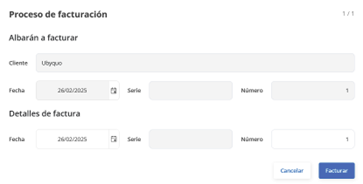
- — Choose the invoice date.
- — Set the invoice number (the system will suggest the next sequential number).
- Click Facturar.
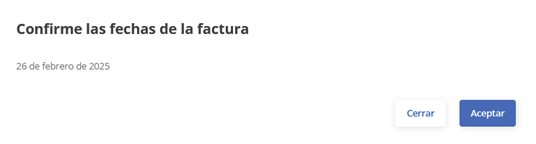
- Accept.
View the issued invoice
- Go to the Facturas Emitidas (Issued Invoices) tab.
- The invoice will appear in the list and you can download the PDF by clicking the corresponding icon.

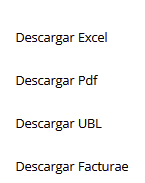
- To send it to the customer, click the email icon, just as with the delivery note.

Credit notes in case of a dispute
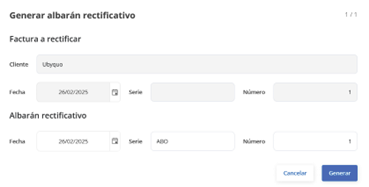
- If the customer opens a dispute, you can generate a credit note (factura rectificativa).
- On the issued invoice, click the three dots and choose Rectificativa from the drop-down menu.

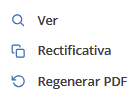
- The system will generate a new delivery note which, when invoiced, will automatically create the credit note.
Important: If your accounting firm works with Ubyquo, you do not need to send the invoices manually, since they are received and processed automatically through the platform.