
Updated on 18 September 2026
How do I create items in CENTRAL eFACTURA?
Create Central eFactura items one by one or export them in bulk with the Sage connector.
To create items in the Central eFactura module, you can follow these steps, depending on whether you want to do it in bulk or one at a time.
Steps to create items in bulk (Sage)
- Open the company: Go into the company you want to upload the customers from, through the Documentos (Documents) or Facturas (Invoices) tab.
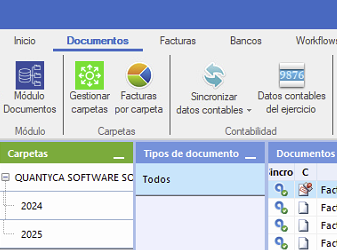
- Go to accounting data: At the top, select Datos contables del ejercicio (Accounting data for the fiscal year).

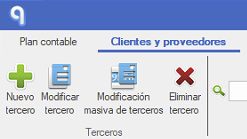
- Open the Cliente/Proveedores tab: Go to the Cliente/Proveedores (Customers/Suppliers) tab.
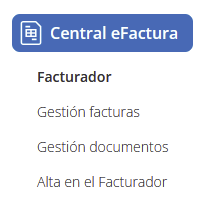
- Open Central eFactura and choose Facturador (Invoicing tool).
- Select the Empresa (Company) and Ejercicio (Fiscal year).

- Export to the invoicing tool: At the top of the tab, click the Exportar al facturador (Export to the invoicing tool) icon (Excel symbol). If you use the Sage connector, any existing items will be exported too.

- Save the Excel file: Once exported, save the Excel file on your device.
- Open the invoicing tool: Select the corresponding company.
- Import the customers:
- — In the invoicing tool, go to the Articulos (Items) tab.
- — On the right-hand side, select Importar (Import).

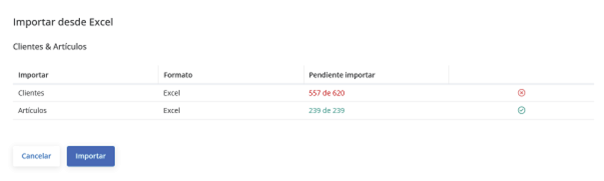
- Confirm the import: A summary of the customers to be imported will be displayed. If everything is correct, you can click Importar to load the customers in bulk.
Steps to create items one at a time
- Open Central eFactura and choose Facturador (Invoicing tool).
- Select the Empresa (Company) and Ejercicio (Fiscal year).
- Open the Artículos (Items) tab.

- Click Nuevo Artículo (New Item): Click the Nuevo Artículo button to start creating the item.
- Fill in the following fields:
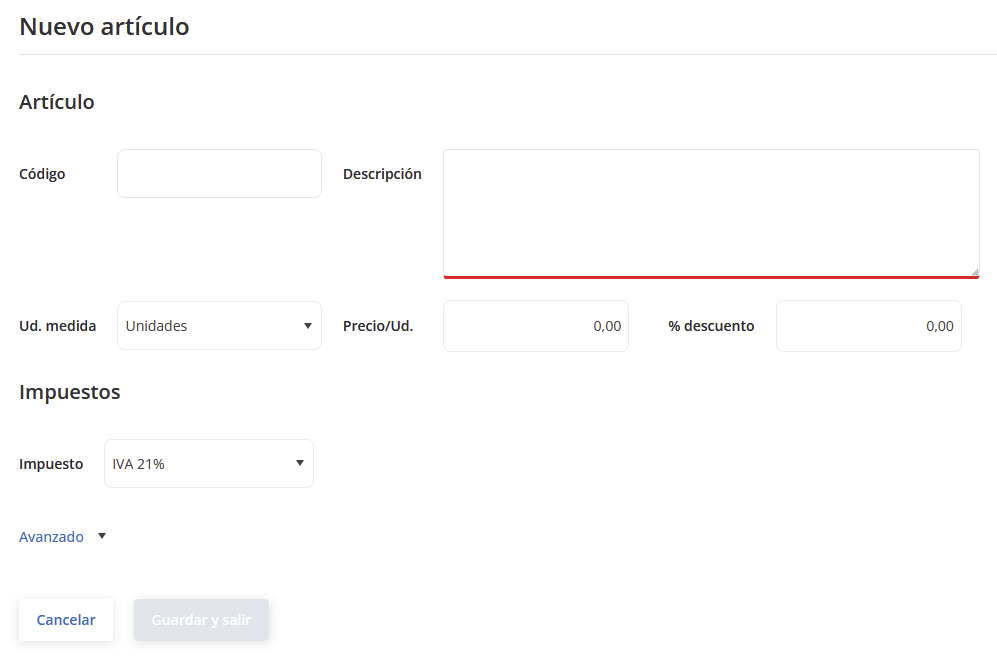
- — Código (Code, optional): Unique identifier of the item.
- — Descripción (Description): Name or description of the item.
- — Unidad de medida (Unit of measure): Define whether it is sold by unit, weight, volume, etc.
- — Precio unitario (Unit price): Base price of the item.
- — Descuento aplicado (Discount applied, if applicable): Indicate whether it has a predefined discount.
- — Tipo de IVA aplicable (Applicable VAT type): Select the tax type that applies.
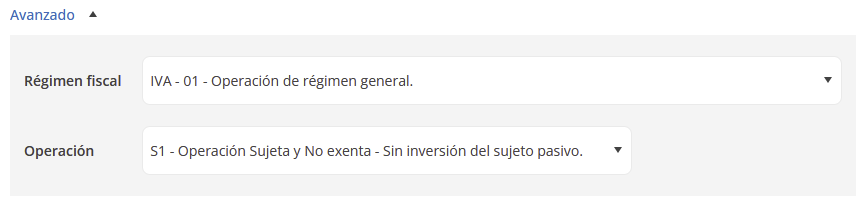
- — Avanzado (Advanced): Additional settings if needed.
- — Régimen fiscal (Tax regime): Assign the item's tax regime.
- — Operación (Operation): Specify the associated operation type.
- Save: Once the information is complete, click Guardar (Save) to finish creating the item.

Steps to create items with a template - — Open Central eFactura and choose Facturador (Invoicing tool).
- — Select the Empresa (Company) and Ejercicio (Fiscal year):
- — From the Artículos (Items) tab of the invoicing tool, download the Excel template.
- — Fill in the template with the item data.
- — Upload the template to the invoicing tool, which will create the items automatically.