
Updated on October 9, 2026
How do I create items in CENTRAL eFACTURA?
Create your items one by one, with an Excel template or in bulk from Sage.
Before you start
The company must be activated in Central eFactura.
Three ways
One item at a time, with the Excel template or, if you use Sage, in bulk from Ubyquo.
Option 1 Create items one by one
- 1
Open the invoicing tool
In Central eFactura › Facturador, choose the company and the fiscal year.

- 2
Click «Nuevo artículo»
In the Artículos (Items) tab, click
 Nuevo artículo (New item).

- 3
Fill in the details Required
Complete the item record:
Code (optional)DescriptionUnit of measureUnit priceDiscount (if any)VAT rate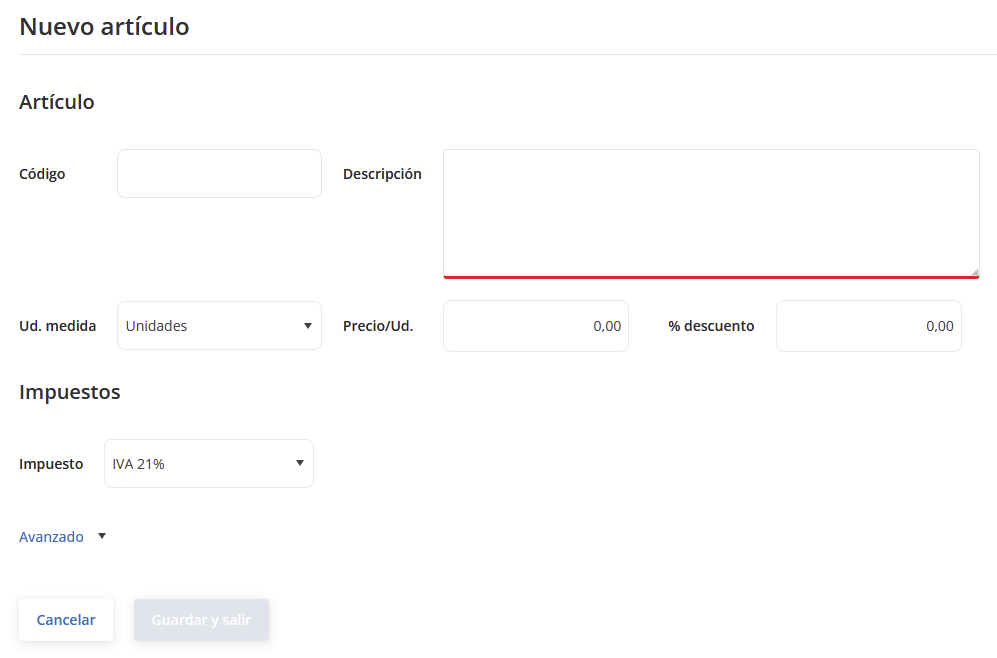
- 4
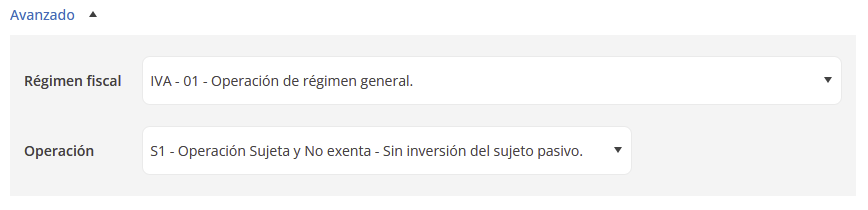
Tax regime and type of transaction Optional
In Avanzado (Advanced) you can set the tax regime and the type of transaction.
- 5
Save
Click Guardar (Save) or Guardar y crear otro (Save and create another).

Option 2 With the Excel template
- 1
Open the invoicing tool
In Central eFactura › Facturador, choose the company and the fiscal year.
- 2
Download the template
In the Artículos tab, download the Excel template.
- 3
Fill it in
Enter one item per row.
- 4
Upload it to the invoicing tool
In the Artículos tab, click Importar (Import)
 and choose the template: the items are created automatically.
Option 3 In bulk from Ubyquo (Sage)
- 1
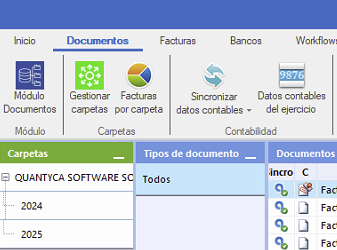
Open the company's accounting data
In Ubyquo, open the company from Documentos (Documents) or Facturas (Invoices) and, at the top, choose Datos contables del ejercicio (Fiscal year accounting data)
 .
- 2
Export to the invoicing tool
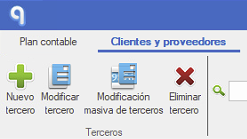
In the Cliente/Proveedores (Customer/Suppliers) tab, click Exportar al facturador (Export to invoicing tool)
 and save the Excel file. With the Sage connector, both customers and items are exported.
- 3
Import it into the invoicing tool
In Central eFactura › Facturador, choose the company and, in the Artículos tab, click Importar
and choose the file. - 4
Confirm the import
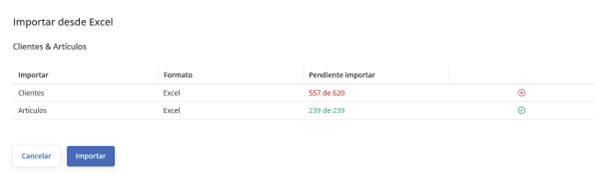
Review the item summary and click Importar.
Done! You can now use your items in your delivery notes.