
Updated on October 9, 2026
How do I create delivery notes in CENTRAL eFACTURA?
Prepare delivery notes you can edit until you invoice them, since an issued invoice cannot be changed.
- 1
Open the invoicing tool
In Central eFactura › Facturador, choose the company and the fiscal year.

- 2
Create the delivery note
In the Albaranes (Delivery notes) tab, click Nuevo albarán (New delivery note) and choose Estándar (Standard) or Simplificado (Simplified).

- 3
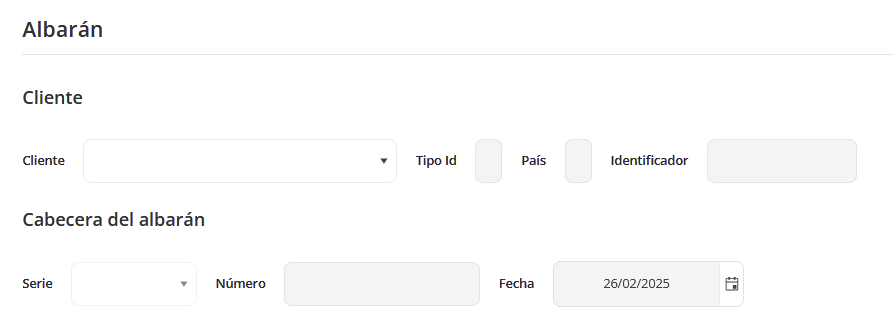
Choose the customer Required
Select the customer from the drop-down list and their details are filled in automatically. The series is optional and the date is today's unless you change it.
- 4
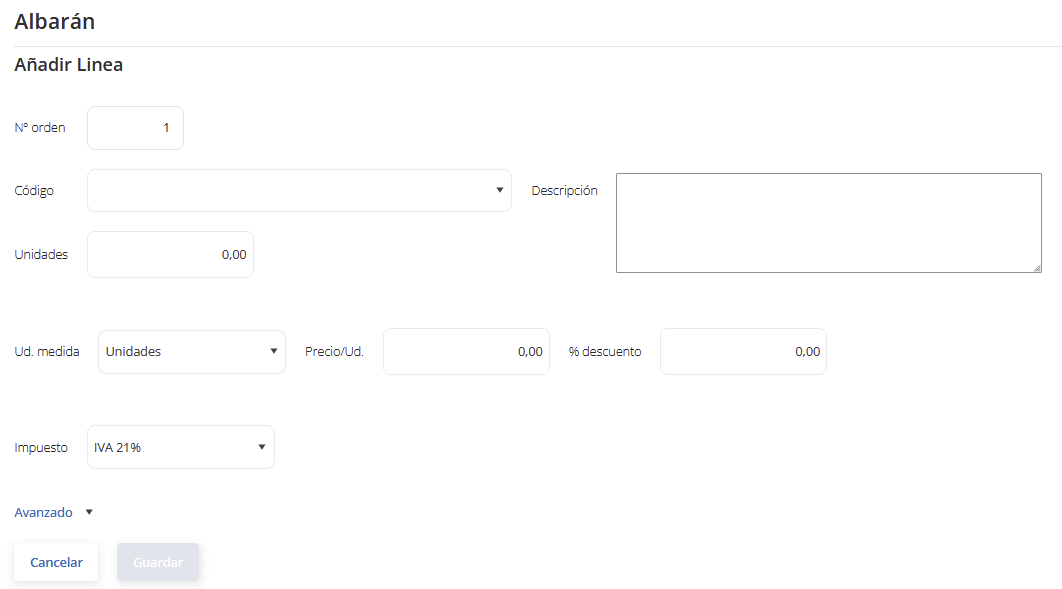
Add the lines Required
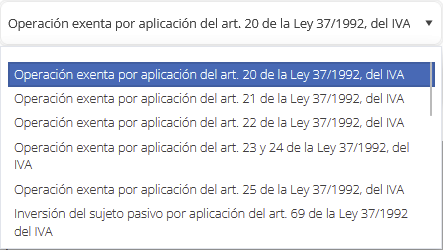
Click Añadir (Add) for each item, fill in the line and click Guardar (Save):
ItemQuantityDiscount %VAT rateAdvanced: tax regime and transaction
- 5
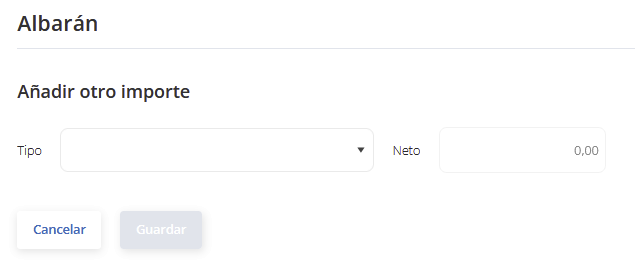
Other amounts Optional
Add extra charges by choosing the type of amount.

- 6
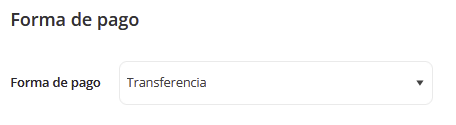
Payment method
By default it is the one set up for the company; you can change it.
- 7
Additional information Optional
Choose the legal text template and, if you like, add a comment or a reference:
Legal textCommentReference no.
- 8
Review and save
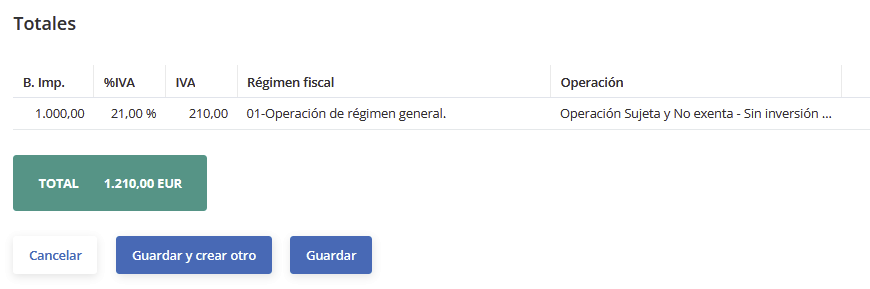
Check the breakdown (amounts with and without withholding are shown separately) and click Guardar or Guardar y crear otro (Save and create another).
Check the delivery note
It appears in the Albaranes list. To view it as a PDF, select it and click
 .
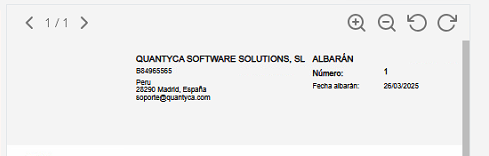
Until you invoice it, you can edit the delivery note. When it is ready, issue the invoice.