
Updated on September 18, 2026
How do I create delivery notes in CENTRAL eFACTURA?
Prepare delivery notes that you can modify until you invoice them, since an issued invoice cannot be changed.
Since the Anti-Fraud Law does not allow invoices to be modified once issued, we will work with delivery notes first. As long as the delivery note has not been invoiced, it can be modified.
- Open Central eFactura and choose Facturador (Invoicing tool).
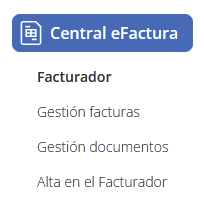
- Select the Empresa (Company) and Ejercicio (Fiscal year).

- — Within the eFactura section, choose the company and the corresponding fiscal year.
- — Make sure the customers and items have been created before generating a delivery note.
- — Create Customers and Create Items.
- Open the Albaranes (Delivery notes) tab.

- — Go to the Albaranes tab in the invoicing tool.
- — Click Nuevo albarán (New delivery note).
- — Choose Estandar (Standard) or Simplificado (Simplified).
- Fill in the delivery note information.
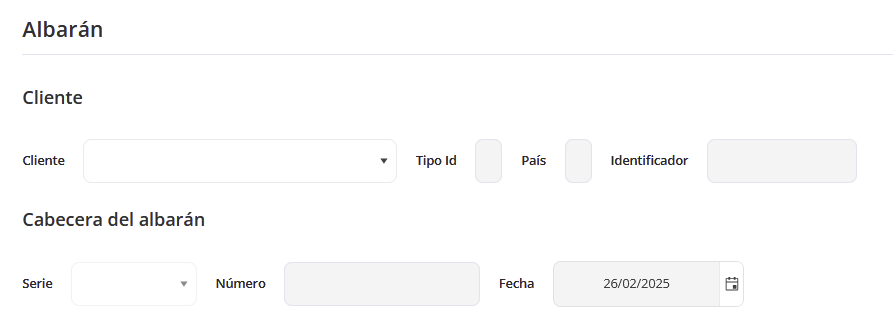
- — Select a customer from the drop-down list (their information will be filled in automatically).
- — Series and creation date (the series is optional and the date defaults to today).
- Add item lines.

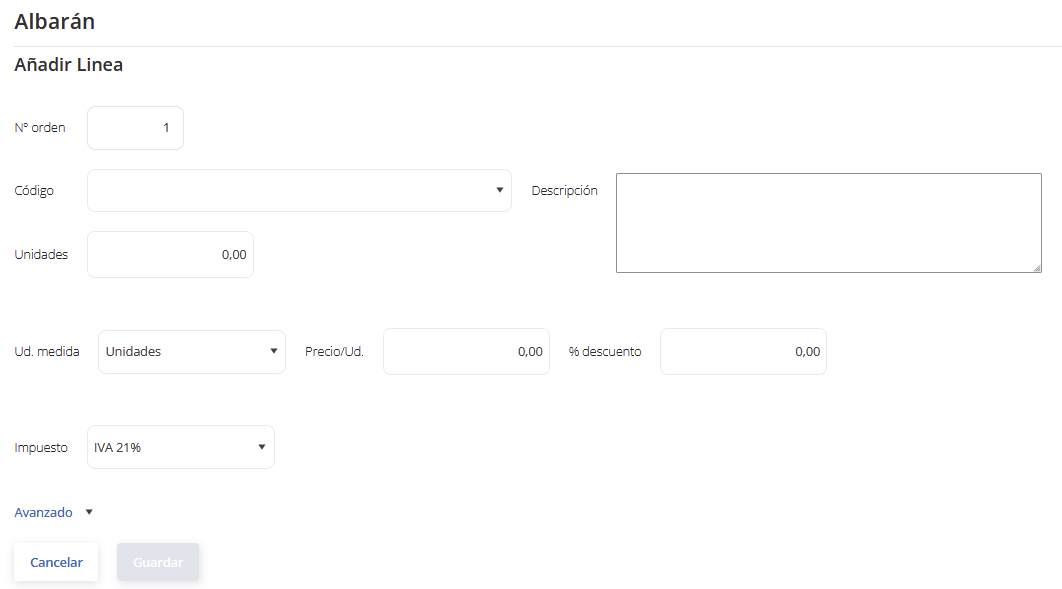
- — Click the “Añadir” (Add) button to include items in the delivery note.
- — Select the item from the drop-down list.
- — Enter the number of units.
- — Enter discount % if necessary.
- — Specify the VAT type.
- — Avanzado (Advanced).
- — Régimen fiscal (Tax regime).
- — Operación (Operation)
- — Click “Guardar” (Save)
- — Repeat this process to add more items.
- Otros importes (Other amounts) (optional)

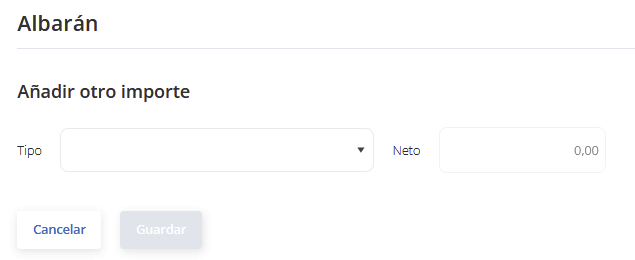
- — In the “Otros importes” section, you can add additional charges.
- — Select the amount type and configure it as needed.
- Forma de pago (Payment method).
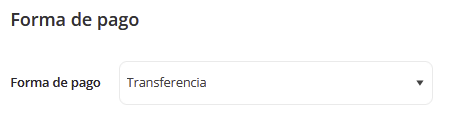
- — Add the payment method: by default, the one configured in the company.
- Información adicional (Additional information).

- — Texto legal (Legal text): Choose the appropriate template.
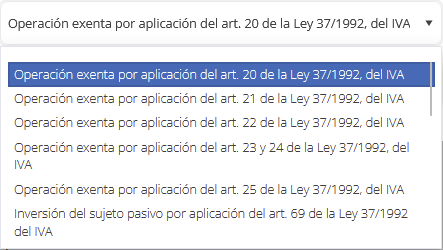
- — Comentario (Comment): Optionally, we can add a comment.
- — Nº Referencia (Reference no.): Optionally, we can add a reference.
- Review and breakdown of the delivery note
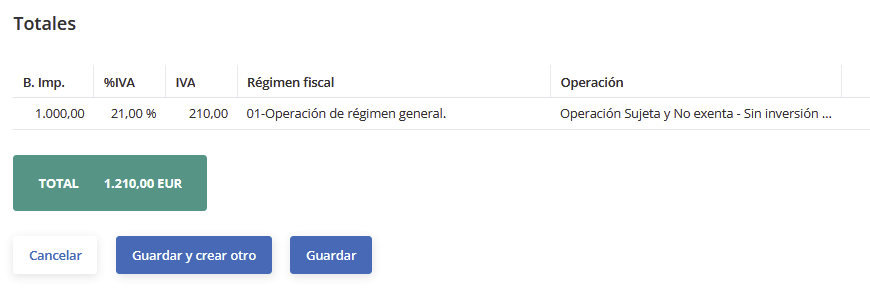
- — A full breakdown of the delivery note will be displayed, separating the amounts with and without withholding.
- Save the delivery note
- — Click “Guardar” to go back to the list of delivery notes.
- — Click “Guardar y crear otro” (Save and create another) to generate a new delivery note right away.
- Verification.

- — When you return to the Albaranes window, you will see the newly created delivery note with all its information.
- — To view the delivery note in PDF format, select the delivery note and click the icon
 to open it.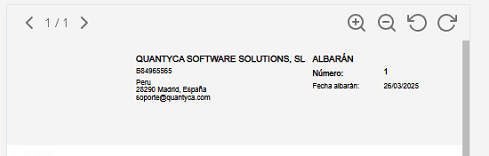
As long as the delivery note has not been invoiced, it can be modified.