
Updated on October 9, 2026
How do I issue invoices in CENTRAL eFACTURA?
Send the delivery note to your customer and turn it into an e-invoice once they approve it.
Before you start
You need a delivery note already created.
Important
An issued invoice cannot be changed; it can only be corrected.
If your accounting firm uses Ubyquo
It receives your invoices automatically: you don't need to send them.
Part 1 Send the delivery note to the customer
- 1
Open the invoicing tool
In Central eFactura › Facturador, choose the company and the fiscal year.

- 2
Send the delivery note
In the Albaranes (Delivery notes) tab, click
 on the delivery note. An email is sent using the configured template, with the delivery note attached as a PDF.
Part 2 Invoice the delivery note once the customer approves it
- 3
Choose «Facturar»
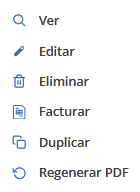
In the Albaranes list, click the three dots
 on the delivery note and choose Facturar (Invoice).
- 4
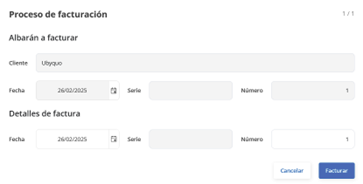
Invoice date and number
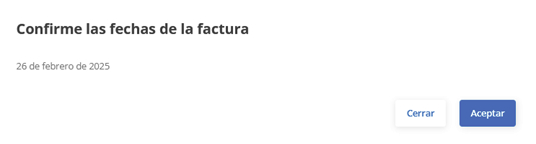
Choose the date and check the number: the system suggests the next one. Click Facturar and confirm.
Part 3 View and send the invoice
- 5
Download or send the invoice
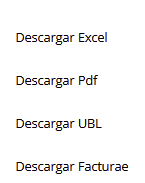
In Facturas emitidas (Issued invoices), download the PDF with
 or send it to the customer with
 .
If the customer disagrees Corrective invoice
- 6
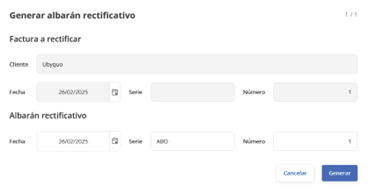
Create a corrective invoice
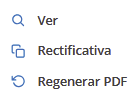
On the issued invoice, click the three dots
 and choose Rectificativa (Corrective). A new delivery note is created and, when you invoice it, the corrective invoice is issued.
More details in the video Corrective invoices.
Done! The invoice has been issued.