
Updated on 24 September 2026
How to configure purchase and sales due dates
Define how receivables and payables are generated, either from Ubyquo or from the Sage settings.
The purchase and sales due dates configuration determines how receivables and payables are generated in Ubyquo.
The configuration can be set at company level or at customer/supplier level, depending on your needs and on the setup of the ERP or accounting software you use.
Configuration options
There are two options for generating due dates:
- Generate in Ubyquo: lets you select the payment method and the type of receivable/payable in Ubyquo.
- Generate from ERP (Sage only): uses the settings established in Sage, with no need to select the payment method or the type of receivable/payable manually in Ubyquo.
The configuration can be set at the level of:
- Company
- Customer/Supplier
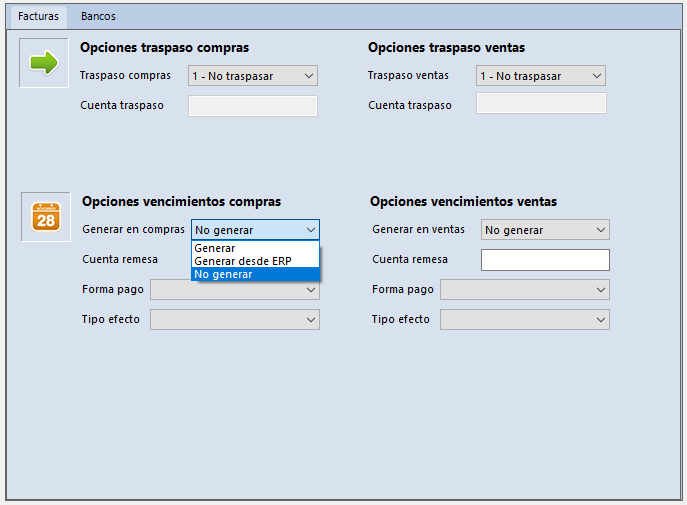
Company-level configuration
- In the Facturas (Invoices) tab, go to: Configuración de Facturas > Configuración Empresas (Invoice settings > Company settings)

- Select the corresponding option:
- — Generar: (Generate) lets you configure the payment method and the type of receivable/payable.
- — Generar desde ERP: (Generate from ERP) uses the Sage settings to generate the due dates.
Customer/supplier-level configuration
The configuration can also be set individually for each customer or supplier account.
- In the Facturas tab, go to: Datos contables del ejercicio > Plan contable (Fiscal year accounting data > Chart of accounts)
- From this section you can use:
- — Modificar cuenta: (Edit account) to edit a single account.
- — Modificación masiva de cuentas: (Bulk account edit) to apply the configuration to several accounts.
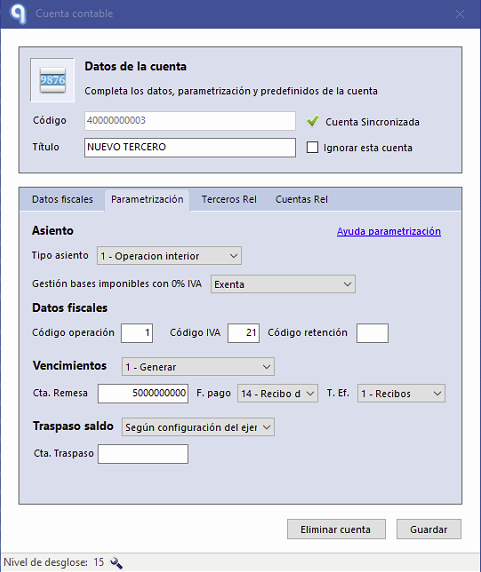
Editing a single account
Select Modificar cuenta to configure the due dates of a specific customer or supplier.
In the form, select:
- Generar: to add the payment method and the type of receivable/payable.
- Generar desde ERP: to use the settings established in Sage.
Bulk account edit
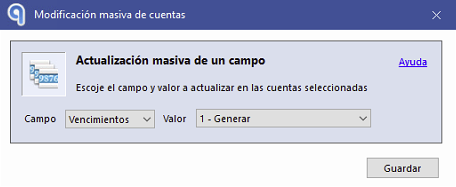
To apply the configuration to several accounts:
- Go to Modificación masiva de cuentas.
- In the form, select:
- — Campo: (Field) Vencimientos (Due dates)
- — Valor: (Value) Generar or Generar desde ERP
Configuration from the Invoice Editor
You can also change the due date configuration directly from the Editor de Facturas (Invoice Editor).
At the top of the editor, select Editar cuenta (Edit account).
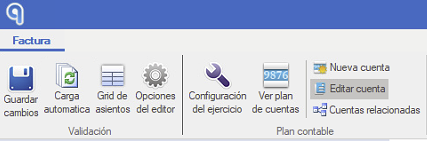
From this option you can open the settings of the account associated with the invoice.
Prior configuration in Sage
When you use the Generar desde ERP option, you must first check that the corresponding settings are correctly established in Sage.
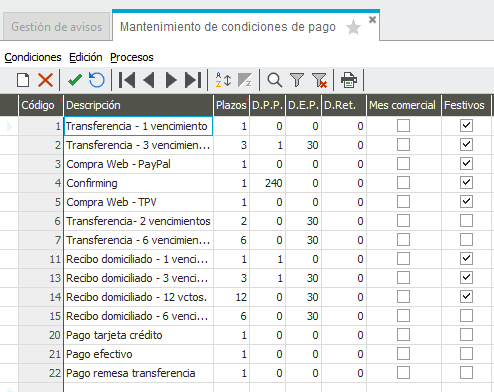
Payment terms
Check that the payment terms are correctly configured in Sage.
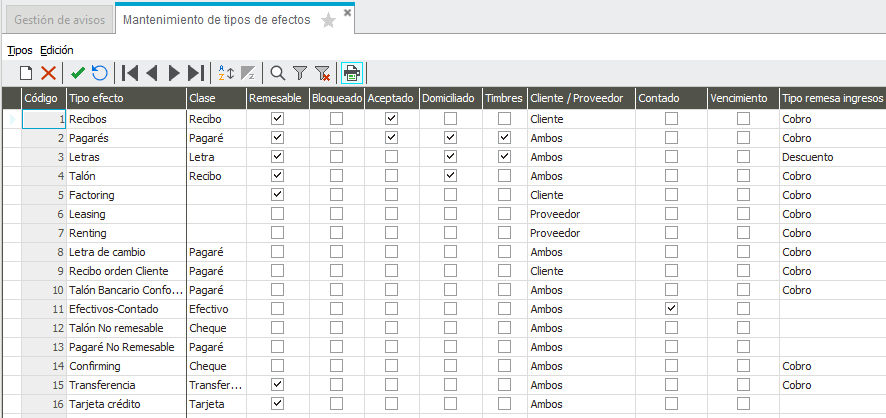
Type of receivable/payable
Check that the necessary types of receivable/payable are available in Sage.
Synchronization with Ubyquo
Once the information is configured in Sage, run a full synchronization in Ubyquo to update the data.
Verification in Ubyquo
Check that the payment methods and the types of receivable/payable are available in the corresponding drop-down lists in Ubyquo.
Comment on receivables and payables
The comment associated with the due item cannot be edited manually.
Ubyquo generates the comment using:
- Invoice number
- Customer or supplier
Receivables
The format used is:
Cobro: [C#1] N/Fra "Número factura" "Cliente"

Payables
The format used is:
Pago: [P#1] S/Fra "Número factura" "Proveedor"
