
Updated on 24 September 2026
The image viewer does not show the image in A3
Fix the viewer by checking the connected companies, the credentials and the error logs.
If the invoice image does not appear when you open the Ubyquo document viewer from A3ECO/A3CON, you need to check the company setup, the access credentials and the viewer's error logs.
Follow these steps to identify and solve the problem.
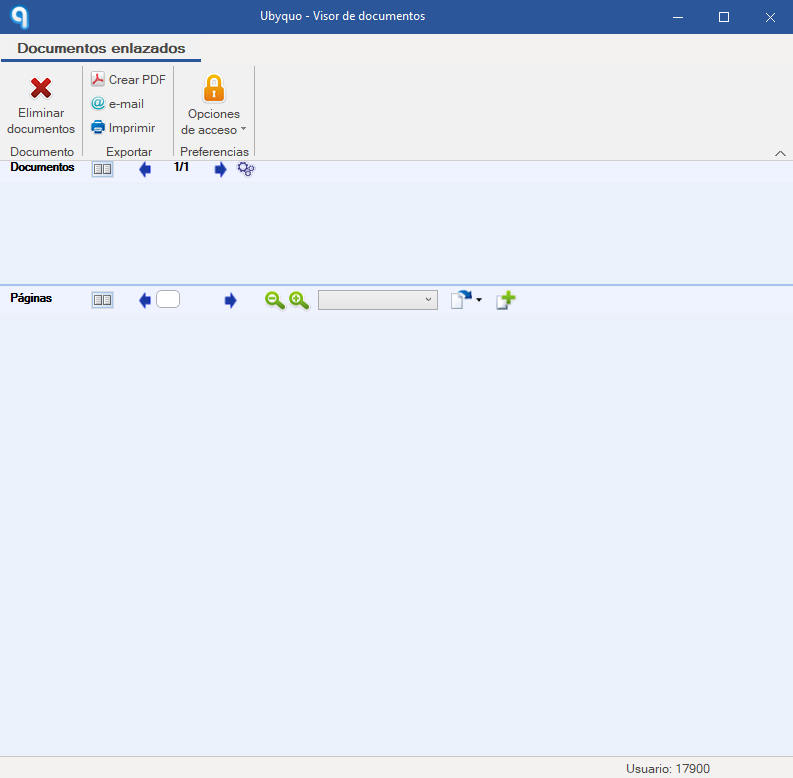
Step 1: Check the company connections
Check that the companies and fiscal years are correctly connected in Ubyquo.
- Open Ubyquo.
- Go to Gestionar carpetas (Manage folders).
- Review the connected companies and fiscal years.
Important: No two fiscal years may be connected to the same data path.
Check for duplicate paths
- Use the ruta de datos (data path) filter to find possible duplicates.
- Check whether two fiscal years are connected to the same path.
- If you find a conflict, fix the setup so that each fiscal year has its own path assigned.
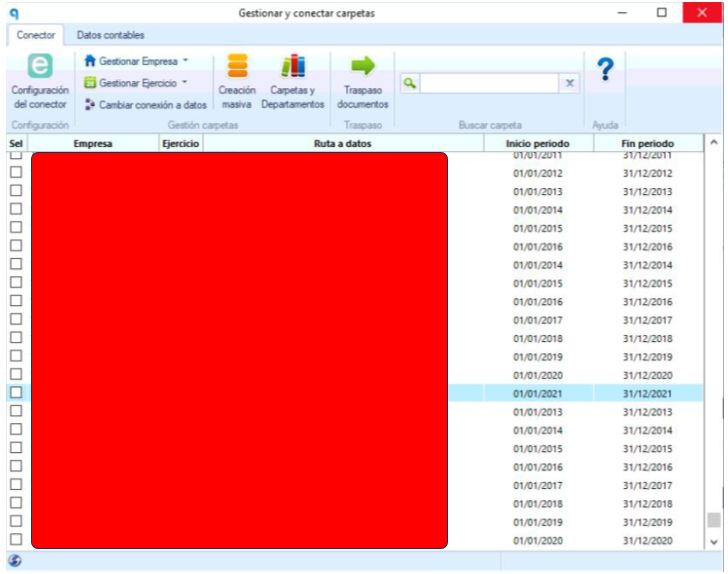
Once you have reviewed the connections, check again whether the viewer now shows the image correctly.
Step 2: Delete the viewer's saved credentials
If the connection paths are correct, check whether the problem is related to the saved credentials.
Renew the access credentials
- From A3ECO/A3CON, press F11 to open the Ubyquo viewer, even if the image is not displayed.
- In the login window, select Opciones de acceso (Access options).
- Turn off the options:
- — Recordar usuario (Remember user)
- — Recordar contraseña (Remember password)
- Close the viewer.
- Open it again with F11.
- Enter your Ubyquo user and password manually.
This process lets you authenticate again without using the credentials saved earlier.
Step 3: Review the error logs in YALV
If the viewer still does not show the image, you can check the error logs with the YALV.exe tool.
Open the YALV tool
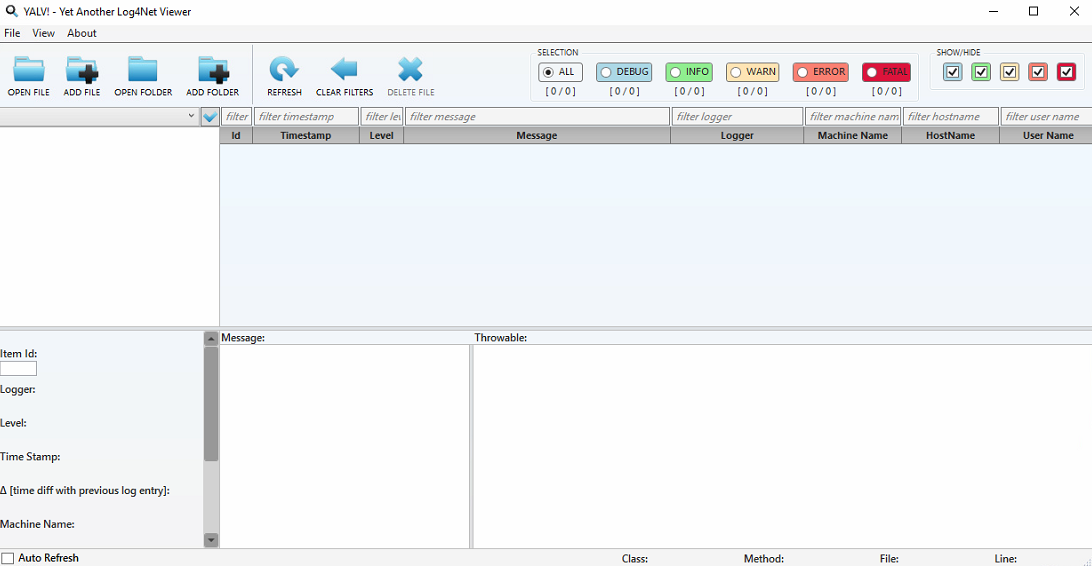
- Go to the customer installation folder:
\\Quantyca\Ubyquo\InstalacionCliente - Find and open the file YALV.exe, used to view the error logs.
Find the log file
- Inside YALV, browse to the temp folder.
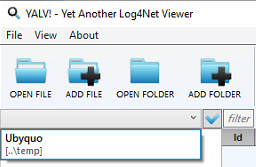
- Look for the log file named:
Quantyca_Ubyquo_ErpViewer
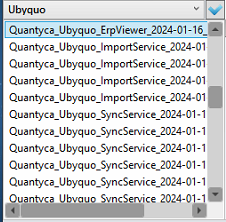
- Open the file and check whether it contains messages related to:
- — Connection errors.
- — Invalid access paths.
- — File access problems.
- — Insufficient permissions.
The information in the log can help you identify why the viewer cannot display the document image.
Checklist
Before considering the issue resolved, make sure that:
- Each fiscal year has the correct data path assigned.
- No two fiscal years are connected to the same path.
- The viewer's credentials have been renewed.
- The
Quantyca_Ubyquo_ErpViewererror logs have been reviewed if the problem persists.