
Updated on 23 September 2026
Exporting invoices to A3 with SUENLACE
Send invoices to A3ECO/A3CON and check from Ubyquo whether the journal entries have already been imported.
Exporting through SUENLACE lets you send posted invoices from Ubyquo to A3ECO/A3CON and then check from Ubyquo whether A3 has already imported the journal entries.
Once the invoice is posted in A3, you can also open the digital image of the document stored in Ubyquo from the journal entry.
Step 1: Export the invoices from Ubyquo
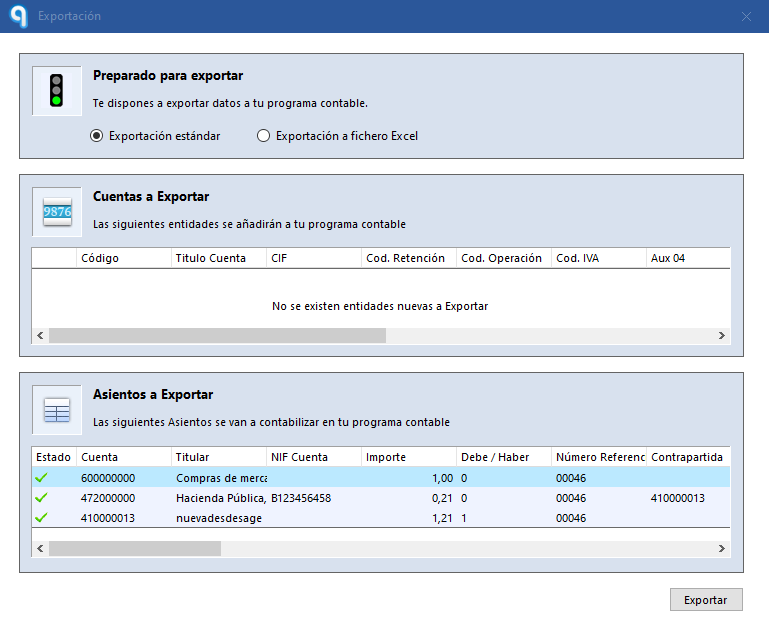
- In Ubyquo Invoices, run the export of the invoices using the accounting export module.
- Once the export is done, the invoices will automatically move from the Por contabilizar (To be posted) folder to Exportados (Exported).
- A question mark icon (?) will appear next to each exported invoice.
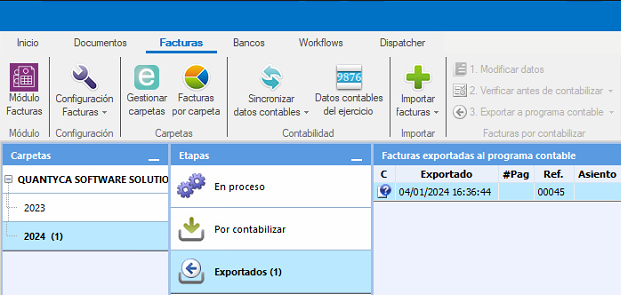
The ? icon means the invoice has been exported from Ubyquo, but it has not yet been confirmed that it was imported into A3.
Step 2: Import the SUENLACE file into A3
Once the file is generated from Ubyquo, you need to bring it into A3 using the Enlace Contable (Accounting Link) module.
- Open A3ECO/A3CON.
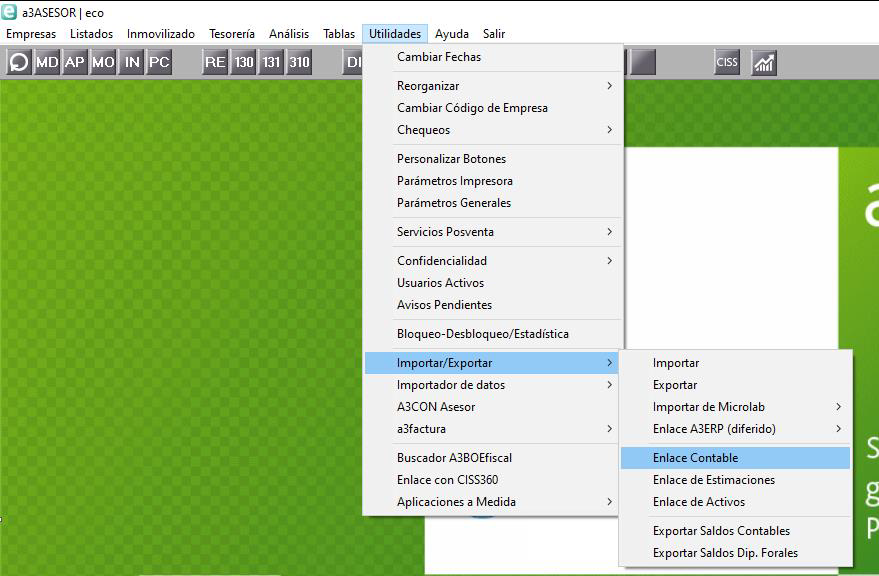
- Go to:
Utilidades > Importar/Exportar > Enlace Contable (Utilities > Import/Export > Accounting Link)
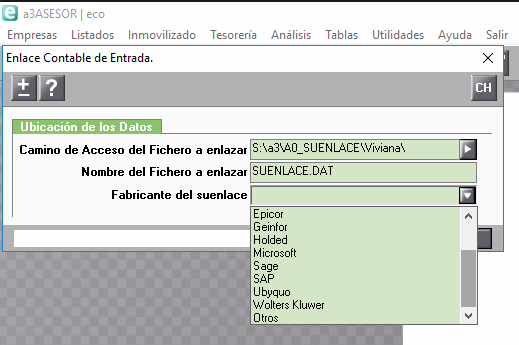
- In the Enlace Contable window, select the path where the
SUENLACE.DATfile is located.
For example:
A0_Suenlace
The path may vary depending on the settings used for the export from Ubyquo.
- Check that the file is named:
SUENLACE.DAT
- Under Fabricante (Manufacturer), select:
Ubyquo
- Use the corresponding option to import the journal entries and the new accounts.
A3 will import the journal entries contained in the SUENLACE file.
Step 3: Check from Ubyquo whether the invoices are already posted
After importing the file into A3, you can check from Ubyquo whether the invoices have been posted.
- Go to Ubyquo Invoices.
- Open the Exportados folder.
- Select:
Comprobar Facturas Pendientes > Comprobar Pendientes este ejercicio (Check Pending Invoices > Check Pending for this fiscal year)
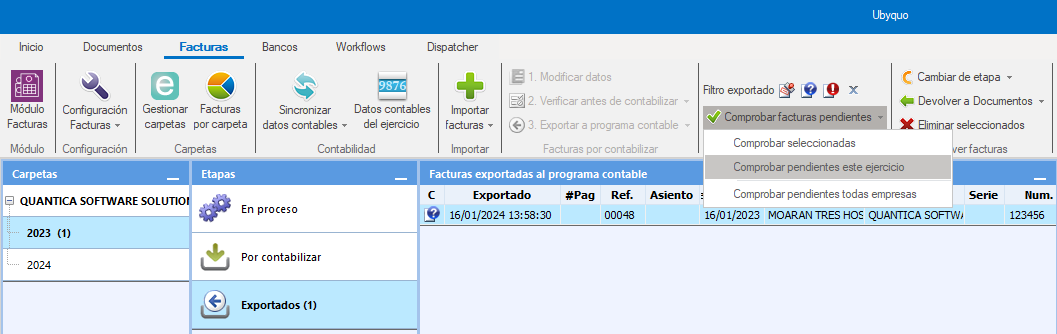
Ubyquo will query the information in A3 to check whether the exported invoices have already been posted.
Result of the check
If Ubyquo finds the corresponding journal entry in A3:
- The ? icon will change to the posted stamp.
- The journal entry number assigned by A3 will be shown.
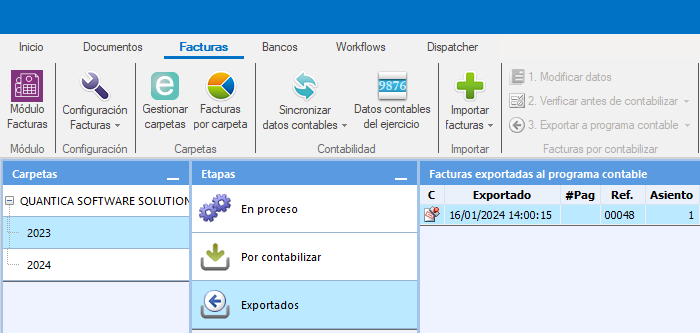
This way you can verify from Ubyquo which invoices have been correctly imported into A3.
Step 4: View the invoice from A3
Once the invoice is posted, you can open its document from the journal entry in A3.
- In A3, go to the corresponding journal entry.
- Press F11 to open the invoice viewer.
- Enter your Ubyquo Invoices user and password.
- The digital image of the document linked to the invoice will be shown.
Remembering your credentials
So you don't have to enter your credentials every time you open the viewer, you can turn on these options:
- Recordar usuario (Remember user)
- Recordar contraseña (Remember password)
Once this is set up, you will be able to open the invoice images from A3 with F11.